
Home
Account setting
Staff
Lists
Forms
Templates (HTML emails/SMS messages)
Sending messages by SMS and email
Classes, events, attendance and Zoom
Automation
Create a birthday invitation and automation
Communication
Microsite
E-Commerce
Networks, Federations and Franchises
How to guides
Personal information and electronic message laws in Canada and the USA
Get support
Terms and conditions
RL-24
https://activitymessenger.com/
10410 Waverly, Montréal, H3L 2W4
Terms and conditions

Reuse and synchronize sections
Save a frequently used design to My sections so it can be inserted on other pages. Choose whether each use should be an independent copy or remain synchronized with one shared section.
# Decide between a copy and synchronization
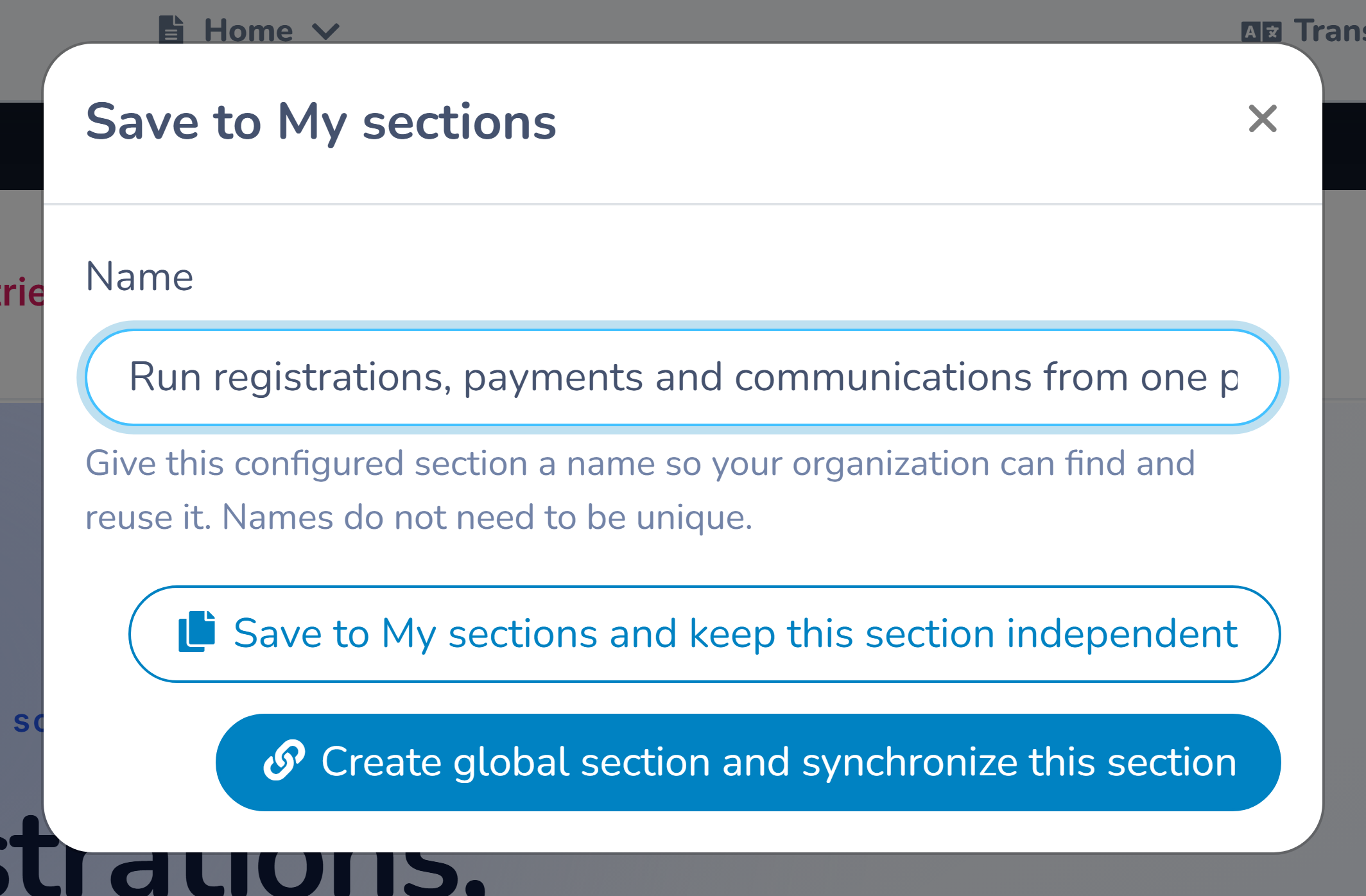
When you select Save to My sections, choose the behaviour that matches future maintenance.
Save a reusable copy
This saves the design in My sections, but the section currently on the page remains independent. When the saved design is inserted later, use it as a starting point that can be changed for the new page without updating the original.
Use an independent copy for:
- page layouts that share a starting structure but need different content;
- campaign sections that will diverge over time; or
- designs that should not change after their page is approved.
Create and synchronize a global section
This saves the section and connects the current placement to its shared definition. Other synchronized placements inserted from My sections use the same content and design.
When one connected placement is edited and saved, every connected placement is updated across the website's pages.
Use synchronization for:
- a common registration call to action;
- an organization-wide alert or deadline;
- a sponsor or partner strip;
- a standard contact section; or
- shared policy or accessibility information.
Do not synchronize a section if the page will require its own dates, links, audience, or legal wording.
# Save a section to My sections
- Select the section on the page.
- Open its actions and select Save to My sections.
- Enter a clear name.
- Choose an independent reusable copy or a synchronized global section.
- Confirm the save.
Names do not have to be unique. Use a convention such as Global — Registration CTA or Template — Program introduction so editors can distinguish the intended behaviour and owner.
# Insert a saved section
- Select a plus button where the section should appear.
- Open My sections in the section library.
- Review the section name and usage information.
- Insert the section.
- Check its links, surrounding content, and responsive layout on the destination page.
Some business blocks can appear only once on a page. If the saved section contains a booking, product, member-directory, or another constrained block already used by the destination, the builder can prevent the insertion. Choose a different page or remove the conflicting structure.
# Edit a synchronized section
Open any connected placement and edit it as you would a normal section. Before saving, remember that the change is global. Review:
- dates and audience-specific wording;
- page-relative links or anchor links;
- whether the design works against each page background; and
- English and French content.
Save the section only when the change is correct for every connected placement. Visit the other pages afterward to verify their context and responsive layout.
# Detach one placement
Detach a synchronized placement when that page needs to diverge:
- select the connected section;
- choose Detach in its actions;
- confirm the action; and
- edit and save the new local section.
Detaching preserves the content currently visible on that page. It breaks the connection, so later global changes no longer update that placement. Other synchronized placements remain connected.
Detaching is not temporary. If you later need synchronization again, remove the local section and insert the current saved section from My sections.
# Rename or delete a saved section
Open My sections to manage saved entries. You can rename an entry without changing the visible page content.
A saved section cannot be deleted while it is in use. Detach or remove every placement first, confirm the usage count has reached zero, and then delete the library entry. This prevents a shared section from disappearing from active pages unexpectedly.
# Handle simultaneous edits
Synchronized sections track their edit version. If another editor saves the shared section before you, the builder reports a conflict. Reload the latest shared section, review the other editor's change, and reapply only the work that is still needed.
For high-impact shared content, coordinate a single editor and verify every placement after saving.
# Understand page-history restoration
Restoring an older page version restores the reusable section's historical appearance as a local section on that page. It does not roll the shared definition or the other pages back.
This protects current synchronized placements from an old checkpoint. If the restored page should reconnect to the current shared version, remove the restored local copy and insert the saved section again.
# Example
An organization places a synchronized “Registration closes Friday” section on six program pages. Updating the deadline and button once updates all six placements. One invitation-only program has a different deadline, so its editor detaches that placement and changes the local copy. The other five remain synchronized.