
Home
Account setting
Staff
Lists
Forms
Templates (HTML emails/SMS messages)
Sending messages by SMS and email
Classes, events, attendance and Zoom
Automation
Create a birthday invitation and automation
Communication
Microsite
E-Commerce
Networks, Federations and Franchises
How to guides
Personal information and electronic message laws in Canada and the USA
Get support
Terms and conditions
RL-24
https://activitymessenger.com/
10410 Waverly, Montréal, H3L 2W4
Terms and conditions

Edit, preview, save, and publish a website
Use the Website builder to edit pages visually, preview responsive layouts, save changes by area, and publish only when a page is ready for visitors.
# Open the editor
- Open Website in the main navigation.
- Choose the website you want to edit, or select Manage websites and then Editor.
- If the website has not been configured, complete Set up your Website first.
You need website-editing permission to open the editor.
# Understand the editor
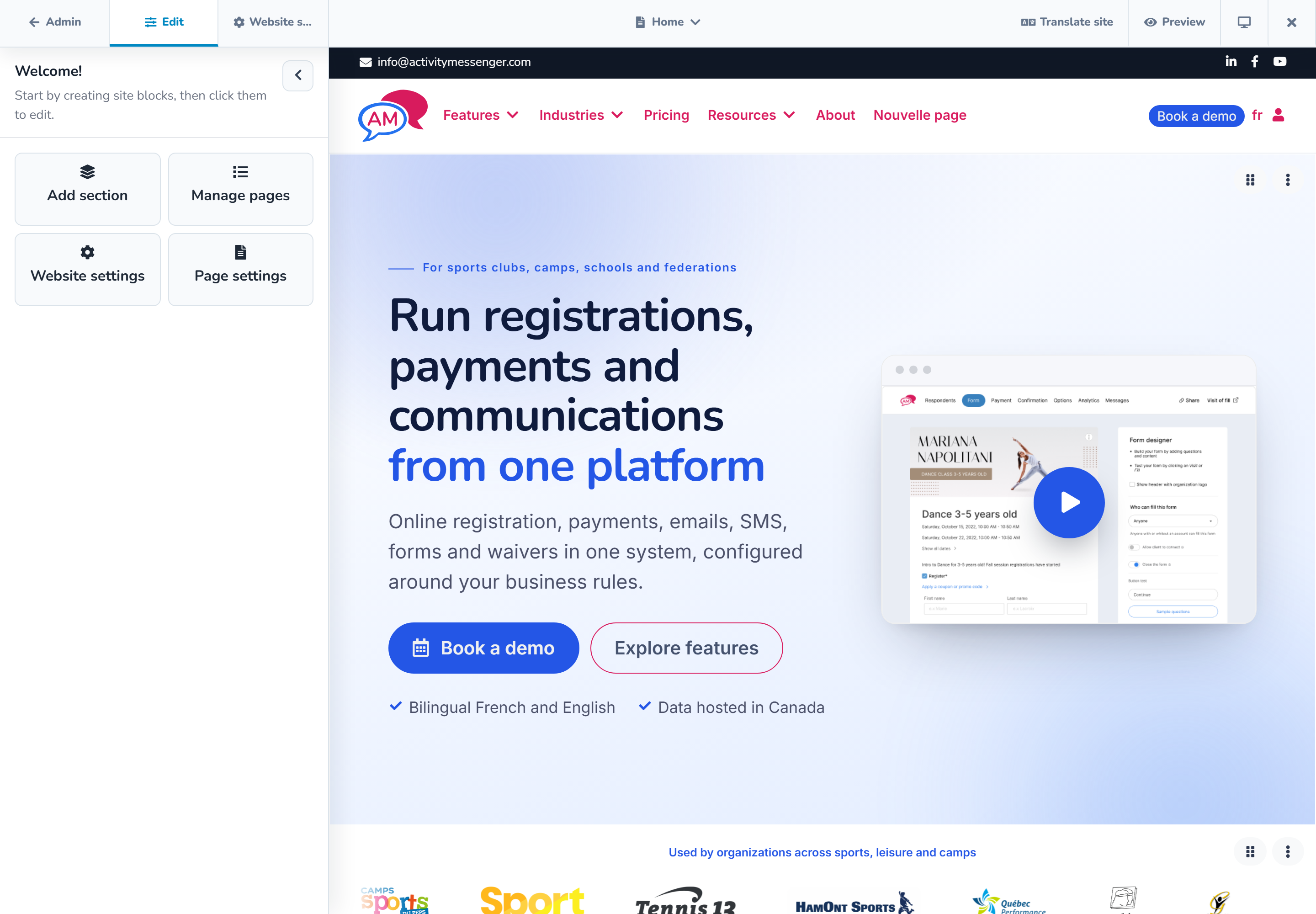
The top bar gives you access to:
- Admin, which returns to website administration;
- Edit, which opens the content inspector;
- Site settings, which opens global design and site controls;
- the page switcher and Manage pages;
- Translate site on bilingual websites;
- the Unsaved changes menu;
- Preview in a separate tab;
- desktop, tablet, and mobile preview modes; and
- Exit design mode.
The left inspector changes according to what you select. Click the empty canvas for page-level actions. Click a section to edit its content and design. Within supported templates, click text, images, items, or blocks to open the most specific editor.
Use the up arrow in the inspector to return from an item or block to its parent section.
# Add and arrange sections
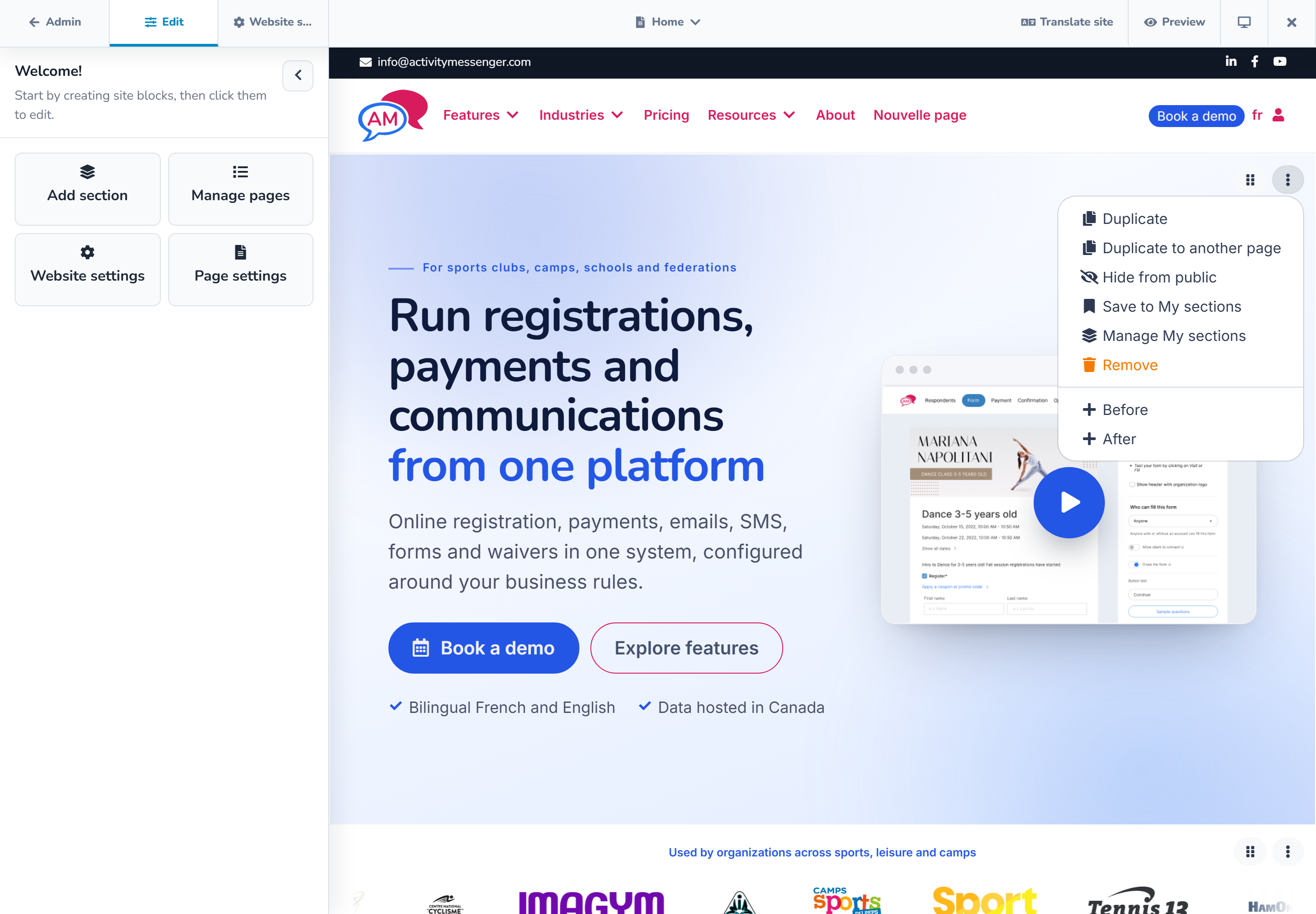
Select Add section on an empty page or use a plus button between existing sections. Choose a template, block, container, or saved section from the library.
For each section, you can:
- drag the handle to move it;
- duplicate it on the same page;
- duplicate it to another page;
- hide it from the public page without deleting it;
- save it to My sections;
- detach it from a synchronized saved section;
- remove it; or
- add another section before or after it.
A section hidden from public view remains visible in the editor with a badge. This is useful when preparing seasonal content.
# Edit content and design
After selecting a section, use the inspector to edit the fields supported by its template. Depending on the section, these may include:
- eyebrow, title, subtitle, and buttons;
- images, video, image alignment, alternative text, overlays, or captions;
- repeated items such as features, team members, FAQs, plans, or schedule entries;
- colors, backgrounds, borders, padding, content width, and corner radius;
- button and card styles; and
- section and card animations.
Use Save section after editing a section. Blocks inside containers have their own Save block action. Page and site settings also have separate save actions.
# Work with unsaved changes
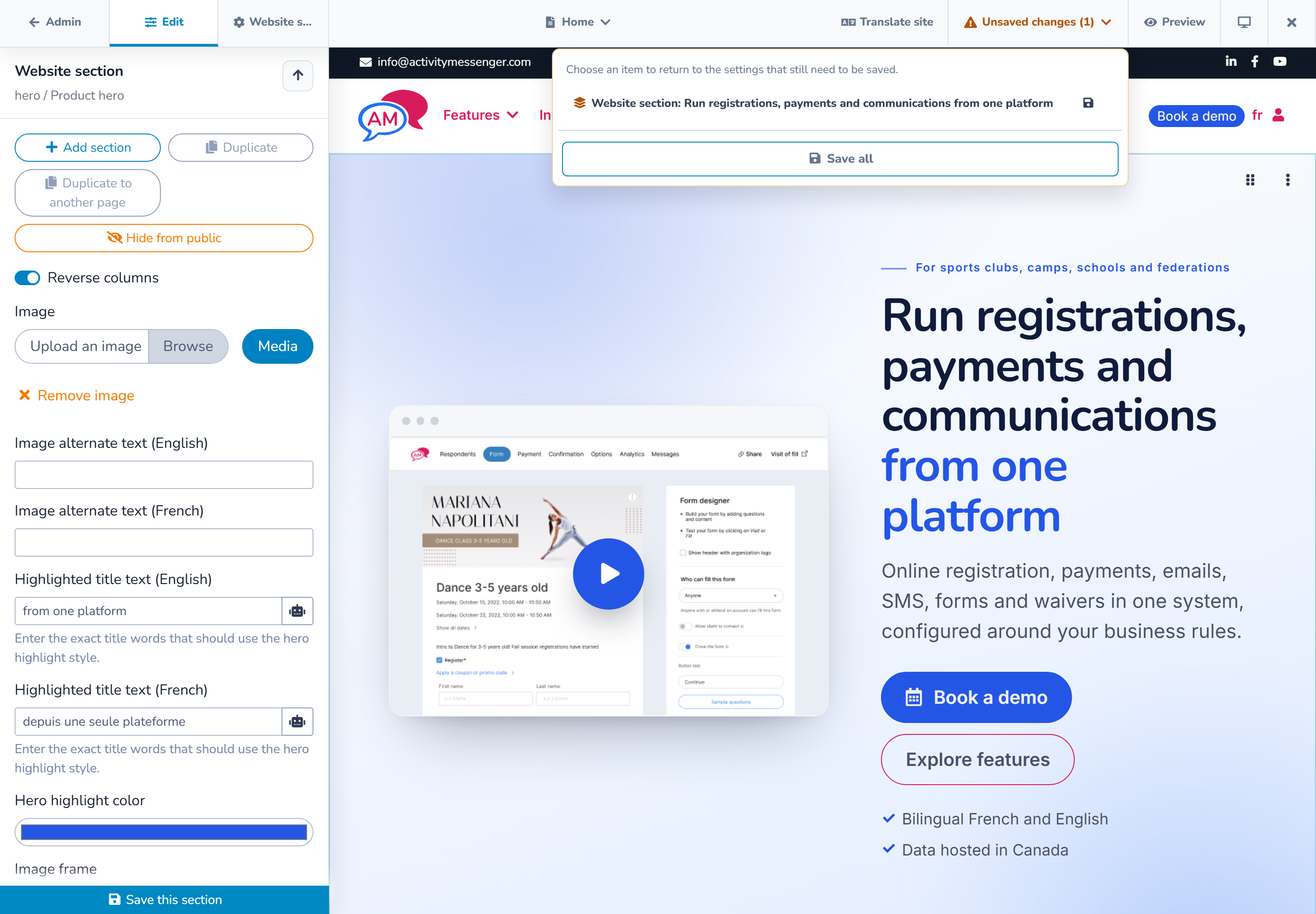
When an editor field changes, the top bar displays Unsaved changes and a count. Open the menu to see which site, page, section, or block still needs to be saved.
You can:
- open an unsaved item and save it;
- use its save icon without leaving the menu; or
- select Save all.
If you try to leave the editor with unsaved changes, choose one of these actions:
- Save and leave saves the listed changes before continuing;
- Leave without saving discards them; or
- Cancel returns to the editor.
Adding, moving, duplicating, and deleting structural elements may be applied as the action is completed. The unsaved menu is the reliable source for anything that still needs to be saved.
# Preview responsive layouts
Use the device menu to check:
- Desktop in the editable canvas;
- Tablet in a 768 × 1024 preview; and
- Mobile in a 390 × 844 preview.
Select Preview to open the current page in a separate tab. Signed-in editors can preview a draft page that is not publicly accessible.
Check all three widths after changing columns, long text, buttons, tables, media, or dense blocks. Save current changes before making final decisions from the tablet or mobile preview.
# Save and publish
Saving and publishing are different:
- Save stores the current settings or content.
- Publish page makes the page publicly accessible.
- Unpublish page returns it to draft status without deleting its content.
- Navigation visibility is controlled separately under Manage pages.
Publishing from the current page's editor saves all current editor changes first, then publishes the page. A published page can still be hidden from navigation and reached through a direct link.
# Review and restore page history
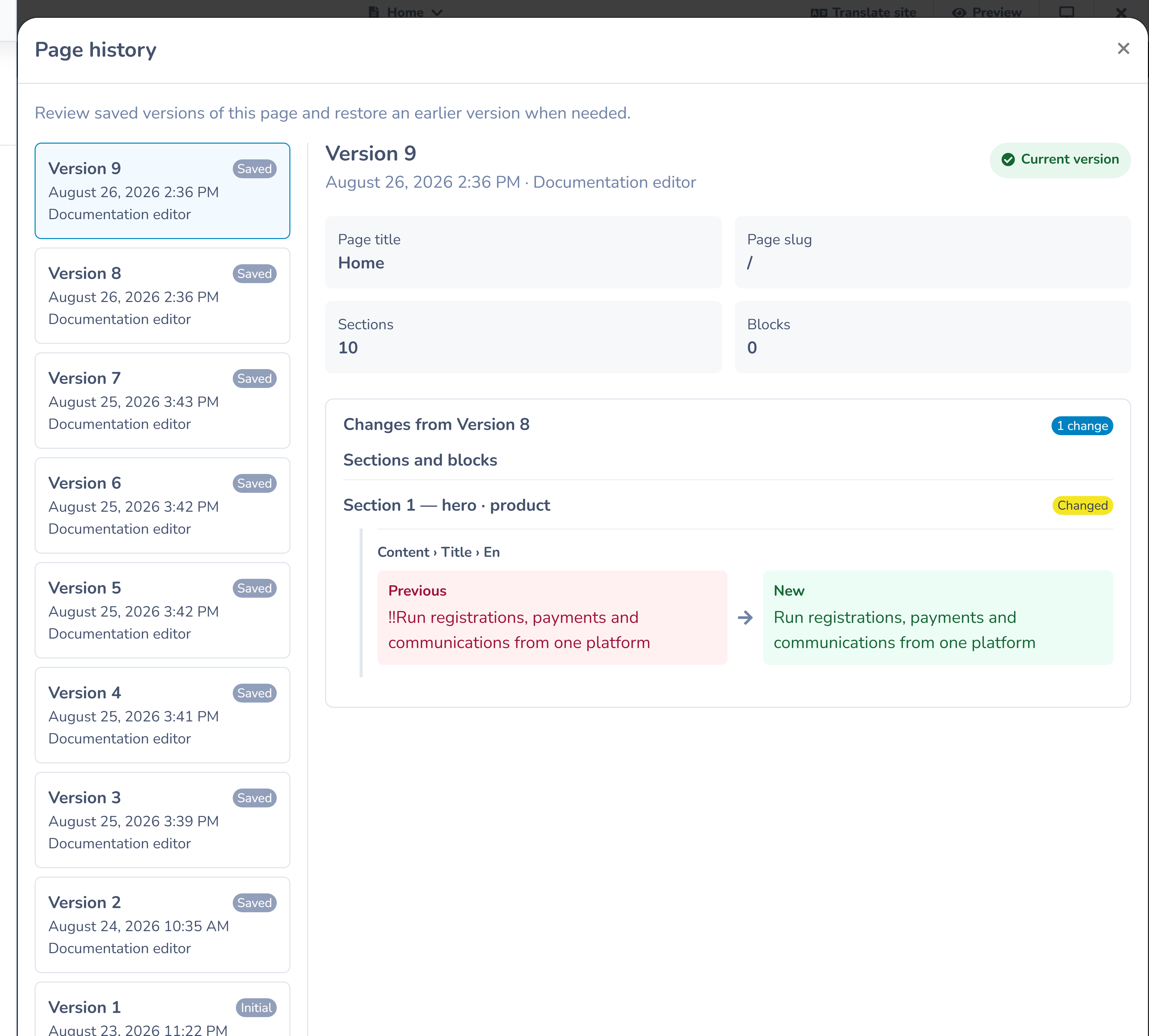
- Open the page inspector or Manage pages.
- Select Page history.
- Choose a saved version.
- Review the page title, path, section and block counts, and the changes from the previous version.
- Select Restore page version when needed.
Save or discard current editor changes before restoring. Restoring creates a new current checkpoint, so the history remains auditable.
If the old version contained a synchronized reusable section, the restored copy becomes a local section. This prevents restoration on one page from changing other pages.
# When more than one person edits
Activity Messenger tracks page and shared-section edit versions. If another editor saves the same synchronized section first, reload the latest version before continuing. Review your local work before discarding it.
For important launches, coordinate who is editing each page and use Page history to confirm the final checkpoint.
# Example workflow
To prepare a summer-registration page:
- duplicate last season's useful sections;
- hide the old announcement section from public view;
- update the dates, form link, and images;
- select Save all;
- preview desktop, tablet, and mobile;
- review the draft in a separate tab; and
- publish the page when the content and links are ready.