
Home
Account setting
Staff
Lists
Forms
Templates (HTML emails/SMS messages)
Sending messages by SMS and email
Classes, events, attendance and Zoom
Automation
Create a birthday invitation and automation
Communication
Microsite
E-Commerce
Networks, Federations and Franchises
How to guides
Personal information and electronic message laws in Canada and the USA
Get support
Terms and conditions
RL-24
https://activitymessenger.com/
10410 Waverly, Montréal, H3L 2W4
Terms and conditions

Manage website pages, navigation, and SEO
Use Manage pages to create the structure of your website, control which pages appear in navigation, publish or unpublish each page, and configure search and social-sharing information.
# Open Manage pages
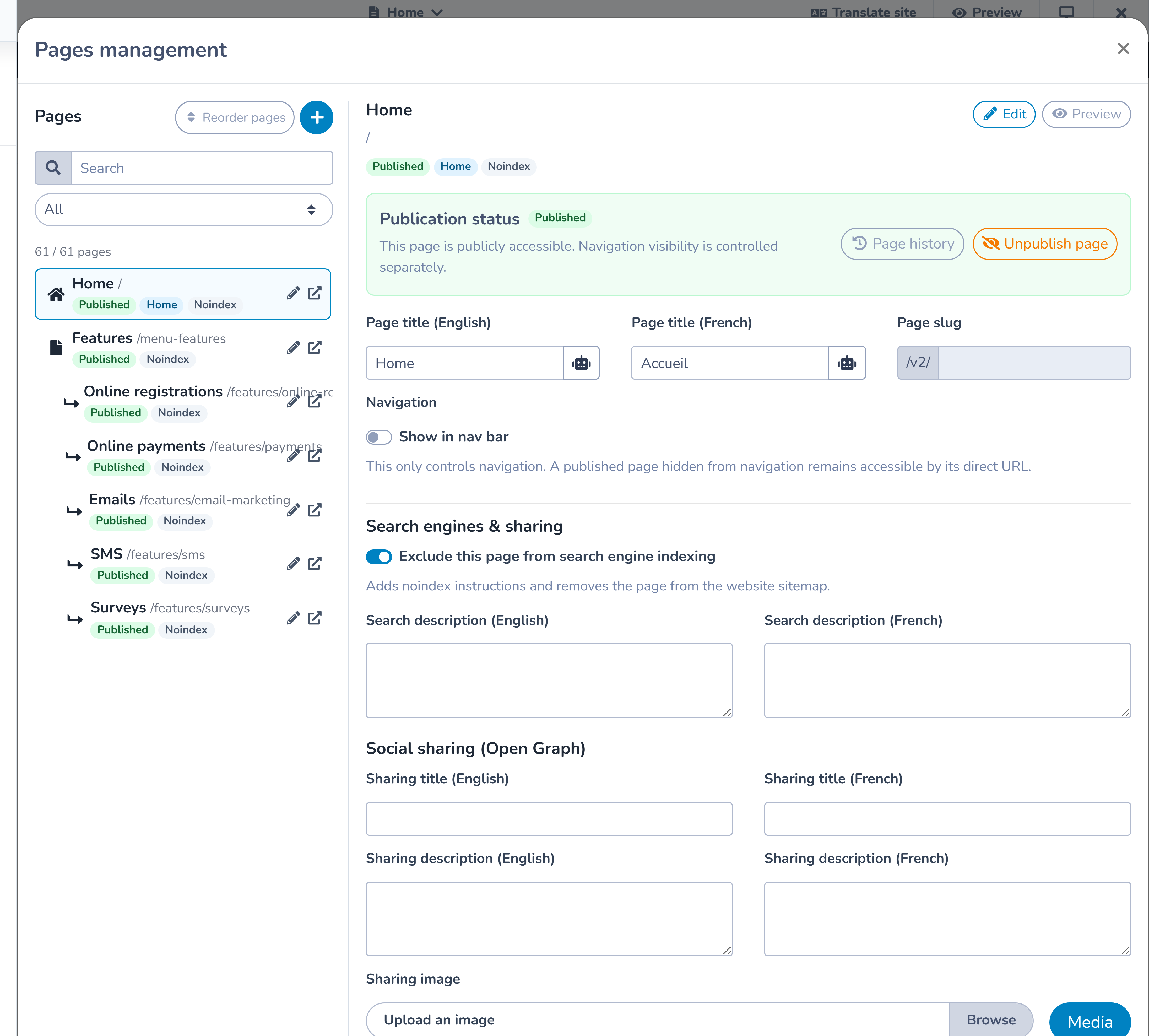
From the Website builder, open the page switcher and select Manage pages. You can also select Manage pages from the page inspector.
The page list lets you search and filter by:
- all pages;
- drafts;
- published pages;
- pages in navigation;
- pages hidden from navigation; and
- pages excluded from search engines.
Select a page to edit its settings. Use the pencil action to open it in the editor or the external-link action to preview it.
# Create a page
- Open Manage pages.
- Select the plus button beside Pages.
- Enter the English and French page titles when the website is bilingual.
- Edit the page slug.
- Decide whether to show the page in navigation and whether it belongs under another page.
- Complete the SEO, social-sharing, spacing, and background settings.
- Select Save.
The slug is the page's path in its public URL. Use a short, descriptive slug with words visitors can recognize. Changing a slug changes the public address, so update links and QR codes that use the old URL.
# Organize website navigation
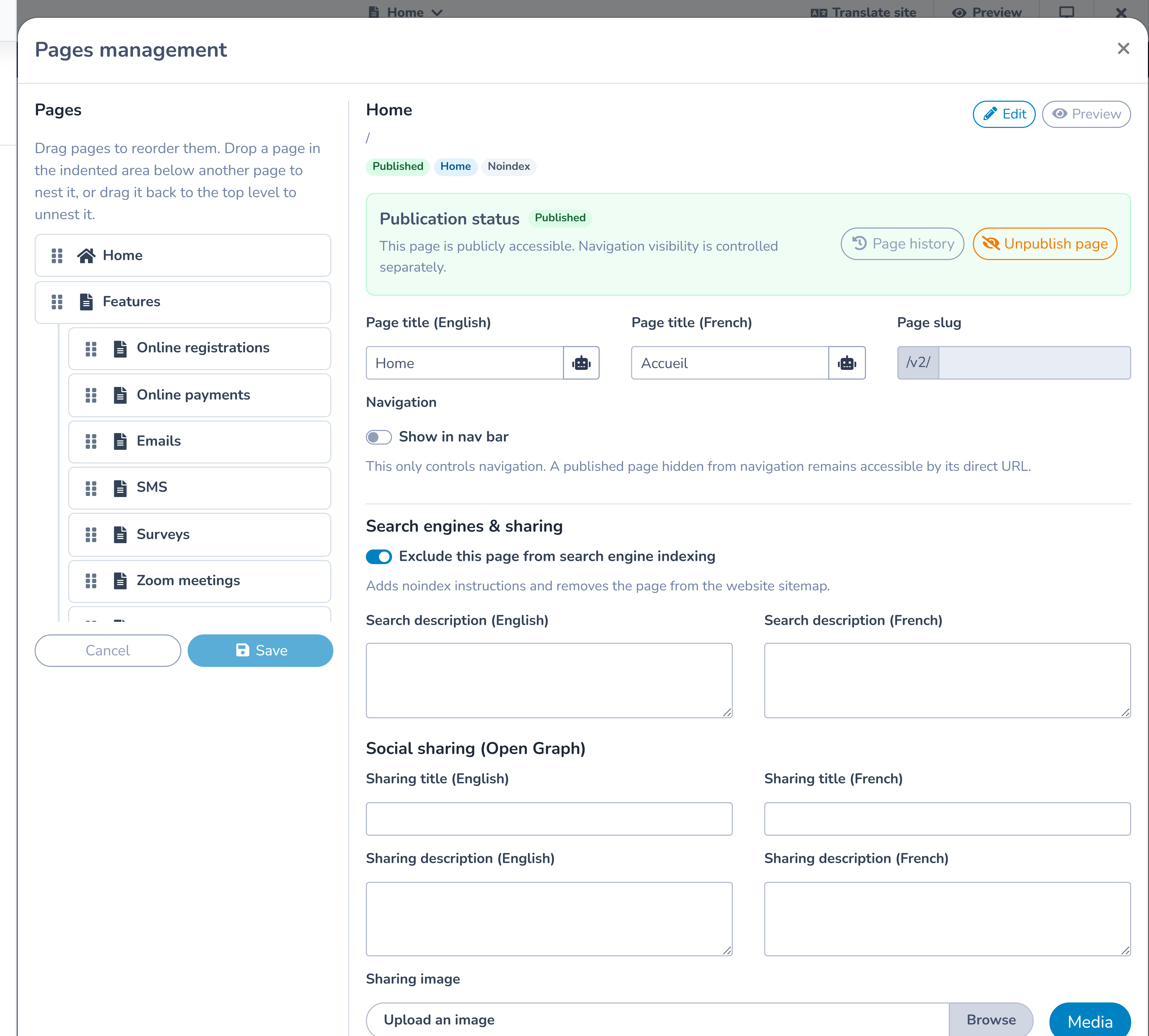
Turn on Show in navigation when the page should appear in the website menu. For a regular page, choose either Top-level navigation or an eligible parent page.
Use Reorder pages to drag pages into the intended order and place child pages under a top-level parent. Save the new order when finished.
The current navigation supports one child level. The home page cannot be used as a parent, and a child page cannot become the parent of another child.
Hidden from navigation is not private
Turning off Show in navigation removes the menu link only. If the page is published, anyone with its URL can still open it. This is useful for campaign landing pages, confirmation pages, or links sent directly to a selected audience.
Use Unpublish page when a page should not be publicly accessible.
# Understand publication status
- Published means the page is publicly accessible.
- Draft means visitors cannot open it; signed-in editors can preview it.
- Show in navigation controls the menu link and does not change publication.
- Exclude from search engines controls crawler instructions and does not change publication.
From Manage pages, publishing exposes the latest saved version. Save current editor changes first. From the current page inspector, publishing saves the current editor changes and then makes the page public.
Unpublishing does not delete the page or its content. You can continue editing and republish later.
# Configure search-engine information
Under SEO:
- turn on Exclude from search engines when the page should receive a
noindexinstruction; - enter a concise English meta description; and
- enter the French meta description for a bilingual site.
The site also has a global search-engine setting under Site settings. When the entire site is excluded, every page receives noindex instructions and the website sitemap is removed. Page-level settings are preserved and apply again if the site-wide option is turned off.
Noindex asks compliant search engines not to index the page. It is not an access control. Use draft status or website password protection for access restrictions.
# Configure social sharing
Under Social sharing, enter a localized title and description and choose a social image. These values help control how a page appears when its link is shared on services that read Open Graph metadata.
Use an image with a clear subject and enough space to crop at different social-preview ratios. Avoid private registration or client information.
# Set spacing and page background
Choose the page's Section spacing. Leave it on the website default when the page should follow the global design, or select a page-specific spacing.
The page background can be:
- a solid color;
- a gradient with start color, end color, and direction; or
- an image from the media tools.
Section backgrounds still appear on top of the page background. Preview long and short pages at desktop, tablet, and mobile widths.
# Home and not-found pages
The home page represents the website root. Its slug cannot be changed in Manage pages, and it cannot be deleted.
The not-found (404) page is used when a visitor requests an address that does not exist. It:
- is always publicly available;
- is always hidden from navigation;
- is always excluded from search engines;
- cannot be unpublished;
- cannot be deleted; and
- has a fixed path.
You can still edit its page content and design. Include a clear explanation and a link back to the home page or another useful page.
# Example structure
A recreation organization could use:
- Home;
- Programs, with Children and Adults as child pages;
- Schedule;
- About us; and
- a published Summer campaign page hidden from navigation and shared only through email and social posts.
The campaign page remains public at its direct URL. After the campaign, unpublish it rather than relying on navigation visibility.
# Important behaviour
- Page titles can be localized in English and French; the current manager edits one shared slug.
- A published page hidden from navigation is still public.
- Noindex is not privacy or password protection.
- The site-wide noindex setting takes precedence while it is enabled.
- Deleting a regular page removes it from the active website. Use page history for recoverable content changes, but do not treat deletion as an archive workflow.
- Restoring an older page version can fail if its old slug is now used by another page.