
Home
Account setting
Staff
Lists
Forms
Templates (HTML emails/SMS messages)
Sending messages by SMS and email
Classes, events, attendance and Zoom
Automation
Create a birthday invitation and automation
Communication
Microsite
E-Commerce
Networks, Federations and Franchises
How to guides
Personal information and electronic message laws in Canada and the USA
Get support
Terms and conditions
RL-24
https://activitymessenger.com/
10410 Waverly, Montréal, H3L 2W4
Terms and conditions

Manage website domains, passwords, and multiple sites
Organization managers can create and manage more than one website, change its Activity Messenger subdomain, connect custom domains, and protect an entire website with a shared password.
# Understand website permissions
A user with website-editing permission can open the builder and edit page content. Manage websites, domain assignment, access settings, and other organization-level actions require organization-management permission.
Ask an organization manager to complete domain or website administration when the corresponding actions are not visible. Do not share an administrator account merely to make the controls appear.
# Manage the primary website
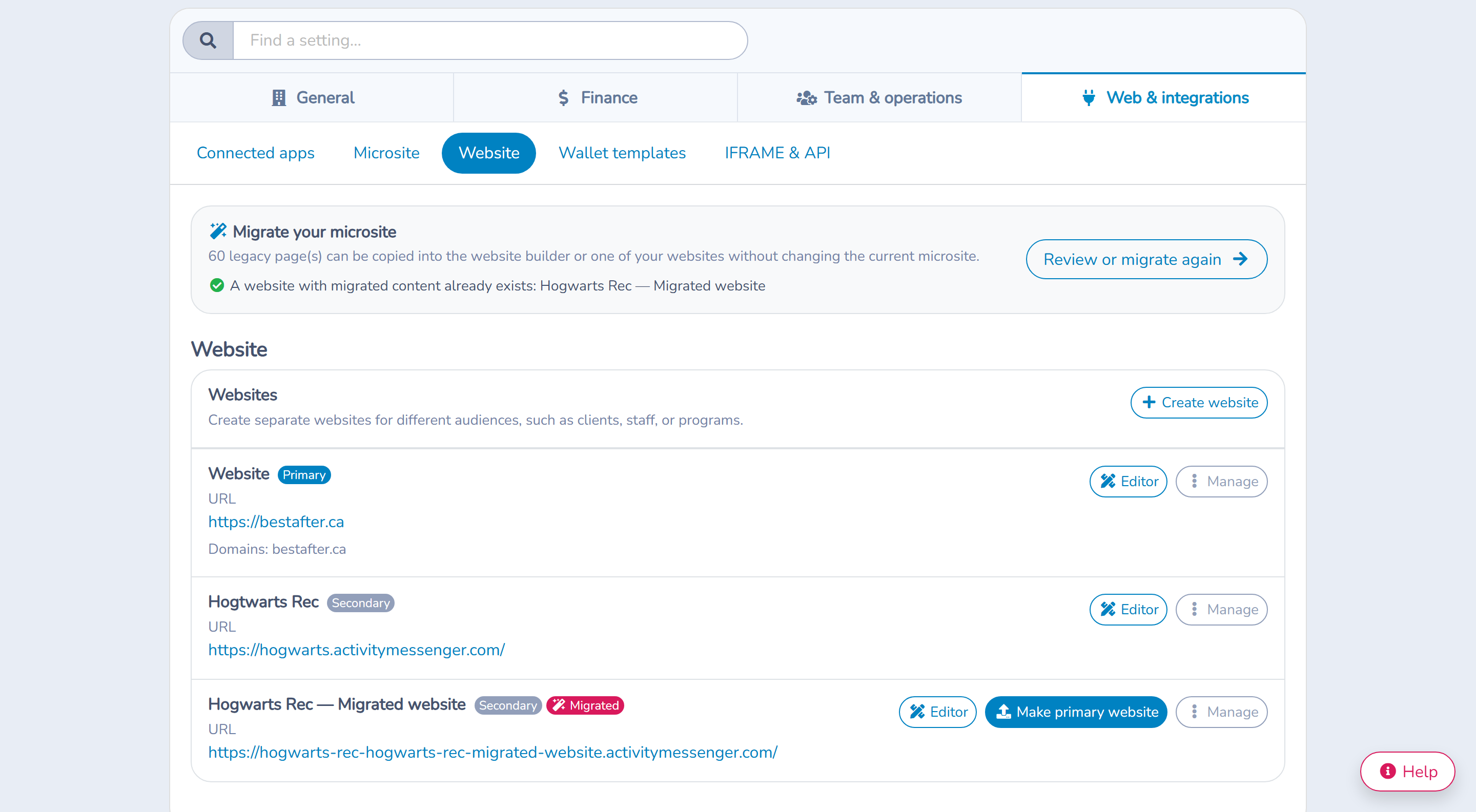
Open Website, then select Manage websites. The management screen identifies the primary website and provides actions such as:
- Editor to edit its pages;
- Setup to review design defaults;
- Edit to change website details and access;
- Domains to connect or assign hostnames; and
- module-specific management actions such as Blog when available.
The primary website cannot be deleted. If the management screen offers a workflow to make another website primary, use that explicit action and review its impact before confirming.
# Create another website
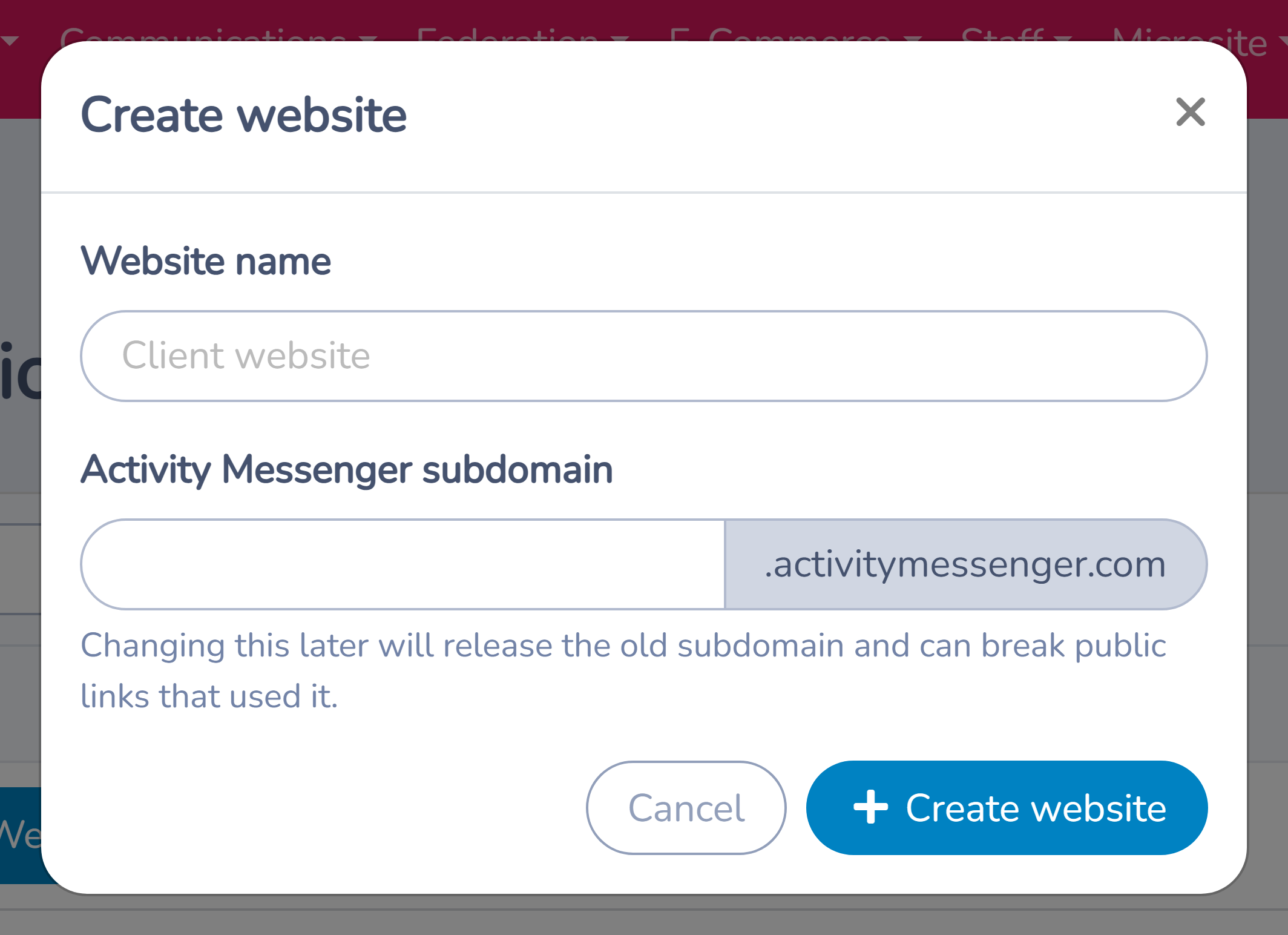
Use an additional website when an organization needs a distinct experience for clients, staff, a facility, a program, or a campaign that should not share all pages and global design with the primary site.
- Select Create website in Manage websites.
- Enter a clear internal website name.
- Choose an available Activity Messenger subdomain.
- Save the website.
- Complete its setup, pages, header, footer, languages, and publication separately.
The subdomain must be available and unique. Each website has its own pages and site settings, so creating a second website does not automatically copy the primary website's content.
# Change a website name or subdomain
Open the website's Edit action. The name helps administrators distinguish sites. The subdomain is part of the public address.
Changing the subdomain releases the old value. Existing bookmarks, messages, QR codes, social posts, and external links can stop working. Before saving a change:
- inventory where the old URL is used;
- schedule the change with website owners;
- update critical links and campaigns; and
- verify the new public address after saving.
Do not assume the old subdomain will remain reserved or redirect automatically.
# Protect an entire website with a password
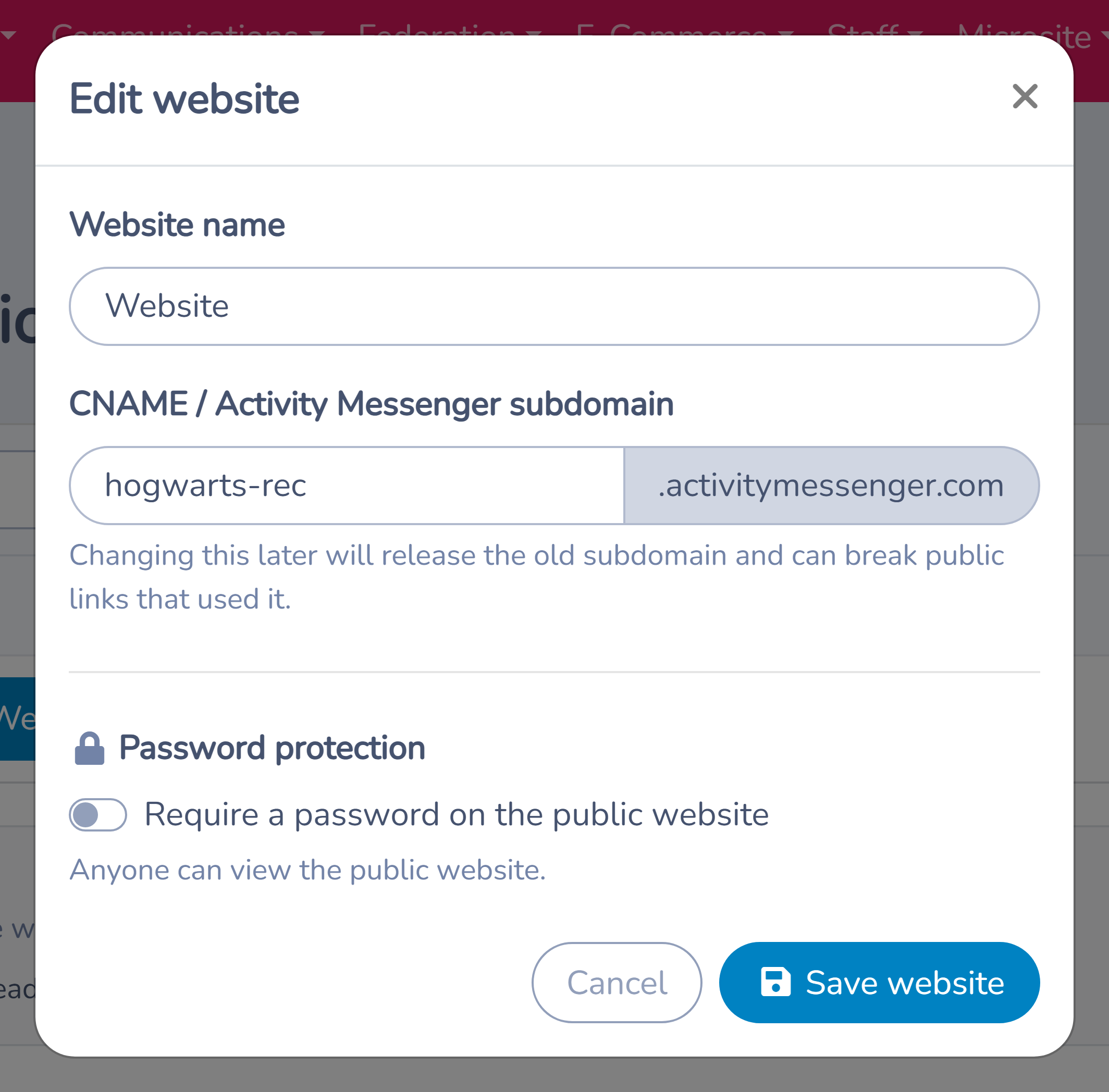
In the website's edit settings, enable password protection and enter at least eight characters. Save the settings, then test the website in a signed-out browser.
Password protection applies to visitors across that website. Signed-in administrators can still access the editor. Disable the setting and save when the shared password is no longer required.
A website password is a shared gate, not an individual client account:
- anyone who receives it can pass it to someone else;
- it does not create user-specific permissions or an audit trail;
- it should not be used to expose sensitive personal records; and
- it should be replaced when it has been shared beyond the intended reviewers.
Use individual account and permission features for client- or staff-specific information.
# Connect a custom domain
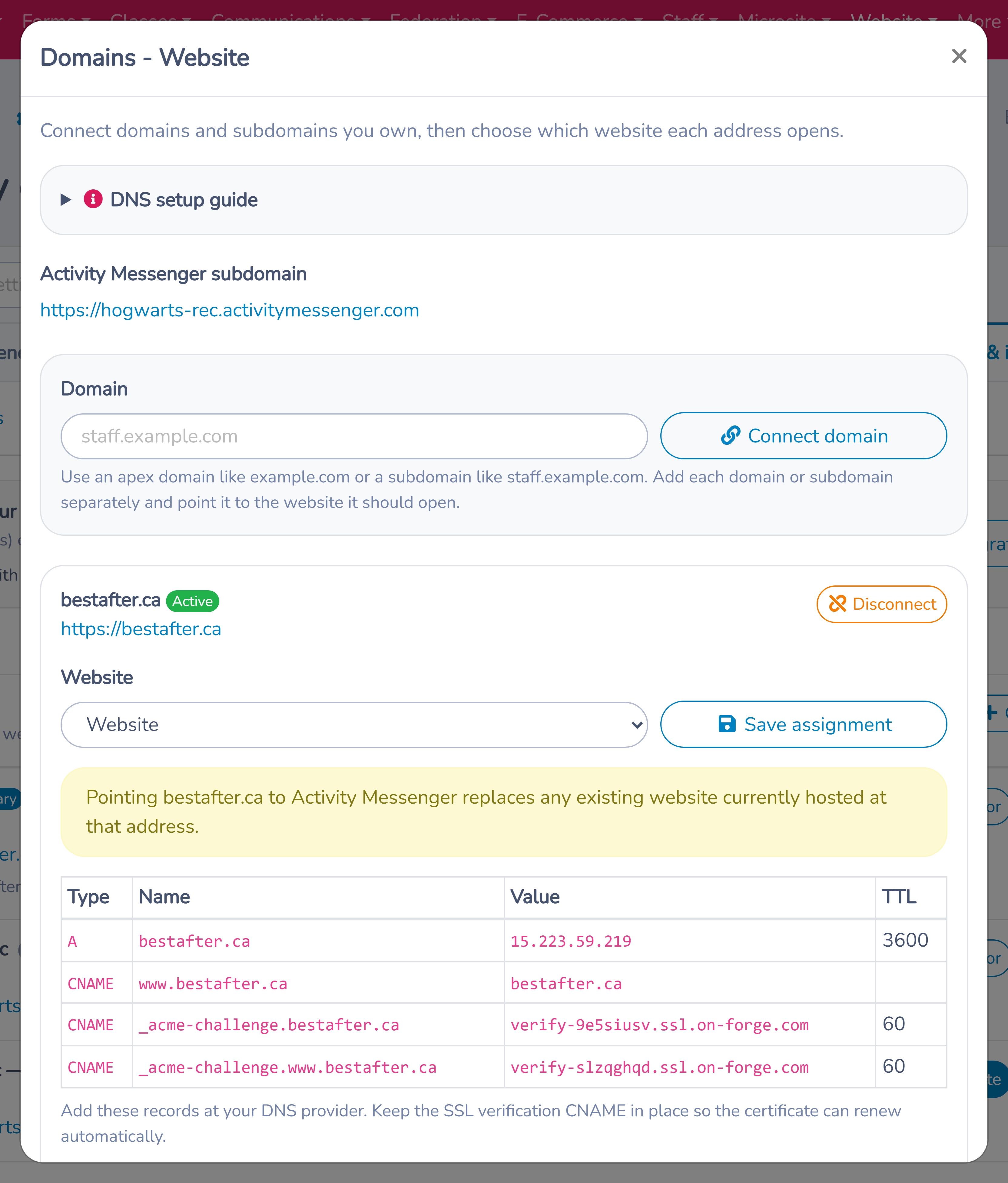
Open Domains for the intended website. Add the exact hostname visitors will use, such as an apex domain (example.org) or a subdomain (programs.example.org). Add each hostname separately if both the root and a www or other subdomain must be supported.
Assign the hostname to the correct website. If it is already assigned elsewhere, review the reassignment carefully: moving it changes which website responds at that address.
The domain screen provides the DNS records required for:
- routing the hostname to Activity Messenger; and
- verifying ownership for the SSL certificate.
Copy the displayed record names and values exactly into the DNS provider. The required record can differ for an apex domain and a subdomain, so follow the on-screen instructions for that hostname rather than a generic example.
# Verify DNS and SSL
DNS updates can take time to propagate. Return to the domain screen and retry verification after the records are publicly available.
After successful verification, Activity Messenger provisions and renews HTTPS automatically. Keep the SSL-verification CNAME record in DNS. Removing it can prevent future certificate renewal even if the website continues to load temporarily.
When verification fails:
- confirm the hostname was entered without a protocol or page path;
- compare every DNS name and value with the website's instructions;
- remove conflicting records only after confirming they are not used by another service;
- wait for the DNS provider's propagation; and
- retry from the domain screen.
Coordinate with the domain owner before changing DNS. Email and other services can share the same domain and must not be disturbed.
# Delete a secondary website carefully
The primary website cannot be deleted. A secondary website has a delete action with confirmation. Treat deletion as destructive:
- confirm the site is no longer linked from campaigns or custom domains;
- preserve any page copy or media references that must be reused;
- reassign domains intentionally; and
- ask another administrator to review the target website before confirming.
If the intention is only to keep visitors out temporarily, use draft pages or password protection instead of deleting the website.
# Launch checklist
Before announcing a new address:
- verify the correct website responds on HTTPS;
- test apex,
www, and other hostnames that were deliberately configured; - test both website languages;
- check public pages in a signed-out browser;
- confirm password behaviour or remove the temporary review password;
- update canonical campaigns, QR codes, social profiles, and email templates; and
- retain the SSL-verification CNAME.