
Home
Account setting
Staff
Lists
Forms
Templates (HTML emails/SMS messages)
Sending messages by SMS and email
Classes, events, attendance and Zoom
Automation
Create a birthday invitation and automation
Communication
Microsite
E-Commerce
Networks, Federations and Franchises
How to guides
Personal information and electronic message laws in Canada and the USA
Get support
Terms and conditions
RL-24
https://activitymessenger.com/
10410 Waverly, Montréal, H3L 2W4
Terms and conditions

Dynamic filters for Multiple Classes blocks
Use dynamic filters when one Multiple Classes block contains classes whose available choices depend on earlier answers. Instead of creating separate blocks and conditional branches, you can keep the choices in one block and disable filter options that do not lead to a matching class.
For example, after a client selects a location, programs that are not offered at that location remain visible but cannot be selected.
# Before you begin
Add the classes to a Multiple Classes block and configure the filter options that should show each class. Dynamic availability depends on these class mappings, so every usable option must be linked to at least one class.
You need permission to edit the form.
# Configure the filters
- Open the form and edit its Multiple Classes block.
- Enable Show filters.
- Add or edit the filters and map each option to the appropriate classes or class tags.
- Arrange the filters from broadest to most specific. For example, use Location, then Season, Age, and Program.
- Under Selection type, choose how the client can answer each filter:
- Use block setting follows the block's Checkbox setting.
- Single selection allows one option in that filter.
- Multiple selections allows more than one option in that filter.
- Enable Dynamically disable unavailable filter options.
- Save the block.
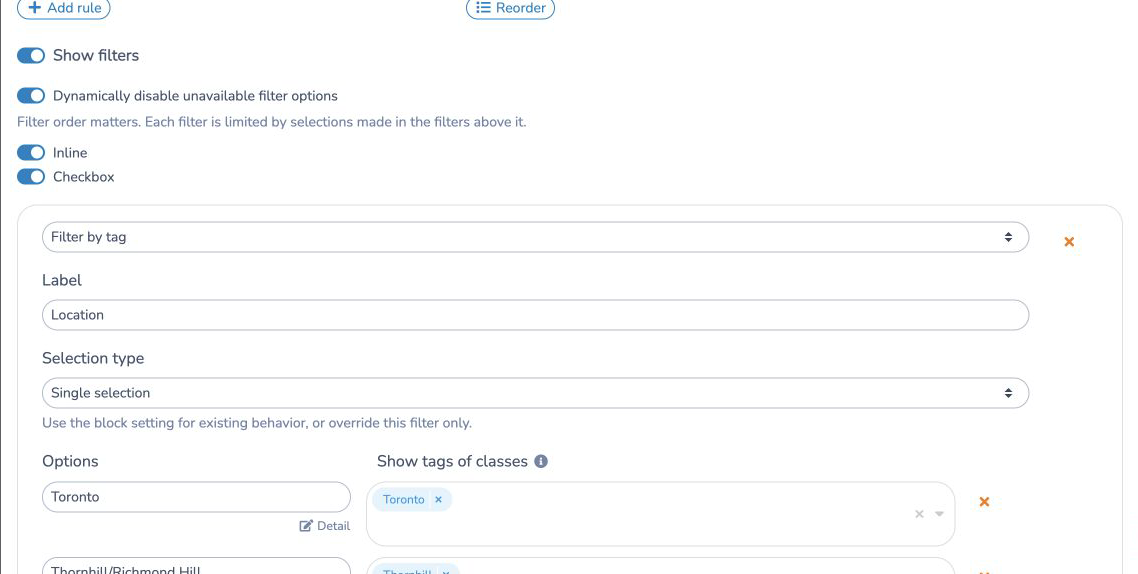
The Selection type menu is available whether or not dynamic filtering is enabled. It controls only how many answers the client can select in that filter.
# How filter order works
When dynamic filtering is enabled, each filter is limited by the selections made in the filters above it. A later filter never limits an earlier filter.
Suppose Location appears before Program:
- Selecting a location disables programs with no matching class at that location.
- A program that is offered at the selected location stays enabled.
- Changing the location keeps a selected program when it still has a matching class.
- If the selected program is no longer available, Activity Messenger clears that selection and disables the option.
Put the filter that should control the others first. Use Reorder if the dependency works in the wrong direction.
# Multiple selections
When a filter allows multiple selections, options selected in that filter are combined. For example, selecting two locations keeps classes from either location.
Selections in different filters must describe the same class. For example, a class must match both the selected location and the selected program to remain available.
# What clients see
Unavailable options stay visible and appear disabled. This lets clients see that the option exists but is not available with their earlier selections. The list of matching classes is refreshed as the client changes a filter.
An option that is not mapped to any class is always unavailable.
# Existing forms
Dynamically disable unavailable filter options is off by default. Existing forms keep their previous filter behavior unless you enable it in that block.
Changing a filter's Selection type can still change how that existing form accepts answers, even while dynamic filtering is off. Leave it set to Use block setting to preserve the block's current checkbox or single-selection behavior.
# Troubleshooting
If an option is disabled unexpectedly:
- Check the filter order. Only filters above it can restrict it.
- Check that the option is mapped to the expected classes or class tags.
- Confirm that at least one class matches all selections made in earlier filters.
If a selected answer disappears after another filter changes, no class matches that combination. Update the class mappings if the combination should be available.