
Home
Account setting
Staff
Lists
Forms
Templates (HTML emails/SMS messages)
Sending messages by SMS and email
Classes, events, attendance and Zoom
Automation
Create a birthday invitation and automation
Communication
Microsite
E-Commerce
Networks, Federations and Franchises
How to guides
Personal information and electronic message laws in Canada and the USA
Get support
Terms and conditions
RL-24
https://activitymessenger.com/
10410 Waverly, Montréal, H3L 2W4
Terms and conditions

Send automations based on participant attendance
Use an attendance condition to send an Activity start, Activity end, or Class reminder automation only to participants who were checked in or explicitly marked absent.
# Before you begin
- You need access to the automated task and its class attendance.
- Use an Activity start, Activity end, or Class reminder automated task.
- Participants must have attendance records for the relevant class occurrences.
# Choose an attendance condition
- Go to Communications and open Automated tasks.
- Create or open an Activity start, Activity end, or Class reminder task.
- In Settings, configure the schedule and select the class, form, or list used by the automation.
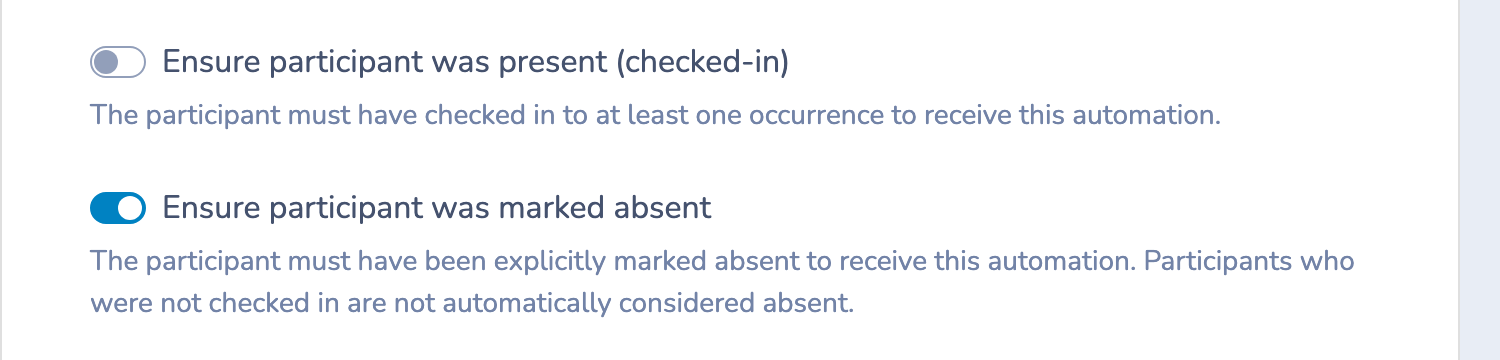
- Turn on Ensure participant was present (checked-in) or Ensure participant was marked absent.
- Configure the message, then save the automated task.
The two attendance conditions cannot be used together. Enabling one automatically turns off the other.
# Send only to participants who were present
Turn on Ensure participant was present (checked-in) when the message should go only to participants with a recorded check-in.
- A first or second check-in qualifies as present.
- For a Class reminder, the participant must be checked in to that class occurrence.
- A participant with no check-in does not qualify.
For example, send a satisfaction survey after each class only to participants who attended. Jordan checked in and receives the survey. Maya did not check in and does not receive it.
# Send only to participants marked absent
Turn on Ensure participant was marked absent when the message should go only to participants whose attendance for a relevant occurrence was explicitly marked absent.
- Explicitly marked absent: qualifies.
- Not checked in, with no absent mark: does not qualify.
- Late notice only: does not qualify as an explicit absence.
- Marked absent from an unrelated class or occurrence: does not qualify for this automation.
If neither attendance condition is enabled, the task uses its normal recipient rules.
Example: send missed-class material
Create a Class reminder follow-up that is sent after each class and includes a link to the material covered that day.
- Jordan was explicitly marked absent for the class and receives the follow-up.
- Maya was not checked in, but nobody marked her absent. She does not receive it.
- Alex submitted a late notice but was not marked absent. Alex does not receive it.
Use the automation simulator before saving to confirm that the expected participants qualify.