
Home
Account setting
Staff
Lists
Forms
Templates (HTML emails/SMS messages)
Sending messages by SMS and email
Classes, events, attendance and Zoom
Automation
Create a birthday invitation and automation
Communication
Microsite
E-Commerce
Networks, Federations and Franchises
How to guides
Personal information and electronic message laws in Canada and the USA
Get support
Terms and conditions
RL-24
https://activitymessenger.com/
10410 Waverly, Montréal, H3L 2W4
Terms and conditions

Review form audit logs
Form audit logs show who changed an important form setting, when the change occurred, and which form was affected. Administrators can investigate unexpected behaviour, compare previous and new values, and undo an eligible question change. The form editor also provides a quick Undo last change action.
# Open the form audit log
- Go to Forms.
- Select Log above the forms table.
- Review the operations in the table. Each row identifies the operation, its date and time, the administrator, and the affected form.
The audit log is loaded only when you select Log. Opening the Forms page does not load the audit history automatically.
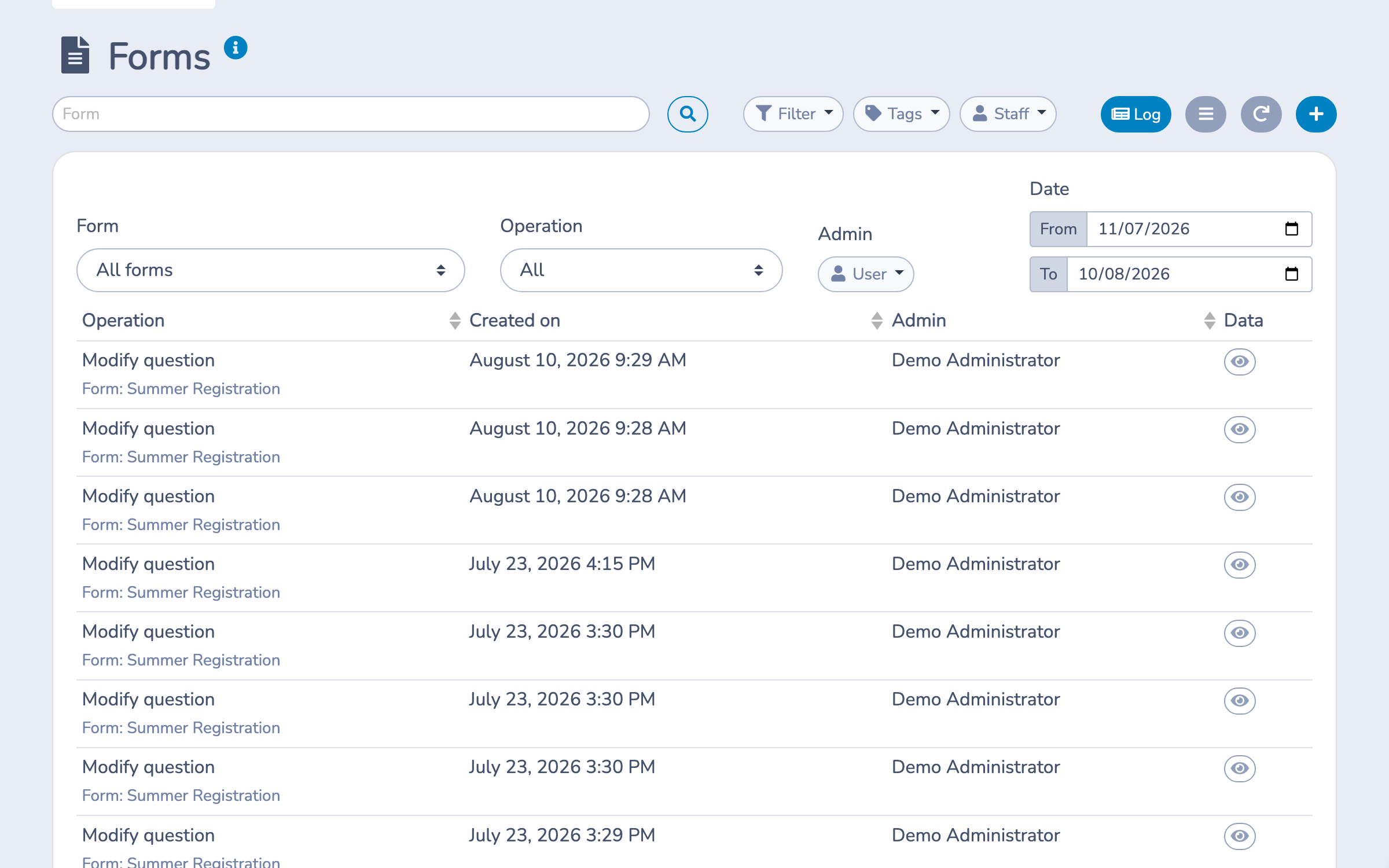
You can also open Log while editing a specific form. This view is already limited to that form.
# Find a change
Use the filters above the global audit log to narrow the results by:
- form, including an archived form;
- type of operation;
- administrator;
- date range.
The history can include form locking and unlocking, payment-option changes, form-setting changes, and questions or blocks that were added, modified, removed, or reordered.
# Compare the previous and new values
- Find the operation you want to inspect.
- Select the eye icon in the Data column.
- Compare the Previous value and New value for each changed setting.
- Expand Technical data only when additional troubleshooting detail is needed.
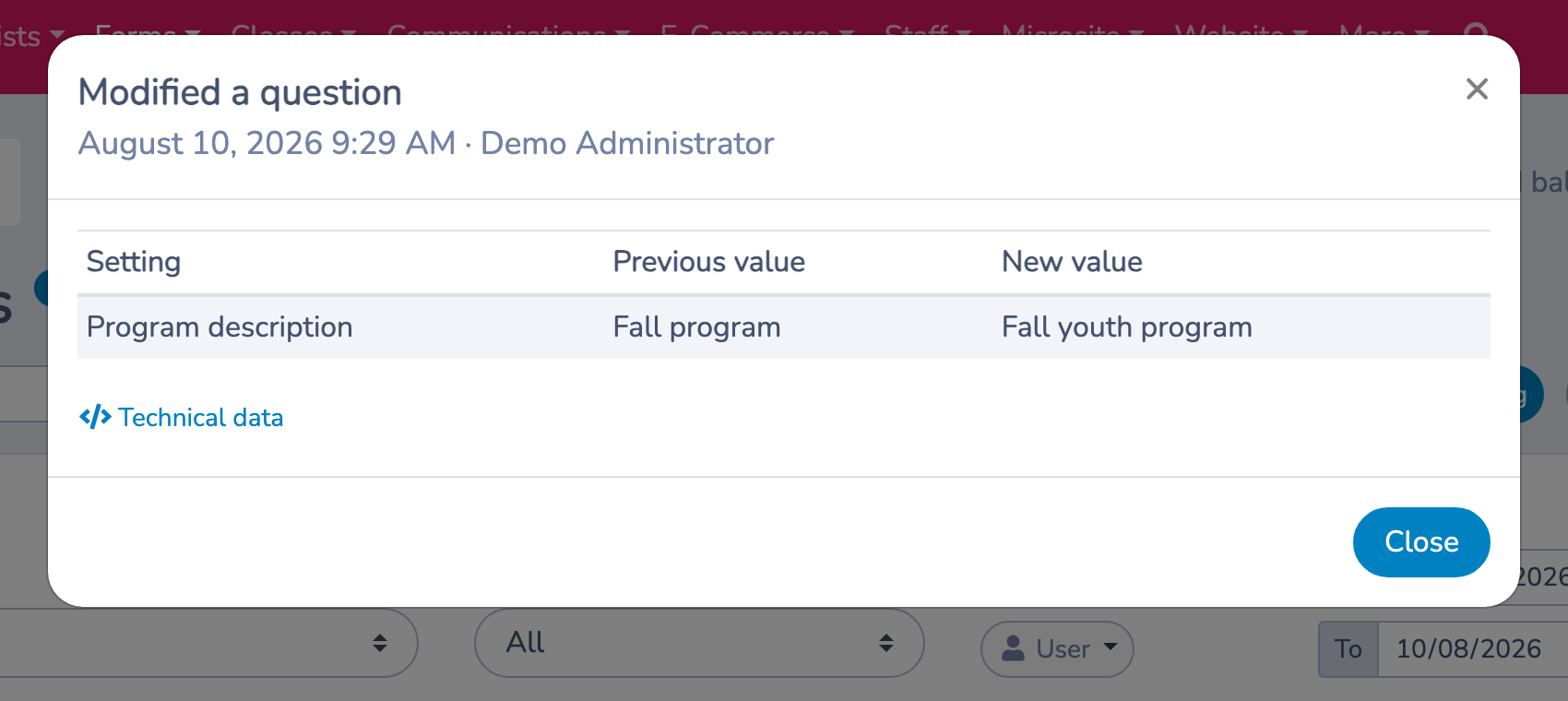
For example, if an administrator changes the accepted payment methods from credit card or Interac e-Transfer to credit card only, the detail window identifies the accepted-payment-method setting and shows both configurations.
Text blocks are displayed as readable text in the comparison. Their original formatting data remains available under Technical data.
# Undo the latest question change in the form editor
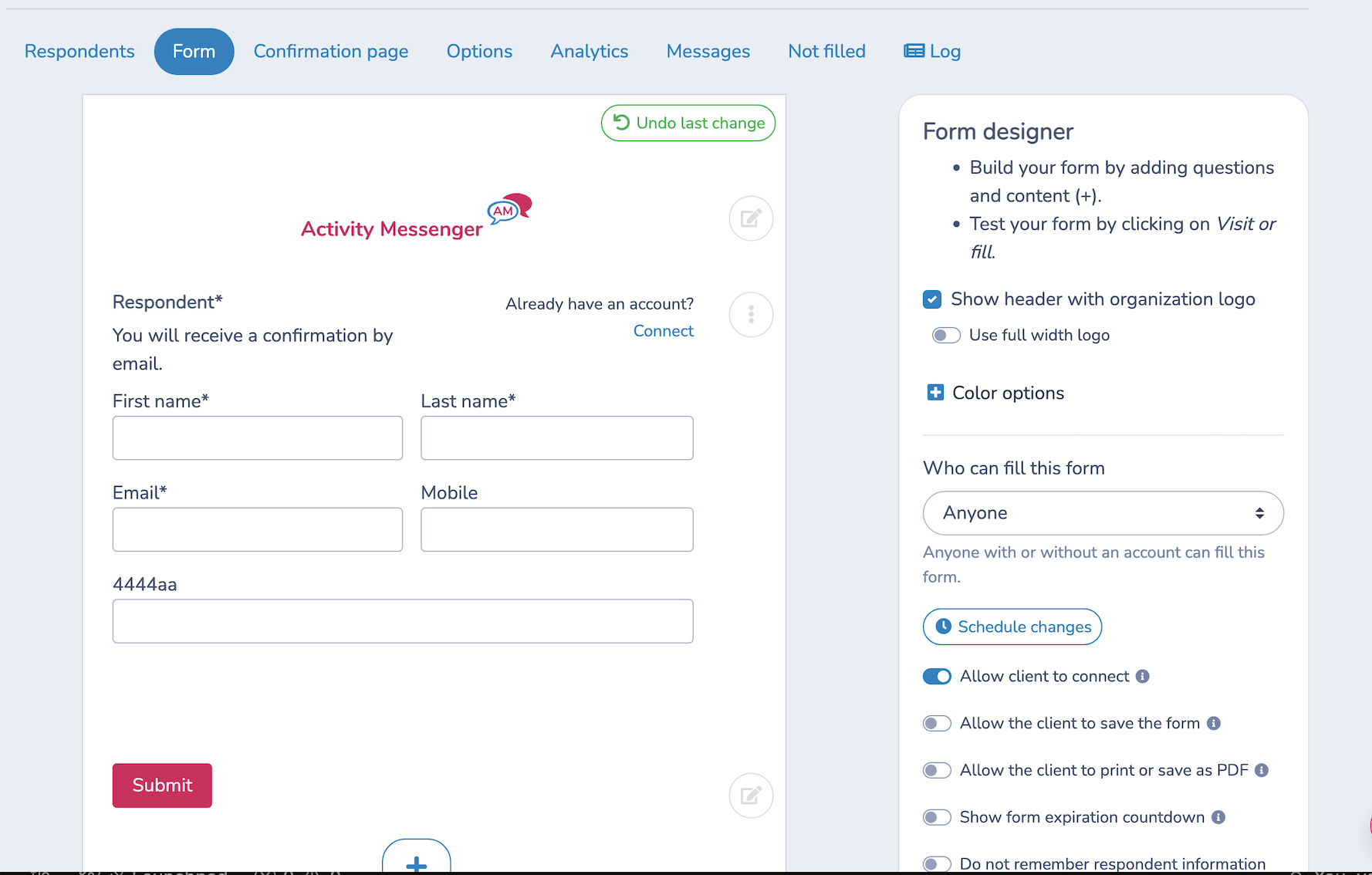
While editing a form, use Undo last change at the top of the form preview to reverse the most recent question or block addition, deletion, edit, or reorder. The action stays visible at the top while you scroll.
The button has a green outline when a change is available. It is grey and disabled when there is no eligible change. Confirm the action before Activity Messenger updates the form.
# Undo a question change from the audit log
- Find an eligible Add question, Modify question, Remove question, or Reorder question entry.
- Select the eye icon in the Data column.
- Review the change shown in the details window.
- Select Undo change, then confirm.
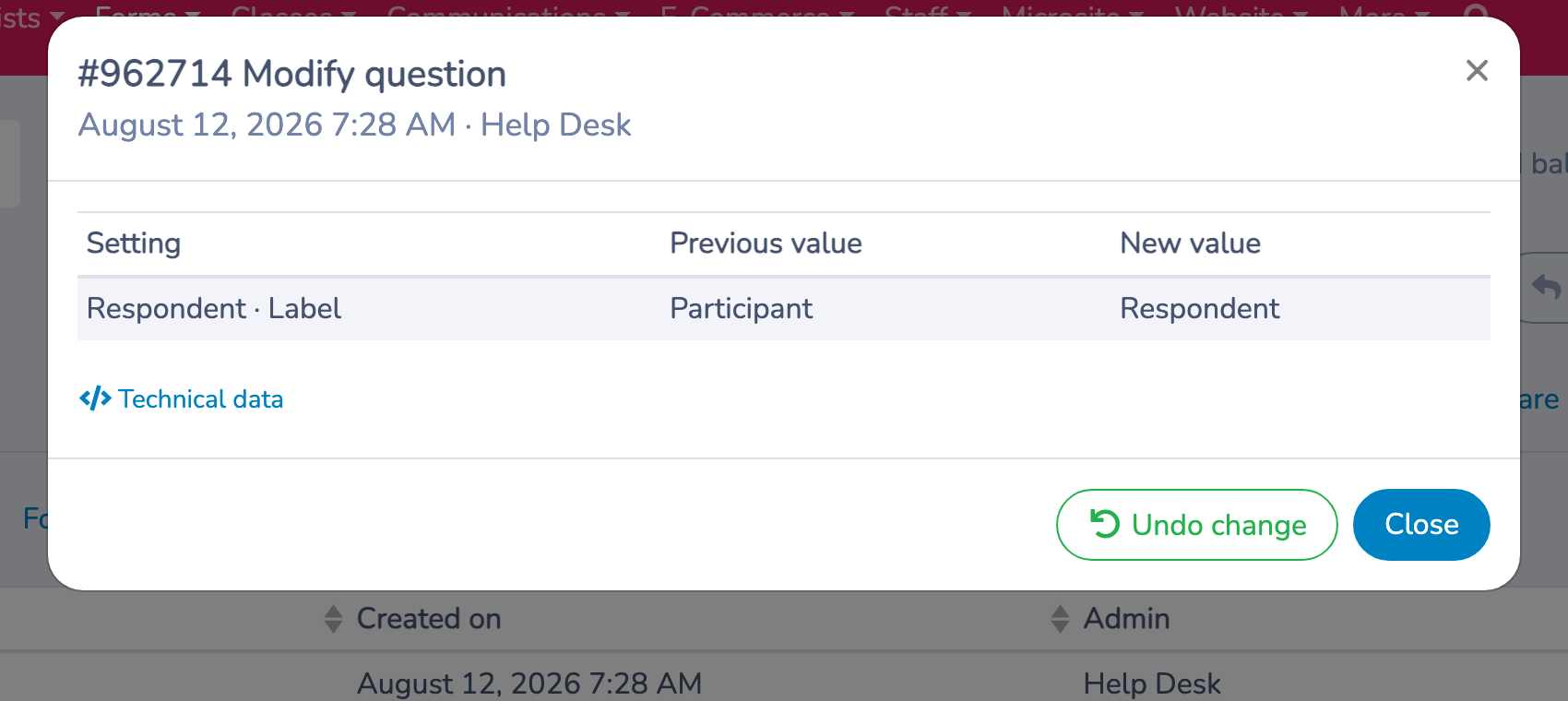
For additions, modifications, and reorders, only the most recent eligible question change on the form can be undone. This prevents an older action from overwriting a newer form state.
Deleted questions have an additional safeguard: the question must still be deleted and the selected entry must be its most recent removal. An eligible deletion can be restored even when later unrelated form changes exist. If one removal entry contains several questions, every question in that entry that is still eligible is restored.
When a log entry cannot be safely undone, the details window explains that the change was already undone or that a more recent change affects the form.
# Important behaviour and limits
- The log records the administrator, date and time, form, operation, and available change details.
- An entry is created only when a tracked value actually changes. Saving without a functional change does not create a form-setting entry.
- The log starts recording tracked operations after the audit feature is enabled; it does not reconstruct older changes.
- The history covers changes made through the tracked form and payment editors. Changes made elsewhere, such as changing a class price in class management, are not form-setting changes.
- Purely technical save data that does not represent an administrator-facing change may be omitted from the comparison.
- The Undo actions apply to question and block additions, deletions, edits, and reorders. They do not roll back payment options or general form settings.
- Access to the audit interface is restricted to administrators with the required organization permissions.