
Home
Account setting
Staff
Lists
Forms
Templates (HTML emails/SMS messages)
Sending messages by SMS and email
Classes, events, attendance and Zoom
Automation
Create a birthday invitation and automation
Communication
Microsite
E-Commerce
Networks, Federations and Franchises
How to guides
Personal information and electronic message laws in Canada and the USA
Get support
Terms and conditions
RL-24
https://activitymessenger.com/
10410 Waverly, Montréal, H3L 2W4
Terms and conditions

Translate a bilingual website
The Website builder keeps English and French versions of supported content together. Enable bilingual mode, complete localized fields as you build, then use Translate site to find and translate supported page content in one workspace.
# Enable bilingual mode
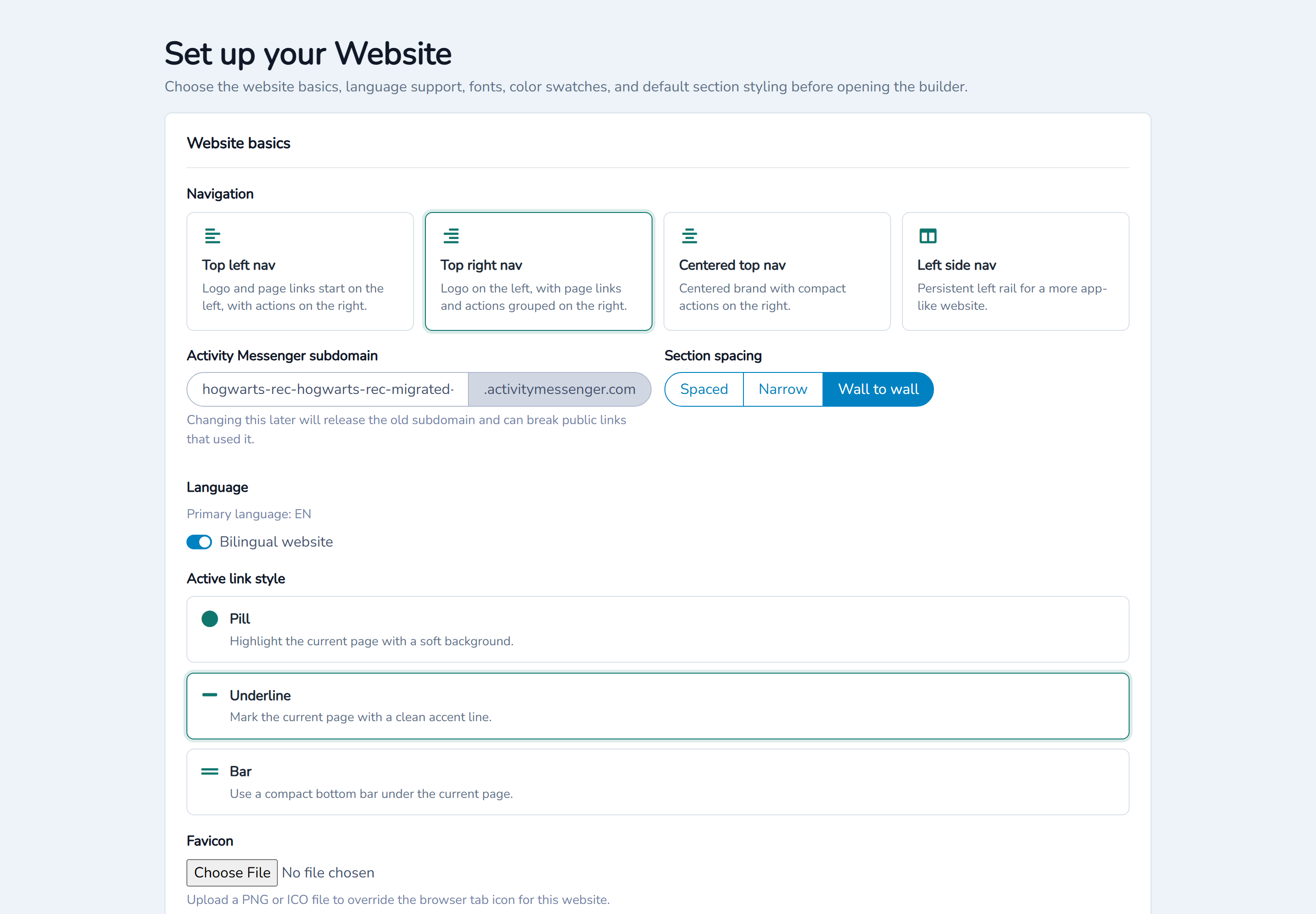
You can enable Bilingual during website setup or later under Site settings. The organization's website language is the primary language and becomes the source language used by Translate site. The other language becomes the translation target.
Turning on bilingual mode does not translate existing content. It reveals the corresponding English and French fields and allows the website header to offer a language switch when that header option is enabled.
Before adding a large amount of content, confirm that the primary language is correct. Editors should write and approve the source copy before relying on it for bulk translation.
# Translate content while editing
Localized template fields display English and French values. These can include headings, body text, labels, buttons, image alternative text, repeated items, and other text supported by the selected design.
For a small change:
- open the section, block, page, header, or footer field;
- edit the source language;
- complete the other language manually or use the available field-level AI action;
- review meaning, tone, links, and formatting; and
- save the changed item.
An AI translation is a draft. It is not automatically approved just because it fits in the field.
# Use Translate site
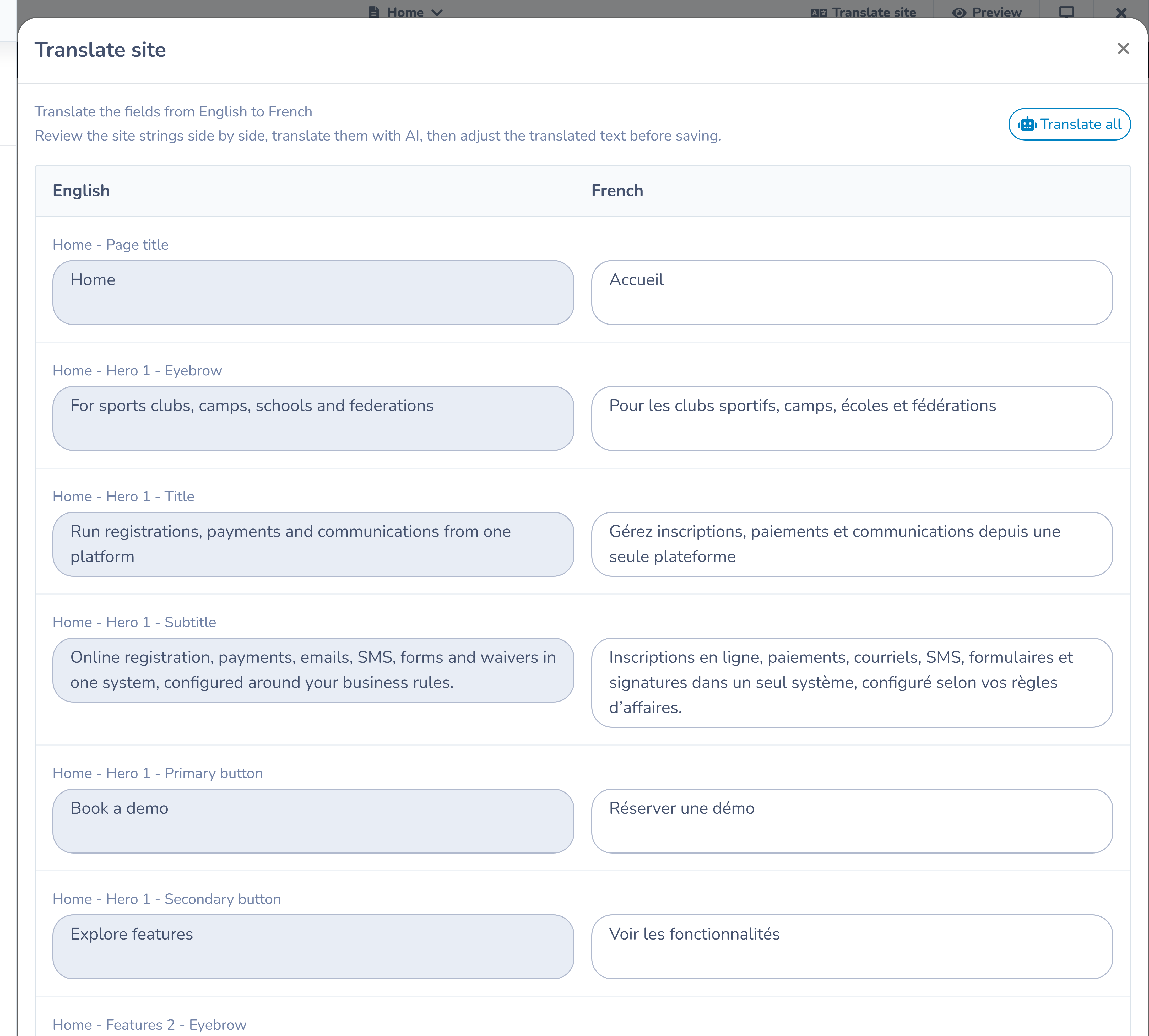
Select Translate site in the editor's top bar. The translation workspace places source and target content side by side and gathers supported text from the website pages.
Depending on the templates and blocks in use, the workspace can include:
- page titles;
- meta descriptions and social-sharing titles and descriptions;
- section titles, subtitles, labels, and buttons;
- repeated items such as FAQs, features, team members, schedules, or plan features; and
- text, button labels, and image alternative text inside supported layout blocks.
You can enter translations manually or select AI Translate all to create target-language drafts in batches. Review each result, correct it as needed, and select Save to apply the workspace changes.
Closing the workspace without saving does not apply its unsaved translations.
# Translate global website content
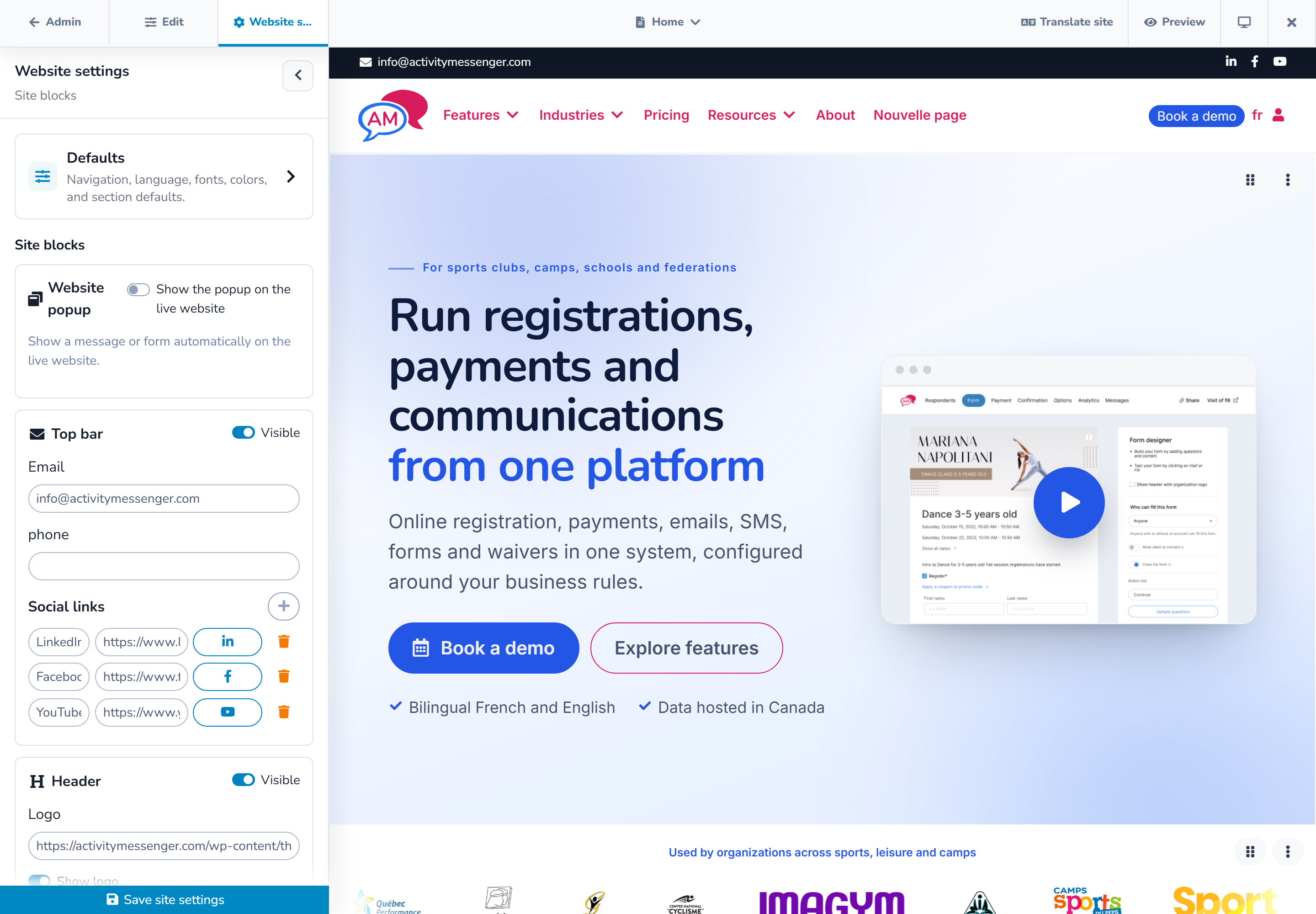
The site-wide translation workspace does not replace the localized controls for shared website chrome. Open Site settings and review both languages for:
- top-bar contact or social labels;
- header account and action labels;
- standard or mega-footer descriptions, calls to action, link groups, legal text, and newsletter content; and
- website popup titles and content.
Also review the not-found page. Visitors may reach it from a mistyped or outdated link in either language.
# Review content supplied by other modules
A website block can display a form, booking, product, package, blog article, calendar, or another Activity Messenger record. That content is managed at its source and may have its own language fields.
If a block's heading is translated but its records are not, return to the corresponding Activity Messenger module and complete the source content there. The website translator cannot supply a translation that the source record does not expose.
Test actions in both languages. A translated button can still point to an English-only form or external page.
# Understand page paths
Page titles can be different in English and French. The current page manager uses one shared slug for the page, so both languages use the same page path beneath the website's language routing.
Changing the slug changes the public address. Review links, campaigns, QR codes, and redirects in both languages after a change.
# Review AI translations responsibly
Check every generated translation for:
- the intended meaning and the organization's tone;
- official program, facility, and organization names;
- dates, times, age ranges, prices, taxes, and cancellation terms;
- links, email addresses, telephone numbers, and button actions;
- abbreviations and local terminology;
- inclusive and accessible language; and
- text length at desktop, tablet, and mobile widths.
Do not send private client information, unpublished incident details, or other sensitive data through a translation prompt. Use generic public website copy only.
# Bilingual pre-publication checklist
- Open every page through the language switch.
- Check page titles, navigation, header, footer, and popup.
- Review page SEO and social-sharing text in both languages.
- Confirm forms and other dynamic records open in the intended language.
- Test every important action and external link.
- Preview long content on desktop, tablet, and mobile.
- Have a fluent reviewer approve high-impact policy, registration, and payment copy.
- Save all changes, then publish the final saved version of each page.