
Home
Account setting
Staff
Lists
Forms
Templates (HTML emails/SMS messages)
Sending messages by SMS and email
Classes, events, attendance and Zoom
Automation
Create a birthday invitation and automation
Communication
Microsite
E-Commerce
Networks, Federations and Franchises
How to guides
Personal information and electronic message laws in Canada and the USA
Get support
Terms and conditions
RL-24
https://activitymessenger.com/
10410 Waverly, Montréal, H3L 2W4
Terms and conditions

Add forms, registrations, bookings, and products
The Website builder can present content already managed in Activity Messenger. Add a block or specialized template, select its source, customize the page presentation, and test the entire visitor journey before publishing.
# Choose the right integration
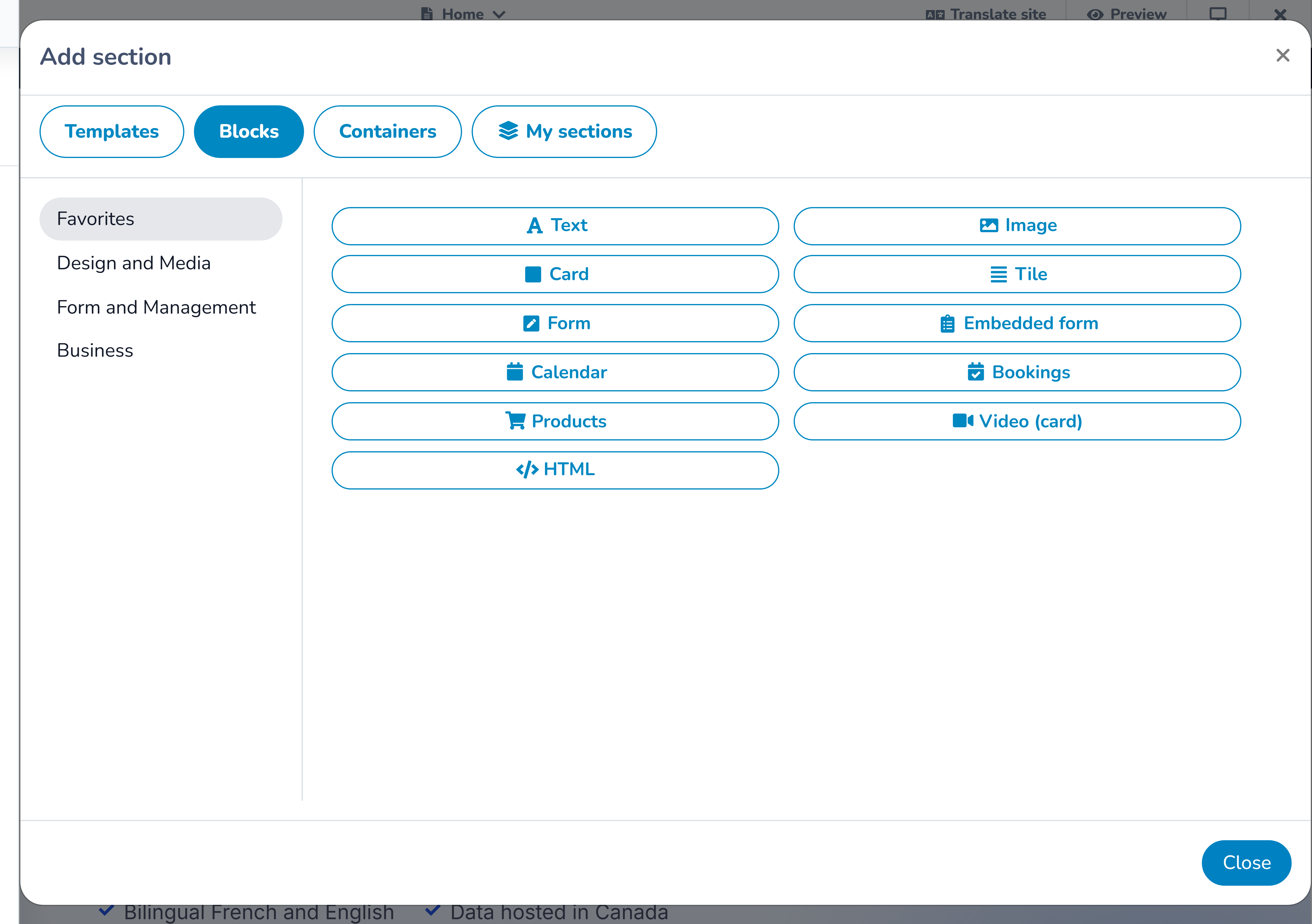
Open the section library and use Blocks for a standalone Activity Messenger feature. Use a specialized ecommerce or booking template when the page needs a designed list or featured presentation rather than a single utility block.
Depending on the organization's modules and content, available choices can include:
- a form card or embedded form;
- documents, locations, maps, and calendars;
- registrations, bookings, products, and packages;
- client-account or staff-login actions;
- teams, attendance, and member directories;
- form-answer displays and other business tools; and
- connected services such as Amilia when configured.
Not every organization sees every choice. The library considers enabled modules, permissions, and the current website context. If a feature is absent, first confirm that it is enabled and that an eligible source record exists.
# Understand what is edited where
The Website builder controls the presentation around a connected feature. This can include a localized heading, supporting copy, image, button label, background, spacing, and other design settings.
The source module controls the operational record. For example:
- the Forms area controls questions, required answers, confirmation behaviour, and form availability;
- booking, registration, package, and product areas control their offerings, dates, capacity, price, and purchasing rules;
- calendar or schedule sources control their events;
- account and login destinations control authentication and the visitor's next step; and
- directory or answer sources control which records are eligible to appear.
When the website shows outdated or incomplete operational information, inspect the source record before recreating the information as ordinary website text.
# Add a form
Choose the presentation that matches the task:
- a form card introduces the form and sends the visitor into its workflow; or
- an embedded form places the form directly in the page.
After selecting the form, complete the website heading and instructions in both languages. Preview long questions on mobile and check that the submit action is not hidden by surrounding content.
Test required fields, validation messages, confirmation text, notifications, and any payment or follow-up behaviour in the source form. A visually correct embed does not verify the workflow behind it.
# Add registrations, bookings, products, or packages
Use the corresponding block or template and select the intended source content. Keep page marketing copy separate from authoritative details such as price, tax, capacity, eligibility, dates, and cancellation terms; maintain those details in the source record whenever the integration displays them.
Some complex business structures can appear only once on a page. If the builder reports that a booking, product, member directory, or similar structure already exists, do not duplicate it through another saved section. Consolidate the content or place the second experience on another page.
A booking structure may also require a standalone page rather than a page participating in parent/child navigation. Follow the builder's placement message and update the page structure or choose a compatible page.
# Add account and login actions
Account and login actions should make their destination clear. Use labels such as Client account, View my registrations, or Staff login, rather than a vague Continue.
Test the journey while signed out. An editor who is already authenticated can skip the sign-in state and miss a broken redirect or confusing permission message.
# Protect privacy
Treat directories, form answers, team lists, and account-related content as potential personal-data surfaces.
Before publishing:
- confirm that only intended fields and records are displayed;
- use fictional records for previews and documentation;
- check whether the public, signed-in client, or staff audience is intended;
- remove private notes, internal identifiers, and unnecessary contact details;
- verify consent and organizational policy for names or images; and
- open the published page in a signed-out browser.
Hiding a page from navigation and asking search engines not to index it do not make its data private.
# Use custom HTML only when appropriate
The custom HTML block can present trusted embeds or markup that the built-in blocks do not cover. It does not grant access to a disabled module and should not be used to copy private records into a public page.
Review third-party embeds for security, privacy, cookie consent, mobile layout, and accessibility. Prefer the native Activity Messenger block when one exists because it follows the platform's data and permission model.
# Test the complete public journey
For every connected feature:
- save the source record and website changes;
- preview desktop, tablet, and mobile;
- publish the page when it is ready for controlled testing;
- open the public URL in a signed-out or private browser;
- repeat the journey in English and French;
- test validation, capacity, price, taxes, account state, confirmation, and notifications that apply;
- confirm success and cancellation paths return the visitor to a useful place; and
- remove any disposable test records according to the organization's procedures.
Use a safe testing approach for payments and messages. Do not create a real charge or contact real recipients merely to verify the page design.