
Home
Account setting
Staff
Lists
Forms
Templates (HTML emails/SMS messages)
Sending messages by SMS and email
Classes, events, attendance and Zoom
Automation
Create a birthday invitation and automation
Communication
Microsite
E-Commerce
Networks, Federations and Franchises
How to guides
Personal information and electronic message laws in Canada and the USA
Get support
Terms and conditions
RL-24
https://activitymessenger.com/
10410 Waverly, Montréal, H3L 2W4
Terms and conditions

Offer class add-ons for specific dates
Use Per date to let parents choose which registered class dates need an add-on, such as before-school or after-school care. Each selection stays associated with its date so staff can see the service required on that day's attendance list.
# Before you start
You need permission to edit the registration form or class and access its attendance lists. Set up a class with multiple dates and a registration rule that lets customers choose dates. This guide uses a class where parents can select one or several dates.
Per date is a setting on each class add-on. You can enable it for after-school care while leaving another add-on as a regular registration add-on. Booking and product add-ons have their own settings; this guide covers class add-ons.
# Enable Per date on a form
- Open the registration form under Forms and open its Form designer.
- Edit the class block that offers the dates.
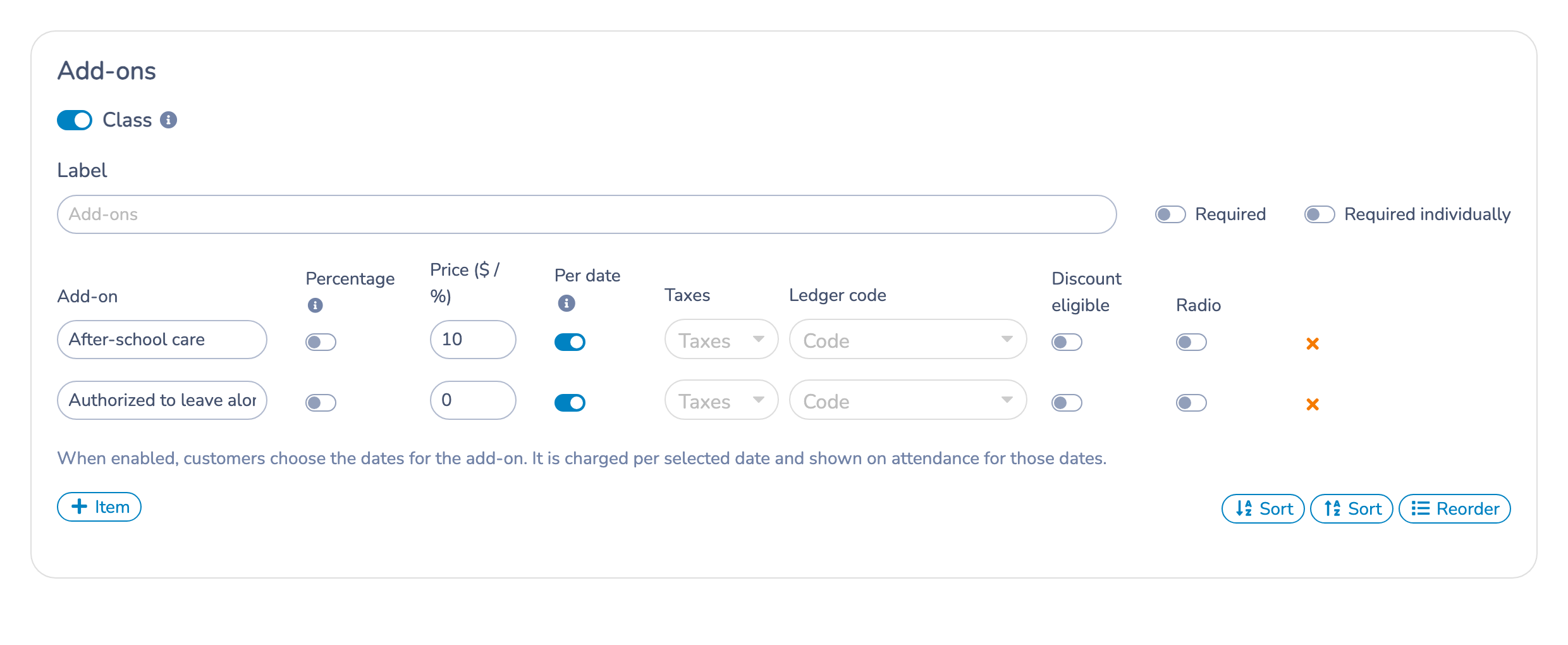
- Scroll to Add-ons and enable Class if it is not already enabled.
- Add an item or edit an existing one. Give it a clear name, such as After-school care, and enter its price.
- Enable Per date for that item. The information icon explains that customers choose the add-on dates, the price is charged for each selected date, and the add-on appears on attendance for those dates.
- Repeat for other items that need date-specific selections, then click Save.
For a fixed-price add-on, enter the amount for one date. For example, an after-school care price of $10 costs $10 when selected for one date and $20 when selected for two dates, before any applicable taxes or discounts.
# If the class overrides the form's add-ons
A class can use its own add-on configuration through Override form add-ons options in the class editor. When that override is enabled, configure Per date on the class's own add-on items. Those items replace the add-ons configured on the form for that class.
If a change to the form's add-ons does not appear during registration, check whether the class has this override enabled.
# What parents select
- The parent selects the class dates they want to register for.
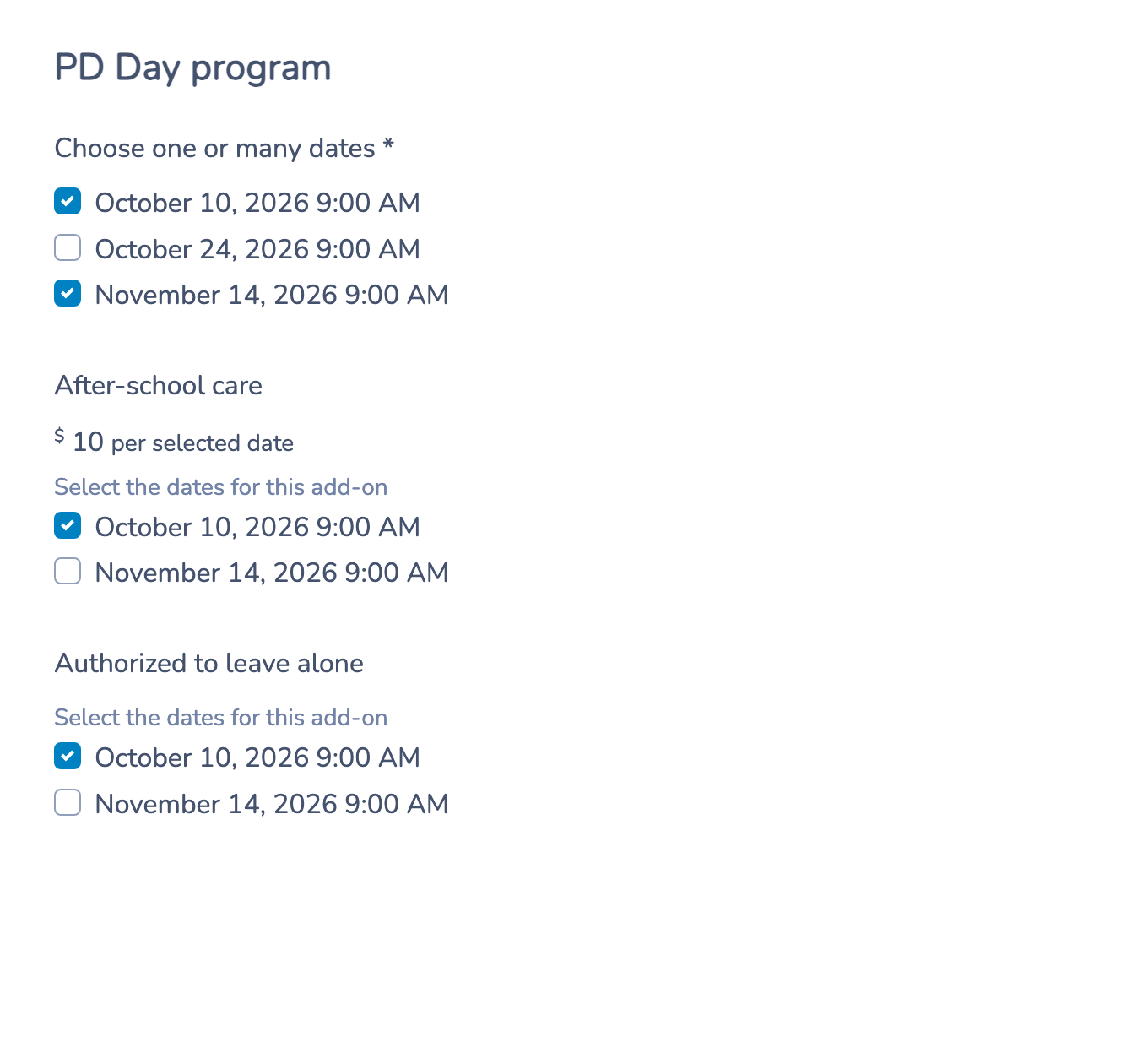
- The form displays the applicable add-ons. Each date-specific add-on lists only the dates selected for the class.
- The parent checks the dates that need each service. Different add-ons can have different date selections.
- The parent continues through registration and reviews the charges before completing it.
Choosing a class date does not automatically select care for that date. To request care on every registered date, the parent must select every listed date under that add-on.
If a parent removes a class date before submitting, that date is removed from the available add-on dates and its add-on selection is cleared. Removing every class date hides the add-ons until a date is selected again.
# Example: PD Day care
A PD Day class offers October 10, October 24, and November 14. After-school care costs $10 per selected date.
- The parent registers for October 10 and November 14.
- Under After-school care, the parent selects October 10 only.
- The care charge is $10, before applicable taxes or discounts.
- October 10 attendance shows after-school care for the participant.
- November 14 attendance does not show that date-specific care add-on for the participant.
October 24 is not offered as a care date because the parent did not select it for the class.
# Review selections and attendance
The registration response retains the selected add-ons and their dates. On the invoice, a date-specific add-on is associated with the corresponding class date and includes that date in its name. An add-on selected for several dates produces a separate dated charge for each applicable date.
To plan care for a day, open that class date's attendance list and review Add-ons. Date-specific add-ons associated with another class date are excluded from that date's add-on display. Use the registration response when you need to review the customer's full selection across dates.
# Track a free option by date
You can also enable Per date for an option such as Authorized to leave alone. Leave its price blank or set it to zero, then save it.
Parents select the dates when the option applies, just as they would for a paid add-on. The registration form does not display a $0.00 price for a free date-specific option. The selection can still appear on the registration record, invoice, and applicable attendance list.
# Important behavior
- Per date off: the item keeps the existing regular add-on behavior. It does not collect a separate selection for each date. Enable Per date when you need reliable tracking by day.
- Required items: when a date-specific item is required, the customer must choose at least one applicable date for it. This does not mean the item is automatically selected for every registered date.
- Changes to settings: enabling Per date does not retroactively assign dates to add-ons on earlier registrations or invoices.
- After registration: this guide does not describe moving, cancelling, or refunding an existing registration. Review the existing invoice and registration when making those changes; do not assume editing an add-on setting updates an earlier purchase.