
Home
Account setting
Staff
Lists
Forms
Templates (HTML emails/SMS messages)
Sending messages by SMS and email
Classes, events, attendance and Zoom
Automation
Create a birthday invitation and automation
Communication
Microsite
E-Commerce
Networks, Federations and Franchises
How to guides
Personal information and electronic message laws in Canada and the USA
Get support
Terms and conditions
RL-24
https://activitymessenger.com/
10410 Waverly, Montréal, H3L 2W4
Terms and conditions

Assign different class occurrences to each participant
Let a parent register several children for different classes or dates in one form submission. Each participant is entered once, then assigned only to the selected occurrences they will attend. This keeps the form to one Multiple Classes block and can also preserve eligibility for sibling or family promo codes.
# Before you begin
Use this option when your payment form has:
- a Multiple Classes block;
- the block's global Show classes in a calendar view option;
- a rule set to Can pick multiple events; and
- Different participant and Multiple enabled in that rule.
The option does not appear for a standalone Participant block or a class's own display calendar.
# Enable the global calendar
- Go to Forms and edit the payment form.
- Edit the Multiple Classes block.
- Select the classes that visitors may register for.
- Expand Advanced options.
- Enable Show classes in a calendar view and choose the default calendar view.
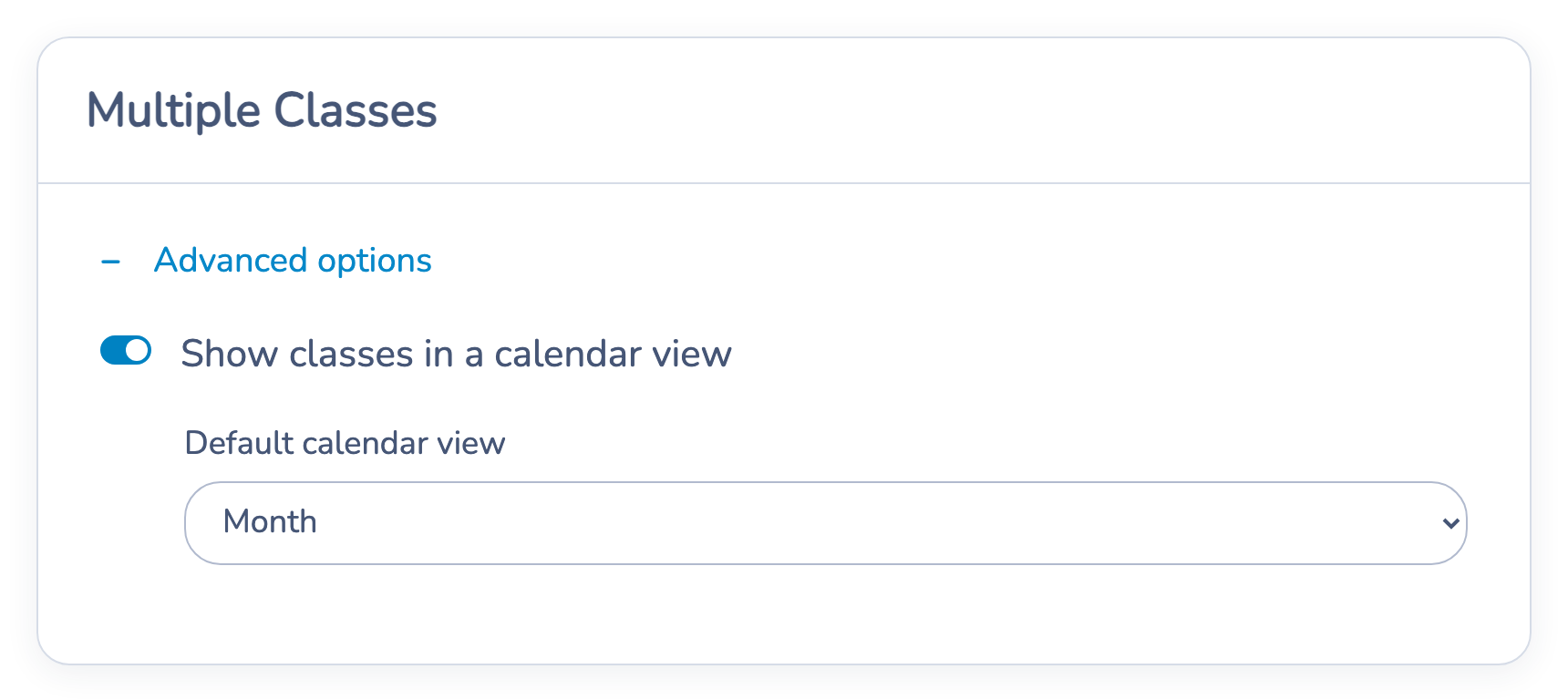
The global calendar is available with the Can pick multiple events registration rule.
# Allow different assignments for each participant
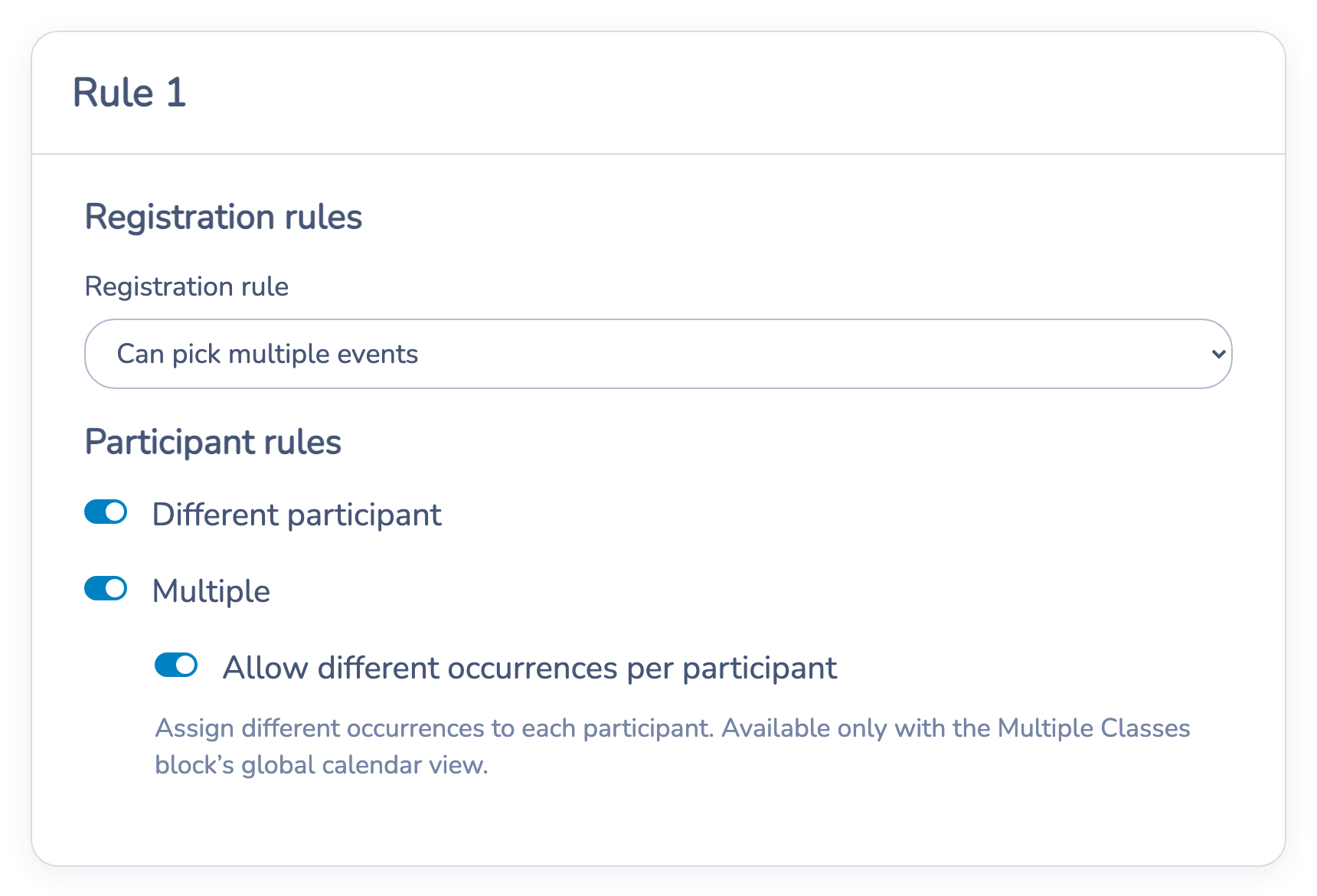
- In the Multiple Classes block, open the rule that applies to the selected classes.
- Under Registration rules, select Can pick multiple events.
- Under Participant rules, enable Different participant.
- Enable Multiple.
- Enable Allow different occurrences per participant.
- Save the rule and the Multiple Classes block.
# What the parent does
- Select the desired class occurrences in the global calendar.
- Enter the first participant.
- Under Classes for this participant, check only the occurrences that participant will attend. Select all and Clear all affect only that participant.
- Select Add participant and enter the next child or participant.
- Assign at least one selected occurrence to every participant, then continue through checkout.
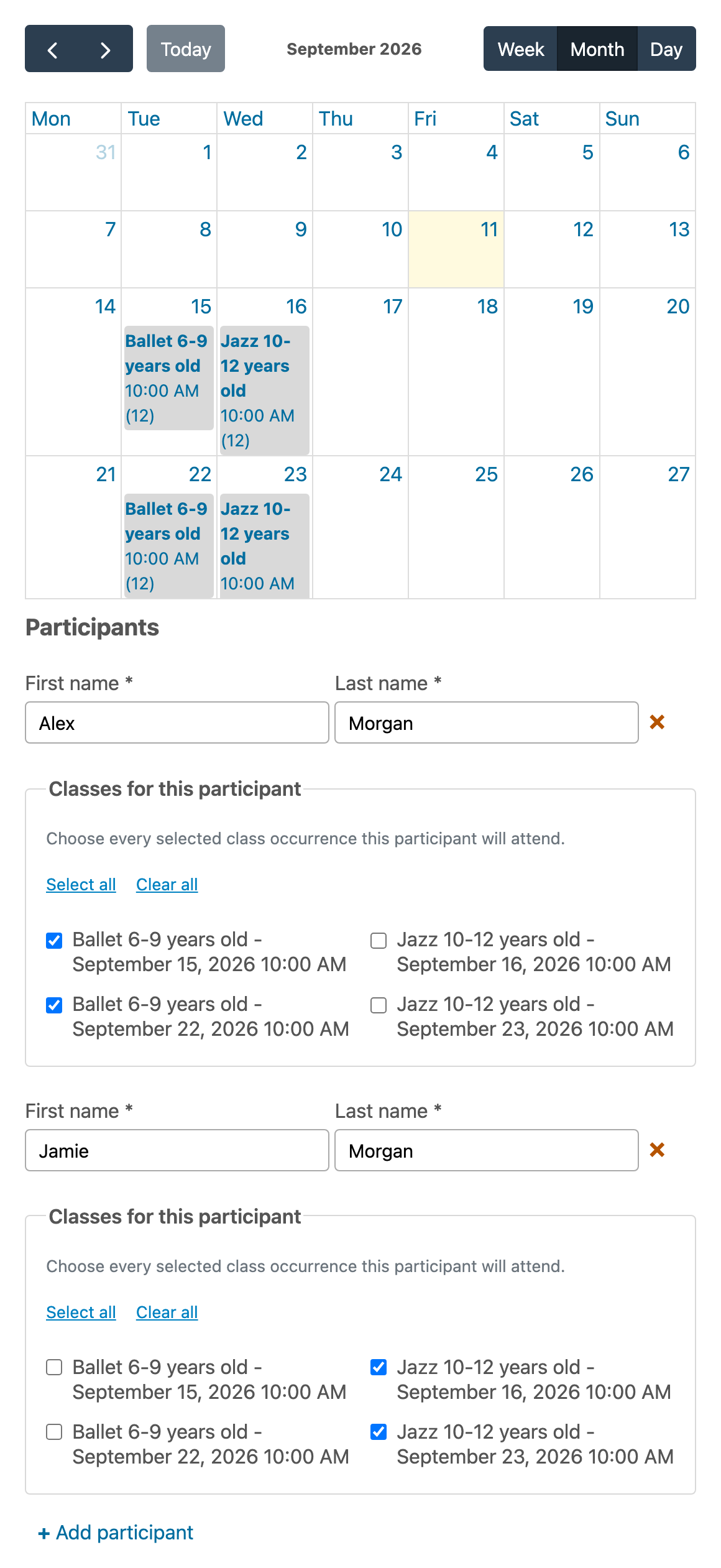
For example, Alex can attend the two selected Ballet dates while Jamie attends the two selected Jazz dates. Both registrations stay in the same form submission.
# Pricing and promo codes
- Price per date: every participant-occurrence assignment is billed. If two children attend the same occurrence, that occurrence is billed once for each child.
- Price for class: each participant is charged once for each class assigned to them, regardless of how many occurrences of that class they attend.
- Eligible sibling or family promo codes can still apply because the participants remain separate invoice items. All other promo-code conditions, such as the required number of items, still apply.
Review the checkout summary before completing a live registration whenever you change the form's price rule or promo-code configuration.
# Registrations, PDFs, and confirmation emails
Activity Messenger keeps the participant-to-occurrence assignment with the registration. Registration tables and invoices show the applicable participant and dates. Filled-form PDFs also list only the classes assigned to each participant.
To show the complete mapping in a confirmation email, include the All registrations placeholder in the template. A custom introductory sentence that uses a singular class or start-date placeholder describes only one registration and does not replace the full list.
# Important behavior
- Every participant must have at least one assigned occurrence.
- A participant can be assigned only to occurrences already selected in the global calendar.
- Capacity, eligibility, schedule-conflict, duplicate-registration, waitlist, and promo-code rules continue to apply to each participant and occurrence.
- If Allow different occurrences per participant is off, every participant entered in the rule is registered for every occurrence selected in the calendar. This preserves the previous behavior.
- If you turn off the global calendar or Multiple, the different-occurrence option no longer applies.