
Home
Account setting
Staff
Lists
Forms
Templates (HTML emails/SMS messages)
Sending messages by SMS and email
Classes, events, attendance and Zoom
Automation
Create a birthday invitation and automation
Communication
Microsite
E-Commerce
Networks, Federations and Franchises
How to guides
Personal information and electronic message laws in Canada and the USA
Get support
Terms and conditions
RL-24
https://activitymessenger.com/
10410 Waverly, Montréal, H3L 2W4
Terms and conditions

Sell assigned seats with seat maps
Seat maps let participants choose a specific seat when they register for a class or event through a payment form. Administrators can build reusable maps with rows, tables, single seats, unavailable seats, and optional seat prices, then attach a map to a ticket question.
# Before you begin
- Seat maps must be enabled for your organization.
- You must be an owner or administrator to create or modify seat maps.
- Create the class or event before attaching a seat map to its ticket question.
- Use a payment form with a Tickets question when clients should choose seats during checkout.
# Create a seat map
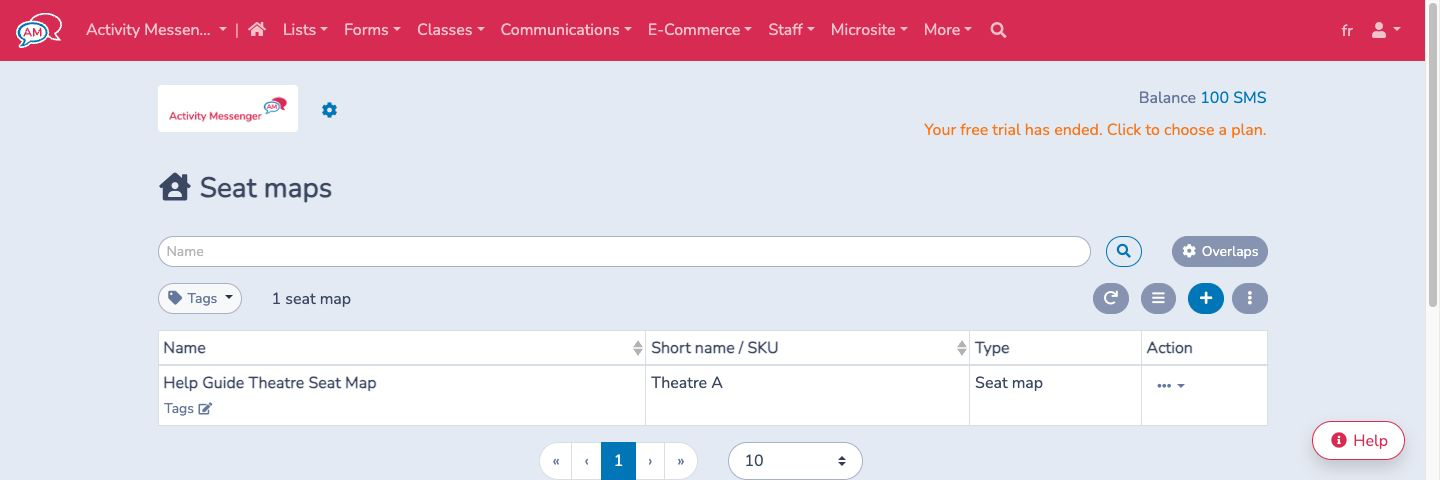
- Go to Classes > Seat maps.
- Select the plus button.
- Enter a Name and, if needed, a Short name.
- Choose a Parent location when this map belongs inside another location.
- Select Create.
- Add rows, tables, single seats, objects, or images to draw the layout.
- Select Save.
Rows and tables contain multiple seats. A single seat is useful for loose chairs, accessible seating, or seats that do not belong to a row or table.
# Configure seats
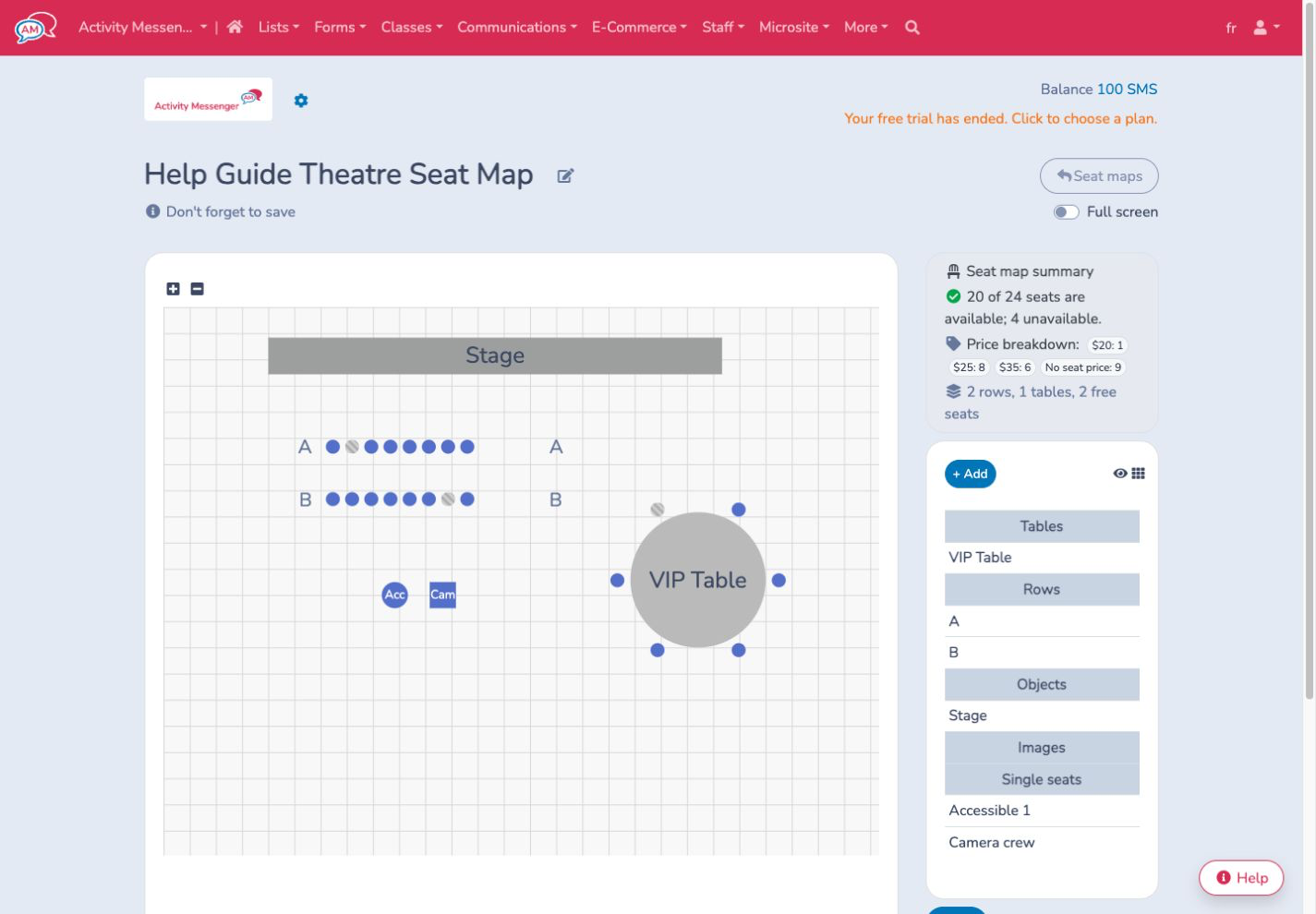
Select a row, table, or single seat to edit it.
- Use Name to label the row, table, or seat.
- Use Seats to control how many seats belong to a row or table.
- Use Price when seats in that shape should use a specific price.
- Use Apply to all seats to copy the shape price to every seat in the row or table.
- Use Locked to make a seat unavailable for clients.
The seat map summary shows the total seats, unavailable seats, price breakdown, and layout counts. Use it as a quick check before saving.
# Attach a seat map to a form
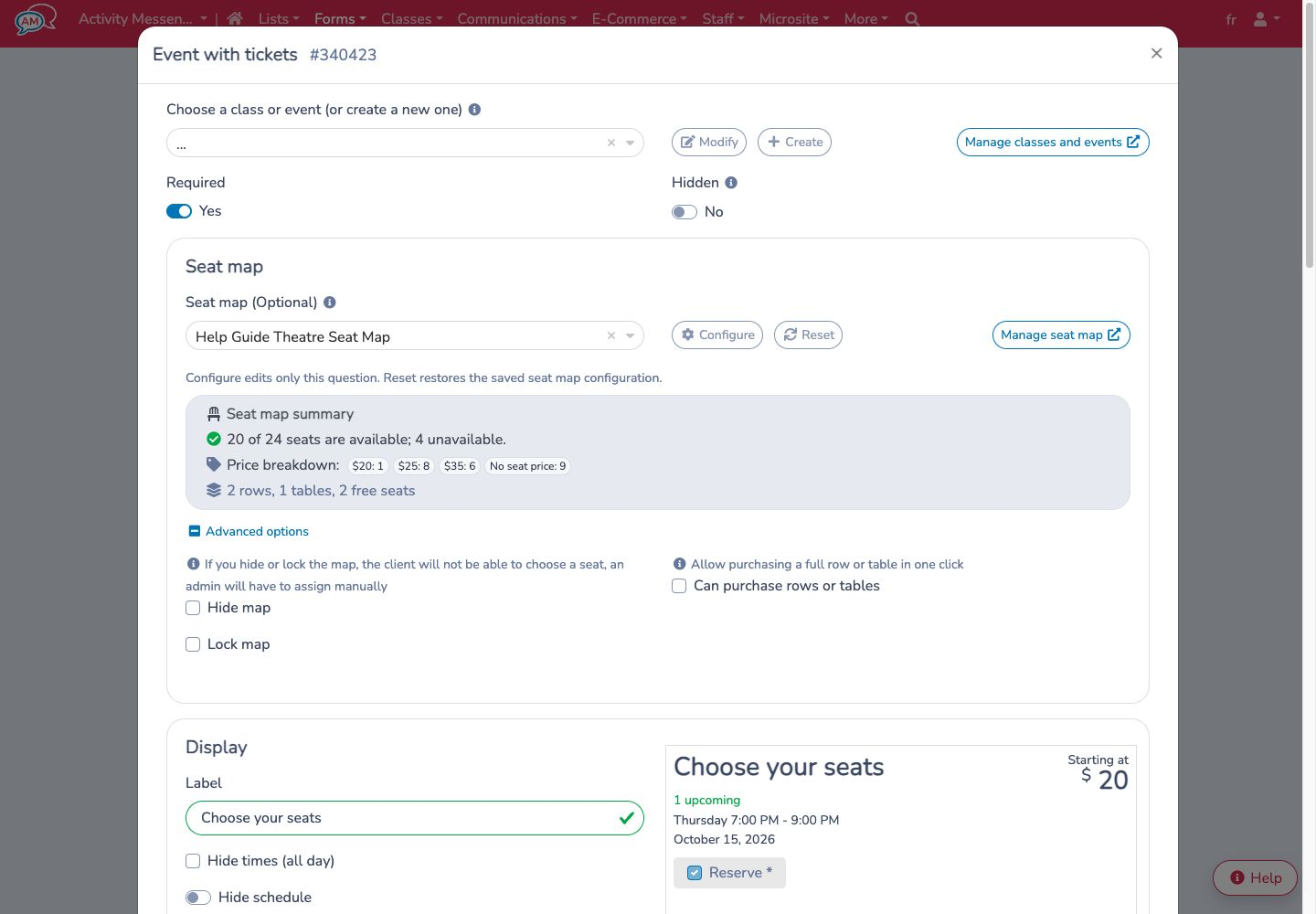
- Go to the payment form that sells the class or event.
- Open the Tickets question.
- In Seat map, choose the saved map.
- Use Configure this question's seat map when this form needs a local version of the map.
- Use Reset to saved seat map to bring back the saved map configuration and remove local changes for this question.
- Select Save on the question, then save the form.
Changes made from Configure this question's seat map apply only to that question. The saved seat map remains unchanged.
# Seat map options on a question
Open Advanced options in the Seat map section to control how clients interact with the map.
- Hide map: clients cannot see or choose seats. An administrator must assign seats manually.
- Lock map: clients can complete the registration without choosing a seat. An administrator must assign seats manually.
- Can purchase rows or tables: clients can buy an entire row or table in one action.
- Temporary seat holds: when enabled by an administrator, selected seats are held with a countdown while the buyer completes the form and payment.
# Prices and overrides
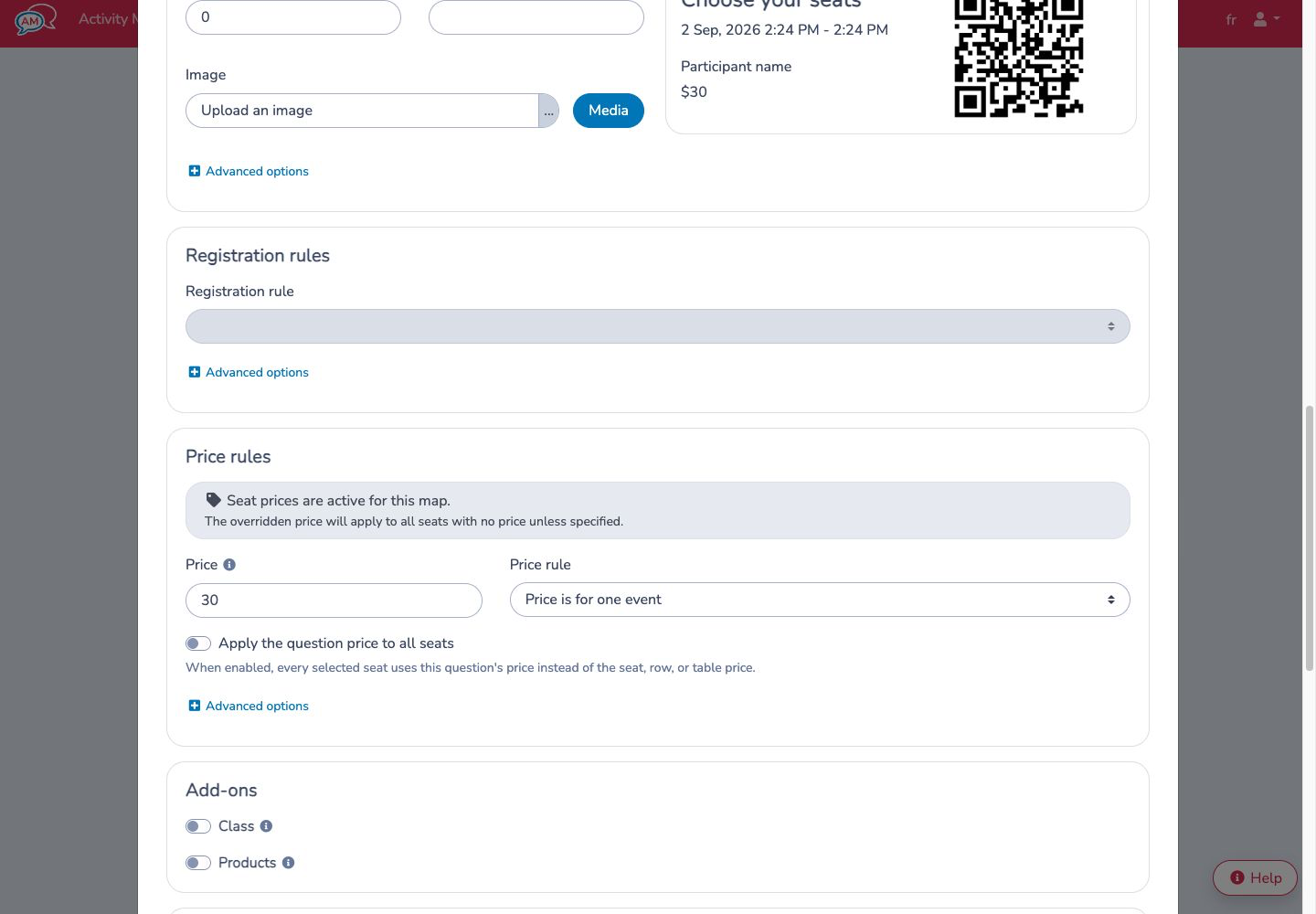
Seat pricing follows this order:
- A specific seat price.
- A row, table, or single-seat price.
- The question price override, when one is set.
- The class or event price.
If the map has active seat prices, the question shows a warning in the Price rules section. The overridden question price applies to seats with no price unless another seat, row, or table price is specified.
Turn on Apply the question price to all seats when the question price should replace every seat-map price for this form.
# Manage seats after purchase
Administrators can view seat assignments from attendance and ticket management screens. If a seat must change, use the seat assignment action to choose another available seat. When the new seat has a different price, administrators can choose whether to update the ticket price.
# Important behavior
- Seat maps are reusable, but each ticket question stores its own copy of the selected map.
- Updating the saved seat map does not automatically rewrite existing question-local changes.
- Resetting a question's map removes local changes and restores the saved map configuration.
- Locked seats cannot be selected by clients.
- Seat availability is checked against the event's existing reservations.
- Seat-map pricing affects new invoice items created after the form is submitted. It does not automatically update old invoices.