
Home
Account setting
Staff
Lists
Forms
Templates (HTML emails/SMS messages)
Sending messages by SMS and email
Classes, events, attendance and Zoom
Automation
Create a birthday invitation and automation
Communication
Microsite
E-Commerce
Networks, Federations and Franchises
How to guides
Personal information and electronic message laws in Canada and the USA
Get support
Terms and conditions
RL-24
https://activitymessenger.com/
10410 Waverly, Montréal, H3L 2W4
Terms and conditions

Memberships reports
Memberships reports separate two different questions: how many membership records were active on a date, and how much money was collected for membership invoice items during a period. Use Active memberships for point-in-time headcounts and Membership payments for payment-date cash activity.
# Before you begin
You need an eligible administrator role with access to financial reports. The Memberships category is not shown to the Accountant role. Configure your memberships, membership validity dates and recurring schedules before relying on these reports.
Open E-Commerce > Reports, select the current report name, then open Memberships. The standard category contains Active memberships and Membership payments. Affiliations appears only in eligible federation workspaces.
The reports are calculated from current operational data. Changes to member records, validity dates, invoices, payments, refunds, cancellations or recurring schedules can change an earlier result.
# Active memberships
Use Active memberships to count the members in each membership on one date, or compare two point-in-time snapshots.
- Select one date for a single headcount or two different dates for a comparison.
- Select memberships directly or filter them with membership tags.
- Review the total cards and the count for each membership.
- With two dates, review the numeric and percentage change. The change is the second date minus the first date.
- Click a date count to see the members included in that snapshot. Click a change value to see the members added or expired between the two dates.
- Use Excel to export the membership counts for the current dates and filters.
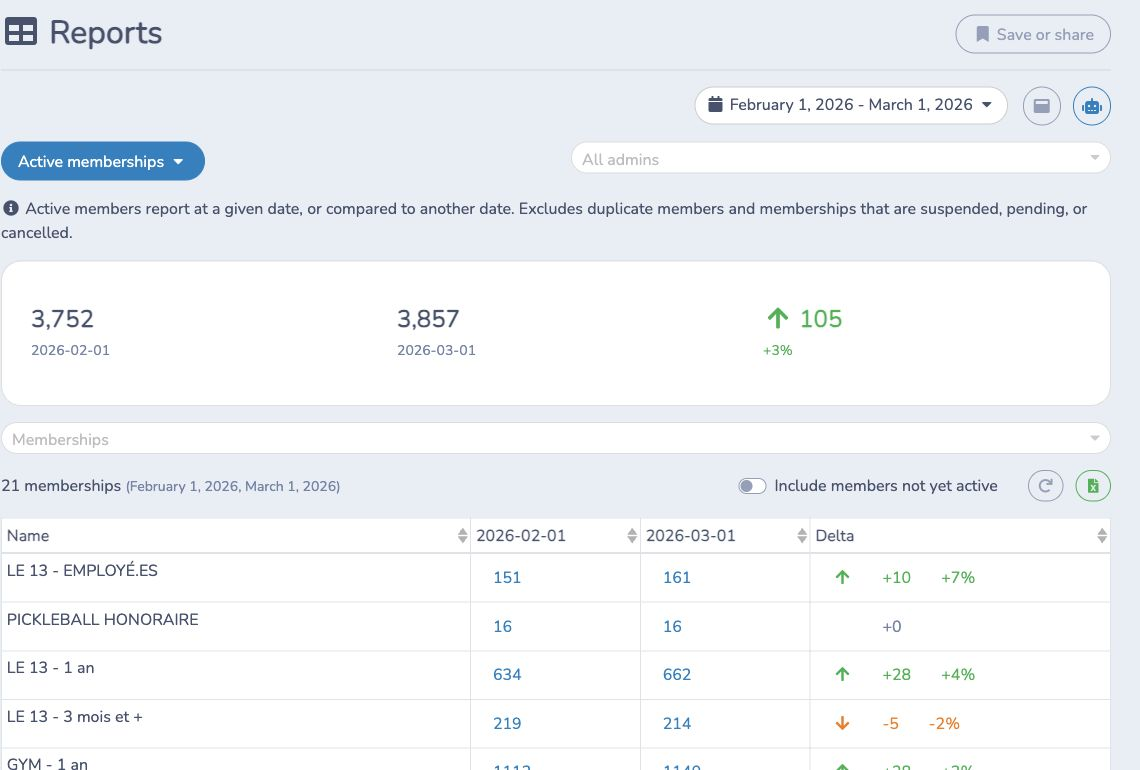
A record is counted when the selected date is on or after its start date and on or before its expiry date. Membership records marked pending, suspended or cancelled are excluded. Duplicate records with the same membership, email and name are counted once per date.
Enable Include members not yet active to ignore the membership start date while still respecting the expiry date. This is useful when reviewing memberships already sold for an upcoming season, but the result is no longer a strict active-on-that-date count.
For example, a facility can compare February 1 with March 1, identify a net increase in annual gym memberships, then click a negative change on a short-term membership to see which members expired between the snapshots.
# Membership payments
Use Membership payments to review payments and refunds allocated to membership invoice items. The selected range uses the payment item's date in the organization's timezone. It does not use the membership validity dates or recognize revenue over the service period.
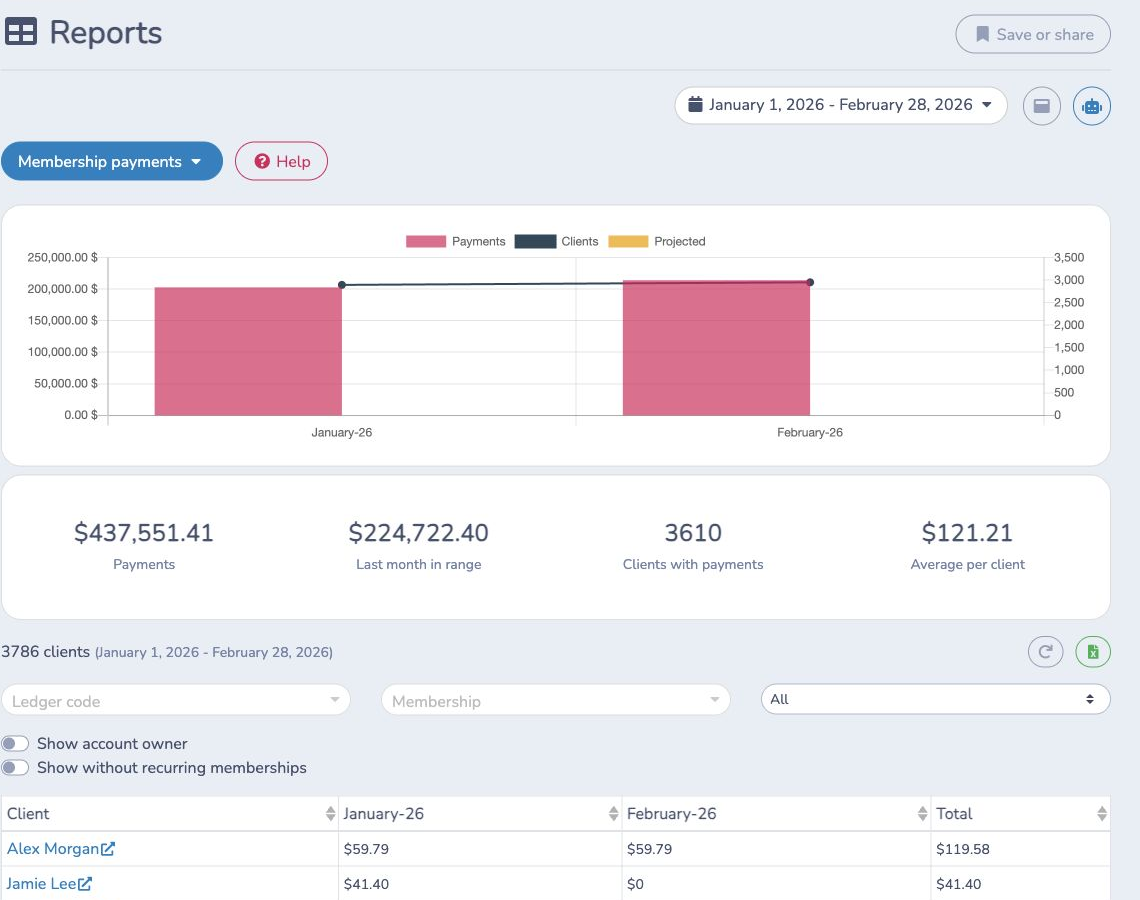
The summary means:
- Payments: net membership payments and refunds dated in the complete selected range.
- Last month in range: net payments dated in the calendar month containing the selected end date.
- Clients with payments: distinct membership recipients with at least one payment item in the range.
- Average per client: Payments divided by Clients with payments.
Each row represents one membership recipient. Month columns and Total use payment dates. Refund items are negative. A later cancellation does not remove an earlier payment from its original month. The chart compares net payments with paying clients; projected values come from unexecuted recurring items scheduled in selected months and remain estimates rather than received money.
The report can also include a finalized membership invoice with no payment so you can find an Invoice sent, not paid exception. Such a row contributes to the table result but not to Clients with payments or Average per client.
Filter and investigate payments
- Use Ledger code and Membership to limit the included membership invoice and payment items.
- Use Active, Active recurring, Expired, Cancelled or Invoice sent, not paid to focus on the latest related invoice and recurring state. Expiry is evaluated at the selected period's closing date.
- Enable Show account owner when the payer or household owner should be displayed instead of the membership recipient.
- Enable Show without recurring memberships to return only membership invoice items that are not attached to a recurring schedule.
- Click a client to open that recipient's invoice history.
The Excel export uses the current dates, ledger code, memberships, status, sorting and display switches. A saved or shared report URL preserves those supported controls.
# Active memberships and Membership payments are not interchangeable
- Use Active memberships for a membership headcount as of a date. It does not require a payment in the selected period.
- Use Membership payments for cash received or refunded on payment dates. A payer can appear even when the related membership later expires or is cancelled.
- Use the general Payments reports when you need every payment type rather than only membership allocations.
- Use Sales reports for finalized invoice items and Deferred revenue when revenue must be analyzed over membership validity dates instead of payment dates.
# Affiliations for federation workspaces
Eligible federation workspaces can also see Affiliations under Memberships. This specialized report is organized by federation season and club rather than the standard financial-report date range. It lists generated affiliation reports and invoice PDFs, supports report generation or category updates, and can download the currently filtered PDFs in bulk. It is not a replacement for Active memberships or Membership payments.