
Home
Account setting
Staff
Lists
Forms
Templates (HTML emails/SMS messages)
Sending messages by SMS and email
Classes, events, attendance and Zoom
Automation
Create a birthday invitation and automation
Communication
Microsite
E-Commerce
Networks, Federations and Franchises
How to guides
Personal information and electronic message laws in Canada and the USA
Get support
Terms and conditions
RL-24
https://activitymessenger.com/
10410 Waverly, Montréal, H3L 2W4
Terms and conditions

Payments reports
Payments reports explain when money was received or refunded, how it was paid, which invoice items and ledger codes received the payment, and which collection or cash-register exceptions require follow-up.
# Before you begin
Open E-Commerce > Reports, choose Payments, then select the report. You need permission to view financial reports. Register operations appears only when cash-register mode is enabled, and Scheduled payment attempts is limited to eligible administrative roles.
The date range is interpreted in the organization's timezone. Administrator, point-of-sale and contract filters appear only on reports that support them.
# Payments
Use Payments for the individual payments received and refunds issued in the selected period. Refunds are negative. The summary shows total, taxes, amount before tax, credits, tips and totals by payment method. The detail table shows the invoice, client, paid date, amount, ledger-code allocation, administrator, status and exceptions.
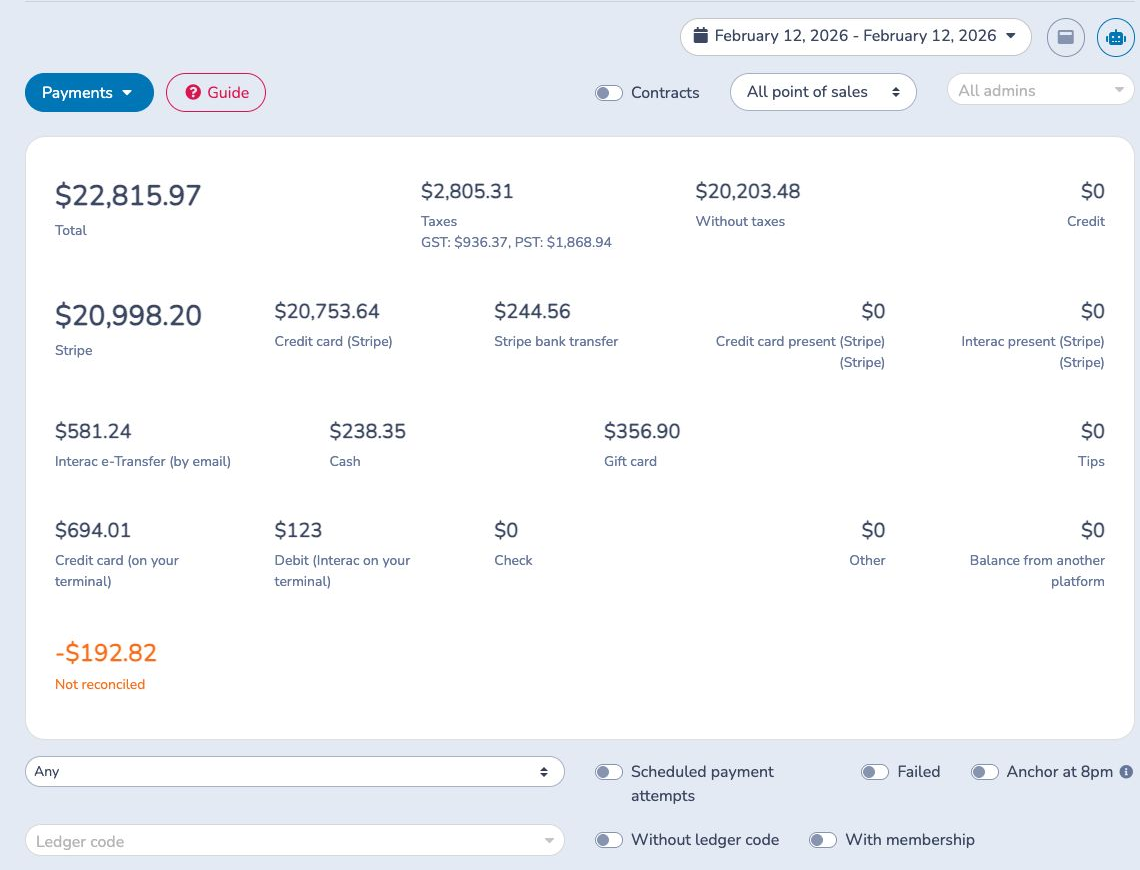
Useful filters include payment type, ledger code, administrator, point of sale, contract, membership, scheduled payments and failed payments. Enable the 8 p.m. boundary only when your operational day should run from 8 p.m. on the previous calendar day to 8 p.m. on the selected day.
A Not reconciled amount means the payment total does not equal the amount allocated to its invoice items. It is not a bank reconciliation difference. Open the invoice, review the Payments section and correct the reconciled items so their allocation equals the payment amount.
For cash, checks, offline cards and Interac e-Transfer, compare a single payment method's total with the related bank deposit. Do not use this report to match Stripe net deposits; use Stripe payouts. Excel exports the current dates and filters. Journal entries previews and exports entries for supported non-Stripe payment buckets.
# Payments summary
Use Payments summary when you need the selected payment activity grouped by day instead of one row per payment. It uses the same payment-method totals and supports ledger-code, scheduled, failed, 8 p.m., administrator, point-of-sale and contract filters.
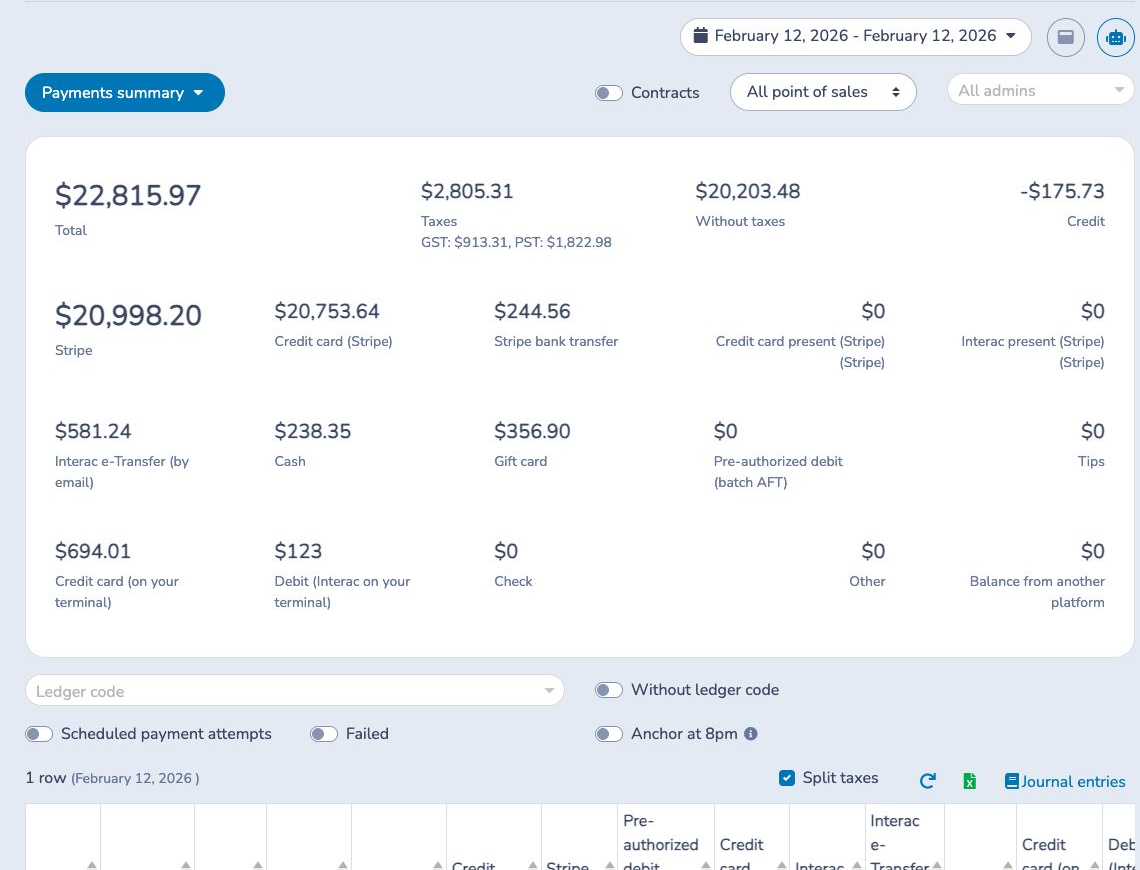
The summary is useful for daily close and trend review. Open Payments when you need the invoice or client behind a daily value. Excel exports the daily result, and Journal entries uses the filtered payment buckets for the selected period.
# Payments by ledger code
Use Payments by ledger code to allocate received or refunded money across the ledger codes on the reconciled invoice items. It answers a payment-basis question; it is not the same as Sales by ledger codes, which groups invoiced sales.
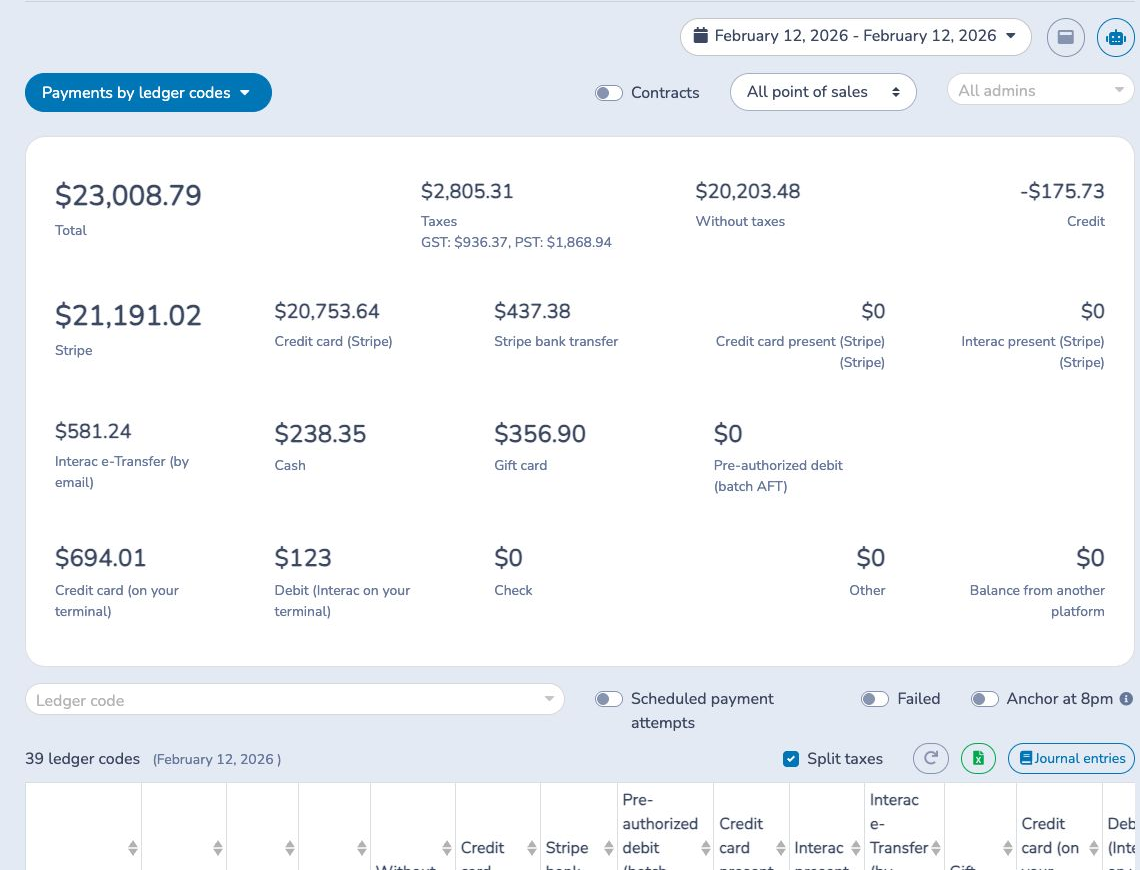
Filter by payment type, ledger code, administrator, point of sale, contract, scheduled or failed state. A missing-ledger-code row identifies paid amounts that could not be assigned to a configured code. Use its link to open the underlying Payments report and investigate the affected invoices. Excel and Journal entries use the current filters.
# Scheduled payment attempts
Use Scheduled payment attempts as the operational history and collection follow-up queue for automatic or scheduled payments. The range uses Attempted at, not only the payment's original scheduled date.
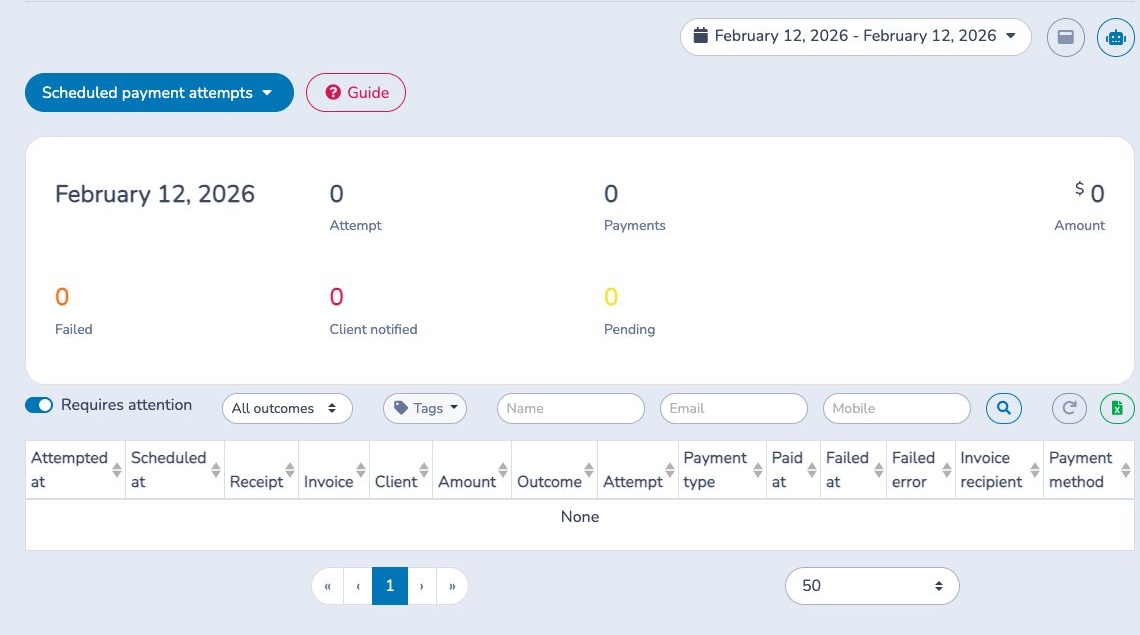
The cards distinguish attempts, distinct payments, amount, failures, clients notified, pending attempts and successes. Because one payment can be attempted more than once, the displayed amount can count it more than once and is not an accounts-receivable balance.
Leave Requires attention on to show the latest attempt for payments whose latest outcome is Failed, Client notified or Pending. A later Success or Deleted result removes the payment from that queue. Expand an attempt to review its sequence, open the invoice, then collect payment, update the method or adjust the schedule. Confirm the amount still owed in Accounts receivable.
Invoice tags are shared with Accounts receivable and can represent follow-up stages. Excel exports the current date, attention, outcome, search and tag filters with processor and payment-method detail.
# Register operations
Use Register operations for the cash-register workflow and audit trail. It records opening and closing operators and times, counted cash, tips, comments, payment-terminal batch references, deposit references and balancing results.
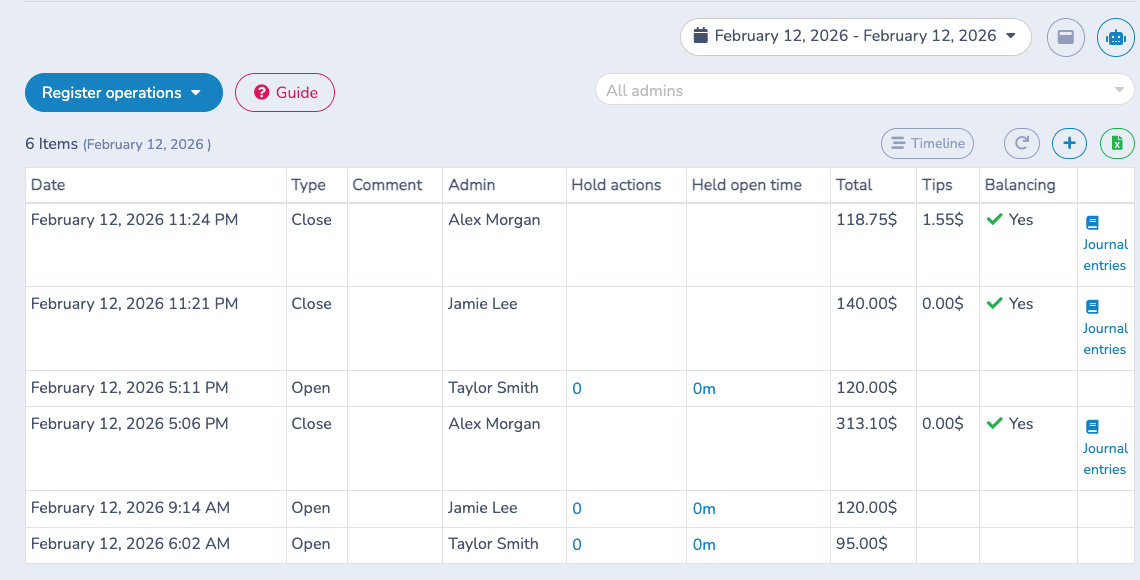
In dedicated mode, each attendant operates a separate register. In shared mode, eligible users work from one common register and its shift includes their combined payments. A close compares external counter and drawer values with Activity Messenger activity and tips:
A zero Delta balances the shift. For a non-zero Delta, recount cash, verify the opening float, terminal totals, tips, payment methods, operator and timestamps, then document any understood difference. Stripe, gift cards and Interac e-Transfer are displayed for reference but are not part of the register Delta.
Excel exports the operations in the selected range. A close row's Journal entries covers that opening-to-closing shift. Prefer the Payments report when the accounting period spans several shifts or registers.