
Home
Account setting
Staff
Lists
Forms
Templates (HTML emails/SMS messages)
Sending messages by SMS and email
Classes, events, attendance and Zoom
Automation
Create a birthday invitation and automation
Communication
Microsite
E-Commerce
Networks, Federations and Franchises
How to guides
Personal information and electronic message laws in Canada and the USA
Get support
Terms and conditions
RL-24
https://activitymessenger.com/
10410 Waverly, Montréal, H3L 2W4
Terms and conditions

Classes reports
Classes reports help you compare cumulative class sales, follow registration pace, allocate invoiced revenue to scheduled occurrences, measure current capacity utilization, and review booked private lessons by coach. This guide covers only Classes revenue, Class enrollment tracking, Classes revenue per day, Class capacity utilization, and Private lessons.
# Before you begin
You need permission to access financial reports. Class dates, registration dates, capacities, tags, rosters and finalized invoices should be configured before you rely on these reports. The reports are live: later registrations, cancellations, invoice edits and schedule changes can change an earlier result.
Open E-Commerce > Reports, select the current report name, then choose one of these five reports under Classes.
# Classes revenue
Use Classes revenue to compare cumulative invoiced sales for selected classes, seasons, programs or cohorts.
- Select individual classes or select class tags. Choosing one method clears the other.
- With several tags, choose All, Any or None to control how the tags are matched.
- Leave As of empty for the current cumulative result, or choose a cutoff date. The cutoff includes sales recorded through the end of that day in the organization's timezone; it is not a class-occurrence date.
- Enable Compare to build an independent second selection. Each side can use different classes, tags and As of dates. The displayed difference is comparison set − primary set; use Switch to reverse the sets.
- Use the Excel button on either side to export that set's class totals.
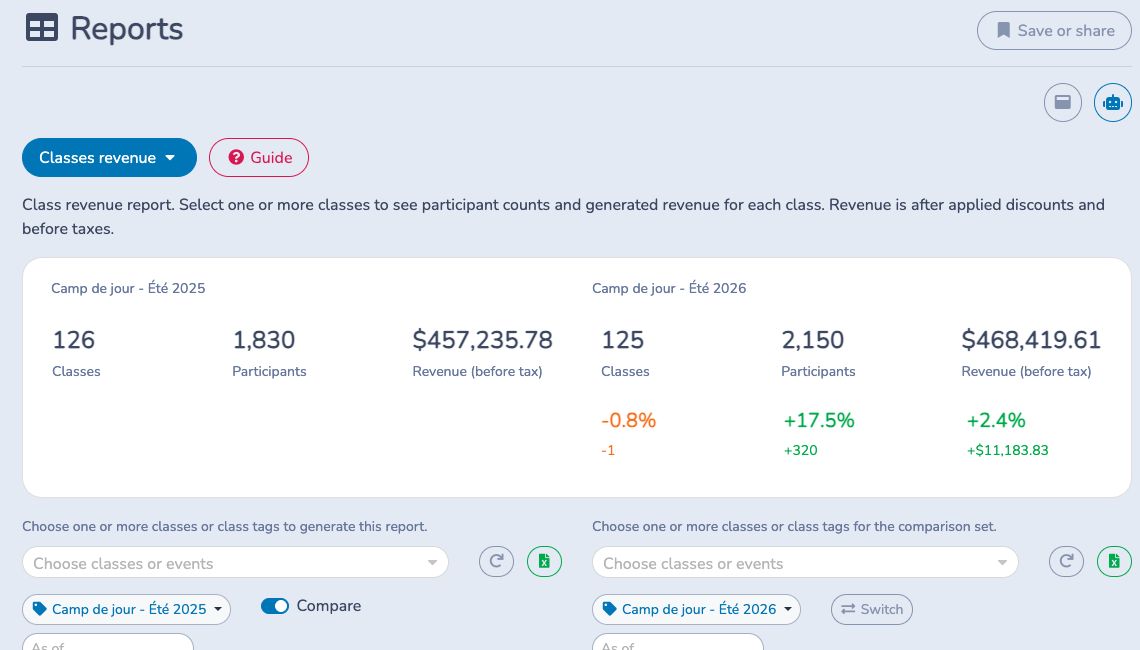
The totals mean:
- Classes: selected classes returned by the report, including classes with no invoiced participants or revenue.
- Participants: distinct participants on finalized class invoice items, counted once per class. This is not the current roster or attendance count.
- Revenue: finalized class invoice-item amounts after discounts and cancellations, before taxes. Paid and unpaid invoices are included; class add-ons are excluded.
Use Payments reports for cash received and accounting reports for ledger or recognized-revenue questions.
# Class enrollment tracking
Use Class enrollment tracking to see how net enrollments accumulate during a registration period and to compare the pace of two or more cohorts by elapsed day.
- Select the primary classes or class tags.
- Keep Inferred date range when Activity Messenger should derive the registration period from configured registration dates and observed finalized registrations. Use the date picker to override it, or select Infer dates again after changing the cohort.
- Select Manage comparisons to add comparison cohorts. Each comparison must cover the same number of elapsed days as the primary range, even when its calendar dates are in another year.
- Review each cohort card, then use the line chart to compare cumulative net enrollments by Day 1, Day 2, and so on.
- Leave Show individual classes collapsed for a cohort-level comparison. Expand it only when you need the primary cohort's per-class rows.
- Use Excel to export every cohort and elapsed day.
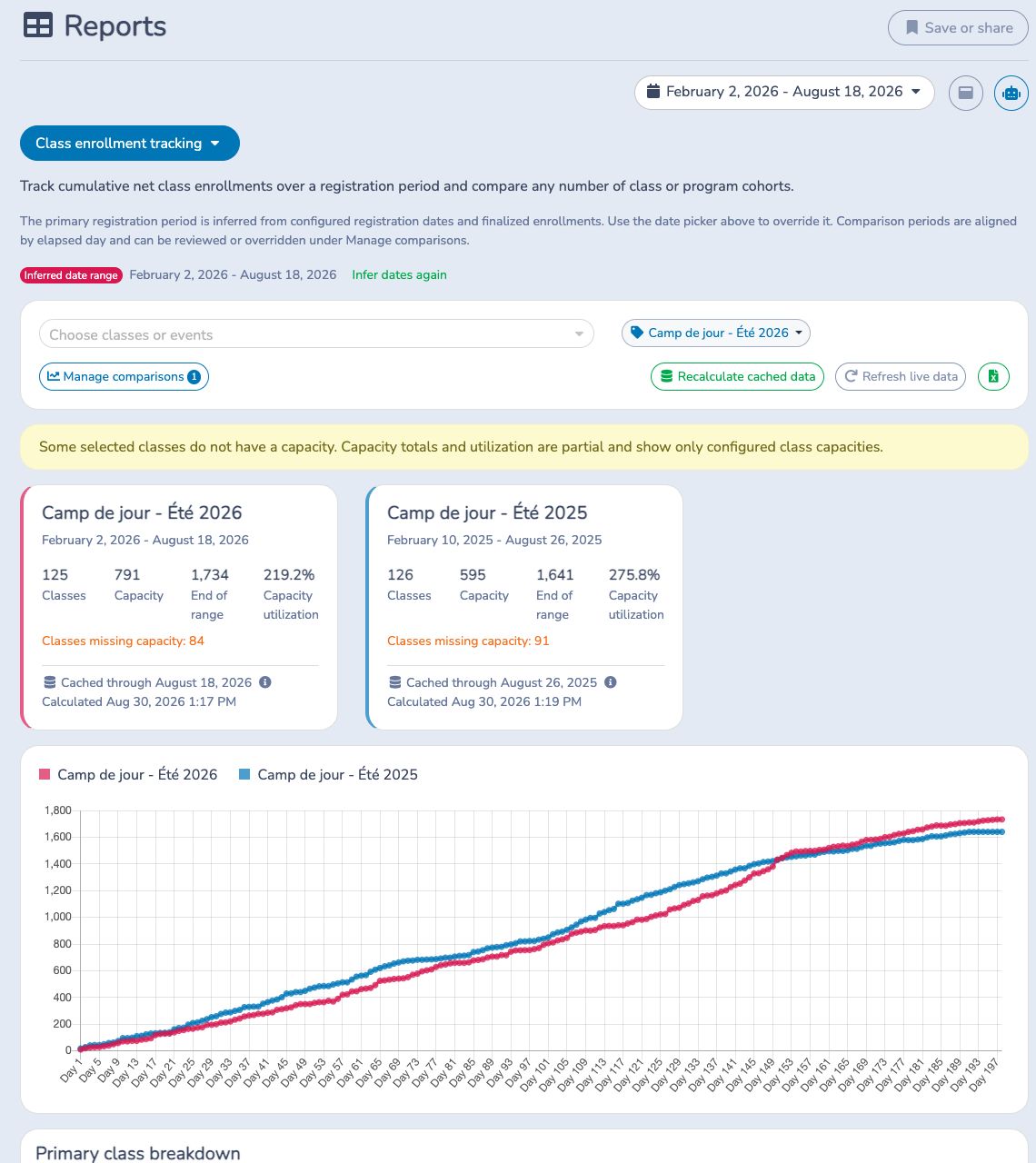
Each finalized class registration adds one enrollment on the date it was recorded; a finalized cancellation subtracts one on its cancellation date. The capacity total includes only classes with a configured capacity. When a warning lists classes without capacity, the utilization percentage is partial and can exceed 100%.
Closed days are cached so long comparisons load consistently. The current day, when present, is calculated live. Refresh live data reloads the report; Recalculate cached data deliberately rebuilds historical cached days and should be used only when corrected historical data must be reflected.
# Classes revenue per day
Use Classes revenue per day when the question is tied to scheduled class occurrences rather than cumulative class totals.
- Select the occurrence date range in the organization's timezone.
- Optionally filter by assigned staff or class tags.
- Compare Potential revenue with allocated invoiced Revenue.
- Click an occurrence to inspect its invoiced participants, allocated amount, event count, price per event and source invoice.
- Use Excel to export one row per occurrence for the current dates and filters.
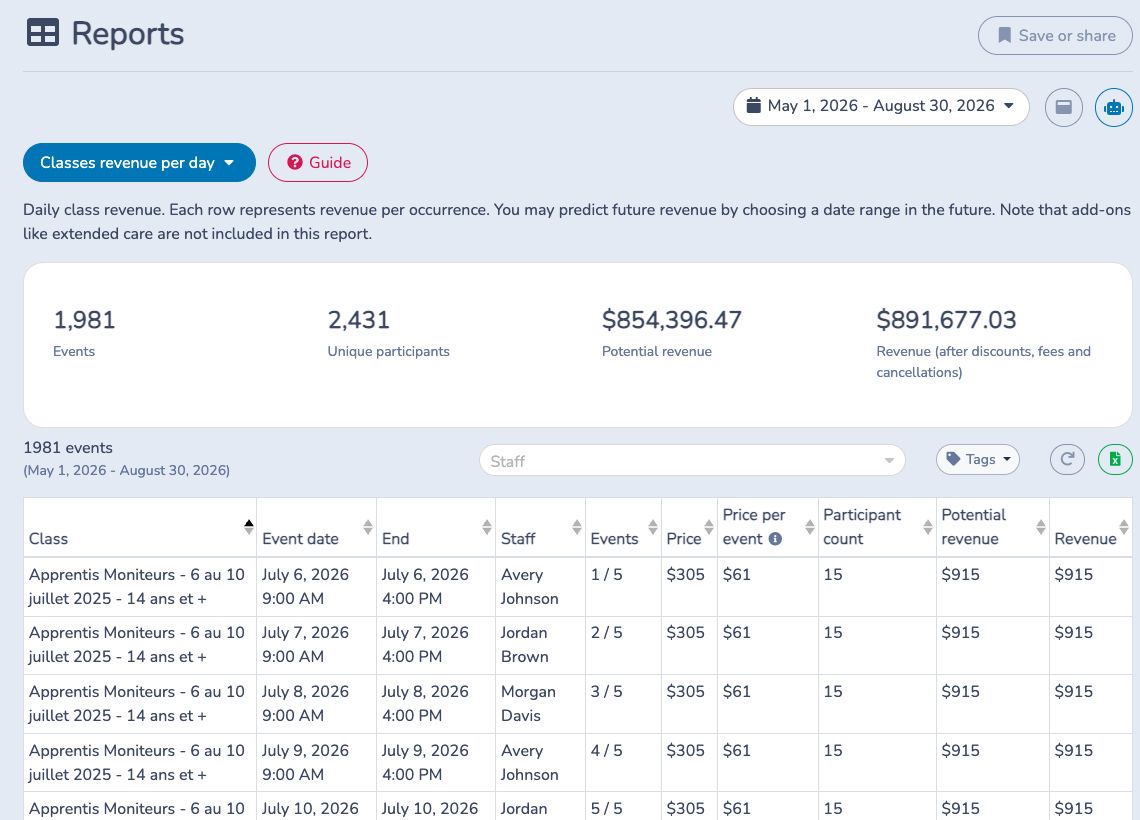
For each occurrence, Price per event is the configured per-event price or the class price divided by all scheduled events. Potential revenue is that price multiplied by the occurrence roster count. Revenue is finalized class invoice revenue allocated to the occurrence after discounts and before taxes. A general class registration is divided across the occurrences assigned to that participant; small rounding differences can result. Class add-ons are excluded.
The participant count is a roster count, not attendance. The Unique participants summary counts distinct invoiced participant names represented in the report, so it can differ from the sum of occurrence rosters. Future dates are projections based on the current schedule, roster and finalized invoices.
# Class capacity utilization
Use Class capacity utilization to identify underfilled, full and over-capacity classes during a selected schedule period.
- Select the dates when class occurrences take place.
- Filter by class tags with All, Any or None. Enable archived classes only when an archived class still has occurrences in the period.
- Sort by Average enrolled spots, Max Attendance or the percentage.
- Open the attendance-roster link beside a class when you need to inspect its participants and occurrence assignments.
- Optionally add quantity columns for selected finalized class add-ons, then export the current view to Excel.
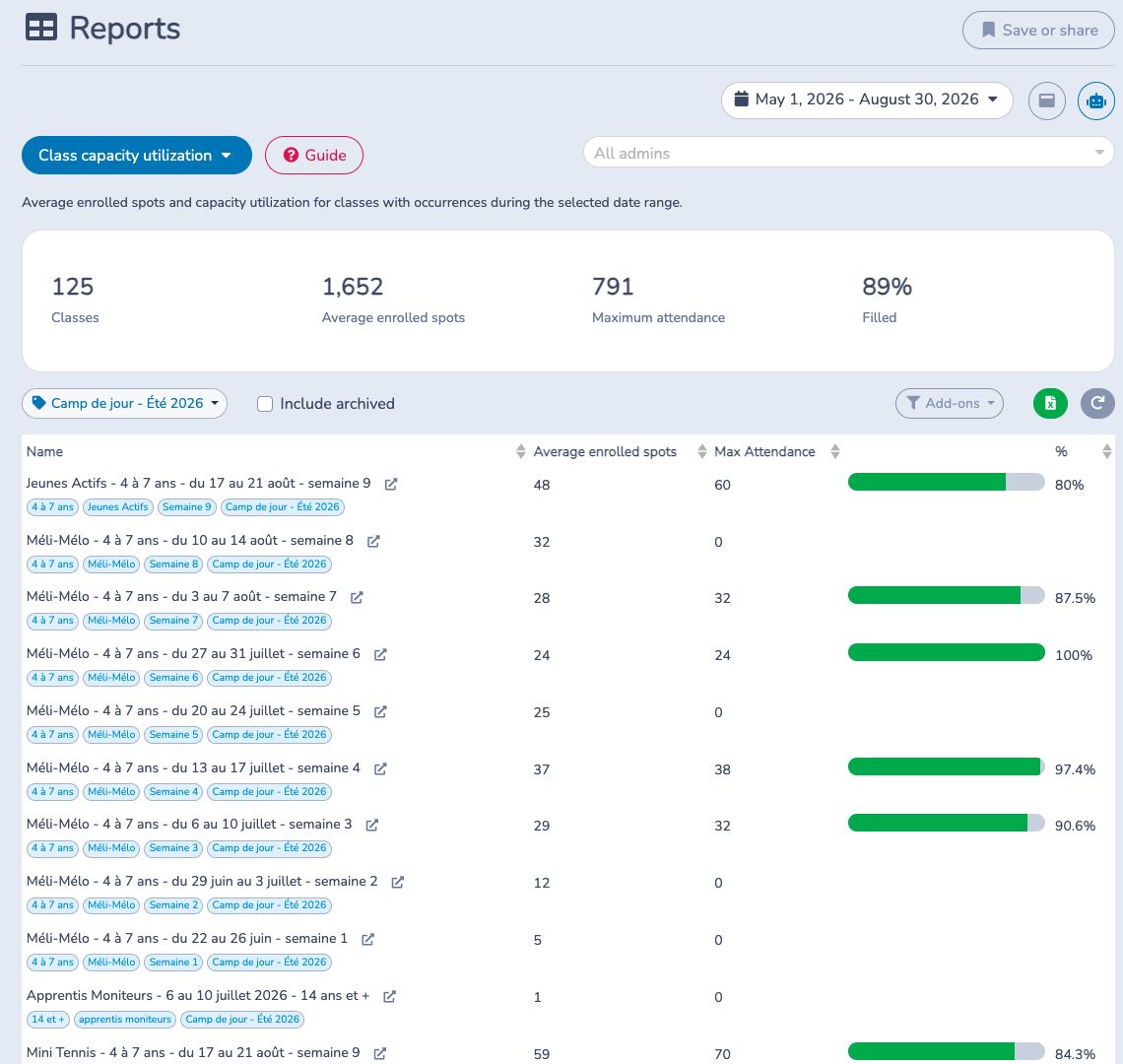
For each class:
Enrolled participant spots across occurrences in the range ÷ scheduled occurrences in the range = Average enrolled spots
Maximum attendance is the configured per-occurrence capacity; it is not multiplied by the number of occurrences. Filled divides the displayed average enrolled spots by capacity for classes with configured capacity. A class without a capacity can appear, but it cannot contribute a meaningful percentage. Add-on quantities do not change utilization.
# Private lessons
Use Private lessons to review booked and invoiced private lessons by coach, including the scheduled duration and the amount billed to clients.
- Select the lesson date range. A lesson is included when its scheduled interval overlaps the range in the organization's timezone; Sold on does not control the range.
- Select one or more Staff resources. All available staff are selected when the report first loads.
- Optionally filter by Booking type to isolate a service such as personal training, a semi-private lesson or a consultation.
- Review Reservations, billed Total, Days, and Hours, then use the invoice link to investigate a charge, payment status, discount or cancellation.
- Use Excel to export the current dates and filters, including the coach, booking, client contact fields, scheduled duration and coupon details.
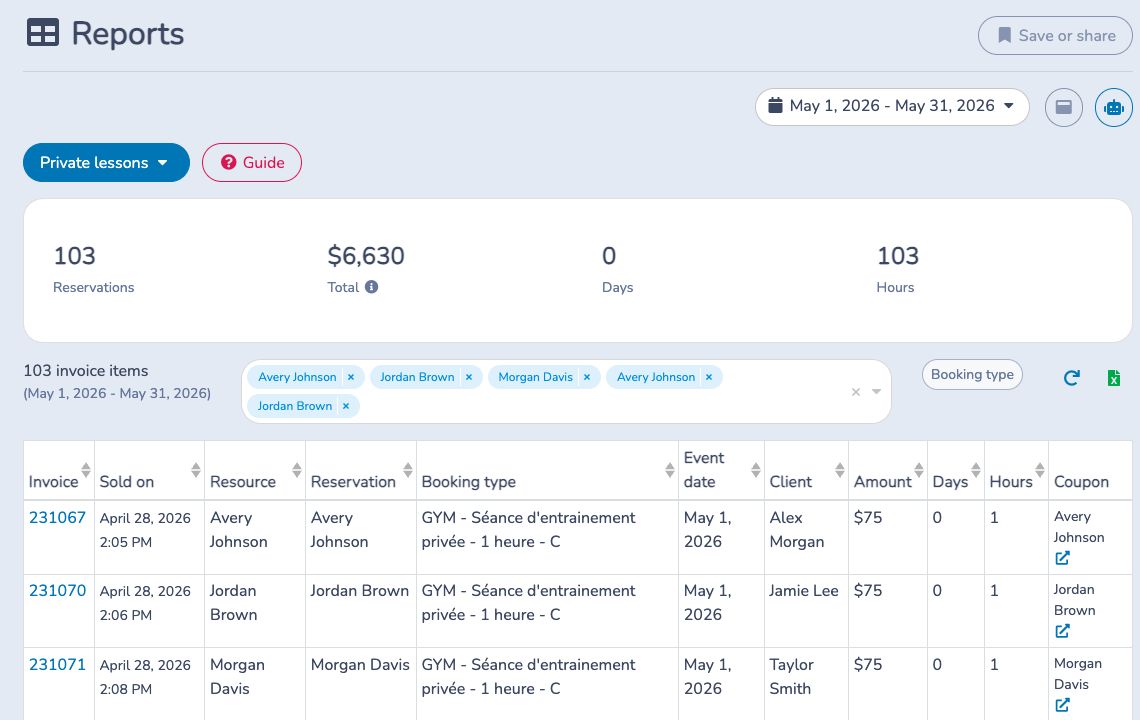
The report returns one row per qualifying booking invoice item. The booking, scheduled event, Staff resource, invoice and invoice item must still exist, and the invoice must be finalized. Paid and unpaid invoices can both appear. Total is the item price multiplied by quantity before discounts and taxes; it is client billing, not coach pay. Days and Hours are scheduled time, not attendance or clocked time.
For example, a gym manager can select a two-week payroll period, choose one coach and a Personal training booking type, review unexpected or cancelled invoices, and export the verified lesson and hour detail. The manager still applies the organization's compensation rules—the report does not calculate payroll.
Some organizations may have access to a separate, limited-availability Payroll module that can propose coach pay slips from eligible, fully paid lessons. It is not the Private lessons report and is not enabled for most organizations.
# Choose the right Classes report
- Use Classes revenue for cumulative participant and invoiced-revenue totals by selected class, including two-set comparisons.
- Use Class enrollment tracking for registration pace by elapsed day and year-over-year cohort comparisons.
- Use Classes revenue per day for scheduled occurrences, roster-based potential and allocated invoiced revenue.
- Use Class capacity utilization for current average roster occupancy against configured capacity.
- Use Private lessons for booked lesson volume, scheduled time and client billing by coach. It is not a cash-receipts, attendance or payroll report.
- Use Attendance logs instead when you need actual check-ins. Enrollment does not prove attendance.