
Home
Account setting
Staff
Lists
Forms
Templates (HTML emails/SMS messages)
Sending messages by SMS and email
Classes, events, attendance and Zoom
Automation
Create a birthday invitation and automation
Communication
Microsite
E-Commerce
Networks, Federations and Franchises
How to guides
Personal information and electronic message laws in Canada and the USA
Get support
Terms and conditions
RL-24
https://activitymessenger.com/
10410 Waverly, Montréal, H3L 2W4
Terms and conditions

Import a list from an Excel file into a form
Use the form import window when you already have completed registrations or responses in Excel or Google Sheets and want to add them to Activity Messenger as form submissions. Each spreadsheet row becomes one respondent.
This is useful for registrations collected outside Activity Messenger, administrative payment-form imports, club or federation registration lists, and other cases where staff need to enter many form responses at once.
# Before you begin
You need access to the form and permission to view its respondents.
Prepare the form first. The import spreadsheet is generated from the current questions in that form, so add or adjust the questions before downloading the sample file.
For a payment form, decide how the imported invoices should be recorded before you start. The import can create invoices and mark them according to the payment option you select in the import window.
# Download the sample spreadsheet
- Go to Forms → Manage forms.
- Open the form.
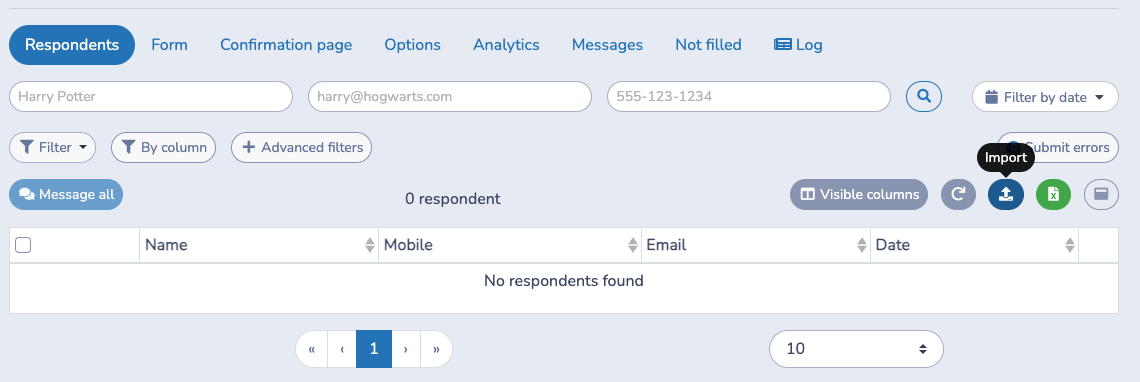
- Open the Respondents tab.
- Click Import.
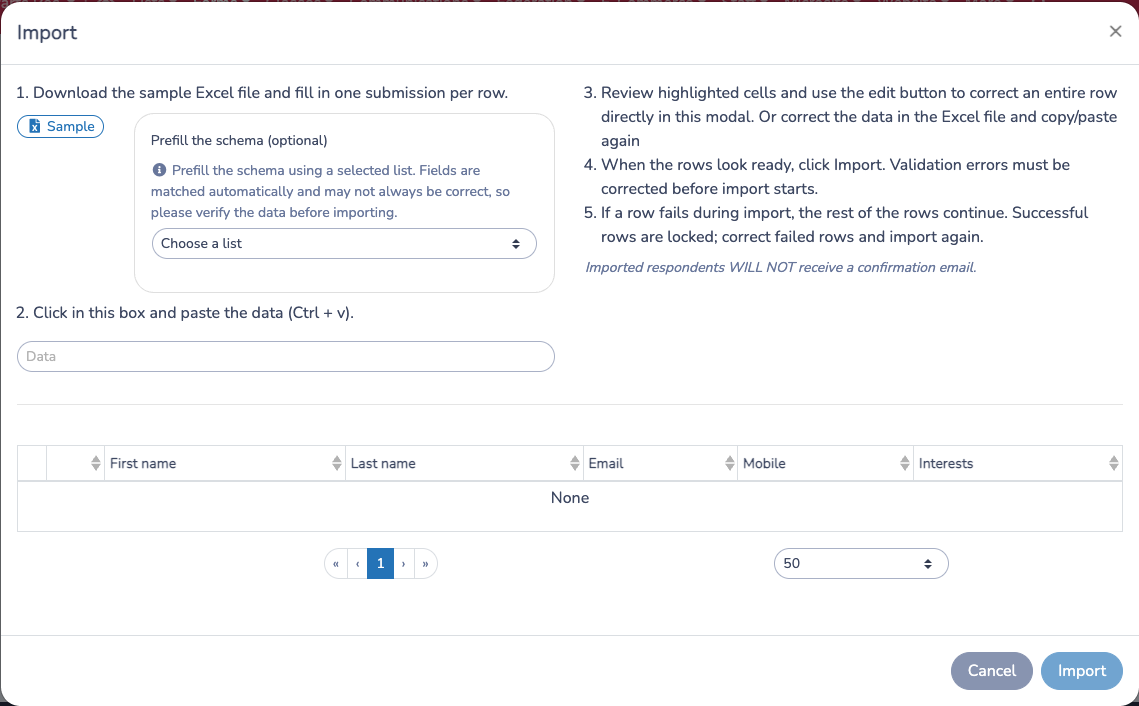
- In the import window, click Sample.
The sample file contains the exact column names expected by the form. Keep those column names unchanged. Unknown columns stop the import before validation.
If you want to start from existing response data, click Prefill before downloading the sample. Choose a source form or list, then click Sample. Activity Messenger downloads a spreadsheet with matching fields prefilled when it can match the source data safely.
Prefill is only a starting point. Fields are matched automatically and may not always be correct. Sensitive, hidden, and administrator-only fields are not prefilled. Review every row before importing. In client-tab imports, Prefill appears only when source forms have been configured for that tab.
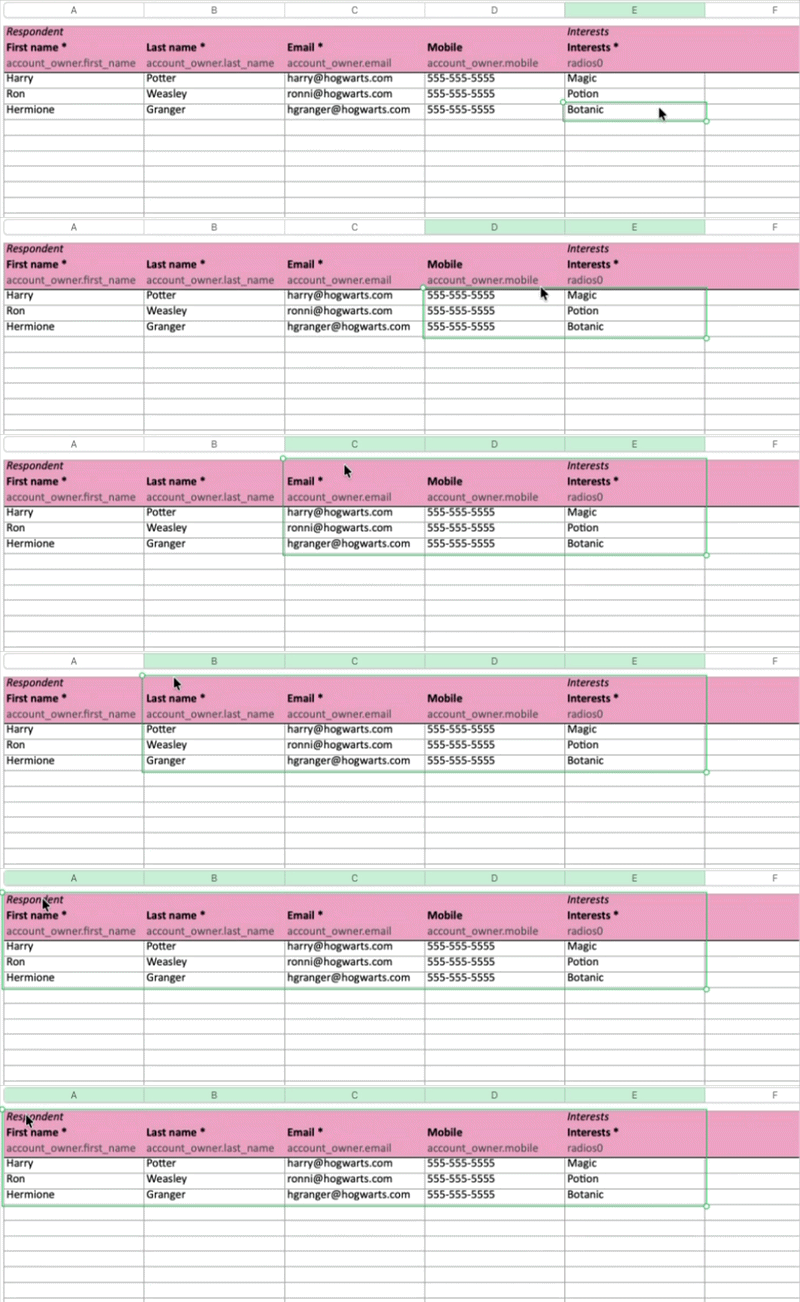
Fill one submission per row. You may work in Excel, Google Sheets, Numbers, or another spreadsheet editor, but copy the final rows back as spreadsheet cells.
# Paste and review the rows
- Copy the completed rows from your spreadsheet, including the header row.
- In the import window, click the Data field.
- Paste the rows.
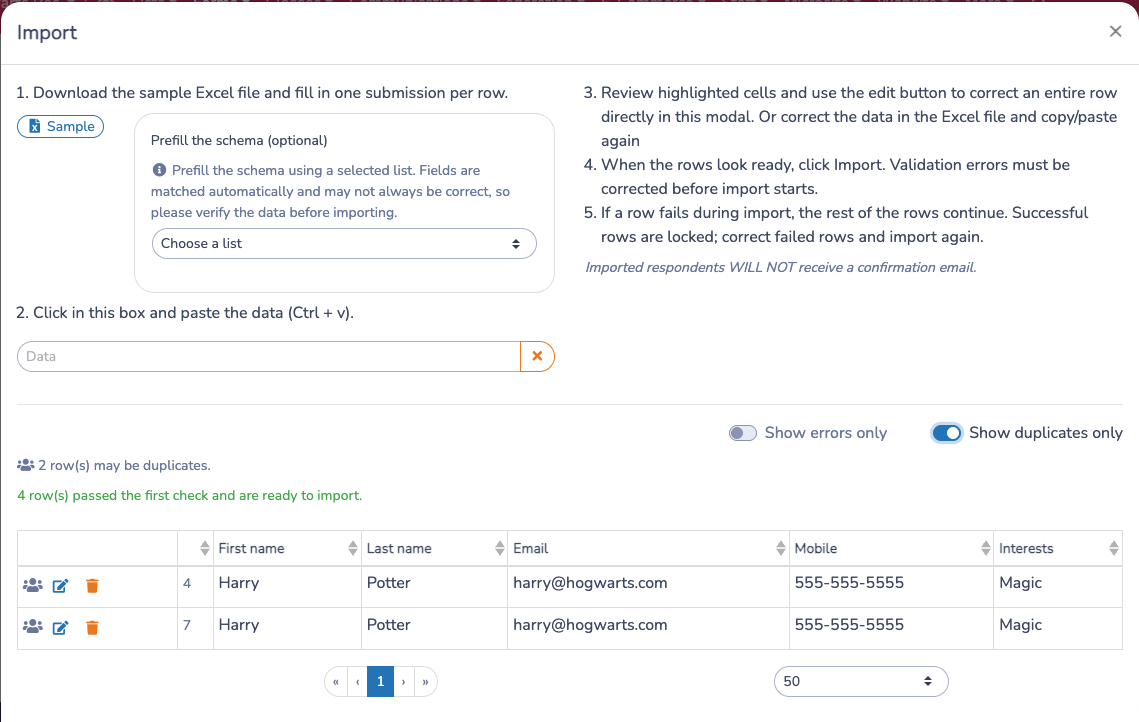
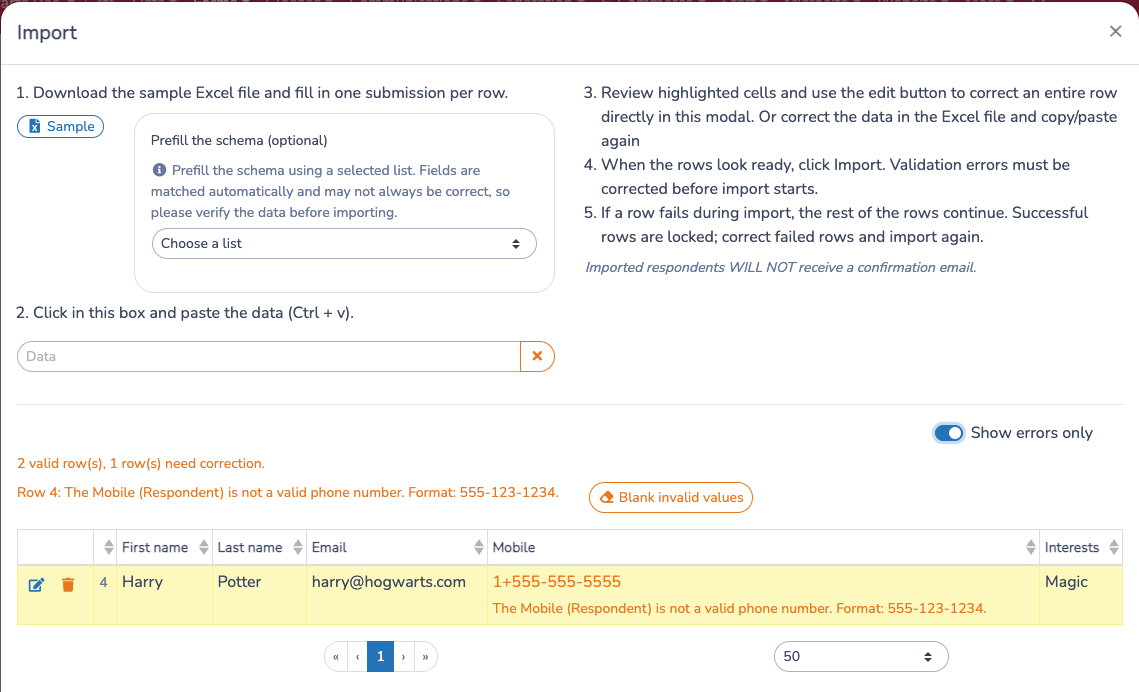
Activity Messenger parses the pasted spreadsheet and validates the rows. The review table highlights errors and warnings. Validation runs when you paste, when you paste corrected rows again, when you edit a row, when you blank invalid values, and again when you click Import.
Use Show errors only to focus on rows that need correction. Use Show duplicates only to review possible duplicate respondents.
Duplicate and existing-entry warnings are informational. They do not block the import by themselves.
- Possible duplicate rows mean Activity Messenger found similar people in the pasted data.
- Existing respondent warnings mean a similar respondent may already exist in this form.
Use Show duplicates only to review these rows. If the existing respondents should not be imported again, use Remove rows with existing recipients to remove those rows from the current import before clicking Import.
# Correct errors
You can correct errors in two ways:
- Click the edit icon on a row, adjust the fields in the modal, and save.
- Correct the values in your spreadsheet, copy the rows again, and paste them into Data again.
If Activity Messenger can identify invalid non-empty values, the import window shows Blank invalid values. Use this when invalid optional values should be left blank instead of corrected manually.
Blanking invalid values does not skip required questions. If an invalid value is in a required column, blanking it changes the error to a missing required value, and the row still cannot be imported until the required value is provided.
Rows with missing required values, row-level errors, or payment-level errors must be corrected manually.
# Import payment forms
Payment-form imports also create invoices.
Before clicking Import, choose the payment option:
- Pay later creates the invoice with a balance to collect later.
- Mark as paid: balance from another platform records payment received outside Activity Messenger.
- Schedule payments creates scheduled payment information when the form and organization support it.
You can also choose Invoice at a specific date when the form has a date question that should control the invoice date. Leave it blank to invoice at the time of import.
Review these options carefully before importing because they affect every row in the current import.
# Start the import
Click Import when the rows have no errors.
Small imports run directly in the import window. If one row fails during import, the remaining rows continue. Successful rows are locked for the current import session, and failed rows stay available so you can correct them and import again.
Large imports are sent to Background operations. The import window closes after the background job starts.
# Track background imports
Open the user menu and choose Background operations to track large imports. The page shows the operation status, progress, failed rows, and links back to the form when available.
By default, you see your own background operations. Some users with broader organization permissions can view operations from all users.
# Troubleshooting
If the import does not validate, check that:
- You downloaded a fresh Sample after changing the form questions.
- If using Prefill, you selected the source before downloading the sample and reviewed every prefilled value.
- The pasted header row uses the exact sample column names.
- Required columns are filled for every row.
- Dates, times, numbers, email addresses, phone numbers, and choice values use the format expected by the sample.
- Payment-form rows include at least one billable answer when an invoice should be created.
- You corrected or removed any invalid non-empty values before clicking Import.
- You reviewed possible duplicate rows and existing respondent warnings before importing the same person again.
If a large import is running, check Background operations before starting it again.