
Home
Account setting
Staff
Lists
Forms
Templates (HTML emails/SMS messages)
Sending messages by SMS and email
Classes, events, attendance and Zoom
Automation
Create a birthday invitation and automation
Communication
Microsite
E-Commerce
Networks, Federations and Franchises
How to guides
Personal information and electronic message laws in Canada and the USA
Get support
Terms and conditions
https://activitymessenger.com/
10410 Waverly, Montréal, H3L 2W4
Terms and conditions

Manage client waivers
Client waivers are forms that belong to a client's account. Use them for waivers or acknowledgements that clients may need to complete once, view from My Account, and complete before submitting another form.
# Before you start
You need permission to create and edit forms. To manage client-waiver settings from the client list, you also need access to Clients.
Client waivers use the new form builder. Some question types are not available because client waivers are meant for account-level information and signatures, not class selection, memberships, expenses, waitlists, formulas, or question-filter workflows.
# Create a client waiver
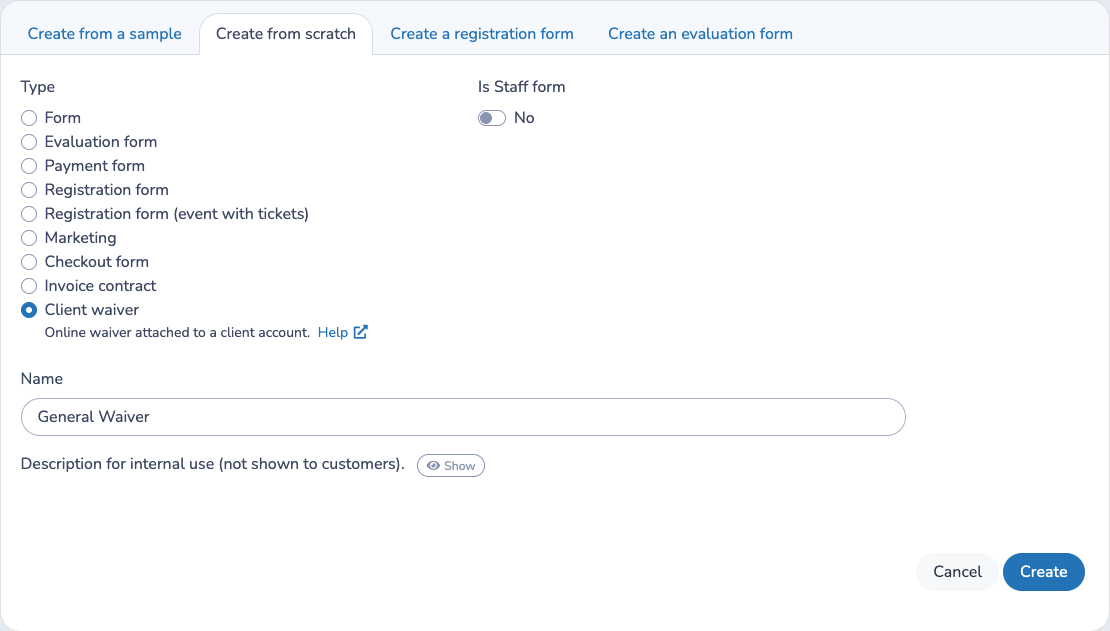
- Go to Forms.
- Select Create.
- Choose Client waiver as the form type.
- Enter the waiver name and create the form.
- Add the questions and sections clients need to complete.
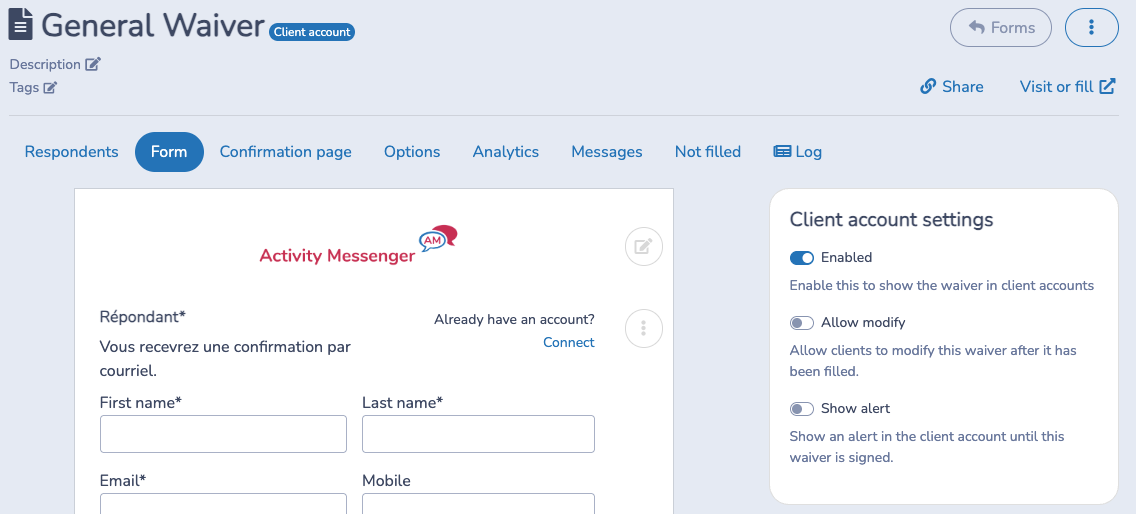
- In the form designer, open Client account settings.
- Turn on Enabled when the waiver should appear in client accounts or be available as a required waiver on other forms.
New client waivers are disabled by default. This lets you finish editing the waiver before clients can see or be required to complete it.
# Configure client-waiver settings
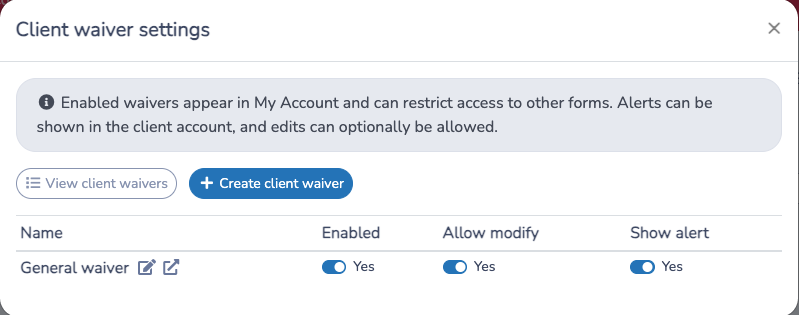
You can manage all client waivers from the client list:
- Go to Clients.
- Select Client waivers.
- Review each waiver and adjust its switches.
The modal includes shortcuts to View client waivers and Create client waiver.
The available settings are:
- Enabled: shows the waiver in the client account and makes it available when another form requires a client waiver.
- Allow modify: lets a client edit a completed waiver from My Account. When this is off, the completed waiver can still be viewed as a PDF.
- Show alert: adds the waiver to the client account alert list until the connected client completes it.
# Require a waiver on another form
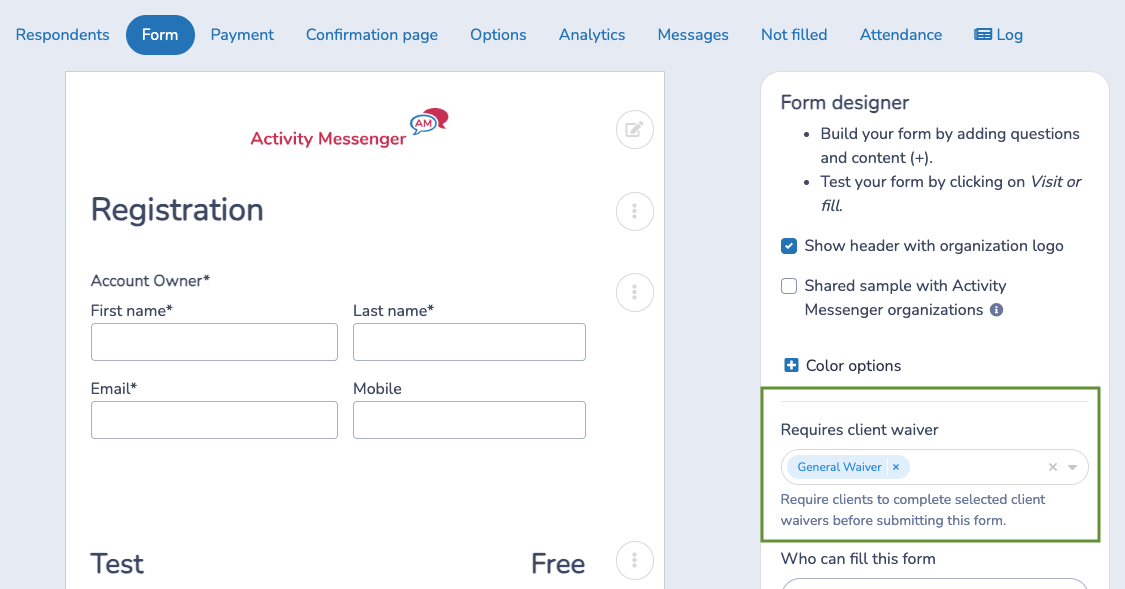
- Go to Forms and open the form that should require the waiver.
- Open the form designer settings.
- Under Requires client waiver, select one or more enabled client waivers.
- Save the form settings.
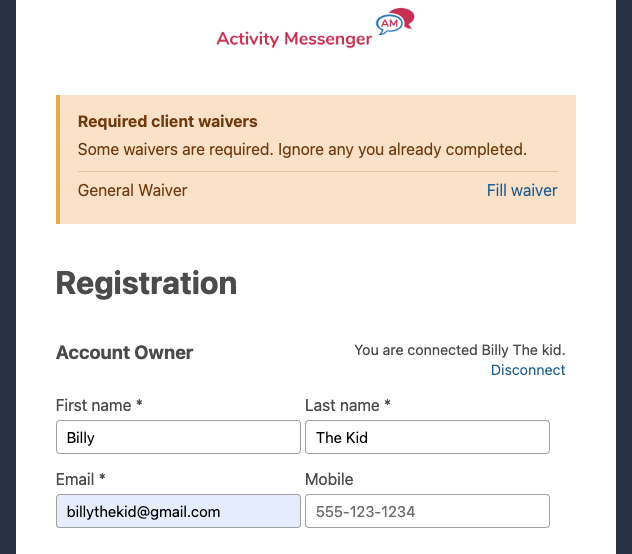
When a respondent opens the form, the required-waiver notice appears on the first page. Connected clients see the waivers that are still missing. Visitors who are not connected are told that some waivers are required and can connect to their account.
The final submission is blocked until the required enabled waivers are completed for the client account.
# What clients see
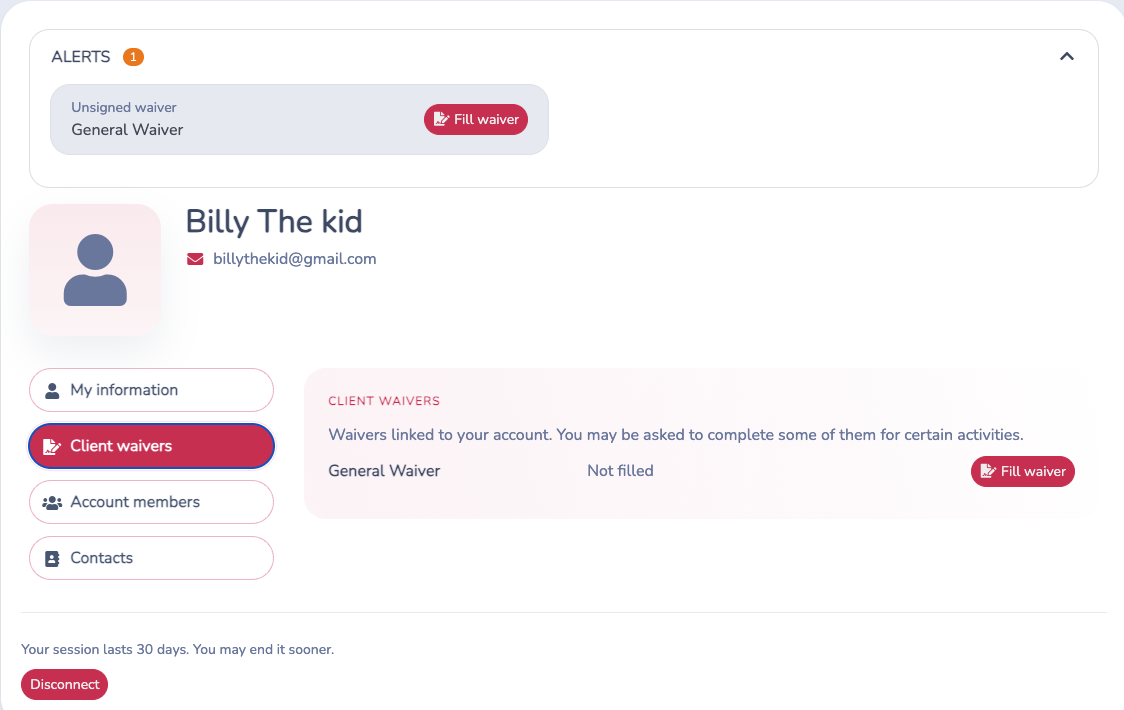
In My Account, clients see a Client waivers tab when at least one waiver is enabled for the organization.
Each row shows the waiver name, whether it has been filled, and the available action:
- Fill waiver appears when the client has not completed it.
- Modify appears after completion only when Allow modify is enabled.
- The PDF button appears after completion so the client can download the completed waiver.
If Show alert is enabled for a waiver, the client account also shows an Alerts section while that waiver is unsigned. The alert includes a Fill waiver action.
# Important behaviour
- Only enabled client waivers appear in client accounts.
- Only enabled client waivers can satisfy or be selected as required waivers.
- Disabling a client waiver removes it from the client account and from required-waiver enforcement.
- Show alert does not make a waiver required on other forms. Use Requires client waiver on the other form when completion must be enforced.
- A client who completed the waiver but is not connected may still see the public form notice. They should connect to their account so Activity Messenger can match the completed waiver.
- Required-waiver validation happens at final submission.