
Home
Account setting
Staff
Lists
Forms
Templates (HTML emails/SMS messages)
Sending messages by SMS and email
Classes, events, attendance and Zoom
Automation
Create a birthday invitation and automation
Communication
Microsite
E-Commerce
Networks, Federations and Franchises
How to guides
Personal information and electronic message laws in Canada and the USA
Get support
Terms and conditions
RL-24
https://activitymessenger.com/
10410 Waverly, Montréal, H3L 2W4
Terms and conditions

Client discounts and subsidies
Client discounts and subsidies let you assign an automatic discount to one client. Activity Messenger matches the client's email address during a purchase and applies the discount when the item is eligible. The client does not need to enter a promo code.
Use this feature for individualized support, such as financial assistance, family-specific pricing, or a courtesy discount. For a code that clients enter themselves, see How promo codes work.
# Before you begin
You need administrator or account owner permission to manage client discounts and subsidies.
Confirm the email address the client will use for the purchase. The discount is assigned to that email address, so a different account owner email will not match.
# Create a client discount or subsidy
- Go to E-Commerce → Client discounts and subsidies.
- Click +.
- Choose Assign to an existing client and select the client, or choose Assign to a new client and enter their name and email address.
- Enter a Discount name (for internal tracking).
- Enter a Label. This unique letters-and-numbers label appears on the invoice when the discount is applied. Once the discount has been used, the label, type, and discount value cannot be changed.
- Choose Amount or Percentage, then enter the discount.
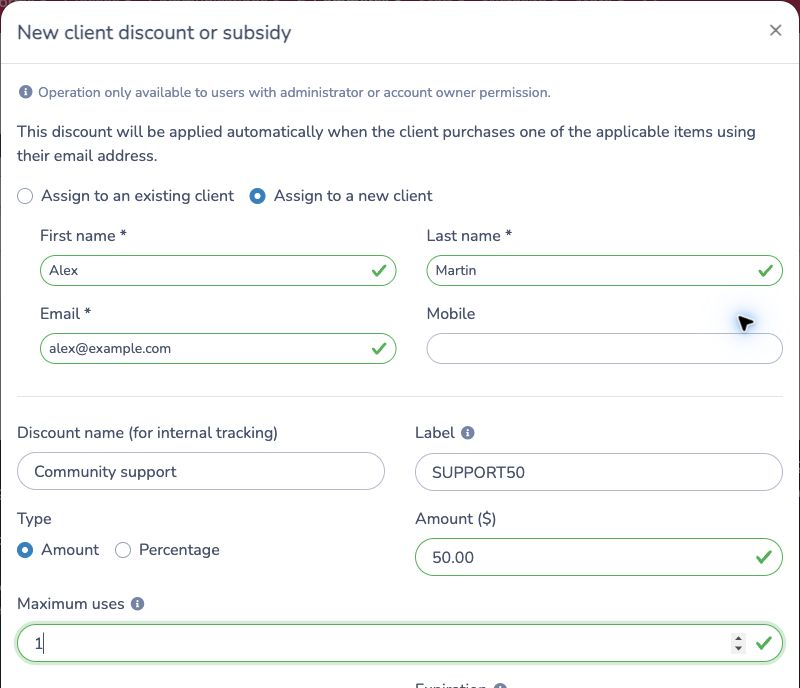
The internal name helps administrators identify the discount. The client does not enter the label during checkout.
# Set usage and accounting rules
Configure the optional rules that apply to the discount:
- Maximum uses limits the total number of times the discount can be used. Leave it empty for no overall limit.
- Allow the client to use this discount multiple times controls whether the assigned client can receive it on more than one finalized purchase.
- Expiration sets the last date on which the discount is available. Leave it empty when there is no end date.
- Ledger code assigns the discount for accounting and reporting.
If multiple use is turned off, the discount becomes unavailable after its first completed use. When multiple use is turned on, the expiration and maximum-use rules still apply.
# Choose eligible items
Under Applies to, choose all items of a type or select only the specific items that qualify:
- Classes, including events.
- Packages, when bookings are enabled for the organization.
- Products.
- Memberships.
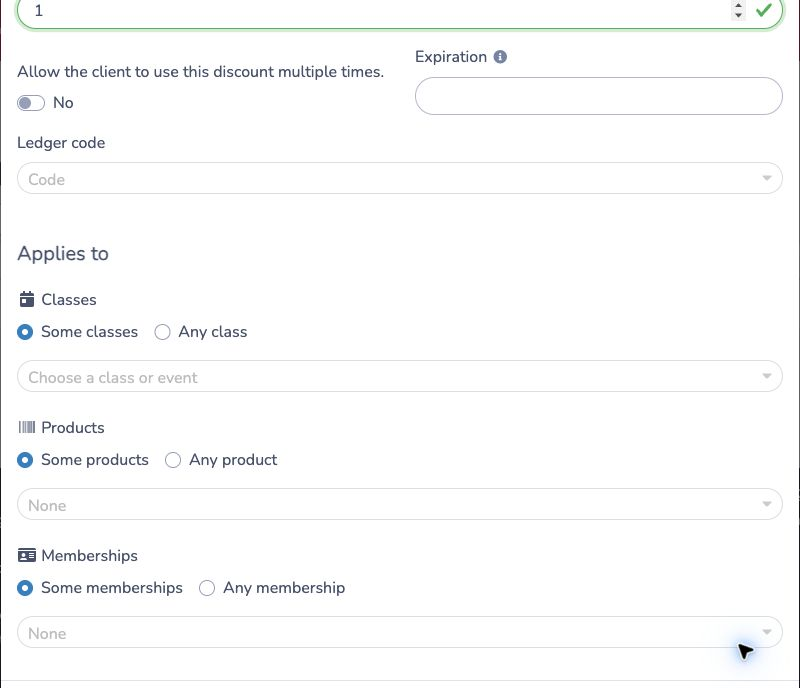
For example, select Any class when the assistance applies to every class, or Some classes to choose only the supported programs. Repeat this choice for each relevant item type, then click Create.
# What happens when the client purchases
Activity Messenger checks the account owner email address and the item being purchased. The discount is applied automatically when:
- The email matches the client assigned to the discount.
- The item is included under Applies to.
- The discount has not expired.
- Its usage rules allow another redemption.
The client does not need to open a promo-code field or enter the label. Eligible discounts are also listed in the client's account with their availability and eligible items.
If the client uses another email address or purchases an ineligible item, the discount is not applied.
# Example
A community program approves $50 of assistance for Alex's summer class:
- Create a client discount named Community support.
- Assign it to
alex@example.com. - Set the label to
SUPPORT50, choose Amount, and enter $50. - Leave multiple use turned off.
- Select the approved summer class under Some classes.
When Alex purchases that class using alex@example.com, Activity Messenger
applies the $50 discount automatically. The discount does not apply to another
class or to a purchase made with a different account owner email.
# Track and manage client discounts
The Client discounts and subsidies table shows the assigned client, discount, eligible item types, uses, usage limit, expiration, and last update.
- Search by discount or client.
- Filter by amount, percentage, or archived discounts.
- Open a row to review or update an unused discount.
- Archive a discount when it should no longer be available. Previously applied discounts are not changed.
- Use the archived filter to restore a discount when needed.
# Client discounts compared with promo codes
A client discount or subsidy is assigned to one client and applied automatically when their email and purchase match its rules.
A promo code can be public or restricted to an audience. Depending on its configuration, the client enters the code or Activity Messenger applies an audience code automatically.
Use How promo codes work when you need a shareable or audience-based promotion instead of an individual client discount.