
Home
Account setting
Staff
Lists
Forms
Templates (HTML emails/SMS messages)
Sending messages by SMS and email
Classes, events, attendance and Zoom
Automation
Create a birthday invitation and automation
Communication
Microsite
E-Commerce
Networks, Federations and Franchises
How to guides
Personal information and electronic message laws in Canada and the USA
Get support
Terms and conditions
RL-24
https://activitymessenger.com/
10410 Waverly, Montréal, H3L 2W4
Terms and conditions

Let the other parent choose to appear on the invoice
Add an optional checkbox to the Other parent block of a payment form so that the parent can choose to include their contact details in the invoice’s Client section. The administrator enables the feature in the form builder; the person completing the form checks the box to include that parent.
# Before you begin
You need access to the payment form and permission to edit its questions. The form must contain an Other parent block. This setting is available in that block’s configuration on payment forms.
# 1. Enable the choice in the form builder
- Go to Forms → Manage forms and open the payment form.
- Open the Form tab.
- Edit the Other parent block. If you renamed the block, open it using its current label.
- In the Invoice section, check Let this parent choose to appear on the invoice.
- Click Save.
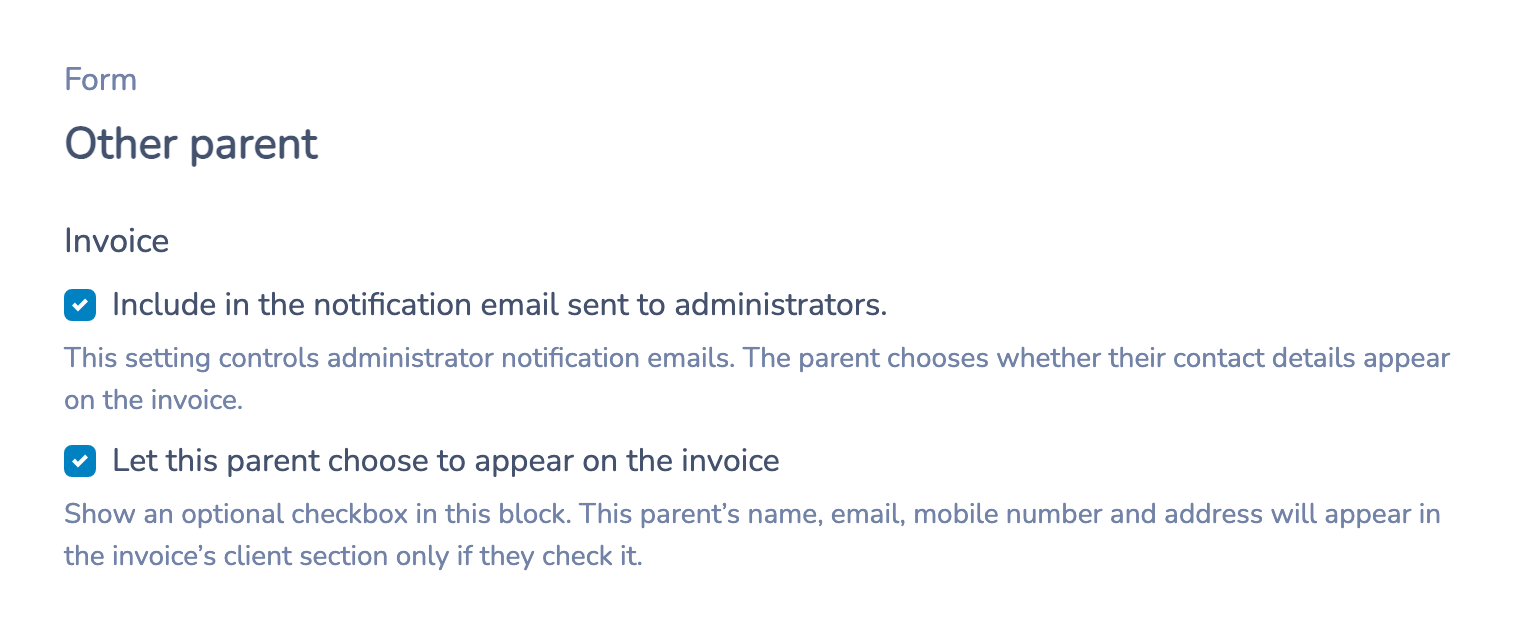
Enabling this setting displays a checkbox on the form. It does not automatically select the parent’s answer or add every other parent to an invoice.
# 2. Let the parent choose on the form
The Other parent block now includes Include this parent’s information on the invoice.
- Enter the other parent’s contact details.
- Check Include this parent’s information on the invoice if those details should appear on the invoice.
- Continue through the form’s usual invoice and payment steps.
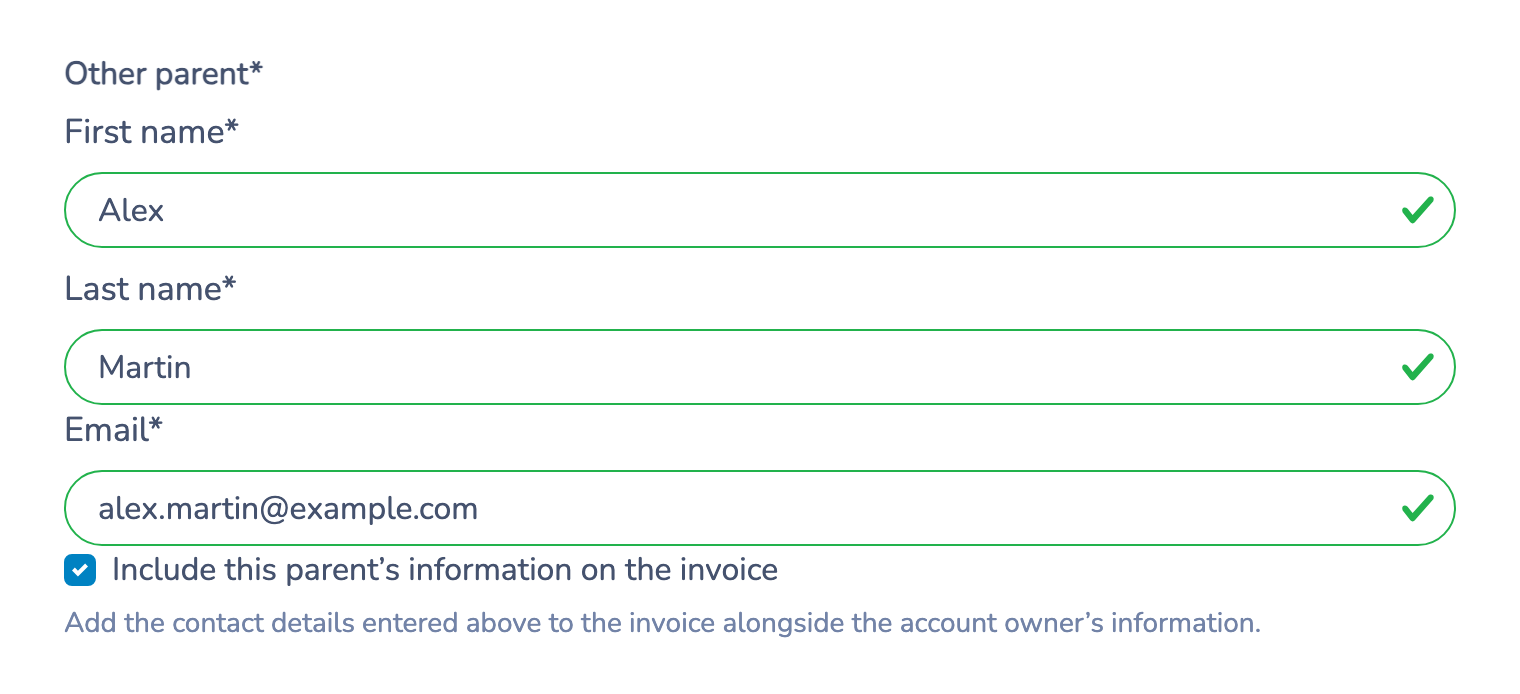
The checkbox is optional, even when other fields in the block are required. While the feature is enabled, leaving it unchecked excludes this parent’s contact details from the invoice’s client section.
# 3. Review the invoice
The other parent’s name appears beneath the account owner’s details, with their email on the next line. There is no “Other parent:” prefix. Their mobile number and address also appear when provided; empty contact fields are omitted.
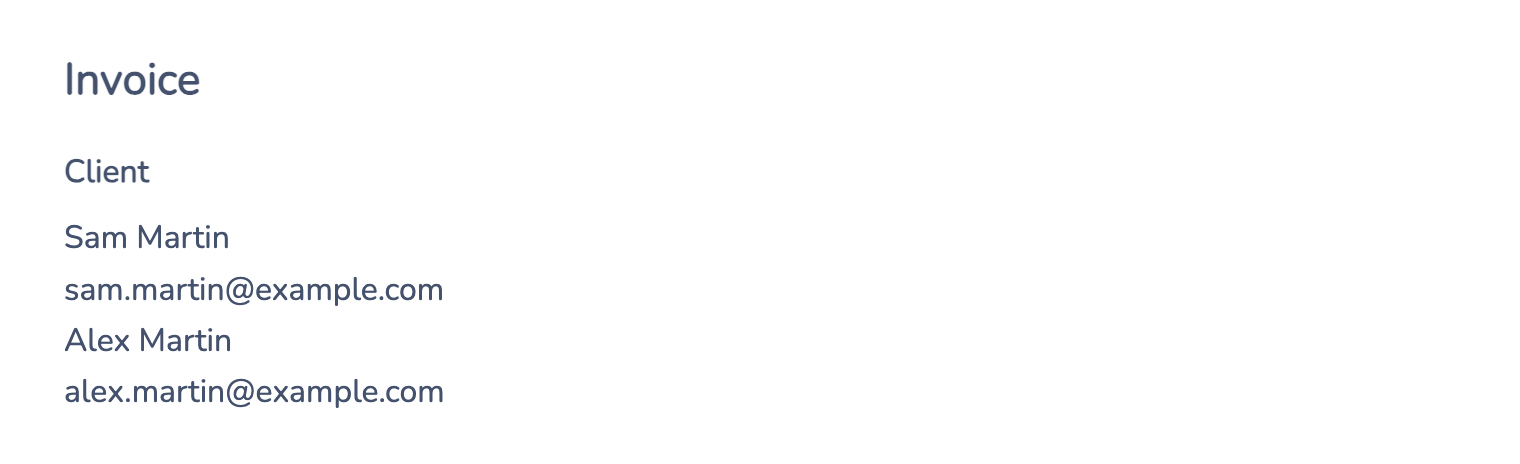
For example, Sam Martin completes a registration and enters Alex Martin as the other parent. When the checkbox is selected, the invoice lists Sam’s name and email, followed by Alex’s name and email. The invoice amount and account owner remain unchanged. This feature does not split charges between the parents.
# Administrator notifications are a separate choice
When Let this parent choose to appear on the invoice is enabled, the other setting in the block reads Include in the notification email sent to administrators.
Both settings can be selected at the same time:
- The parent’s checkbox controls whether their contact details appear on the invoice.
- Include in the notification email sent to administrators. controls whether this block is included in the administrator notification’s answer summary. Your form’s notification recipients must still be configured.
Selecting one does not disable the other. The administrator notification setting does not force an unchecked parent onto the invoice.
# Send a confirmation email to the other parent
Appearing on the invoice does not automatically send the other parent an email.
- Open the payment form’s Options tab.
- Configure the confirmation message template.
- Enable Send confirmation to other parent.
- Save the options.
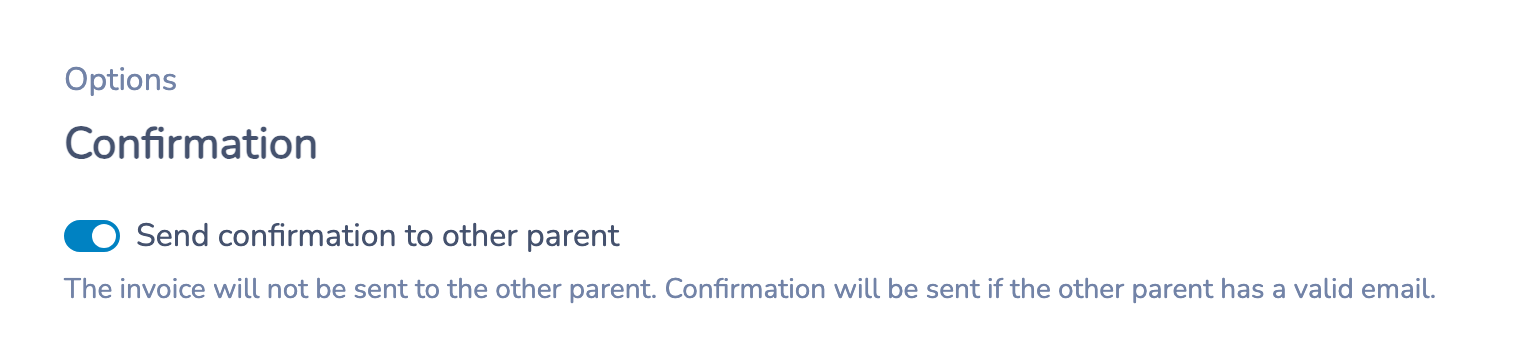
The confirmation is sent only when the other parent has a valid email and a confirmation template is configured. This setting sends the confirmation without the invoice. It works independently of the parent’s invoice checkbox.
# Questions and troubleshooting
The checkbox does not appear
Check that you are editing an Other parent block on a payment form, that Let this parent choose to appear on the invoice is enabled, and that you saved the block. A renamed block still needs to be the Other parent block type.
The parent’s details are missing from the invoice
Confirm that the feature is enabled, the parent checked the box in that response, and contact details were entered. Enabling the feature does not turn an older response without a checked answer into an opt-in.
What happens if I turn the feature off?
The parent-facing checkbox disappears. The block returns to its existing Include on the invoice and in the notification email sent to administrators. setting. Review that setting before disabling the feature, because it controls the original inclusion behavior.
Will the other parent receive a confirmation just because their name is on the invoice?
No. Use Send confirmation to other parent in Options to configure that email separately.