
Home
Account setting
Staff
Lists
Forms
Templates (HTML emails/SMS messages)
Sending messages by SMS and email
Classes, events, attendance and Zoom
Automation
Create a birthday invitation and automation
Communication
Microsite
E-Commerce
Networks, Federations and Franchises
How to guides
Personal information and electronic message laws in Canada and the USA
Get support
Terms and conditions
RL-24
https://activitymessenger.com/
10410 Waverly, Montréal, H3L 2W4
Terms and conditions

Switch a participant to another class from an invoice
Move a participant directly from one class to another without cancelling the registration, issuing a credit, or adding another registration charge. The participant's attendance registration changes, but the invoice amount and balance do not.
# Before you begin
You need to be an account owner, administrator, or attendant who can open the client's invoice. The registration must be active; the Switch action is not available for a cancelled registration.
Use this workflow when the existing registration should move to a different class. To keep the old registration and add the participant to another class, open the destination attendance list and use + instead.
# Open the class-transfer action
- Go to E-Commerce → Invoices.
- Search for the client or invoice, then open the invoice.
- Find Registrations.
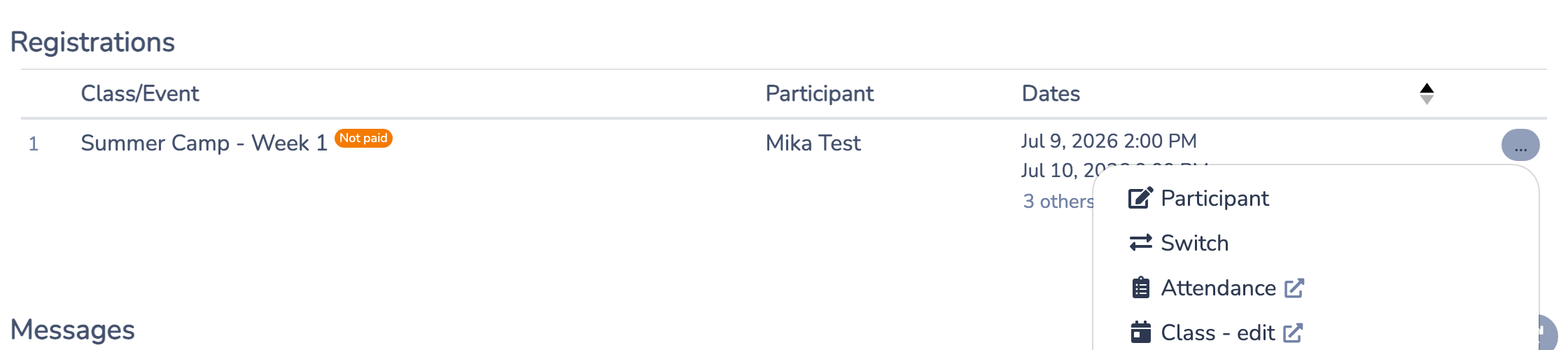
- On the registration to move, open the … menu and select Switch.
# Choose the new class and occurrences
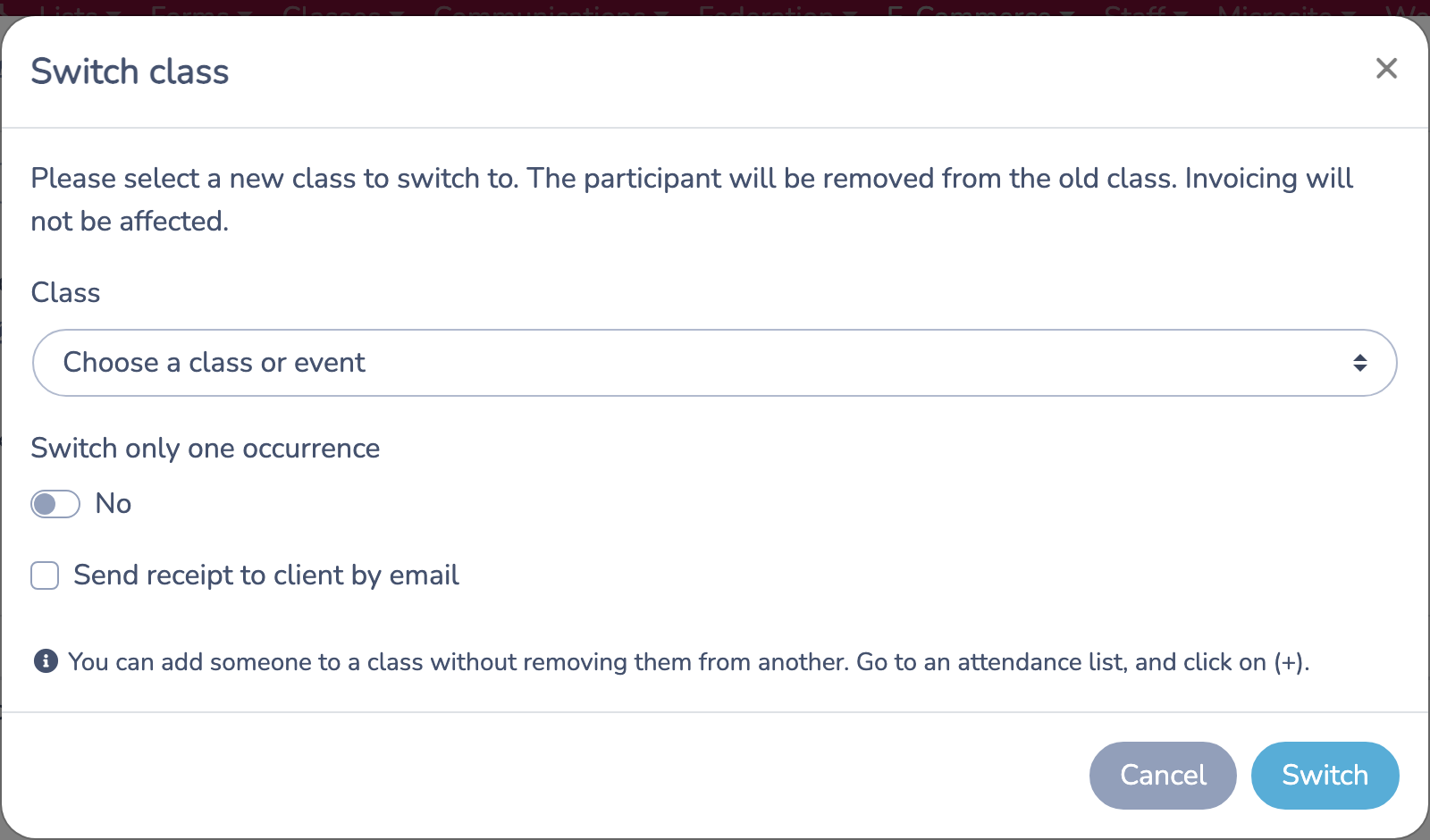
- Under Class, choose the destination class or event.
- Select the destination occurrences under Events. Select Show passed events if a past destination occurrence is needed.
- Leave Switch only one occurrence off to transfer the class registration to the selected occurrences in the destination class.
- For an invoice registration tied to one dated occurrence, turn Switch only one occurrence on and select the single destination occurrence.
- Select Send receipt to client by email when the invoice client should receive the updated receipt.
- Click Switch.
The destination for a full class transfer must be another class. Activity Messenger does not automatically match the old schedule to the new schedule; select the destination occurrences that the participant should attend.
# What the transfer changes
Activity Messenger:
- Removes the participant from the old class or dated occurrence.
- Adds the participant to the selected occurrences in the destination class.
- Updates the old and new attendance lists and participant counts.
- Updates the registration item on the invoice to identify the destination class. A one-occurrence transfer also identifies the destination date.
- Records the change in the invoice activity log.
- Emails the receipt to the invoice client when that option is selected.
Open the old and new attendance lists after the transfer if you want to verify the change.
# What the transfer does not change
The transfer does not:
- Cancel the registration or invoice.
- Issue a refund or credit.
- Add a second registration charge.
- Recalculate the invoice price, taxes, discounts, payments, or balance.
If the destination class has a different price, make any financial adjustment required by your organization's policy as a separate invoice action.
# Example
A participant is registered for Tuesday Beginner Dance and needs to move to Thursday Beginner Dance. Open the family's invoice, find the Tuesday registration under Registrations, choose … → Switch, select the Thursday class and its upcoming dates, and click Switch.
The participant moves to the Thursday attendance list. The original invoice and its balance remain unchanged; no cancellation, refund, or credit is created.