
Home
Account setting
Staff
Lists
Forms
Templates (HTML emails/SMS messages)
Sending messages by SMS and email
Classes, events, attendance and Zoom
Automation
Create a birthday invitation and automation
Communication
Microsite
E-Commerce
Networks, Federations and Franchises
How to guides
Personal information and electronic message laws in Canada and the USA
Get support
Terms and conditions
RL-24
https://activitymessenger.com/
10410 Waverly, Montréal, H3L 2W4
Terms and conditions

Account statements
An account statement brings a client's outstanding invoices together so you can request payment with one link. The client reviews the amounts and makes one card payment. Activity Messenger applies that payment to the individual invoices and keeps the connection between the statement, payment and invoice receipts.
A statement is a payment request and a dated account snapshot. It does not create an additional invoice or duplicate the original sales.
# Before you begin
You need permission to access client accounts and invoices. Sending a statement also requires permission to send messages. Online card payment requires a connected Stripe account. The client must have an account owner; add a valid email address if you want to send the statement by email.
Open Lists → Client accounts, find the client and open their account.
# 1. Review the client's balance
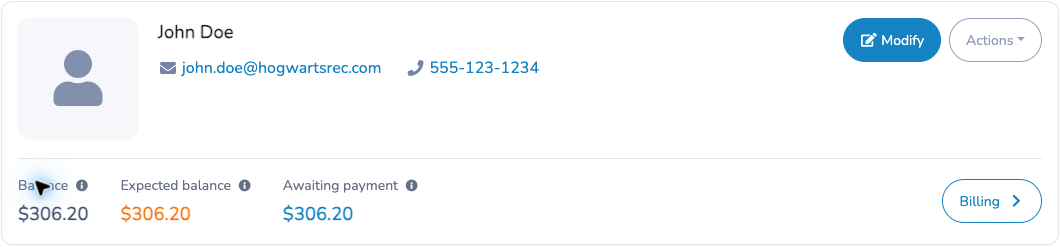
The financial summary helps you decide what needs attention:
- Balance is the amount still owing, including amounts scheduled for later. A positive balance does not, by itself, mean a payment has failed.
- Expected balance is the amount not covered by planned payments. A positive expected balance needs follow-up.
- Failed payments, when present, need review and follow-up.
- Billing opens the client’s invoices and documents. In Invoices, filter outstanding, paid or credited, all invoices, or failed payments. Its badge counts outstanding invoices.
- Billing → Documents brings account statements and invoice summaries together. Its badge counts current issued statements with an amount due; superseded statements are excluded. Zero-count badges are hidden.
When the current statement has an amount due, Awaiting payment shows the amount requested. This amount is already included in the client's balance; do not add it again.
# 2. Issue a statement
- Open Billing → Invoices, then Actions → Issue account statement.
- Review the invoice list and the Balance, Due now and Due later columns.
- Choose the statement language and optionally enter a Note on the statement.
- Select Issue account statement to save the statement and assign its ST number.
Opening the preview does not create a statement. The issue step saves the account snapshot; sending it is a separate step.
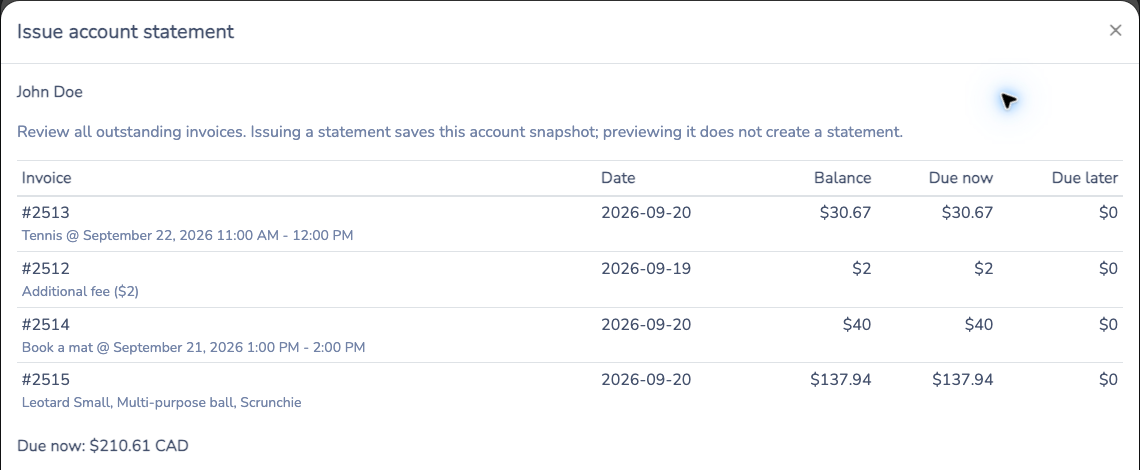
Due now excludes future unpaid scheduled installments. Those amounts appear under Due later. Invoice dates are not payment deadlines, and issuing a statement does not change existing invoice terms.
Invoices requiring payment review are excluded from the statement and its totals. Review the exclusion notice and resolve those invoices separately. Payments already in progress and certain payment plans can also prevent online collection; do not ask the client to pay again while a payment is being reconciled.
Replacing an earlier statement
Issuing a new statement makes it the Current statement and marks earlier statements Superseded. The earlier PDFs and logs remain available, but only the latest statement can be paid. The old statement page points to the latest statement.
Use Resend for another copy of the current statement. Issue a new statement when you need a fresh snapshot, for example to include additional invoices. An unresolved processing payment can prevent replacement until it has been resolved.
# 3. Send the statement by email
After issuance, select Send by email in the confirmation message. The message editor opens with the client selected, the statement subject and a quick message. Attach account statement PDF is selected when entering through this invitation.
- Review the recipient, subject and message.
- Keep Attach account statement PDF selected if the client should receive the PDF.
- Keep the statement URL in the message so the client can view the latest amounts and pay online.
- Select Send.
You can also use Send or Resend in Billing → Documents. When the statement has no amount currently due, the editor starts with Account statement — paid, which confirms that nothing is currently due instead of requesting another payment. Review the message before sending.
The statement PDF can be attached to email only. For SMS, include the statement link.
Message placeholders
Use the editor's placeholder picker:
- Account statement amount due inserts the amount due when the statement was issued.
- Account statement balance inserts the balance when it was issued, including amounts scheduled for later.
- Account statement URL inserts the client's statement link.
The amount placeholders describe the saved snapshot. The page opened through the URL shows subsequent payments and adjustments to the invoices on that statement. Share the link only with the intended client, as it gives access to the statement and payment page.
# 4. The client pays once
The statement opens with your organization’s logo and contact details, the client’s details, and an invoice-by-invoice breakdown. The Original statement PDF link downloads the issued snapshot. Below the table, the client sees the balance, what is due now, what is due later, and the payment button.
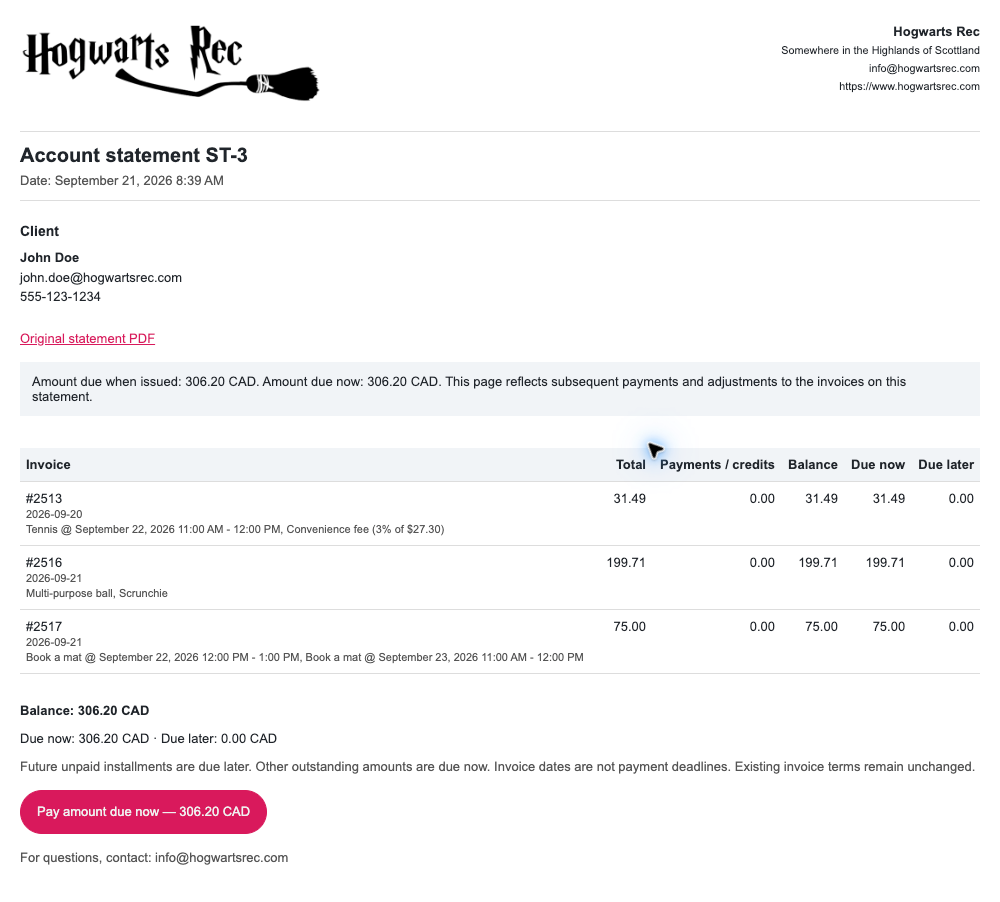
This screenshot shows a later statement with three outstanding invoices totalling $306.20 CAD. The four-invoice payment example below illustrates an earlier statement.
The client opens the statement link, reviews the invoices and selects Pay amount due now. They enter their details and card information in the payment form, review the total and select Pay now.
If the organization applies a card convenience fee and taxes, the checkout shows the additional amount before payment. The payment receipt and invoice allocations include the applicable fees.
When future installments exist, the page may also offer Pay full balance early. This includes the future installments shown on the statement; the covered installments are cancelled after successful payment. Paying only the amount due now leaves future installments for their scheduled dates.
Credits on other invoices are shown separately and are not automatically deducted from this payment. Apply any intended credits before asking the client to pay.
If a payment is already in progress, use the offered resume or cancellation action as appropriate. If the page says a payment was received but requires allocation review, contact the organization and do not pay again.
# 5. Check the statement and each invoice after payment
After a successful payment, the statement page shows Payments received, the amount applied to each invoice and a Payment receipt link. Remaining balances and future installments appear separately. The client receives a payment-receipt email with its PDF attached.
In the admin statement table, a completed statement payment keeps its Paid badge even after the statement is superseded or a payment is refunded. Successful refunds appear separately as a Refunded amount. Superseded statements without a completed statement payment have no payment badge. For a current statement without such a payment, the badge follows the amount currently due on its invoices.
In Billing → Documents, the Amount at issue column keeps the statement’s original amount due; it is not the remaining balance.
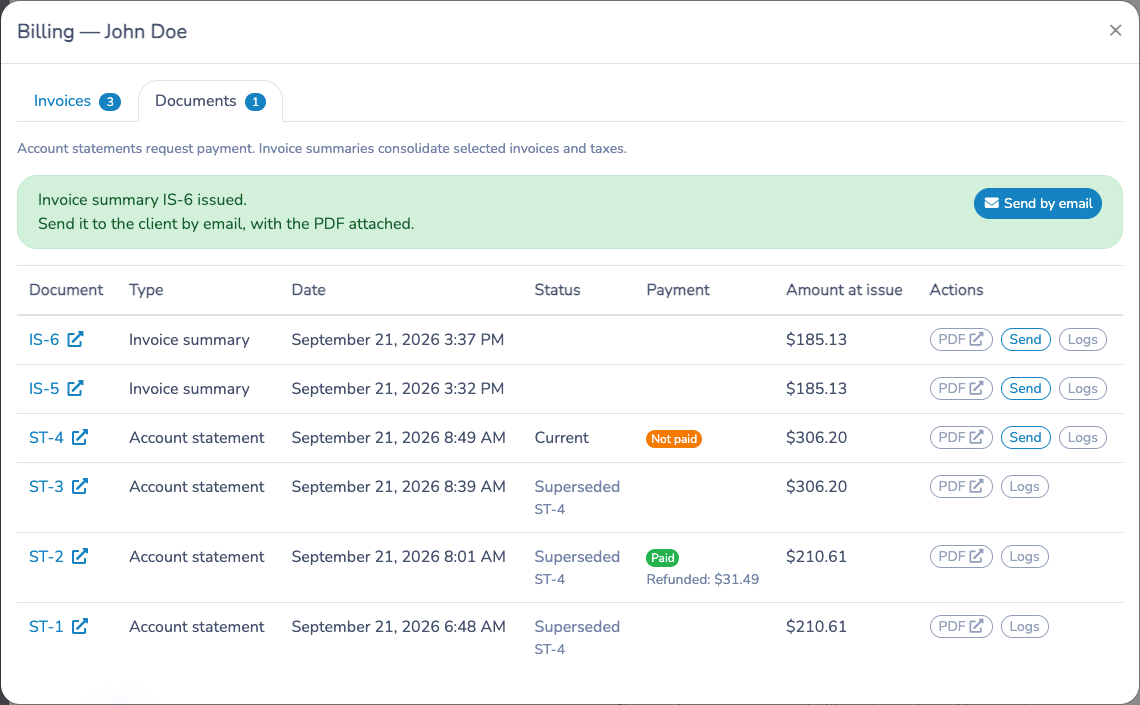
Paid does not necessarily mean all future installments have been paid. Open the statement to review any remaining schedule. A later installment becoming due, an adjustment or a refund can change the current amount due.
To check an individual invoice:
- Return to the client account and open Invoices.
- Open an invoice included in the statement.
- Check its payment receipt and balance.
- Follow Paid from account statement ST-… to return to the statement.
Each invoice has its own allocated payment amount and receipt. These entries represent portions of the same card payment, not separate card charges.

Example: four invoices paid together
In the example, the four invoices initially had $210.61 CAD outstanding. The configured card fees and taxes added $6.01, for one payment of $216.62 CAD. After payment:
- Invoice #2513 received $31.49.
- Invoice #2512 received $2.00.
- Invoice #2514 received $41.20.
- Invoice #2515 received $141.93.
The four allocations total $216.62, and all four invoices have a zero balance. The statement retains $210.61 as its amount due at issue.
# 6. Review logs and sent PDF files
Select Logs on a statement to review its issuance, deliveries, payment attempts and refund activity. Receipt links and PDF filenames provide access to the associated documents.
In Communications → Messages, open the sent email to find the PDF filename link. The sent attachment is a historical record of the file delivered with that email. Later invoice changes do not rewrite it. The same sent-file link is available in the statement logs.
Use the original statement PDF for the issued snapshot, the statement page for current balances, and the payment receipt for the payment breakdown.
# 7. Refund a payment applied to an invoice
Open the affected invoice and select Create a refund beside its payment receipt. Review the available amount and follow the normal refund process. The refundable amount is limited to the remaining allocation on that invoice and the remaining amount of the shared charge. Do not refund the full shared charge when only one invoice is affected.
A refund returns money; it does not cancel a purchase or reduce its price. If your intention is to cancel a purchase or give a credit, perform the appropriate invoice cancellation or credit as well. See Invoices and client billing for the distinction.
The original statement and receipt remain historical records. Refunds are recorded separately. Review the invoice and current statement afterward because returning a payment without reducing the amount charged can leave money owing again.
# Accounting and reporting
Continue using the individual invoices for purchased items, taxes, accounting codes and invoice balances. Issuing a statement does not create another sale or receivable.
For reconciliation, match the one card charge to the sum of its invoice payment allocations. Include applicable card convenience fees and taxes shown on the invoices. Do not count both the shared charge and its allocated invoice payments as separate receipts of money. Likewise, do not add a statement's amount due to the same invoices' balances.
Use Accounts receivable to review outstanding invoices and Financial reports for reporting. A statement is a client payment request and snapshot, not a replacement for those reports.
# Summarize selected invoices, including paid invoices
Use an Invoice summary when a client needs a combined view of selected invoices and their taxes. In Billing → Invoices, filter and select invoices, then choose Actions → Create invoice summary. You can also start from the main Invoices page. All selected invoices must be billed to one client.
A summary preserves the figures at creation and does not request payment. It appears beside statements in Billing → Documents and does not replace the current statement.