Activity Messenger Help Center
Invoices and client billing
There are several ways to bill customers, but generally, invoices are generated when someone registers through a registration form.
How invoice numbers are assigned
Finalized invoices are numbered sequentially within your organization. A number is assigned when an invoice is finalized; draft invoices do not yet have an invoice number. The next invoice uses the next number after the latest assigned number.
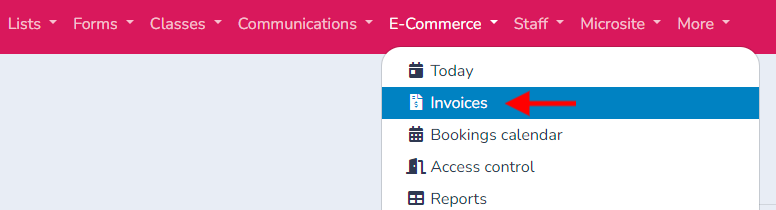
Go to the E-commerce tab and select Invoices. Here, you will see all the invoices on the platform.
You can also view invoices from a payment form through the Responses tab of the form. The invoices displayed will be limited to purchases made with that specific form.
Filter the invoices
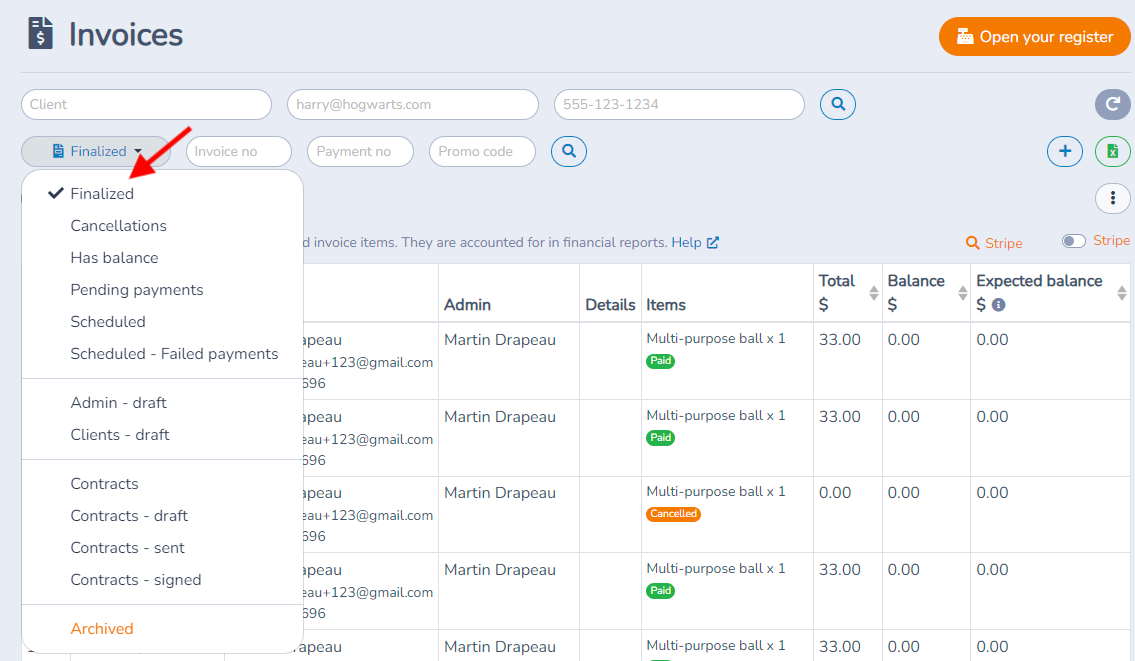
Use the menu at the top left of the list:
- Finalized: Indicates completed invoices.
- Cancellations: Lists invoices that have been created and then canceled.
- Refunded: Lists invoices that have been refunded.
- Has balance: Shows which invoices are unpaid.
- Invoicing workflow: Invoices that follow an invoicing workflow. This entry appears only if your organization uses invoicing workflows.
- Admin - draft: Invoices that are partially completed by an administrator and awaiting customer payment.
- Clients - draft: Invoices that are not yet finalized, often from abandoned payment forms.
- Draft - Payment received: Draft invoices for which a payment was already received.
- Contracts: Manage contracts, including drafts (Draft), sent (Sent) and signed (Signed) contracts.
- Archived: Invoices that have been archived by an administrator.
Use the Item filter button to show item filters. Turn on With class to find invoices that contain a class registration; you can also select class tags in the Classes field to narrow the results to particular tagged classes. The item filters also include invoice text/details, amount, ledger code, products and memberships. The Payment button opens payment-related filters such as pending and scheduled payments, while To review lists invoices that need attention. For payments collected by pre-authorized debit batch, see Pre-authorized debit batches (AFT) in Canada.
Invoice
Click on a row to open the Client billing dialog. You are present with the client, form answers, purchased items, the invoice, payment(s) and messages relating to this purchase.
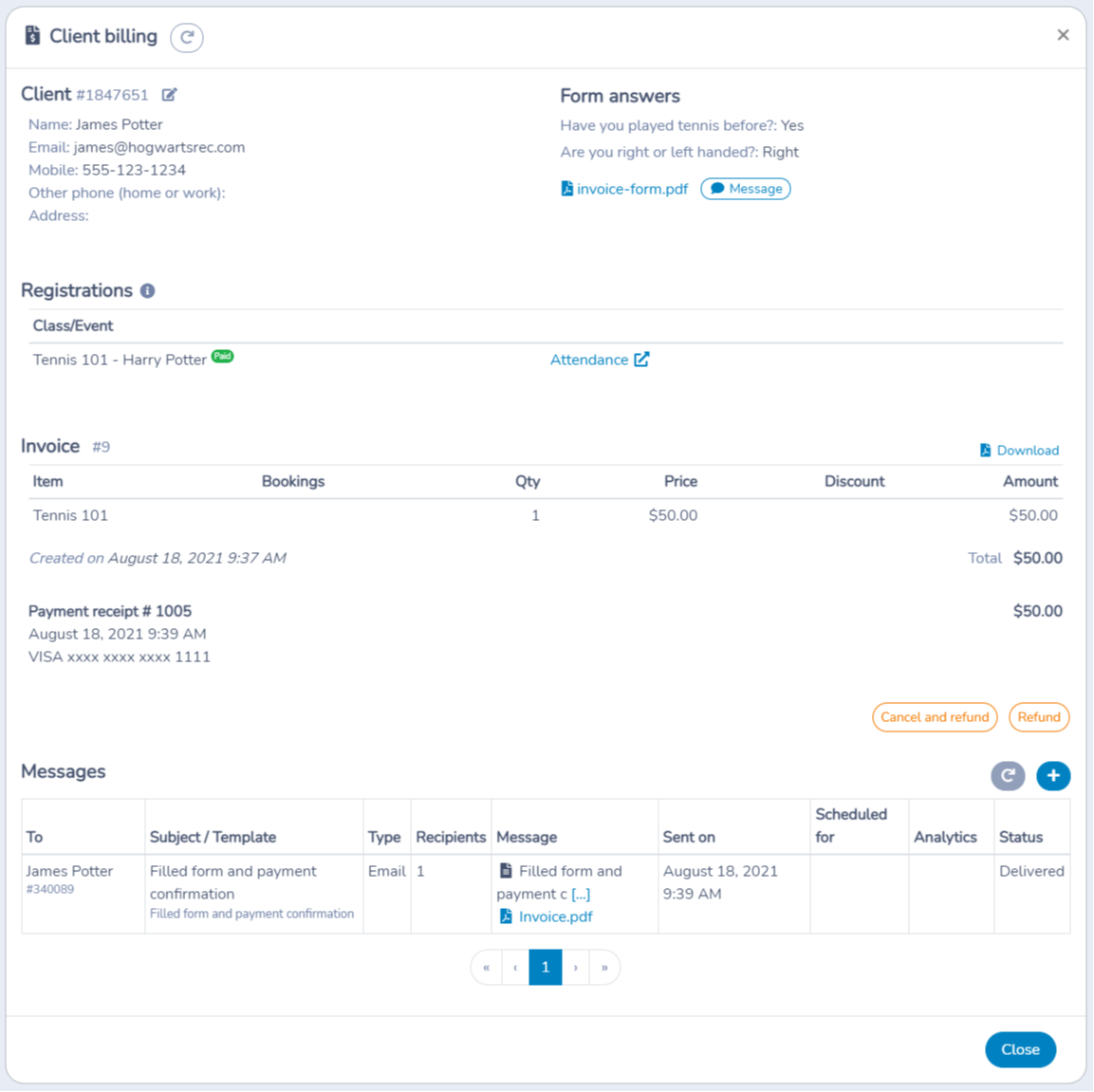
The customer billing window allows for the following actions:
- Edit the customer's name, email address, or mobile phone number.
- View and modify responses to form questions.
- Download the invoice in PDF format.
- Cancel purchases and specify the credit to apply.
- Credit items without cancelling their purchase.
- Refund a payment separately from its payment receipt.
- Enter a payment if there is a balance on the account.
- Resend the invoice to the customer via email.
- Send an email or text message to the customer.
- Add invoice items (custom items or course registrations).
Register a camper directly from an invoice
To create a billable class registration for a camper who attended without being formally registered, add the registration from the family's invoice—not by assuming that adding the camper to an attendance list creates an invoice charge.
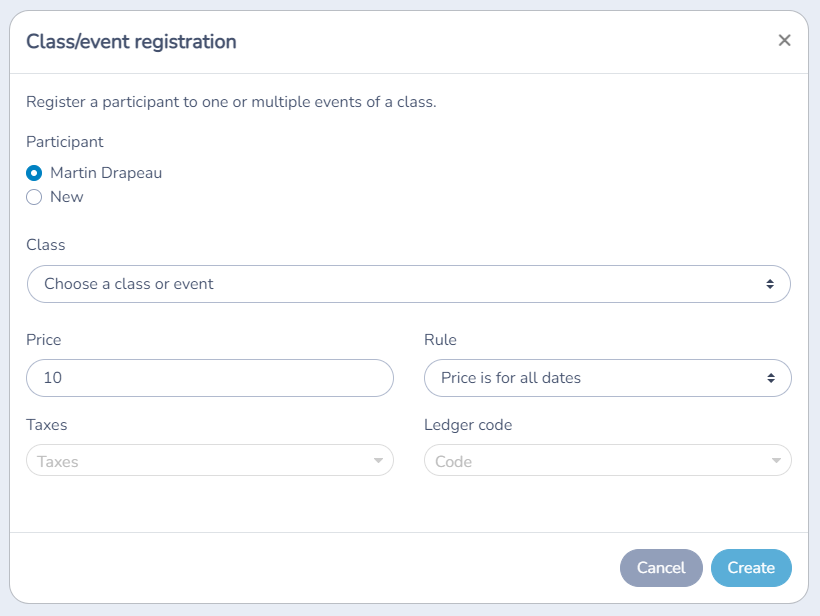
- Open the family's invoice and choose + Item → Class/event registration.
- Select the participant (or enter their person details), then choose the class.
- To register for dates that have already passed, enable Show passed events, then select the attended dates. The option displays the class's past events.
- Review the price, pricing rule, taxes and ledger code, then click Register. The registration is added to the invoice as a class/event charge.
This creates the registration and its charge together. Do not promise that manually adding a participant through an attendance list creates a registration invoice or a billable charge; the attendance-add flow is separate. Once the class item is on this invoice, apply an existing credit using Apply on the credit line. That credit can only be applied to another item on the same invoice. If the credit is on a different invoice, or the new purchase is later, issue a gift card or coupon from the credit balance instead. See Refunds, credits and cancellations.
Add tax to an item on an existing invoice
You can correct the tax on an item that has already been invoiced, including a registration, membership, product or custom item. You need permission to correct invoices; if you cannot edit the item or its taxes, ask the organization owner to check your invoice permissions.
- Go to E-Commerce → Invoices and open the client's invoice.
- Find the item and select its edit (pencil) action.
- In the item editor, choose the applicable Taxes and save. The editor shows the recalculated tax and total.
- Review the invoice balance. Adding tax that is not included in the listed price can create an amount owing; collect the remaining balance using the invoice's payment action.
- When the invoice is correct, use the invoice's email/resend action to send it to the client. The invoice includes the tax details.
Check the tax amount and balance before sending. This updates the item on the existing invoice; you do not need to create another sale or registration.
Manage a client's credit card on file
An administrator can remove a client's saved Stripe card from the client account by opening any invoice that belongs to the client. This prevents Activity Messenger from using that card for future payments.
Before you begin
You need:
- Access to E-Commerce → Invoices.
- Permission to view client invoice details.
- A client with a Stripe credit card on file.
This guide is about a client's payment method. It does not change the credit card used to pay your organization's Activity Messenger subscription.
Remove the card
- Go to E-Commerce → Invoices.
- Open any invoice that belongs to the client.
- In the client section, find the saved card and click the edit icon beside it.
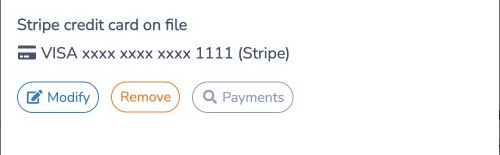
- In Payment methods on file, find Stripe credit card on file. The Payments action beside the saved card opens the associated payments, identified by the card's brand and last four digits.
- Click Remove.
- Review the scheduled-payment warning, then click Remove to confirm.
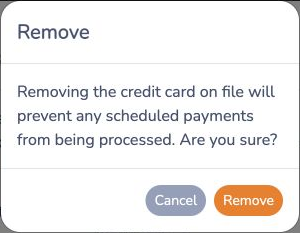
The card is removed from the client's account across your organization. The change is not limited to the invoice you opened.
Before removing a card with scheduled payments
Removing the card prevents scheduled payments from being processed with that card. It does not cancel scheduled-payment definitions, registrations, memberships, or other obligations.
Before confirming:
- Review the client's upcoming scheduled payments.
- Ask the client to replace the card when future payments should continue.
- Make any separate cancellation or payment-plan changes required by your agreement with the client.
What removal does not delete
Removing a card on file does not delete or change:
- Existing invoices.
- Completed payment and receipt records.
- Previous refunds.
- Registrations or memberships.
- Scheduled-payment definitions.
The full card number is not available to view. Use Payments in Payment methods on file, as described above, to review associated payments by card brand and last four digits.
Can the client remove the card?
Clients can go to Invoices → Credit card on file in their client account to add or replace their card. They cannot remove it themselves. An administrator must use the invoice workflow described above.
Example
A family asks you to stop using its saved card after the current season. Open any invoice for that client, edit Payment methods on file, and remove the Stripe card. Existing invoices and receipts remain available, but future scheduled payments cannot use the removed card.
Related guide
Create a new invoice
Generally, invoices are created when a payment form has been filled out. It will remain in draft mode until the customer (or administrator) makes a payment, after which it will be finalized.
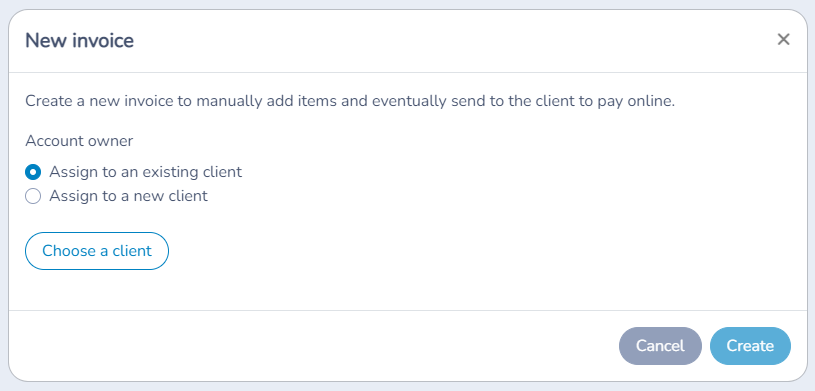
As an administrator, you can also create an invoice from scratch by clicking the (+) button. Choose an existing customer or add a new one. The newly finalized invoice will be added, and you can then add invoice items. Once it’s complete, you can send it to the customer for online payment.
Adding new invoice items
Invoices can be added to even if they were paid. This will increase the total amount due and create a balance outstanding. The client can pay the balance online or you can take a payment offline.
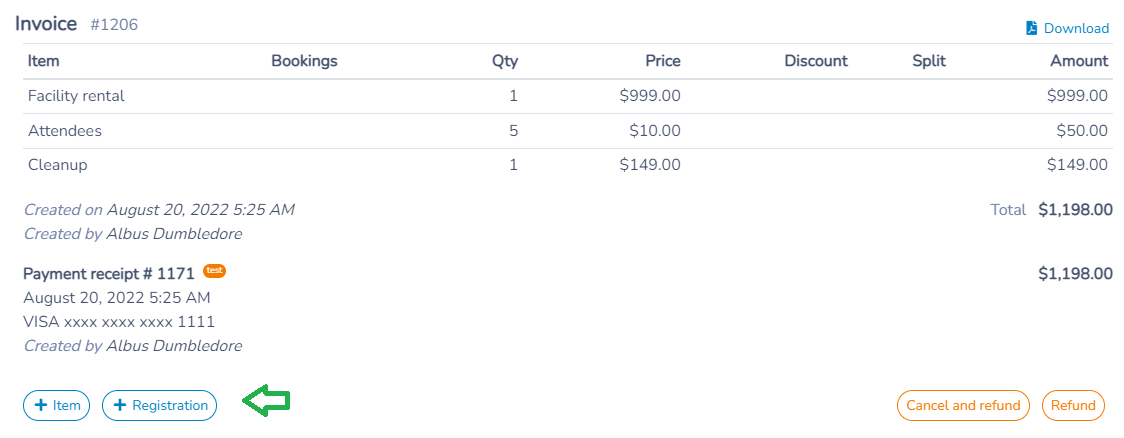
You can add a custom invoice item by entering the amount, quantity, sales taxes, and accounting code. This allows you to add fees or extras to an invoice. Unpaid custom invoice items can be modified or deleted.
To add an item, scroll to the bottom of the invoice and click on + Item, then select the type of item you want.
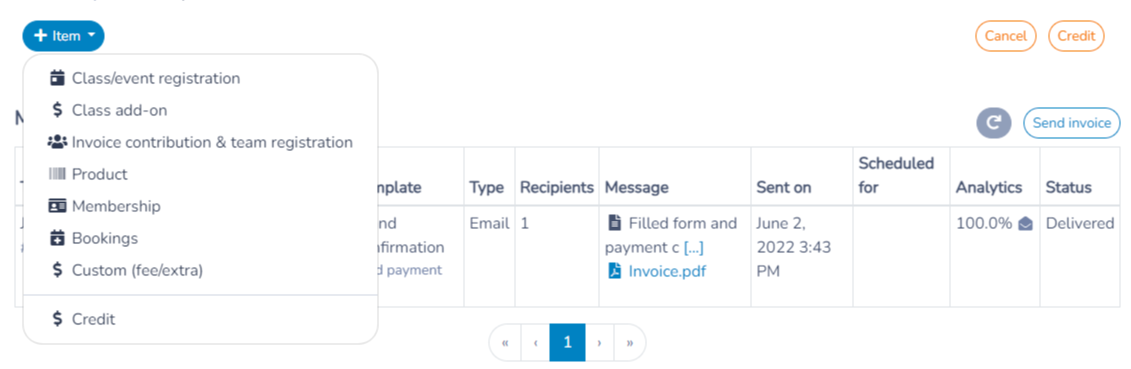
Types of Items
Item: Add an item to the invoice.
Class/event registration: Register the participant for an additional event.
Class add-on: Useful for adding services, such as childcare, if the client initially forgot to include it.
Membership add-on: Add an option to a membership.
Ticket: Add a ticket.
Team contribution: Allow someone to reduce the balance of an invoice by paying part of it.
Product: Add products like sports equipment.
Membership: Add or modify memberships.
Bookings: Add reservations for sports facilities. Shown when your organization uses bookings.
Player: Register a player on a team.
Custom (fee/extra): Add specific fees as needed, such as a late fee.
Default fee: Add your organization's default fee.
Add NSF fee: Add the configured insufficient-funds fee and, when scheduled payments exist, choose the payment to collect it.
Credit: Add a credit to the invoice.
You can register someone to a class directly from the invoice. No need to pass through a payment form. Useful to manage private lessons and drop-ins.
See Create bulk invoices to bill several clients from one draft, register each included participant in a class or event, schedule installments, and exclude individual people.
Add and manage NSF fees
Add an NSF (insufficient funds) fee as a product on a finalized, active invoice. This is a manual invoice action and works with eligible scheduled payments beyond AFT. It is separate from your organization's default fee and credit card convenience fee.
You need permission to edit invoice items and refund or modify payments. Configuring the fee product also requires permission to configure the organization's payment settings.
Configure the fee product
- Create or choose a regular product for the fee. Use an active product with a positive price, without variants, add-ons, gift cards or coupons.
- Open Organization settings → Finance → Payments.
- Under NSF fee, choose the NSF fee product.
- Review the muted summary of its amount, ledger code and taxes, then click Save.
The invoice uses this product's ledger code and taxes. You can change the fee amount for an individual invoice when adding it.
Add the fee to an invoice
- Open the invoice from E-Commerce → Invoices.
- Choose + Item → Add NSF fee, beside Default fee.
- Review the product and change Amount if needed.
- If the invoice has scheduled payments, click Next and Choose a scheduled payment. The most recently failed eligible payment is selected by default, otherwise the next upcoming payment. Review its date, amount and payment number. Existing admin notes, notes to the client and failure reasons appear when recorded.
- Review the payment's before-and-after amount and click Apply. The fee and its payment link are saved together and recorded in the invoice Log.
If there are no scheduled payments, there is no second step: click Add NSF fee to add it to the invoice without a payment assignment. You can assign it later from the fee item's editor.
Adding a fee does not retry or reschedule a failed payment. A failed payment remains failed. If you select a failed attempt that was already submitted, its recorded amount stays unchanged: the link is for follow-up. Create a separate, unsubmitted retry payment and move the fee to it before collection. Recording a payment failure does not automatically add an NSF fee.
Check, move or remove a payment link
Open the fee item with its edit icon and look under Payment links. Existing links show the payment number, scheduled date, payment amount and amount allocated to the item. Any amounts already collected are shown separately. The payment on the invoice also identifies the included NSF fee; Manage fee opens its item editor.
- Assign fee to a payment: opens a modal. Choose an eligible payment, review the amount changes, then click Assign fee. If a payment was already linked, only the unpaid portion moves; both mutable payment amounts are adjusted.
- Remove fee from payment: opens a confirmation with the amount change. Click Remove from payment to detach it. The fee remains due on the invoice; this does not waive or delete it.
Changing a link leaves the invoice total and amounts already collected unchanged. An unassigned fee can therefore leave an Expected balance that no scheduled payment covers.
Change or waive the fee
Saving a change to the fee item's price, taxes or discount adjusts the linked, unsubmitted payment for the remaining unpaid fee. Save amount changes before moving or detaching the fee. Deleting an unpaid fee item removes the charge from the invoice and reduces its linked mutable payment. To leave the charge on the invoice but collect it separately, remove only its payment link.
Submitted payment amounts and collection history are protected. Move an unpaid fee away from a failed submitted attempt before changing its amount. If some of the fee has already been collected, only its unpaid remainder can move; use the invoice's credit and refund actions to waive or return collected amounts rather than deleting the fee.
For example, a $20 fee assigned to a $50 unsubmitted installment increases that installment to $70. Removing the link returns it to $50, while the $20 fee remains due on the invoice. Assigning the fee to a later payment adds the $20 there instead.
Admin payment (offline)
The administrator can always take a payment offline. For example by cheque, by cash or a balance transfer from another platform. The administrator can also take a credit card payment by phone.
Click on the "Make a payment" button, and choose a payment method. You can also add a comment and send the receipt to the client by email.

When applying the payment to specific invoice items, choose Choose items and amounts, then select the unpaid items or use Select all unpaid items at the top of the section. Each selected item initially uses its remaining balance. To make a partial payment, open Distribute a partial payment and enter the amount to distribute. Apply in order is selected by default and fills the first selected item before the next; you can choose Split evenly or adjust each item's amount directly. The allocation updates as you change the amount, method, or selected items. Review the item amounts and the Pay now total before confirming the payment.
Client payment (online)
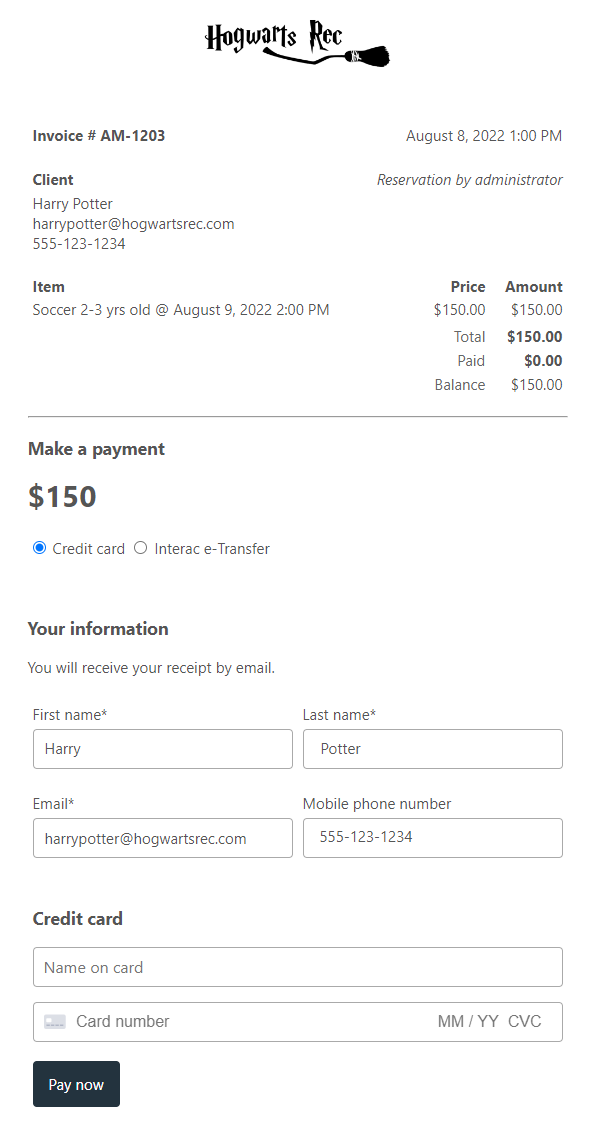
Any invoice with an outstanding balance can be sent to the client by email or by SMS for them to pay online with a credit card. In Canada, you can also allow the client to pay via an Interac e-Transfer payment.
Click on "Send a link to pay online" to open a New message window. The invoice PDF will be added as an attachment to the email. The client will receive a link that leads to a page to pay online.

The new message sending window will open. The invoice in PDF format will be attached to the email. The customer will also receive a link to pay the balance of their invoice online.
Request one payment for several invoices
Use an account statement when a client has several outstanding invoices and should pay the amount due with one card payment. Open the client account, select Billing → Invoices → Actions → Issue account statement, issue the statement, then send its link and optional email PDF.
After payment, each invoice has its own allocated payment receipt and a Paid from account statement ST-… link. The statement does not create another invoice. See the account-statement guide for payment breakdowns, historical PDFs, fees, refunds and reconciliation.
Cancellation, credit, and refund: choose the right operation
Cancelling an item, applying a credit, and returning money are related but distinct parts of invoice adjustments. The Cancel button opens the Cancel and credit window, which cancels the selected purchases and credits them; you refund the money afterwards. A standalone Credit keeps the purchase active. Create a refund, beside a payment receipt, is the separate step that returns the money.
For a step-by-step guide to each window, refunds by payment method and what a cancellation changes, see Refunds, credits and cancellations.
Before you begin
Go to E-Commerce → Invoices and open the client's invoice. Check the items, balance, payment receipts, and any previous credits or refunds. Your user permissions must allow the operation you want to perform; access to invoices alone does not grant permission to cancel, credit, or refund.
Cancel a purchase and retain a cancellation fee
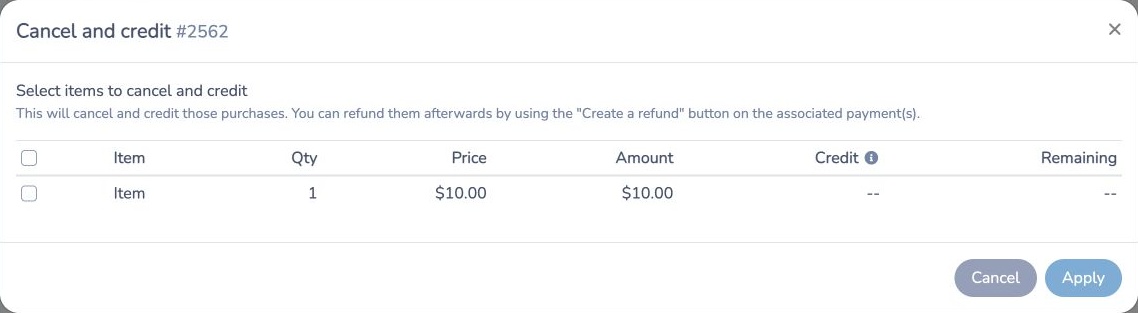
- Click Cancel below the invoice. The Cancel and credit window opens. It states: "This will cancel and credit those purchases. You can refund them afterwards by using the "Create a refund" button on the associated payment(s)."
- Select the items to cancel. When the window offers quantities or individual events, select only the quantities or events concerned.
- Review the Credit amount for each selected item. Check the remaining amount and taxes before applying.
- To retain an administrative/cancellation fee, credit less than the full amount of the item. For example, on a $100 item, credit $80 to keep $20. The $20 stays charged on the invoice.
- If a recurring-cancellation option appears, review whether future occurrences should also be cancelled.
- Add an administrator note if needed and choose whether to send the receipt by email.
- Click Apply. Then use Create a refund beside the payment receipt to return the money (see below).
For a fully paid $100 purchase with no taxes and a $20 fee, credit $80, then refund $80: $80 is returned and $20 is retained. If taxes apply, the credit is entered before taxes; check the remaining amount and taxes shown in the window and the invoice balance before applying.
There is no separate cancellation-fee field in this window. Do not deduct the same fee twice: reduce the credit once, then refund only the credited amount.
Refund a payment separately
- In the invoice, locate the original Payment receipt. Click Create a refund beside that receipt.
- Select the payment items and enter the amount to refund for each. Use the remaining refundable amount shown; account for previous refunds.
- Review the refund method. For a Stripe card refund, use the original card payment. This refunds that transaction, not an arbitrary card currently saved on the client's account.
- If you choose an offline method such as cash, cheque, or Interac e-Transfer, arrange the actual repayment separately. Recording that refund does not send cash, issue a cheque, or initiate an Interac e-Transfer. Other choices depend on your organization's configuration and the original payment.
- Add notes if needed, choose whether to email the receipt, then confirm the refund.
- Check the refund receipt and the invoice's updated balance. If the purchase was paid through several receipts, handle the relevant receipts separately.
A standalone payment refund does not by itself cancel a registration or credit the invoice items. If you refund a payment without cancelling or crediting the charge, the invoice can become payable again. Use the cancellation dialog when the purchase is ending, or Credit when reducing its price while keeping it active.
Credit an item while keeping the purchase active
To credit an invoice, your user needs the Can credit invoices permission. Account Owners always have it; Admins and Attendants have it only if an Account Owner has allowed it. Access to invoices alone is not enough, so if Credit does not work for you, ask an Account Owner to enable this permission for your user.
- Click Credit below the invoice.
- Select the items and enter the credit as a negative amount before taxes. Check the remaining amount, taxes, and balance shown.
- Choose whether to email the receipt, then click Apply.
The credit reduces the amount charged without cancelling the purchase or registration. It can reduce an unpaid balance or create a credit balance on a paid invoice. If you also need to return money, use Create a refund on the payment receipt as a separate step.
Examples
For simplicity, these examples have no sales taxes or other invoice items.
- Cancel a fully paid $100 registration: cancel it and refund $100. The registration ends and the final balance is zero.
- Cancel but retain $20: cancel the $100 registration with an $80 credit, then refund $80. The $20 retained remains charged.
- Give a $20 discount without cancelling: credit the paid $100 item by $20, then refund $20 if the client should receive the money back. The registration stays active.
- Cancel an unpaid $100 registration: cancel it with a $100 credit. There is no money to refund.
After an adjustment, review any remaining scheduled or pending payments and the expected balance. Cancellation can change these payments depending on the invoice; a refund is not a substitute for reviewing a payment plan.
Related help
Archiving invoices
To archive an invoice, you need the refund or modify payments permission. An active booking by itself does not prevent archiving: the archive-and-cancel flow cancels invoice items first, then archives the invoice only when its resulting balance is exactly zero. This can cancel a booking linked to an invoice item, so review the items before archiving. If the invoice still has a positive or negative balance after cancellation, archiving is refused. An item with a recorded payment can affect that balance; do not assume it can be archived.
To archive an invoice, open it and click on the Archive button located at the bottom left of the popup. Once archived it will be removed from the ordinary list of invoices.
Archiving is not permanent deletion. The invoice is retained and can be found again by turning on the Archived filter. The standard invoice interface documented here does not provide a way to permanently erase an invoice. If you need it completely removed, contact Activity Messenger support rather than treating archive as deletion.
If you need to, you can click on the filter and show archived invoices.
Invoice summaries for one client
To provide a combined record of selected invoices and their taxes, including invoices already paid, create an Invoice summary. Filter the Invoices page, select invoices billed to one client, then choose Actions → Create invoice summary. Review the selection and tax totals, choose the language, and create the document.
You can also use Billing → Invoices from the client account. The Documents tab keeps invoice summaries and account statements together, with PDF, Send and Logs actions. A summary is a saved record; it does not request payment or create another charge.
Settings reference
| Setting | Where | Default | Effect |
|---|---|---|---|
| Finalized / Cancellations / Refunded / Has balance | E-Commerce › Invoices › menu at the top left of the list | Finalized | Chooses which invoices the list shows: completed invoices, cancelled ones, refunded ones, or those with an unpaid balance. |
| Invoicing workflow | Same menu | Off; the entry appears only if your organization uses invoicing workflows | Shows invoices that follow an invoicing workflow. |
| Admin - draft / Clients - draft / Draft - Payment received | Same menu | Off | Shows invoices that are not finalized: started by an administrator, started by a client (often abandoned forms), or drafts where a payment was already received. |
| Contracts (Draft / Sent / Signed) | Same menu | Off | Lists contracts, optionally limited to draft, sent or signed ones. |
| Archived | Same menu | Off | Also shows archived invoices. Archived is shown in red. |
| Pending payments / Scheduled payments / Interac e-Transfer (by email) | E-Commerce › Invoices › Payment filter button | Off | Switches that narrow the list to invoices with a pending payment, scheduled payments, or an Interac e-Transfer. The Interac switch appears only when your organization has Interac e-Transfer set up. |
| Item, Payment, Forms, Tags, To review | E-Commerce › Invoices, filter buttons under the menu | Closed, no filter | Open extra filters by invoice item, payment type, form, tag, or invoices that need review. |
| New invoice | E-Commerce › Invoices, (+) button | Not applicable | Creates an invoice from scratch for an existing or new client. Not shown while a draft list is displayed. |
| Select invoices › Actions | E-Commerce › Invoices | Off | Lets you tick invoices and then Create invoice summary, Download invoice PDFs (ZIP), Apply credit, Message, Archive or Restore. Each action appears only if you have permission for it. |
| Download to Excel | E-Commerce › Invoices | Not applicable | Exports the invoices currently listed. |
| + Item | Bottom of an open invoice | Not applicable | Adds to the invoice, even if it is paid: Class/event registration, Class add-on, Membership add-on, Ticket, Team contribution, Product, Membership, Bookings, Player, Custom (fee/extra), Default fee, Add NSF fee or Credit. Some entries appear only when your organization uses the feature. |
| Make a payment | Open invoice | Shown when the balance is not zero | Records a payment taken offline. Reads Create a refund instead when the invoice has a credit balance. |
| Schedule payments | Open invoice | Shown when the invoice has an expected balance to schedule | Splits the balance into scheduled payments. |
| Cancel | Open invoice | Shown when at least one item is not yet cancelled | Opens Cancel and credit. Cancels the selected purchases and credits them; refund separately. |
| Credit | Open invoice | Not applicable | Reduces an item's amount while keeping the purchase. Needs Can credit invoices. |
| Create a refund | Beside a payment receipt in an open invoice | Shown when the payment has a refundable amount | Refunds that payment separately. Needs Can refund. |
| Send a link to pay online | Open invoice | Shown when there is a balance due | Opens a message with the invoice PDF and a payment link. |
| Archive | Bottom left of an open invoice | Not archived | Requires permission to refund or modify payments. The archive-and-cancel flow cancels invoice items and archives only if the resulting balance is exactly zero; an active booking alone is not a blanket block. Review items first because linked bookings can be cancelled. |
| Payment methods on file › Stripe credit card on file › Remove | Open invoice › client section › edit icon beside the saved card | Not applicable | Removes the client's saved Stripe card across your organization. Invoices, receipts and refunds are kept. |
| Can credit invoices / Can cancel invoices / Can refund | Organization settings › Users & permissions › staff user | Off, except Account Owners who always have them | Controls who may use Credit, cancel items without refund, and issue refunds or adjust payments. |
Common questions
Where do I find all invoices for a client or a form? Go to E-Commerce › Invoices and search by client, or open the form's Respondents tab to see only the invoices from that form. Use the menu at the top left to switch between finalized, cancelled, refunded and draft invoices. See Filter the invoices.
Why can't I credit, cancel or refund an invoice? Access to invoices is not enough: Credit, cancelling items without refund and refunds each need their own permission (Can credit invoices, Can cancel invoices, Can refund). Account Owners always have them; other staff only if an Account Owner enables them in Users & permissions. See Credit an item while keeping the purchase active and Users and permissions.
How do I cancel a registration but keep part of the money? Cancel and credit the item for less than its full amount, then refund only that credited amount from the payment receipt. For a $100 item, credit $80 and refund $80 to keep $20. See Refunds, credits and cancellations.
Why does the button say Create a refund instead of Make a payment? The invoice has a credit balance (the client has paid more than is owed), so the button offers a refund instead of a payment. When the balance is zero, the button is not shown.
Can I permanently delete a draft invoice? The standard invoice interface provides archiving, not permanent deletion. Archiving removes the invoice from the ordinary list, but retains it and makes it available through the Archived filter. Contact Activity Messenger support if you need permanent deletion. See Archiving invoices.
Why might archiving an invoice be refused? The archive-and-cancel flow cancels its invoice items, then archives only if the resulting balance is exactly zero. An active booking alone is not a blanket block, but archiving can cancel a linked booking. Review the invoice items and balance first. You also need permission to refund or modify payments. See Archiving invoices.
How do I add something to an invoice that is already paid? Open the invoice, click + Item and choose the type. The total increases and a balance is created, which the client can pay online or you can take offline. See Adding new invoice items.
How do I send an unpaid invoice to the client? Open the invoice and click Send a link to pay online. The message includes the invoice PDF and a link to pay the balance. For several invoices at once, see Account statements. See Client payment (online).
Where are the Interac e-Transfers that are still pending? In E-Commerce › Invoices, open the Payment filter and switch on Pending payments and Interac e-Transfer (by email). See Interac e-Transfer.