
Home
Account setting
Staff
Lists
Forms
Templates (HTML emails/SMS messages)
Sending messages by SMS and email
Classes, events, attendance and Zoom
Automation
Create a birthday invitation and automation
Communication
Microsite
E-Commerce
Networks, Federations and Franchises
How to guides
Personal information and electronic message laws in Canada and the USA
Get support
Terms and conditions
https://activitymessenger.com/
10410 Waverly, Montréal, H3L 2W4
Terms and conditions

Accounts receivable
Use Accounts receivable to find finalized invoices that still have money to collect, distinguish amounts already covered by payment schedules from likely residual balances, and coordinate follow-up across your team.
# Before you begin
You need permission to access invoices and accounts receivable.
Go to E-Commerce → Accounts receivable.
Accounts receivable is a current operational collections list. It is not an accounting ledger, an attempt history, or a historical report, so there is no date range to select.
# 1. Understand the current list
The report includes finalized, active invoices whose selected balance is greater than the organization’s minimum threshold. Cancellation invoices and cancelled originals do not appear.
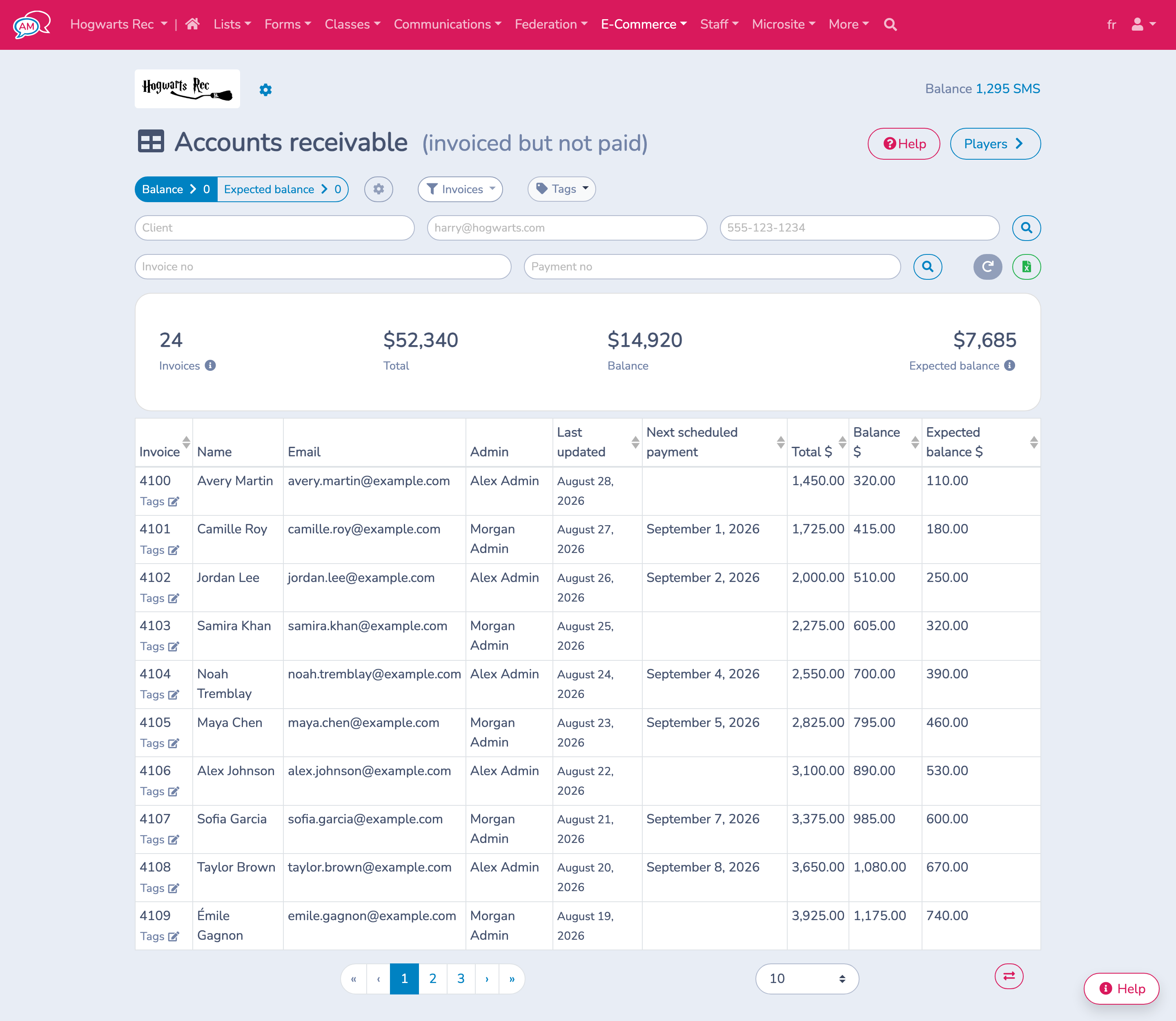
The summary shows:
- Invoices: number of matching finalized invoices.
- Total: original totals of the matching invoices.
- Balance: current unpaid amount on those invoices.
- Expected balance: amount expected to remain after applicable scheduled and pending payments.
The table shows one row per invoice. Select a column heading to sort, and select an invoice row to open the full invoice.
# 2. Choose Balance or Expected balance
Select the view that matches your collections question:
- Balance shows the amount currently unpaid, whether or not future payments are scheduled. Use it to review the complete receivable outstanding today.
- Expected balance shows what should remain after scheduled and qualifying pending payments are applied. Use it to isolate amounts not already covered by a payment schedule.
By default, Expected balance still gives credit to scheduled payments whose due dates have passed, including failed attempts. Enable Account for failed payments to subtract only future scheduled payments. This exposes balances that past failed payments may leave to collect.
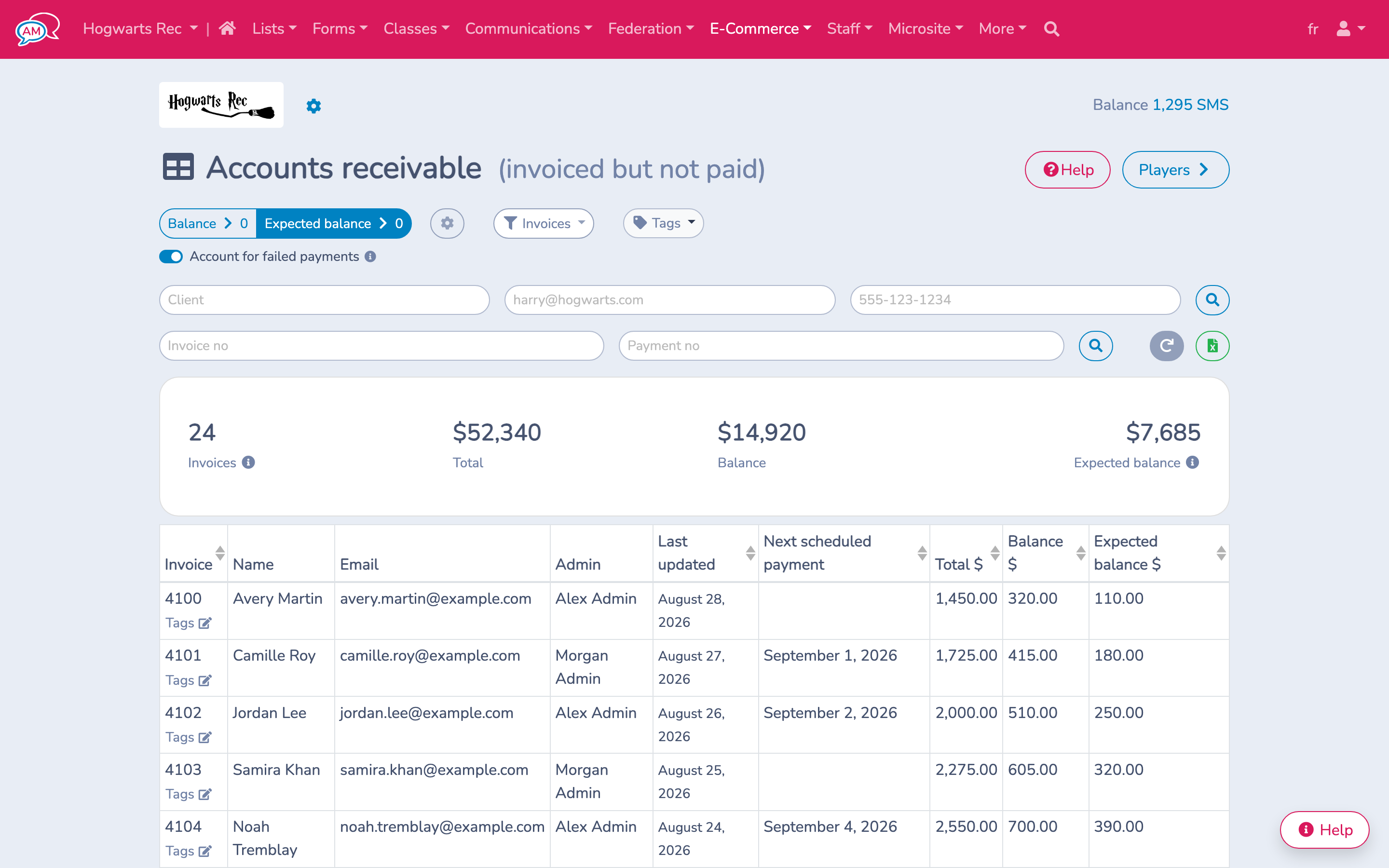
Use Expected balance with Account for failed payments alongside the Scheduled payment attempts report when you want a more realistic collections queue. That report explains why an attempt failed or is pending; Accounts receivable shows the invoice’s remaining collections position.
# 3. Set the minimum threshold
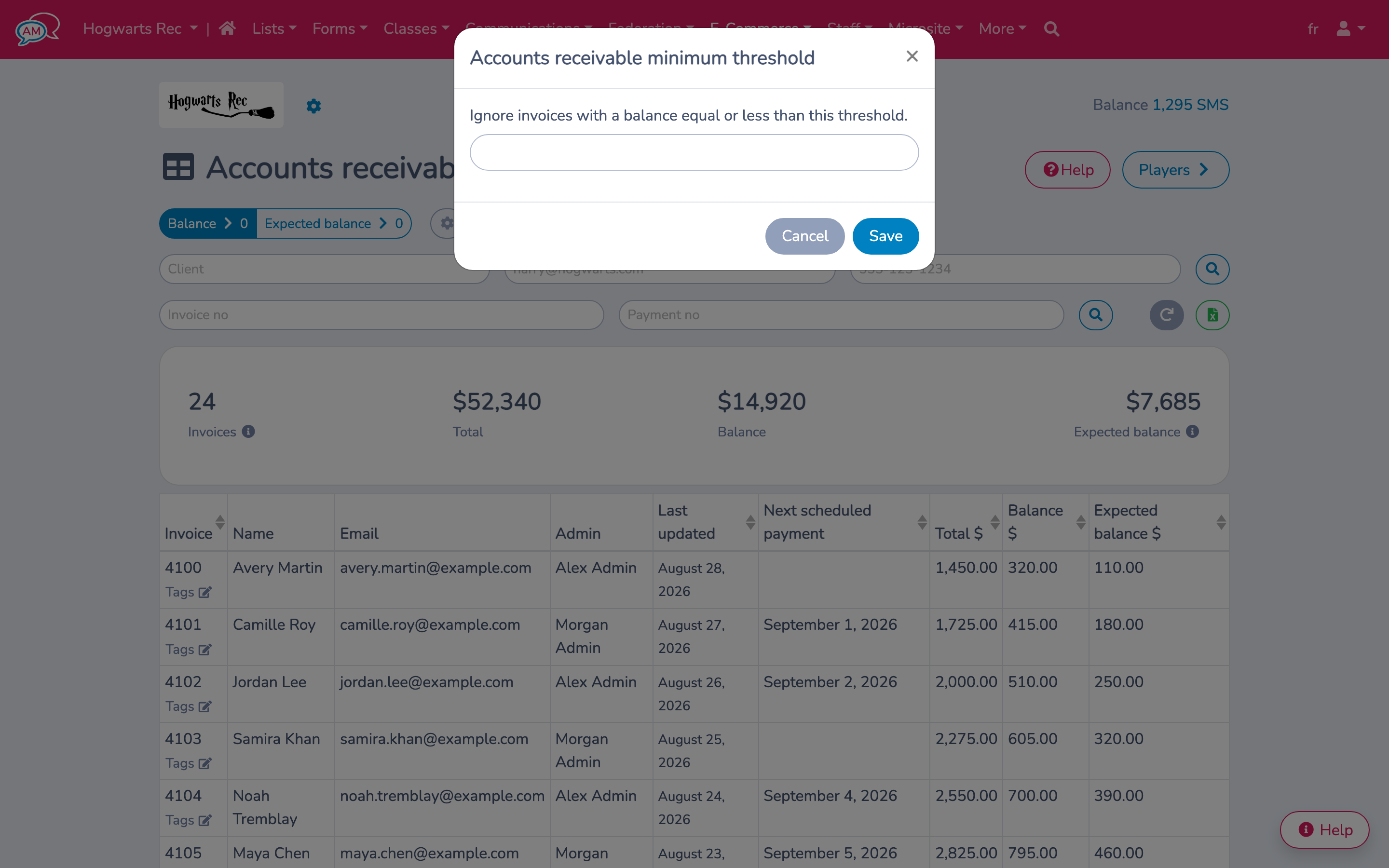
Select the gear beside the Balance and Expected balance buttons to set the organization-wide Accounts receivable minimum threshold.
The selected Balance or Expected balance must be greater than the threshold to appear. For example, a threshold of $1.00 hides invoices whose selected balance is $1.00 or less. Changing the threshold only changes this report; it does not write off, settle, or modify an invoice.
# 4. Filter, search, sort, and paginate
Use the invoice menu to show invoices:
- With or without a membership.
- With or without a class.
- With or without a booking, when bookings are enabled.
When one of these filters supports related tags, select a membership, class, or location tag to narrow the result. You can also select one or more invoice tags. Selecting several invoice tags requires every selected tag; No tag finds invoices that have not been triaged.
Search by client name, email, or mobile number. The second search row accepts an invoice number or a payment receipt number. A receipt search finds the associated original invoice when the payment belongs to a cancellation.
Sort by Invoice, Last updated, Next scheduled payment, Total, Balance, or Expected balance. Use the paginator and page-size menu below the table to review the complete result in groups of 10, 25, 50, or 100 invoices.
# 5. Coordinate collections with invoice tags
Create and assign invoice tags beside an invoice number to record its follow-up stage. For example:
- First contact
- Second contact
- Collections
The same invoice tags are available in Scheduled payment attempts, so administrators can carry the follow-up stage from a failed attempt into the receivables list. Tags apply to an individual invoice, not to the client as a whole.
# 6. Investigate and resolve an invoice
- Start with Balance to review everything currently unpaid, or use Expected balance with Account for failed payments to focus on likely residual receivables.
- Sort by Balance, Expected balance, Last updated, or Next scheduled payment.
- Apply invoice, product, or tag filters and search for the client or receipt when needed.
- Select an invoice row.
- Review its payments and schedule. Take or correct a payment, update the payment method, adjust the schedule, or correct invoice items as required.
- Close the invoice and select Refresh. Continue until the balance is settled or the remaining amount and next action are understood.
Changes to payments, schedules, cancellations, and invoice items can change this list immediately.
# 7. Export or review balances by player
Select the Excel button to download every invoice matching the current filters, not only the visible table page. The workbook includes invoice details, tags, current and expected balances, next scheduled payment, and total, balance, and expected-balance sums by client. Export rows are ordered by the largest client-level expected balance and then balance.
When player bookings are enabled, select Players to open Players accounts receivable. That view groups qualifying player-enabled invoice items by participant instead of by invoice owner. Its totals can differ because it uses positive expected balances at the item level and does not apply the Accounts receivable minimum threshold.
# Example
An administrator wants to prioritize balances that are unlikely to be covered by an existing schedule.
- Open E-Commerce → Accounts receivable.
- Select Expected balance.
- Enable Account for failed payments.
- Sort Expected balance from highest to lowest.
- Use invoice tags to separate unreviewed invoices from First contact and Collections work.
- Open the first invoice, review the failed attempt and schedule, record the next action, and refresh the list.
# Important notes
- The report uses current invoice and payment-schedule data. It cannot reconstruct what was receivable on an earlier date.
- Only finalized, active invoices whose selected balance is greater than the minimum threshold appear.
- The threshold is shared by the organization and affects both Balance and Expected balance views.
- Summary totals use all matching invoices, not only the visible page.
- Selecting multiple invoice tags requires all of them.
- The Excel export contains every matching invoice and client-level sum columns.
- Use the Aging report for current balances grouped by time since invoice finalization and saved Aging snapshots for dated records.