
Home
Account setting
Staff
Lists
Forms
Templates (HTML emails/SMS messages)
Sending messages by SMS and email
Classes, events, attendance and Zoom
Automation
Create a birthday invitation and automation
Communication
Microsite
E-Commerce
Networks, Federations and Franchises
How to guides
Personal information and electronic message laws in Canada and the USA
Get support
Terms and conditions
RL-24
https://activitymessenger.com/
10410 Waverly, Montréal, H3L 2W4
Terms and conditions

Aging report and snapshots
Use the Aging report to see which clients currently have unpaid finalized invoices and how long those balances have been outstanding. Export the current result when you need to work with it, or save daily or monthly snapshots when you need reliable dated copies for future reference.
# Before you begin
You need permission to access invoices and accounts receivable. The Aging report is an operational view of current unpaid balances; it is not an accounting ledger.
Go to E-Commerce → Aging report.
# 1. Understand the live report
The report groups unpaid balances by the number of days since each invoice was finalized:
- 0–30 days
- 31–60 days
- 61–90 days
- 90+ days
The summary shows the number of clients and the total balance in each age range. The table groups the same balances by client and shows the number of matching invoices. Select a column heading to sort the table. Select a client row to open the Invoices page for that client.
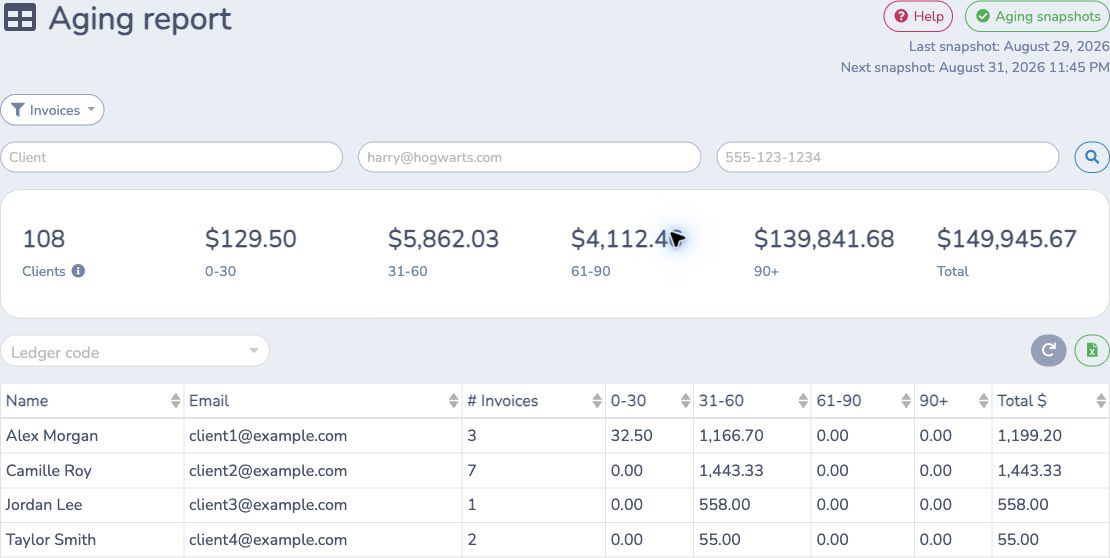
The report always uses the balances that exist now. Activity Messenger does not retain the accounting events required to reconstruct what each client owed on an earlier date. Use snapshots to preserve dated reports from now on.
# 2. Filter and export the current report
Use the invoice menu to show:
- All invoices.
- Invoices with or without a membership.
- Invoices with or without a class.
- Invoices with or without a booking, when bookings are enabled.
You can also search by client name, email, or mobile number and select a Ledger code. When a membership, class, or booking filter supports tags, select a tag to narrow the result further.
Use the page-size menu below the table to show 10, 25, 50, 100, or 200 clients per page. Select the Excel button to download the complete filtered result. The workbook includes every matching client, not only the visible page.
# 3. Save a snapshot now
- Select Aging snapshots.
- Select Save now.
- Wait for the queued snapshot to finish, then select Refresh in the snapshot window.
- Select Download beside a saved file.
Only one Aging report snapshot can be saved for an organization-local calendar date. A manual snapshot and an automatic snapshot use the same daily limit.
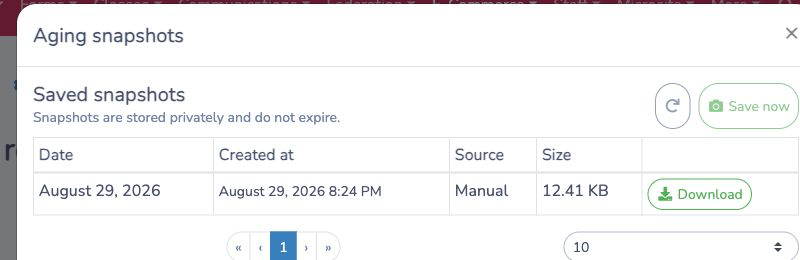
Each row shows the report date, when the file was created, whether its source was Manual or Automated, and its size. Use the paginator and page-size menu below the table to review older files.
# 4. Schedule daily or monthly snapshots
- In Aging snapshots, select Configure.
- Turn on Create snapshots automatically.
- Choose a Frequency:
- Daily creates one snapshot every day at the selected time.
- Monthly creates one snapshot on the selected day and time each month.
- Select a Time. The time uses the organization timezone shown in the window and is available in 15-minute steps.
- For Monthly snapshots, choose a Day of the month from 1 through 28 or Last day of the month.
- Confirm the Next snapshot, then select Save.
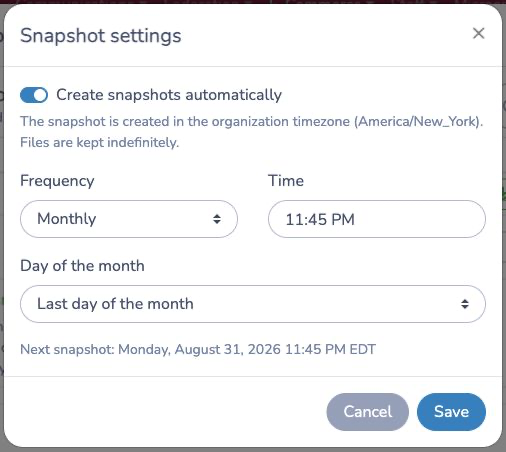
Days 29 through 31 are replaced by Last day of the month so the schedule also works in shorter months. Changing the organization timezone recalculates the next occurrence.
# What a snapshot contains
A snapshot is an Excel copy of the complete Aging report on its report date. It contains:
- A Total balance sheet with the four age ranges and overall balance.
- An Aging report sheet with the client-level balances and invoice counts.
Snapshots use the organization language at generation time. They do not preserve the live report’s membership, class, booking, client, tag, or ledger-code filters.
Snapshots begin after you enable them; earlier dates are not created automatically. Saved files are private, do not expire, and remain available if automatic snapshots are later disabled.
# Example
An organization wants a daily record after staff finish processing payments.
- Open Aging snapshots → Configure.
- Enable automatic snapshots.
- Select Daily and
11:45 PMin the organization timezone. - Save the schedule.
- At month end, open Aging snapshots and download the files needed for reconciliation.
The live report continues to change as invoices are paid. Each downloaded snapshot preserves the report generated for its date.
# Important notes
- Aging starts on the invoice finalization date, not its payment due date.
- Only finalized, non-cancelled invoices with a current unpaid balance appear.
- An empty report means no invoices currently match the filters with a positive unpaid balance.
- Excel exports use all current filters; scheduled and manual snapshots use the complete report without those filters.
- A queued snapshot may take a short time to appear. Use Refresh in the snapshot window.
- Turning automatic snapshots off stops future scheduled files but does not delete existing ones.