
Home
Account setting
Staff
Lists
Forms
Templates (HTML emails/SMS messages)
Sending messages by SMS and email
Classes, events, attendance and Zoom
Automation
Create a birthday invitation and automation
Communication
Microsite
E-Commerce
Networks, Federations and Franchises
How to guides
Personal information and electronic message laws in Canada and the USA
Get support
Terms and conditions
RL-24
https://activitymessenger.com/
10410 Waverly, Montréal, H3L 2W4
Terms and conditions

Use Groupon purchases with Activity Messenger coupons
Activity Messenger does not redeem Groupon voucher numbers directly at checkout. Instead, an administrator imports Groupon purchases into an Activity Messenger payment form. Each imported purchase creates an Activity Messenger coupon that the customer can use for the classes you choose.
# How the workflow works
- A customer purchases your offer through Groupon.
- You export the purchase details from Groupon.
- You import those details into an Activity Messenger payment form and mark the invoice as paid on another platform.
- The product in that form creates a new, unique Activity Messenger coupon.
- When the customer signs in with the imported email address, Activity Messenger can apply the coupon automatically to an eligible class at checkout.
The Groupon voucher number remains a reference in the form submission. It is not the coupon code used in Activity Messenger.
# Video walkthrough
The walkthrough demonstrates the Groupon import workflow described in this guide.
# Before you begin
You need permission to manage products and payment forms.
Decide the following before you build the workflow:
- Which classes or class tags accept the coupon.
- How many coupons each Groupon purchase creates.
- Whether the coupon expires.
- How often you will export and import new Groupon purchases.
- How soon customers should expect their Activity Messenger coupon to become available.
Your Groupon export should include at least the customer's first name, last name, email address, and Groupon voucher number. The email address is important: customers must sign in to My account with that same address for automatic coupon application.
# 1. Create a product that generates the coupon
- Go to E-Commerce → Products.
- Click + to create a product. Give it an internal name such as Groupon class voucher.
- Enter the price you want recorded on the imported invoice. If this product is only used for imports, you can turn off its visibility in the online store.
- Open the Coupons tab and turn the feature Active.
- Choose Standard coupons.
- Leave Admin-only redeemable set to No.
- Turn on Automatically apply at checkout.
- Set Number of coupons to create. Use
1when each Groupon purchase provides one class coupon. - Optionally set an expiration in days or a fixed expiration date.
- Select the classes or class tags for which the coupon can be redeemed.
- Save the product.
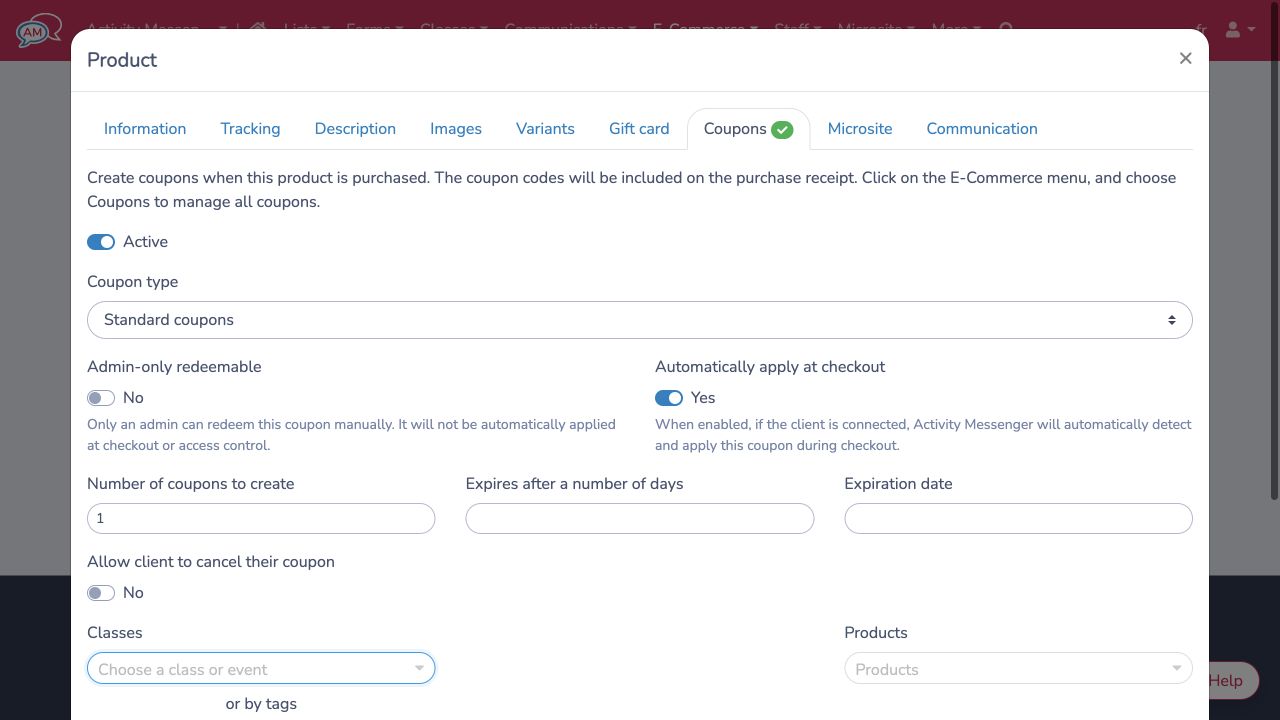
When you use Expires after a number of days, the period begins when the Activity Messenger coupon is created during import, not when the customer bought the Groupon.
# 2. Create the Groupon import form
- Go to Forms → Create and create a Payment form.
- Add the account owner fields needed to identify the customer. Make the email address required.
- Add a text question named Groupon voucher number so you can keep the Groupon reference with the imported submission.
- Add a Products question and select the coupon-generating product you created.
- Configure the product quantity so each imported purchase adds the intended
number of products. With one coupon per product, use a quantity of
1. - Save the form. You do not need to share this administrative import form with customers.
# 3. Prepare the Groupon export
Open the payment form and stay on the Respondents tab. Click the Import button, then click Sample to download the spreadsheet structure for this form.
Prepare one row per Groupon purchase. Complete the columns for:
- First and last name.
- Email address.
- Groupon voucher number.
- Product name, price, and quantity, using the values expected by the sample spreadsheet.
Keep a record of the Groupon voucher numbers you have already imported. The form stores the number for reference, but it does not verify the voucher with Groupon or prevent the same voucher number from being imported twice.
# 4. Import the purchases
- Copy the prepared rows from Excel.
- Paste them into the Data field in the Import window.
- Review the validation table and correct any errors in Excel. Paste the corrected rows again.
- Under the payment method, choose Mark as paid: balance from another platform.
- When every row is valid, click Import.
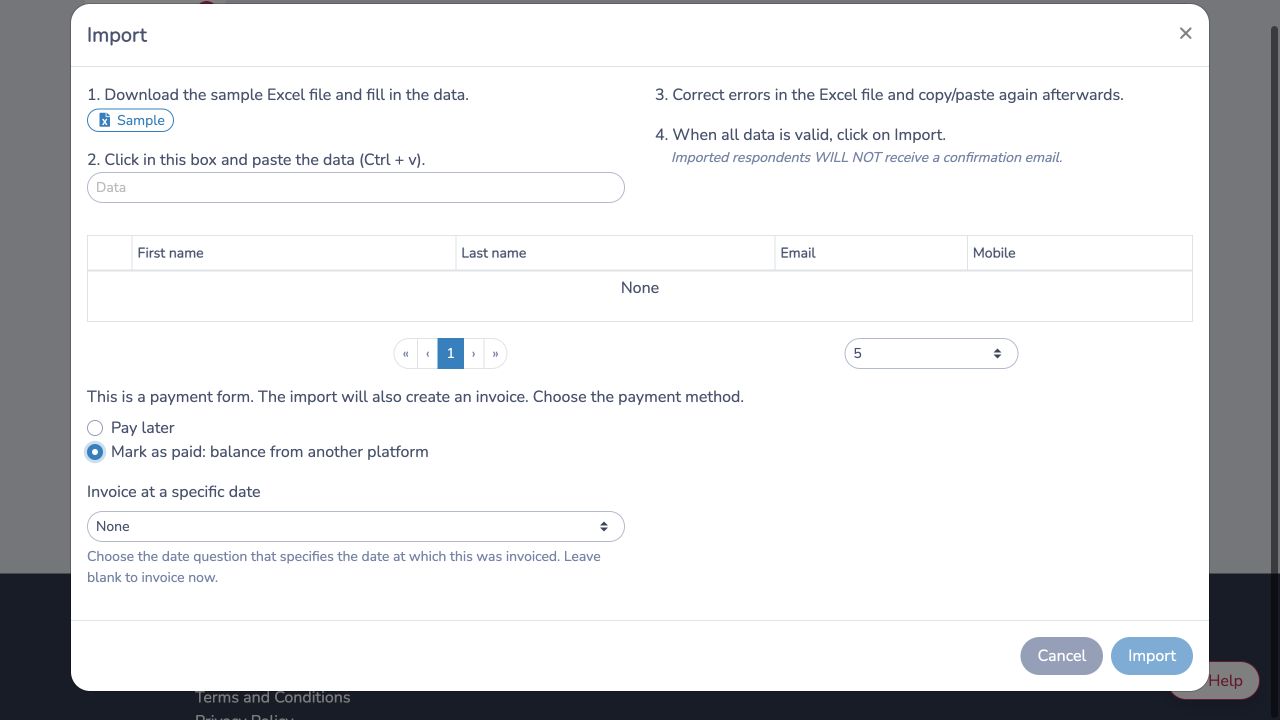
Each imported row creates a form submission and an invoice. The product on that invoice creates the new Activity Messenger coupon for the imported customer.
Imported respondents do not receive the form's confirmation email. If you want customers to know that their coupon is ready, send a separate message after the import.
# 5. Explain access to customers
The coupon is not available immediately after the Groupon purchase. It becomes available only after the purchase has been imported successfully.
Ask customers to:
- Open your Activity Messenger microsite.
- Select My account and sign in with the same email address used for the Groupon purchase.
- Choose an eligible class and proceed to checkout.
When the customer is signed in, the coupon is unexpired and unused, and the class is eligible, Activity Messenger detects and applies the coupon automatically.
You can adapt this message for patrons:
Thank you for your Groupon purchase. Your Activity Messenger coupon will be available within [processing time]. Sign in to My account with the same email address used for your Groupon purchase. Choose an eligible class and the coupon will be applied automatically at checkout.
# Example
An organization imports Groupon purchases every weekday. Its product creates one standard coupon that applies to three introductory classes. A customer who buys on Saturday receives access after Monday's import. The Groupon voucher number stays on the form submission for reconciliation, while Activity Messenger creates a separate coupon code for checkout.
# Troubleshooting
If the coupon does not apply automatically, check that:
- The Groupon purchase has already been imported.
- The customer is signed in with the same email address that was imported.
- Automatically apply at checkout is enabled on the product's coupon settings.
- Admin-only redeemable is set to No.
- The coupon is unused and has not expired.
- The selected class or class tag is included in the coupon settings.
- The spreadsheet used a product quantity greater than zero.
- The Groupon voucher was not imported previously.
Administrators can review issued coupons under E-Commerce → Coupons.