
Home
Account setting
Staff
Lists
Forms
Templates (HTML emails/SMS messages)
Sending messages by SMS and email
Classes, events, attendance and Zoom
Automation
Create a birthday invitation and automation
Communication
Microsite
E-Commerce
Networks, Federations and Franchises
How to guides
Personal information and electronic message laws in Canada and the USA
Get support
Terms and conditions
RL-24
https://activitymessenger.com/
10410 Waverly, Montréal, H3L 2W4
Terms and conditions

Invoice summaries
An invoice summary combines selected invoices billed to one client, including invoices already paid. It lists each invoice and totals the amounts before taxes, the recorded taxes, the invoice totals and the remaining balance. Share one document with a client who needs an overview of many invoices—for example, a tennis coach with 80 invoices billed to their account.
# Invoice summary or account statement?
Use an Invoice summary to provide a dated record of selected invoices and their taxes. It does not request payment, charge a card, create another invoice or replace an account statement.
Use an Account statement to request one payment for outstanding invoices. Both document types are available in the client's Billing → Documents tab.
# Before you begin
You need an owner, admin or attendant role with permission to view client invoice details. Sending also requires permission to send messages. Select finalized original invoices billed to the same client, with an account owner. Draft invoices and counter purchases without a client account cannot be included. Select at most 1,000 invoices per summary.
A summary can include paid or unpaid invoices. If you only want paid invoices, filter and review the selection accordingly. Different participants can appear on the invoices as long as they are billed to the same client.
# 1. Select the invoices
From the Invoices page
- Open E-Commerce → Invoices.
- Filter for the client and the invoices you want to include. Apply the relevant date and payment filters.
- Select the invoices using their checkboxes.
- Open Actions → Create invoice summary.
- Review the selected invoice count. To include every invoice matching the page's filters, choose Use all invoices matching these filters in the preview. Check the resulting list before continuing, especially when the invoice table has several pages.
All matching invoices must still belong to one client and meet the summary requirements. Narrow the filters if the selection is too large or includes other clients.
From the client account
- Open Lists → Client accounts, then open the client.
- Select Billing → Invoices.
- Choose Paid or credited, Outstanding, All invoices or Failed payments.
- Check the invoices to include. The checkbox in the column header selects all eligible invoices matching this Billing filter, including later pages. Uncheck it to clear the selection.
- Select Actions → Create invoice summary.
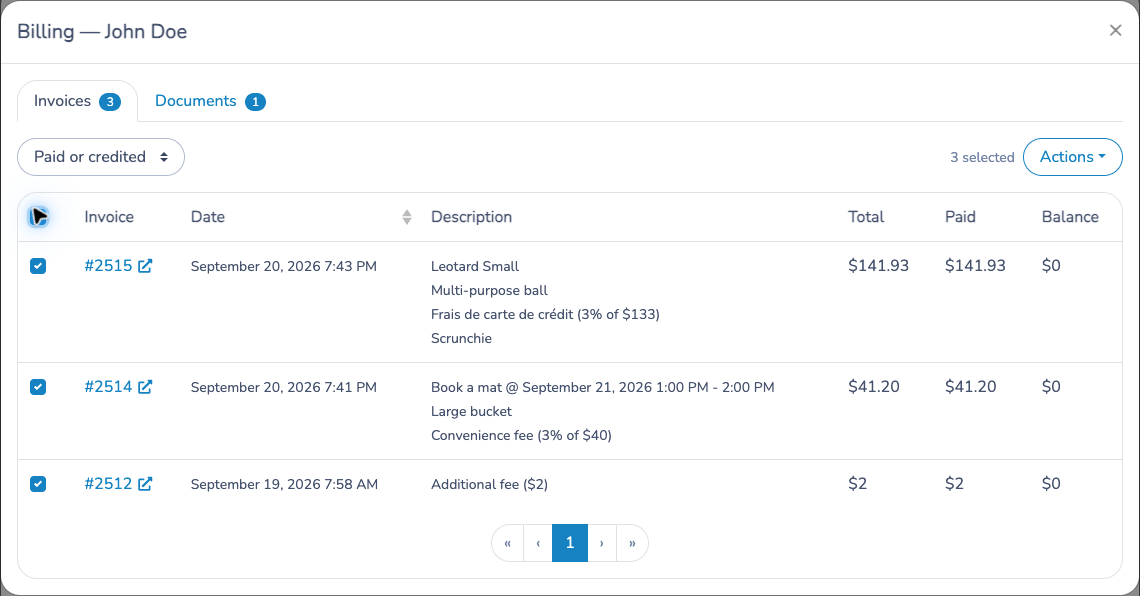
Credit notes cannot be selected separately. Related credit invoices are included automatically with their original invoice.
# 2. Review and create the summary
The preview shows the client, selected invoice count, date range, invoice numbers, invoice dates, amounts before taxes, totals and payment status. Below the table, review the totals and each tax line.
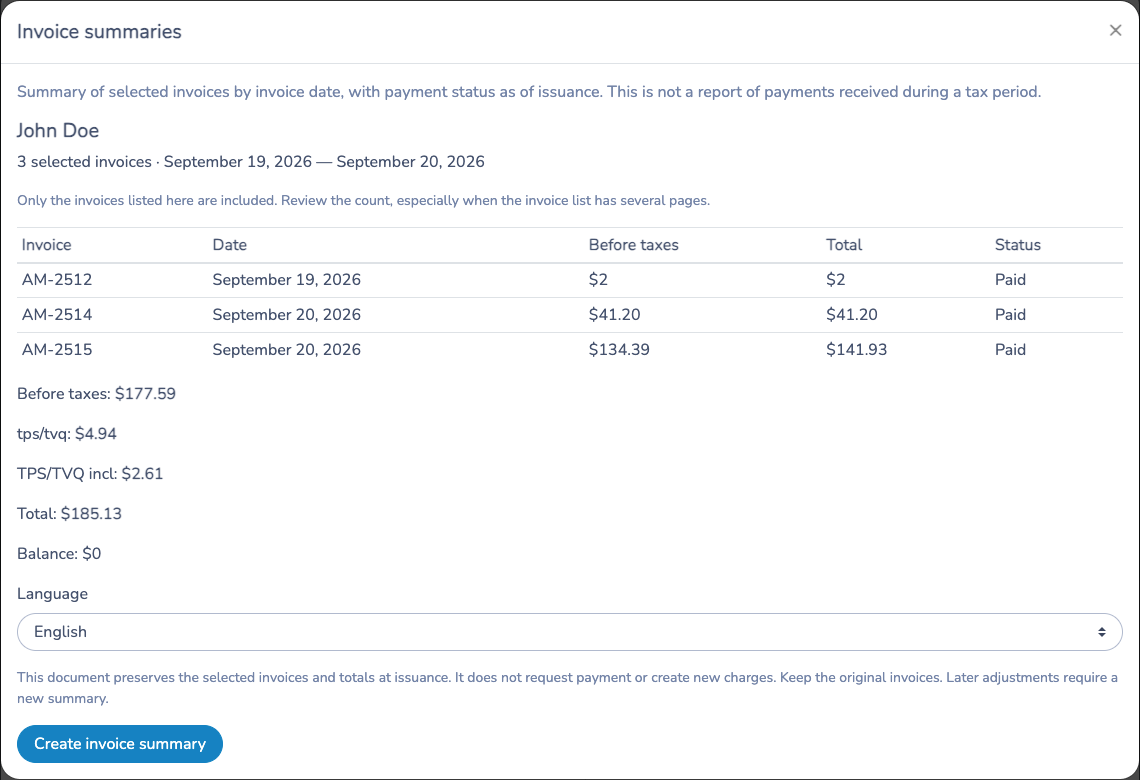
- Confirm that the list contains the intended invoices.
- Review the amounts, credits and any refunds.
- Choose Language for the saved document.
- Select Create invoice summary.
Opening a preview does not create a document. Creation assigns an IS- number and saves the summary and its PDF. If invoice data changes while you are reviewing the preview, review the refreshed totals before creating it.
In this example, three paid invoices total $185.13, with a remaining balance of $0. The summary shows $177.59 before taxes and the two recorded tax amounts, $4.94 and $2.61. Tax names come from the original invoice items; different recorded names remain separate lines. Rounding on the original items can leave a one-cent difference between displayed subtotals and totals.
# 3. Send or download the summary
After creation, use Send by email in the confirmation, or find the summary in Billing → Documents and choose Send. The editor starts with the Invoice summary quick message. Review the client, subject and message before sending.
- Keep Attach invoice summary PDF selected to include the PDF with an email. PDF attachments are available for email only.
- Use {Invoice summary URL} from the placeholder picker to insert the link to the summary associated with this message. In French, the placeholder is {URL du sommaire des factures}. Start the message from the summary's Send action so the correct document is attached to the message context.
- Use PDF to download the saved document. Invoice numbers appear as plain text in newly created PDFs; the web version provides invoice links.
- Open the summary number to view the client-facing document. The page also offers PDF and CSV downloads. The CSV is useful for working with the invoice and tax details in a spreadsheet.
Share the summary link only with its intended recipient.
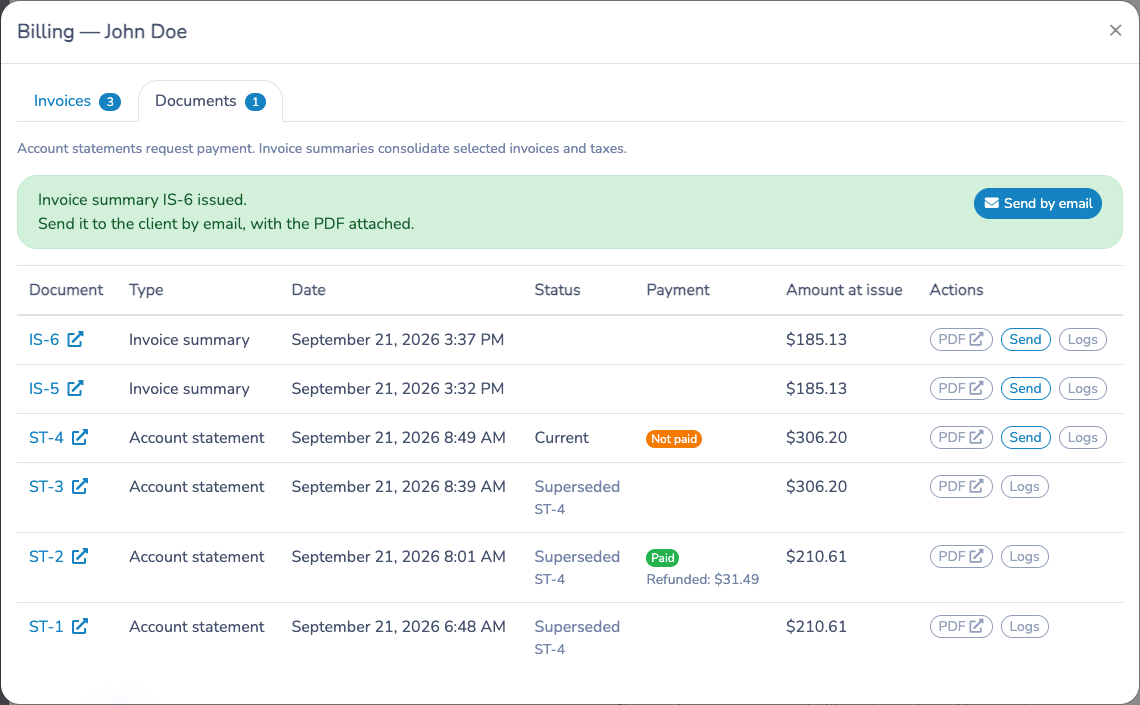
Documents identifies each document by type. The summary's amount at issue is its invoice total; the account statement's amount is the amount due when issued. An invoice summary does not have a payment-request badge. Creating another summary leaves earlier summaries available and does not supersede the current account statement.
# 4. Keep a dated record
A created summary preserves the selected invoices and amounts as they stood at creation. Its page and saved PDF do not change when an invoice is later paid, credited or refunded. Create a new summary if the client needs updated figures, and retain the original invoices.
Use Logs to review issuance and deliveries. When a PDF is sent by email, its filename link is available in the document logs and in the sent message under Communications → Messages. That attachment records the file actually sent.
# Taxes, credits and refunds
- The summary adds the taxes recorded on invoice items. It does not recalculate historical invoices using today's tax settings.
- Related credit invoices are included once, even when their dates fall outside the selected original-invoice range. They adjust the amounts and taxes shown.
- Refunds are displayed separately. Returning a payment does not, by itself, reduce the sale or its taxes, so the summary does not subtract a cash refund from tax totals a second time.
- The date range describes the selected original invoices. Payment status and balances describe the time the summary was created. This is not a report of money received during a particular tax period.
The summary helps a client review many invoices together. It does not create an additional sale or receivable, and it should not be added to the same invoices again in accounting totals. Keep the individual invoices as supporting records and use the appropriate financial reports for payment-period reporting.