
Home
Account setting
Staff
Lists
Forms
Templates (HTML emails/SMS messages)
Sending messages by SMS and email
Classes, events, attendance and Zoom
Automation
Create a birthday invitation and automation
Communication
Microsite
E-Commerce
Networks, Federations and Franchises
How to guides
Personal information and electronic message laws in Canada and the USA
Get support
Terms and conditions
RL-24
https://activitymessenger.com/
10410 Waverly, Montréal, H3L 2W4
Terms and conditions

Financial reports
Financial reports help you review money received, items sold, accounting allocations, Stripe deposits, class performance, membership activity and booking utilization. Use this overview to choose the report that answers your question, then open the detailed Payments, Sales, Stripe, Classes, Memberships or Bookings guide.
# Before you begin
You need permission to access financial reports. The reports available to you also depend on your role, enabled modules and whether the organization has a connected Stripe account or cash-register mode.
For meaningful ledger-code and accounting exports, configure ledger codes, taxes and accounting mappings before reviewing the reports. See Set up accounting and ledger codes.
# Open and use financial reports
- In the administration menu, open E-Commerce.
- Select Reports.
- Select the report name to open the report menu.
- Choose a category and report.
- Select the date range. Dates are interpreted in your organization's timezone unless the report explains another date basis.
- Apply the report-specific filters, then use Excel when you need the supporting detail outside Activity Messenger.
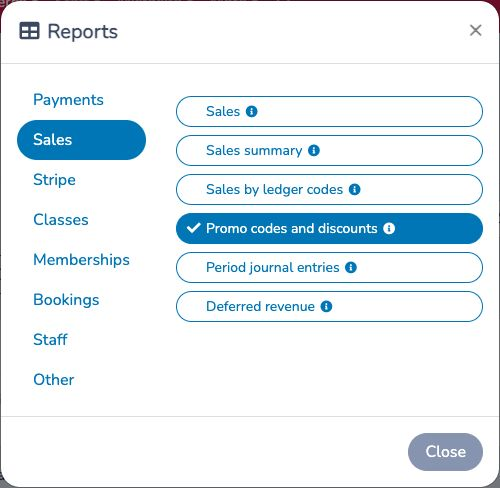
The date range, administrator, point of sale and contract controls do not apply to every report. A control appears only when the selected report supports it. Use Save or share to preserve a report URL with its current report, dates and supported filters.
# Payments reports
Use Payments reports to answer when and how money was collected, refunded or attempted:
- Payments: individual payments and refunds, with payment method, taxes, ledger-code allocation and reconciliation exceptions.
- Payments summary: the same payment activity grouped by day.
- Payments by ledger code: payment activity allocated across ledger codes.
- Scheduled payment attempts: the operational history and follow-up queue for automatic and scheduled collection attempts.
- Register operations: cash-register openings, closings, counts, tips, deposits and balancing differences.
# Sales reports
Use Sales reports to answer what was placed on finalized invoices and how it was classified:
- Sales: invoice-item detail, including paid, unpaid, cancelled, refunded and changed items according to the selected status.
- Sales summary: sales activity grouped by day.
- Sales by ledger codes: sales totals and trends grouped by ledger code.
- Promo codes and discounts: promo-code applications, manual discounts and manual credits.
- Period journal entries: one balanced entry using each ledger code's payment or sales posting basis.
- Deferred revenue: opening deferred balance, receipts, refunds, revenue recognized and closing deferred balance for payment-basis ledger codes.
# Stripe reports
Use Stripe reports when transactions were processed through the organization's connected Stripe account:
- Stripe payouts (bank deposits): match Stripe's net payouts with deposits in your bank account.
- Stripe payments: inspect the payments, refunds and fees processed by Stripe, either by payment date or payout date.
- Stripe disputes: find disputed payments and follow their response status.
# Classes reports
Use Classes reports to compare cumulative invoiced class revenue, registration pace, occurrence-level revenue, current capacity utilization and private lesson billing:
- Classes revenue: cumulative participants and invoiced revenue for one or two selected class cohorts.
- Class enrollment tracking: cumulative net registrations compared by elapsed day across cohorts.
- Classes revenue per day: roster-based potential and allocated finalized invoice revenue for each scheduled occurrence.
- Class capacity utilization: average enrolled spots compared with each class's configured capacity.
- Private lessons: booked lesson volume, scheduled time and client billing by coach.
# Memberships reports
Use Memberships reports to compare active-member snapshots or isolate payments and refunds allocated to membership invoice items:
- Active memberships: count active membership records on one date or compare two dates, including the members added or expired between them.
- Membership payments: analyze membership cash activity by payment date, including refunds, recurring projections and unpaid-invoice exceptions.
- Affiliations: in eligible federation workspaces, manage generated affiliation reports and invoice PDFs by season and club.
# Bookings reports
Use Bookings reports to analyze scheduled resource use, booking billing and the sequence of booking-cart operations:
- Bookings: measure scheduled booking rows, actual and adjusted hours, resource utilization, daily booking volume and people attached to bookings.
- Bookings revenue: review finalized booking invoice items according to their scheduled event dates, including client, player and coupon detail.
- Live bookings: replay a single day of booking-cart and finalized-invoice operations to investigate changes and possible resource conflicts.
- Traffic: compare the average number of booked resources by weekday and time across the selected date range.
# Choose between payments, sales, Stripe, Classes and Bookings
- Start with Payments when your question is, “When and how did we receive or refund money?”
- Start with Sales when your question is, “What did we invoice, and under which ledger code?”
- Start with Stripe payouts when your question is, “Which Stripe deposit should match this bank-statement line?”
- Open Stripe payments from a payout when you need the transactions and fees that explain that deposit.
- Use Period journal entries for posting-basis accounting entries; use Deferred revenue to analyze when eligible service revenue is earned.
- Start with Classes revenue for cumulative class sales, Class enrollment tracking for registration pace, and Class capacity utilization for current roster occupancy.
- Use Active memberships for membership headcounts as of a date and Membership payments for money received or refunded on payment dates.
- Use Bookings for scheduled resource utilization, Bookings revenue for finalized client billing tied to event dates, Traffic for recurring weekday/time patterns, and Live bookings to replay one day of booking operations.