Apple Wallet provides an easy way to store and access your membership cards, making it more efficient for businesses and customers alike. Whether you run a tennis club, swim school, gym, or any other membership-based organization, offering digital membership cards adds convenience and professionalism.
In this article, we’ll walk you through the process of adding a membership card to your Apple Wallet.
Why Use Apple Wallet for Membership Cards?
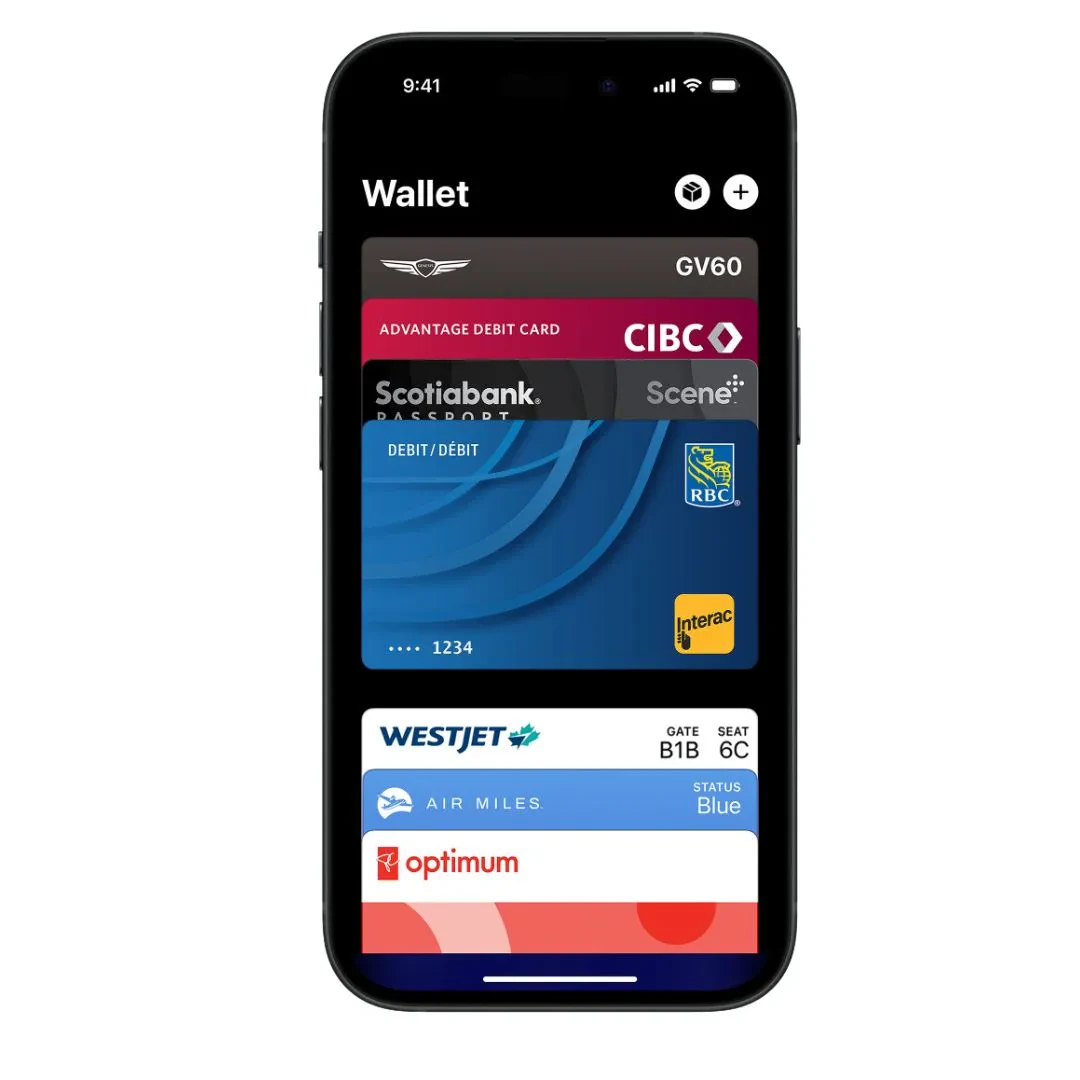
Apple Wallet is a built-in app on iPhones that allows users to store and access digital passes, including boarding passes, event tickets, loyalty cards and membership cards. Here’s why businesses and users should take advantage of Apple Wallet for membership cards:
- Convenience – No need to carry a physical card.
- Quick Access – Open your membership card with a single tap.
- Environmentally Friendly – Reduce plastic waste.
- Enhanced Security – Cards are protected by Face ID or Touch ID.
- Real-Time Updates – Businesses can update membership details instantly.
- No Email Search: No need to search through emails to find a confirmation invoice.
How to Add a Membership Card to Apple Wallet
1. Check If Your Membership Provider Supports Apple Wallet
Many businesses and organizations now offer digital membership cards that can be added to Apple Wallet. Check with your service provider or app to see if they support Apple Wallet integration.
2. Receive Your Digital Membership Card
There are different ways to receive a digital membership card:
- Email Link – Some organizations send an email with a button that says “Add to Apple Wallet.”
- QR Code – Scan a QR code provided by your membership organization to download the pass.
- App Integration – Some apps allow you to add the membership card directly from the app.
3. Add the Card to Apple Wallet
Once you have received your digital membership card, follow these steps:
- Open the email, app, or webpage where the card is provided.
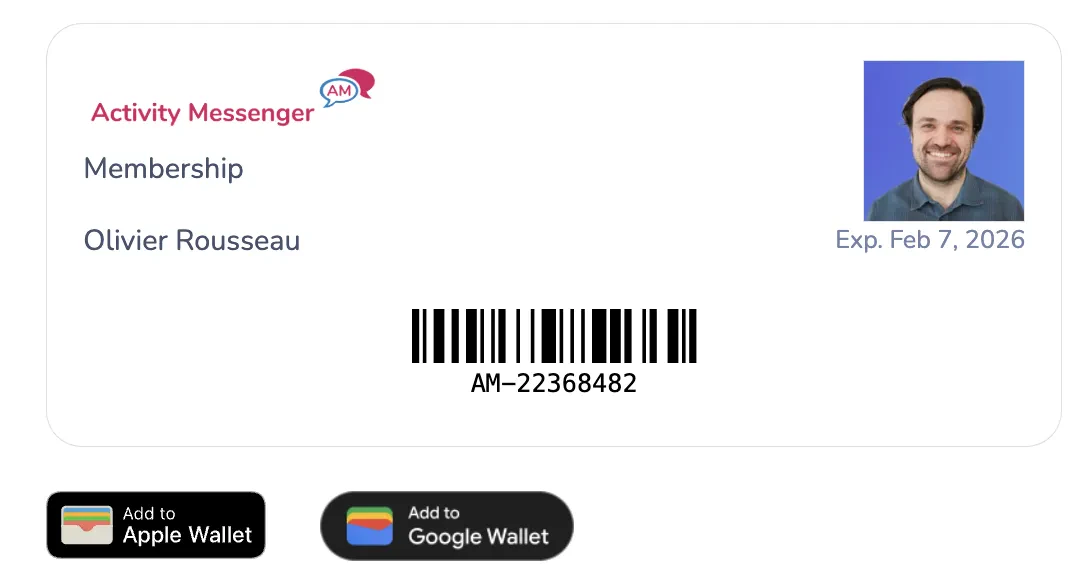
- Look for the “Add to Apple Wallet” button and tap it.
- A preview of the membership card will appear. Tap “Add” in the top right corner.
- The card will now be saved in your Apple Wallet.
4. Accessing Your Membership Card
To use your digital membership card:
- Open the Apple Wallet app on your iPhone.
- Scroll through your saved passes and tap on your membership card.
- Show the card’s barcode or QR code for scanning.
5. Updating or Removing Your Membership Card
- If your membership details change, your organization may update the card automatically.
- To remove an expired or outdated card, open Apple Wallet, tap on the card, press the three-dot menu, and select Remove Pass.
How Businesses Can Offer Apple Wallet Membership Cards
If you run a business and want to provide Apple Wallet membership cards to your customers, here are a few ways to do it:
- Use a membership management platform like Activity Messenger to generate Apple Wallet-compatible passes.
- Integrate Apple Wallet functionality into your existing membership management software.
- Use third-party services that create digital passes for Apple Wallet.
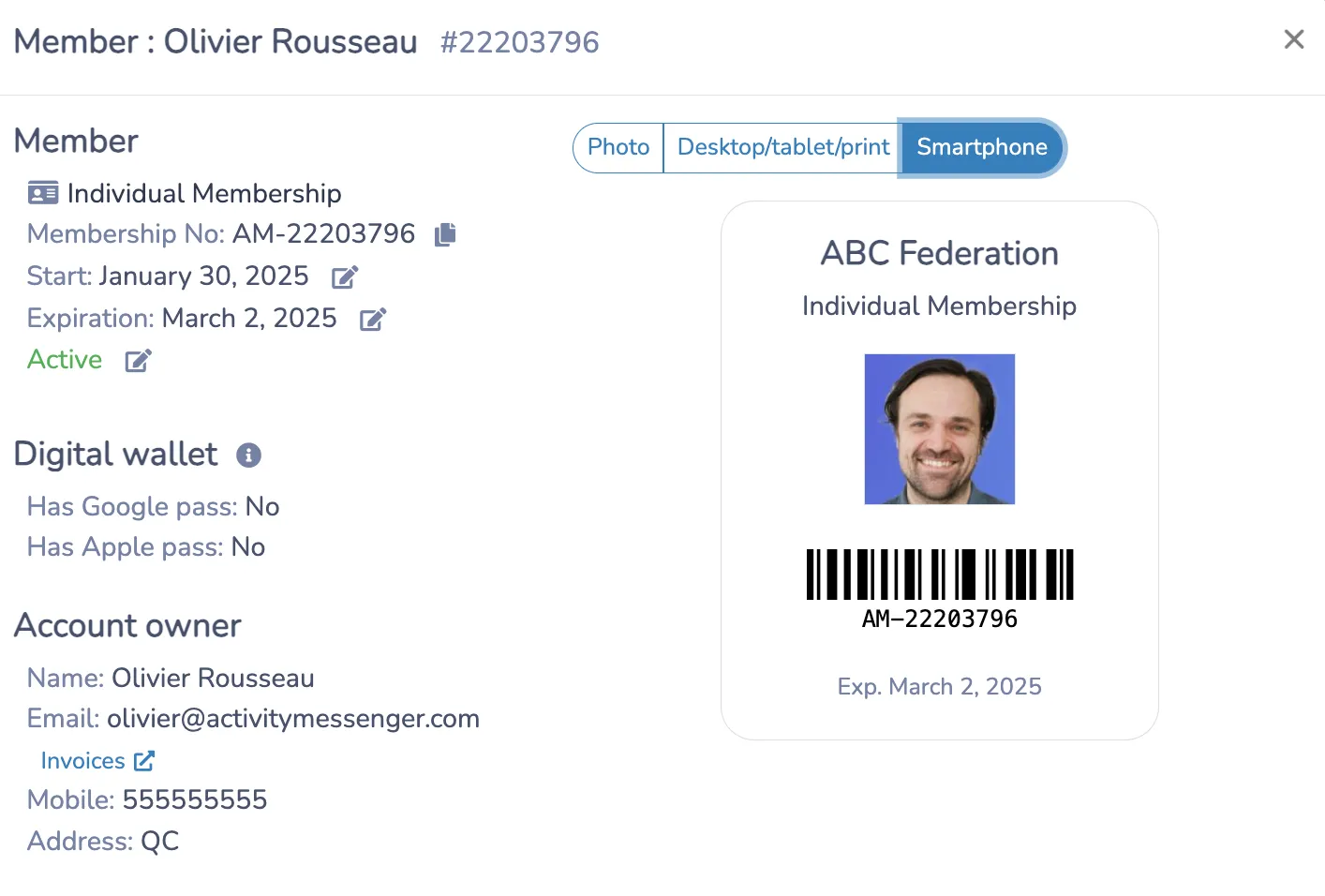
Learn more: How to create a membership form with Activity Messenger
Final Thoughts
Adding a membership card to Apple Wallet simplifies access, improves security, and enhances the user experience. Whether you’re a customer who wants to digitize your membership cards or a business that wants to offer this feature, Apple Wallet can help you speed up check-ins and improve your overall experience. Start using digital membership cards today and enjoy the convenience of a clutter-free wallet!
If you’re a gym, tennis club, dance studio, or any other business that uses monthly memberships and want to push your cards to the Appel wallet, book a demo with an Activity Messenger expert.