Many websites work like apps, providing a seamless user experience directly from your browser. But constantly opening Safari and typing in the URL can be a hassle. The good news? You can save a website as an app icon on your iPhone home screen for quick and easy access, just like a normal app.
This guide shows you how to do it in a few simple steps.
Why Save a Website as an App?
Saving a website as an application has many benefits, especially if you visit the site frequently. Instead of typing the URL repeatedly or bookmarking it, an app icon gives you instant access.
- Quick Access: Rather than opening Safari, typing a URL, or searching through bookmarks, you can launch your favorite website with a single tap from your home screen.
- App-Like Experience: Many modern websites are optimized for mobile use, offering a seamless experience that mimics native apps.
- Less Clutter: Installing full-fledged apps can take up storage and require updates. If the website version works just as well, you can free up space on your device while still enjoying a similar experience.
Read more: 7 Reasons why your small business should not have an App
Steps to Save a Website as an App on iPhone
- Open Safari: This feature only works with Safari, so make sure you’re using Apple’s default browser.
- Go to the Website: Type the URL of the website you want to save in the address bar and load the page.
- Tap the Share Button: The Share button looks like a square with an upward arrow and is located at the bottom of the screen.
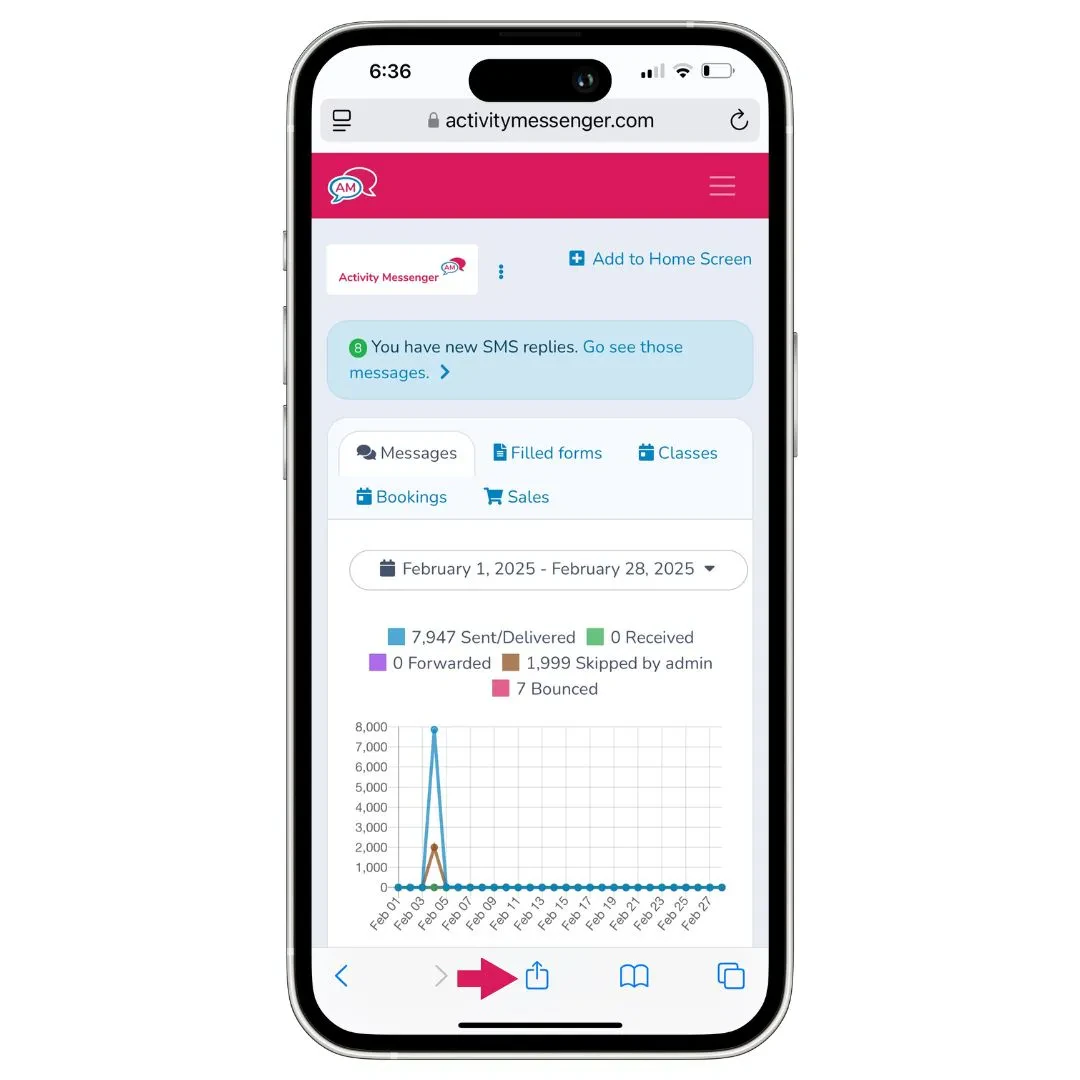
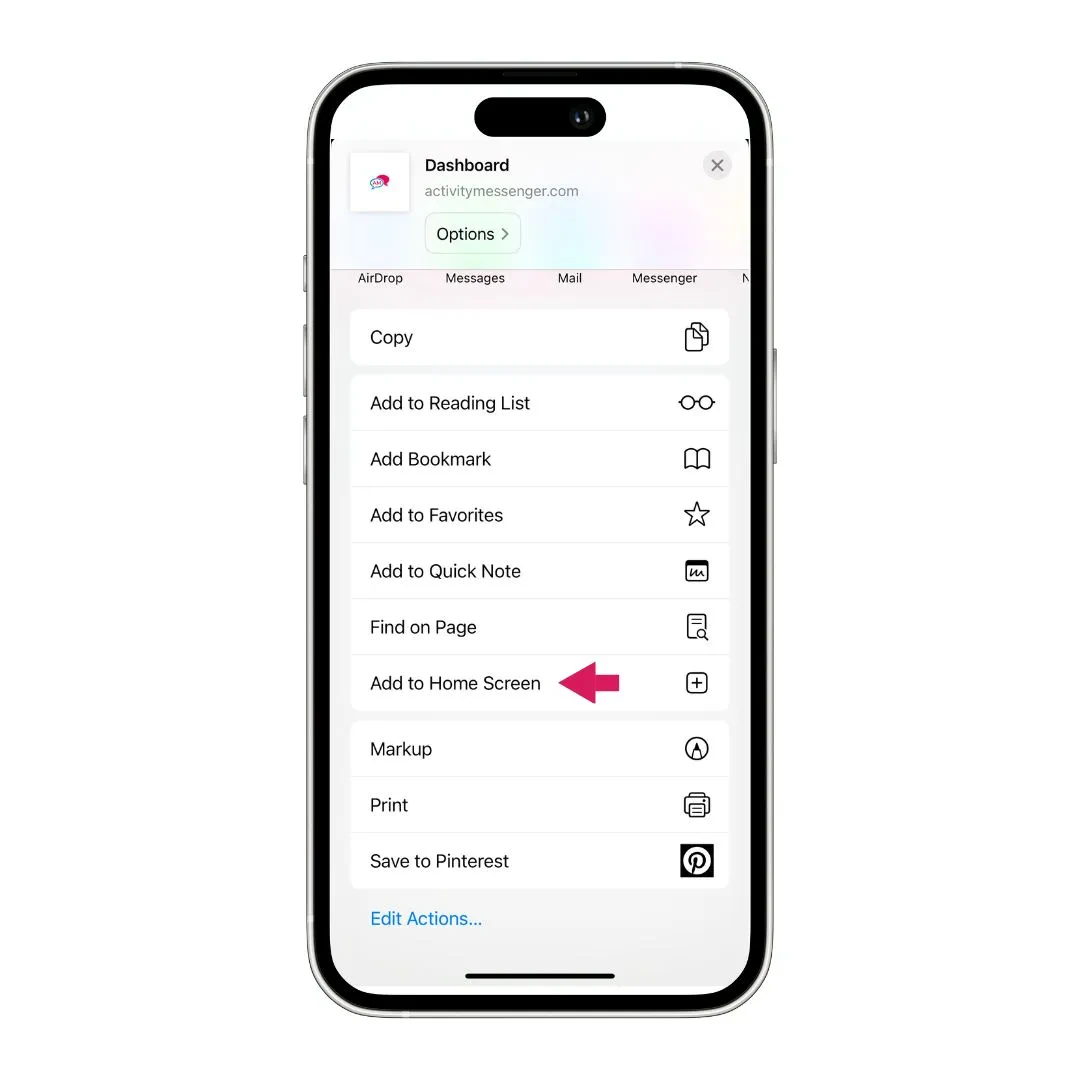
- Select “Add to Home Screen”: Scroll through the options until you find “Add to Home Screen” and tap it.
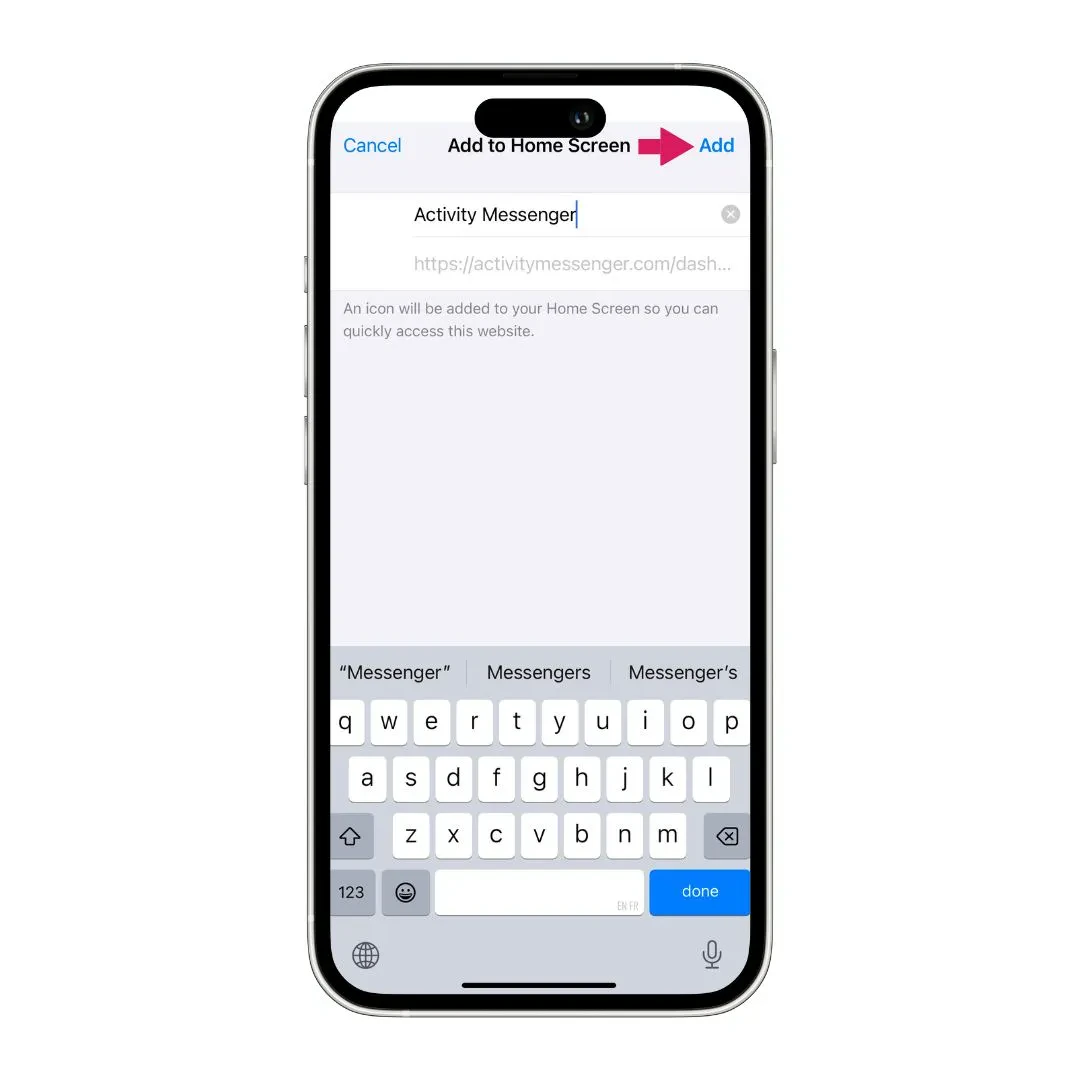
- Customize the Name: A preview of the icon will appear, along with the website’s name. You can rename it to something shorter or more recognizable.
- Tap “Add”: The website will now appear on your home screen as an app icon.
Following these steps will add a app-like button on your phone’s home page.
How to Use Your Web App
Once you’ve saved a website as an app, using it is simple. It functions similarly to any other app, allowing you to streamline access to important sites.
- Tap the icon to open the website instantly in Safari. This eliminates the need to manually open the browser and search for the site.
- Behaves like a regular app but requires an internet connection to function. Unlike native apps, it does not store data locally, so it will need WiFi or cellular data.
- You can move it around, organize it in folders, or delete it. Just like your standard apps, you can rearrange icons or remove them when they are no longer needed.
Final Thoughts
Saving a website as an app on your iPhone is a great way to streamline your browsing experience. Whether it’s a business tool, a favorite news site, or an online service you use every day, this trick can help you access your most visited sites with ease.
Try it today and enjoy a faster way to get to your favorite sites!
If you’re a gym, tennis club, dance studio, or any other business that is not looking to create an app, but want your customers or staff to interact as if they had one, book a demo with an Activity Messenger expert.