How to Add a Signature to a PDF

Paige Zeller
3 September 2025 Features 2 min read

Adding a signature to a PDF doesn’t need to be complicated. Whether you’re signing a rental agreement, onboarding paperwork, or waivers for your participants, electronic signatures make the process faster, more secure, and completely paperless. 

In this guide, we’ll walk you through the step-by-step process of adding a signature to a PDF on desktop and mobile devices. We’ll also highlight how Activity Messenger makes collecting signatures even easier by embedding them directly into online forms and automated workflows.


Key Takeaways:

  • Electronic signatures are the digital equivalent of handwritten signatures and can be added to PDFs using built-in tools on Windows, Mac, iOS, or Android.
  • Adobe Acrobat Reader, Preview (Mac), and mobile apps allow you to type, draw, or upload your signature.
  • Electronic signatures differ from digital signatures (cryptographically verified) but are sufficient for most business needs.
  • Collecting signatures online saves time, reduces paperwork, and provides a professional experience for both organizations and clients.
  • Activity Messenger allows you to go beyond one-off signatures by embedding e-signatures into registration forms, digital waivers, and automated workflows.


Table of Contents


What’s the Difference Between Electronic and Digital Signatures?

  • Electronic Signature: A digital version of your handwritten signature. You can type it, draw it, or upload an image. This is what most people expect when they send a PDF for signing.
  • Digital Signature: A cryptographically secured verification that confirms authenticity. Think of it as the online version of a notarized signature. While very secure, it’s often unnecessary for everyday documents.

Most day-to-day agreements, waivers, and forms only require an electronic signature.

📌 Read More: Collecting signatures for waivers and forms? Our blog 8 Best Digital Waiver Software Tools in Canada highlights the leading options for e-signatures.

How to Sign a PDF on Desktop

Windows (Adobe Acrobat Reader)

       1. Open your PDF in Adobe Acrobat Reader.

Opening a PDF document in Adobe Acrobat Reader

       2. Click Fill & Sign in the Tools panel.

Choosing "Fill and sign" on Adobe Acrobat Reader

       3. Select Sign > Add Signature.

Choose to add a signature to your PDF in Adobe Acrobat Reader

       4. Choose one of three options:

  • Type: Enter your name in a stylized font.
  • Draw: Use your mouse or touchscreen to draw your signature.
  • Image: Upload an image of your handwritten signature.

Choose to draw, type, or add an image as your signature in Adobe Acrobat Reader

       5. Click Apply and place your signature in the document.


Mac (Preview App)

       1. Open your PDF in Preview.

       2. Click the Markup Tool (pen icon) in the top toolbar.

Opening your PDF in Preview and selecting the markup tool

       3. Select the Signature tool.

Selecting the signature tool in Preview on Mac

       4. Create a new signature using your trackpad, camera, or iPhone.

Choosing to draw or take a photo of your signature in Preview on Mac

       5. Drag and drop the signature where it belongs in your PDF.


💡 Did you know? Both Acrobat Reader and Preview allow you to save your signature for future use, so you don’t need to recreate it every time.

How to Sign a PDF on Mobile

iOS (iPhone/iPad)

  1. Open the PDF in Files or Mail.
  2. Tap Markup > + > Signature.
  3. Create or insert your saved signature.
  4. Move it into place and save the file.


Android (Adobe Acrobat App)

  1. Download/open the Adobe Acrobat Reader app.
  2. Tap the pen icon > Fill & Sign.
  3. Add your signature by typing, drawing, or uploading.
  4. Position it in your document and save.


💡 Pro Tip: Always double-check that the signature field is placed clearly and that the document remains editable before sending it back.

Pro Tips for Managing PDF Signatures

  • Save time: Most devices let you save a signature for reuse.
  • Keep it clear: Place your signature neatly, avoiding overlap with text or important sections.
  • Stay consistent: Use the same digital signature across all documents for professionalism
  • Protect sensitive files: Consider setting a password before sending signed PDFs via email.

Why Use Activity Messenger for E-Signatures?

Tools like Acrobat Reader or Preview are perfect for signing a single PDF. But if you need to regularly collect signatures, you’ll quickly run into challenges. That’s where Activity Messenger helps.

With Activity Messenger, you can:
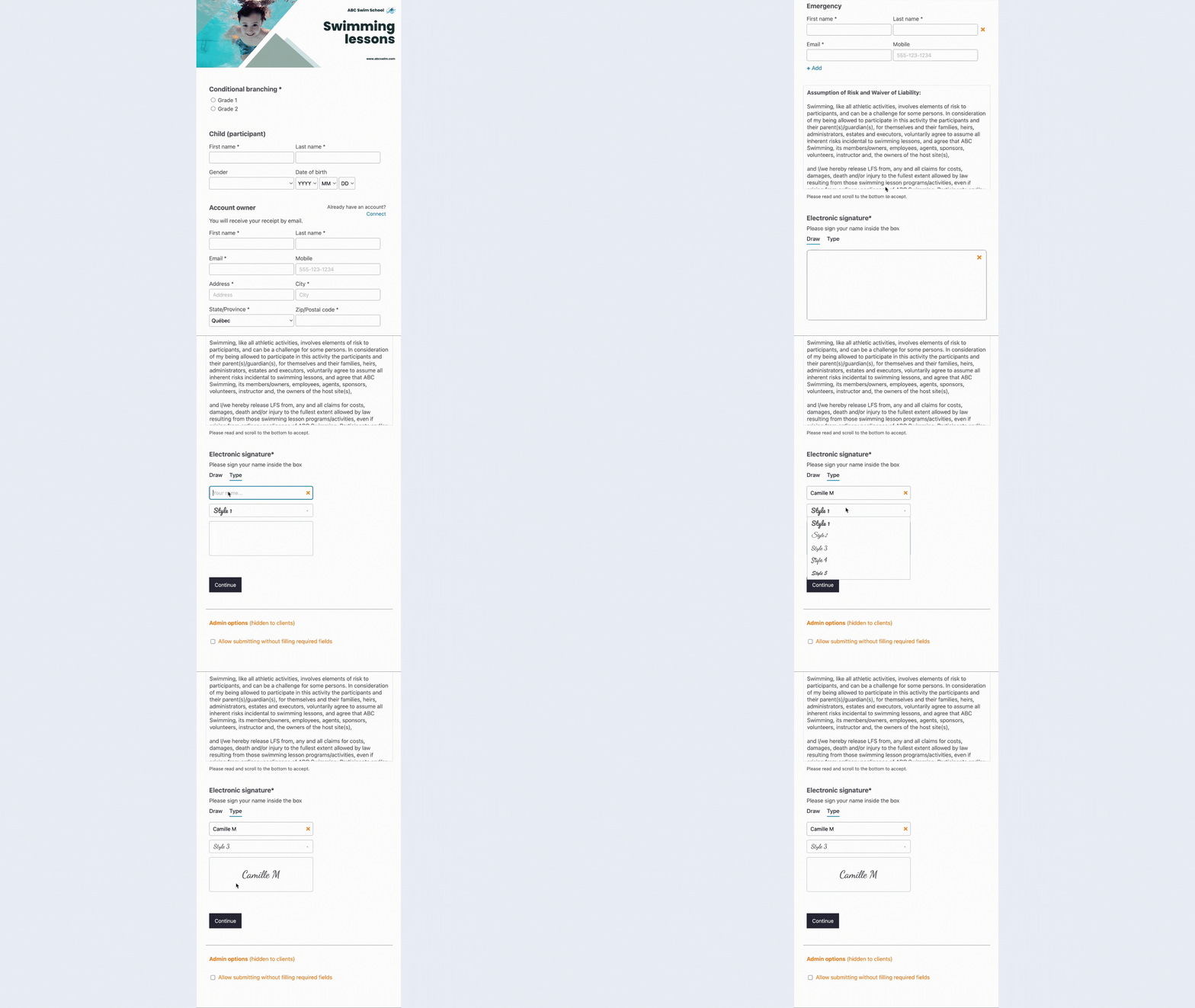
  • Embed e-signatures directly into registration forms, consent waivers, or contracts.
  • Automate requests so participants receive waiver links before their first class or event.
  • Go paperless with digital storage of all signed forms in one secure dashboard.
  • Improve accessibility by allowing clients to sign from any device, no extra apps required.
  • Save time by combining registrations, payments, waivers, and communication into a single platform.

Digital-signature-Activity-Messenger

👉 Instead of emailing PDFs back and forth,  Activity Messenger creates a seamless workflow where forms, payments, and signatures are collected in one step.

Final Thoughts

Adding a signature to a PDF is easier than ever, thanks to built-in tools on both desktop and mobile devices. Whether you’re signing a contract, an NDA, or a waiver, electronic signatures save time and remove the need for paper.

If you only need to sign an occasional document, tools like Adobe Acrobat Reader or Preview will do the trick.

However, if your organization regularly  collects waivers, contracts, and consent forms, Activity Messenger is the better choice.

With automated e-signatures, secure storage, and all-in-one functionality, you can streamline your operations and deliver a smoother experience for your clients.


💡 Ready to simplify how you collect signatures? Book a demo with Activity Messenger and see how easy it is to integrate e-signatures with your registration, payments, and communication.

Interested in our platform ? Book your online demo today

Subscribe for exclusive content

Receive News and Updates about our product