Certificates of completion or attendance are essential for recognizing achievement, especially in educational programs, workshops, and training sessions.
Google Forms provides a low-cost and accessible way to automate certificate generation. In this guide we explore how you can use Google Forms to generate certificates.
How to Generate Certificates with Google Forms
Google Forms, combined with tools like Google Sheets and Google Slides, can help automate the certificate creation process. Here’s how you can set it up:
1. Create a Google Form
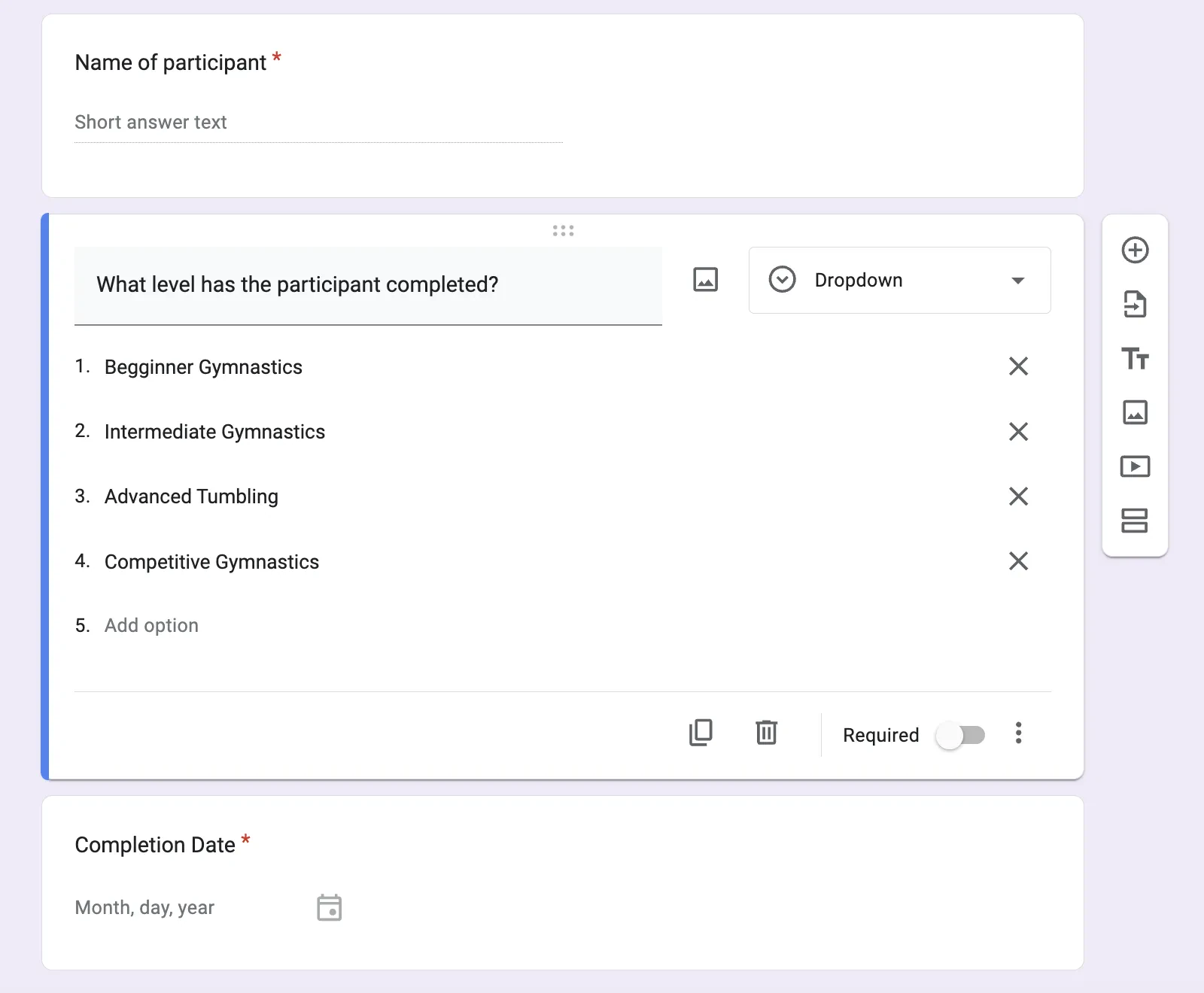
Design your form to collect the necessary participant details. Typically, you’ll need fields such as:
- Participant Full Name (This will appear on the certificate)
- Email Address (To send the certificate)
- Event or Course Name (Optional)
- Completion Date (Optional)
2. Connect the Form to a Google Sheet
Once your form is set up, responses will automatically populate a linked Google Sheet. This sheet will act as the data source for your certificates.

3. Use the Mail Merge Google Add-On
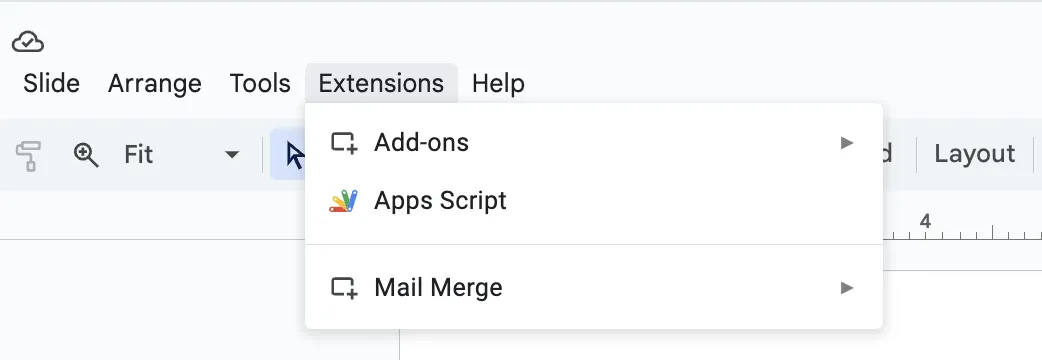
You’ll need to add the mail merge google add-on. Once this step is complete, you can navigate to extensions on select Mail Merge.
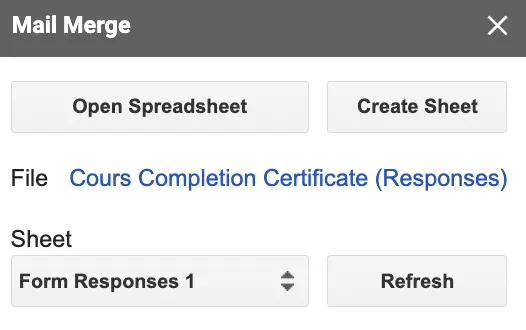
Next, you’ll need to select the google sheets from where you will be merging data.
4. Select the Merge Field to Add to Create the Bulk Certificates
A merge field is the placeholder that connects your data (from Google Sheets) with the certificate design (in Google Slides).
Here’s what to do:
In the Mail Merge Add-on menu on the right hand side select the merge field. In this example, we’ll use the name of the participant as an example.
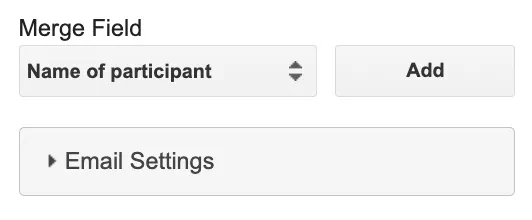
This mapping ensures that the system knows where to place each piece of participant information on the certificate. For example, “John Doe” from the “Name of Participant” column will automatically replace the {{Participant}} placeholder.
5. Design Your Certificate in Google Slides
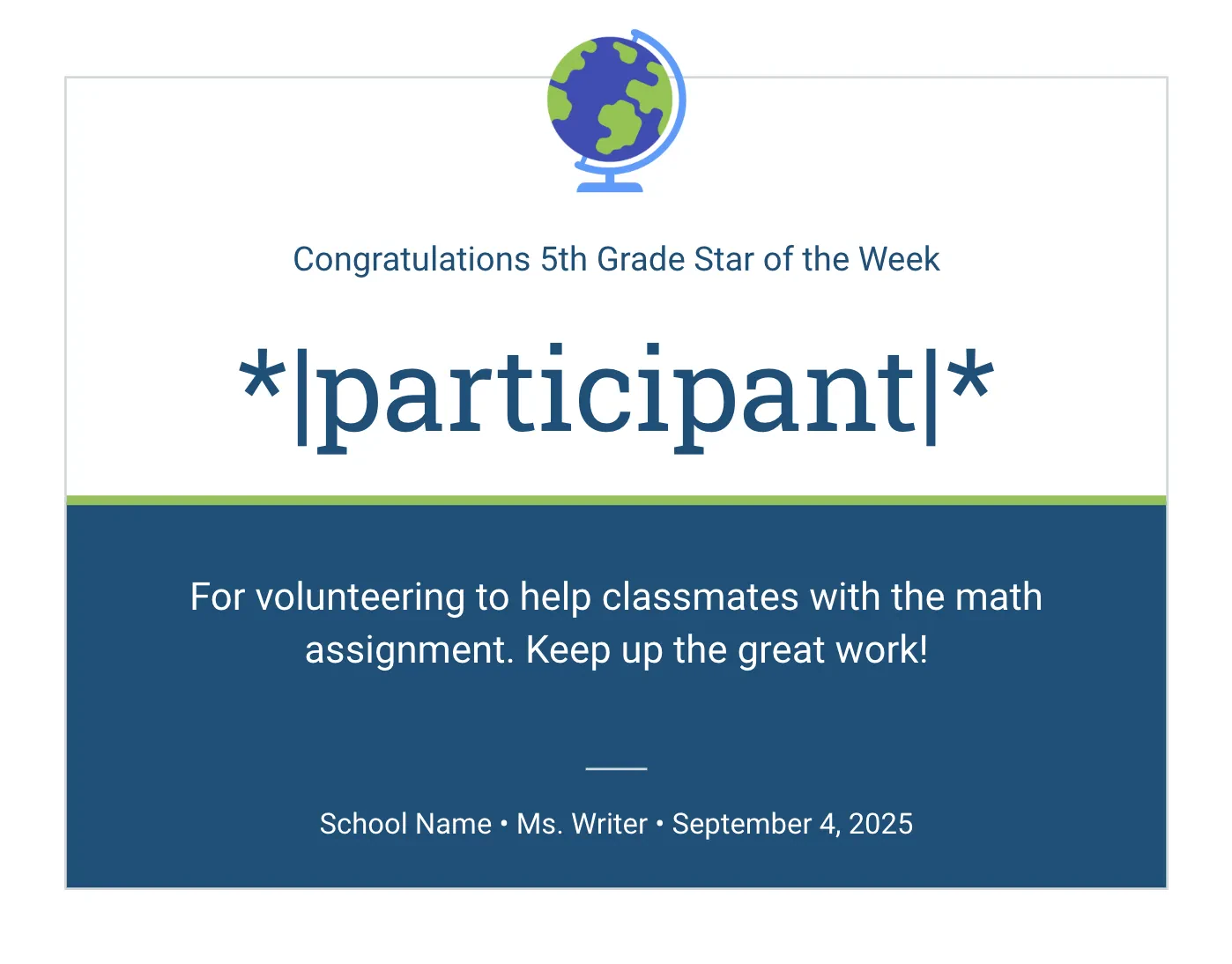
Create a certificate template in Google Slides. You’ll need to add the mail merge google add-on. Use placeholders (like {{Full Name}}) for dynamic fields. Ensure the design includes:
- A professional layout
- Your organization’s logo
- The participant’s name, event name, and completion date
6. Automate Certificate Generation
To merge the data from Google Sheets into the certificate template, click on the options in the Mail Merge Google add-on:
- Select merge presentation into multiple files (a presentation file for every row). This will create bulk certificates.
- Make sure to select save to PDF
- Then click the blue merge button at the bottom right.
7. Send Certificate as a PDF attachment
The add-ons allow you to automatically email certificates as PDF attachments to recipients based on the email address collected in the form.
Limitations of Using Google Forms
While Google Forms is a powerful free tool, it has some limitations:
- Complex Setup: Setting up Google Sheets, Google Slides, and add-ons requires technical know-how.
- Customization Challenges: Designing certificates in Google Slides can be restrictive and time-consuming.
- Bulk Processing: Handling large batches of certificates may result in slower performance.
How Activity Messenger Simplifies Bulk Certificates
Activity Messenger provides a simple solution for certificate creation and distribution, eliminating the need for complex integrations. Here’s how it works:
1. Easy Certificate Design

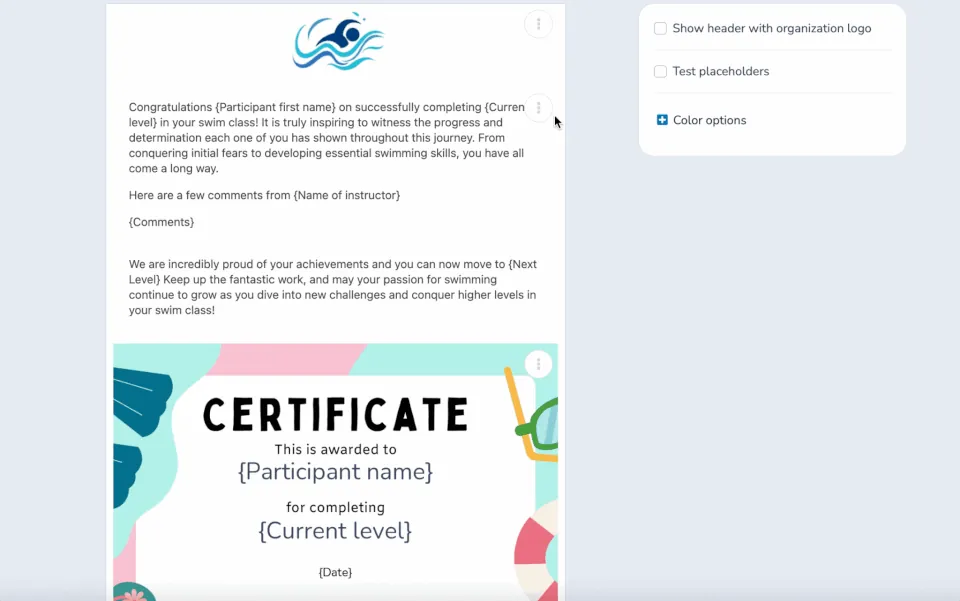
Activity Messenger fully integrates with Canva to create professional-looking certificates. Once uploaded, your design can be customized with dynamic fields (like participant names, level, completion date, etc).
2. Bulk Certificate Generation
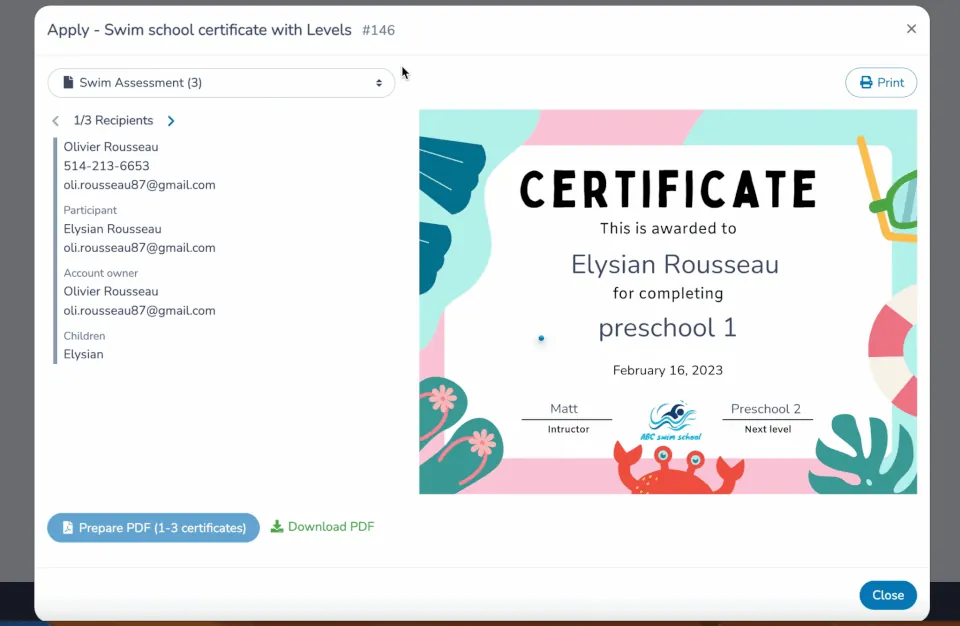
Generate hundreds of certificates in just a few clicks. Simply upload participant data or collect it from a form in Activity Messenger, and the system automatically populates the details into your certificate template.
3. Automated Distribution
Send certificates directly via email or SMS. You can also automate the process to trigger certificate issuance upon event completion or form submission.
Google Forms vs. Activity Messenger
| Feature | Google Forms | Activity Messenger |
|---|---|---|
| Certificate Design | Google Slides with placeholders | Canva or uploaded templates |
| Integration Complexity | Requires add-ons and manual setup | All-in-one platform |
| Bulk Processing | Limited and slower | Optimized for large batches |
| Delivery Options | Email only | Email and SMS |
| Automation | Add-ons required | Built-in triggers |
Conclusion
Understanding the tools available and their pros and cons can help you choose the solution that best fits your organization’s needs. Whether you’re using Google Forms or Activity Messenger, generating digital certificates can be a rewarding way to celebrate achievements and strengthen relationships with participants.