Creating bilingual forms is essential for Canadian organizations that need to serve both French and English speakers. You’ll also want to ensure that personal information collected through forms is stored securely in Canada.
With a form builder like Activity Messenger, you can create and manage bilingual forms that meet your audience’s language preferences and comply with Canadian privacy laws.
In this guide, we’ll discuss:
1- Create an online form
Start by logging into your Activity Messenger account (click here for a 14-day free trial), where you can easily access the form builder. Click on “Create New Form” to open a blank template or choose a pre-designed form,
Activity Messenger’s drag-and-drop interface makes it easy to create forms without technical expertise.
- Define Your Form’s Purpose: Determine the form’s purpose. Are you gathering registrations, feedback, or survey responses.
- Add Core Fields: Start by adding the fields that every form needs, such as “Name”, “Email”, and “Phone Number”.
- Customize Field Types: Activity Messenger’s form builder offers a variety of options such as dropdowns, checkboxes, radio buttons, and text fields.
- Add Conditional Logic: Conditional logical allows you to create forms where additional fields only appear if the respondent selects a specific option. This keeps the form clean and relevant for users.
- Design the Form Layout: Adjust font sizes, colours, and layout to ensure the form is visually appealing and easy to navigate. Consider spacing, alignment, and how the form will appear on mobile devices.

Note: Although bilingual solutions exist in tools like Google Forms, Microsoft Forms or Jotforms, most online form builders do not store their data in Canada. Activity Messenger is a Canadian software that follows all laws and regulations in Canada and stores your clients information and data in Montreal.
2. Add a multi-language option to your form
After building your form in English, select “Add Language” option in Activity Messenger’s form settings. Choose “French” and the platform will generate a toggle switch allowing users to choose between English and French. Each field will have an editable French translation.
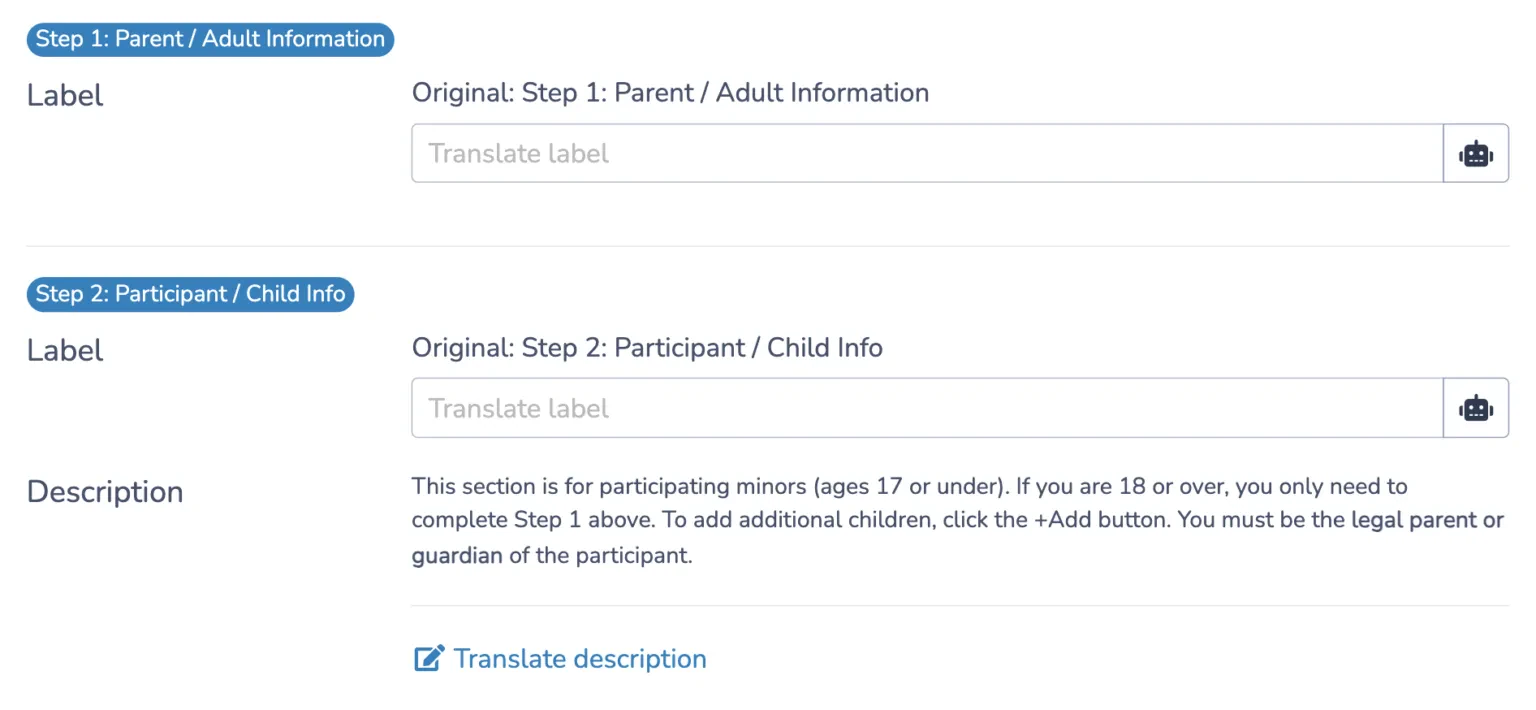
- Translate Each Field: Each question, label, and instruction in your form will now have a corresponding field for the French translation. Fill in the French translations for each item, ensuring clarity and cultural relevance for Canadian French-speaking users.
- Customize Default Text: For sections like terms and conditions, privacy policies, or instructional text, take extra care to adapt translations.
- Preview the Toggle Feature: Test the language toggle by switching back and forth between English and French. Make sure each language version looks clean and consistent.
Learn more: How to create a membership payment form
3. Using AI to translate your form

Activity Messenger integrates with AI tools to provide automatic translations within the form builder.
- Select AI Translation in Activity Messenger: For longer or more complex forms, using AI translation can save significant time.
- Review and Edit Translations: Small nuances may need to be adjusted, especially for French-Canadian translations. Be sure to adjust any industry-specific or informal language that could be misinterpreted.
4. Create bilingual confirmation emails
Once your form is bilingual, you need to customize the confirmation email for both English and French respondents. Make sure that each section, including the subject line and body text, accurately reflects the user’s chosen language.
- Go the Confirmation Email Settings: Go to the confirmation settings within Activity Messenger, where you’ll see options to customize both the English and French versions of the confirmation email.
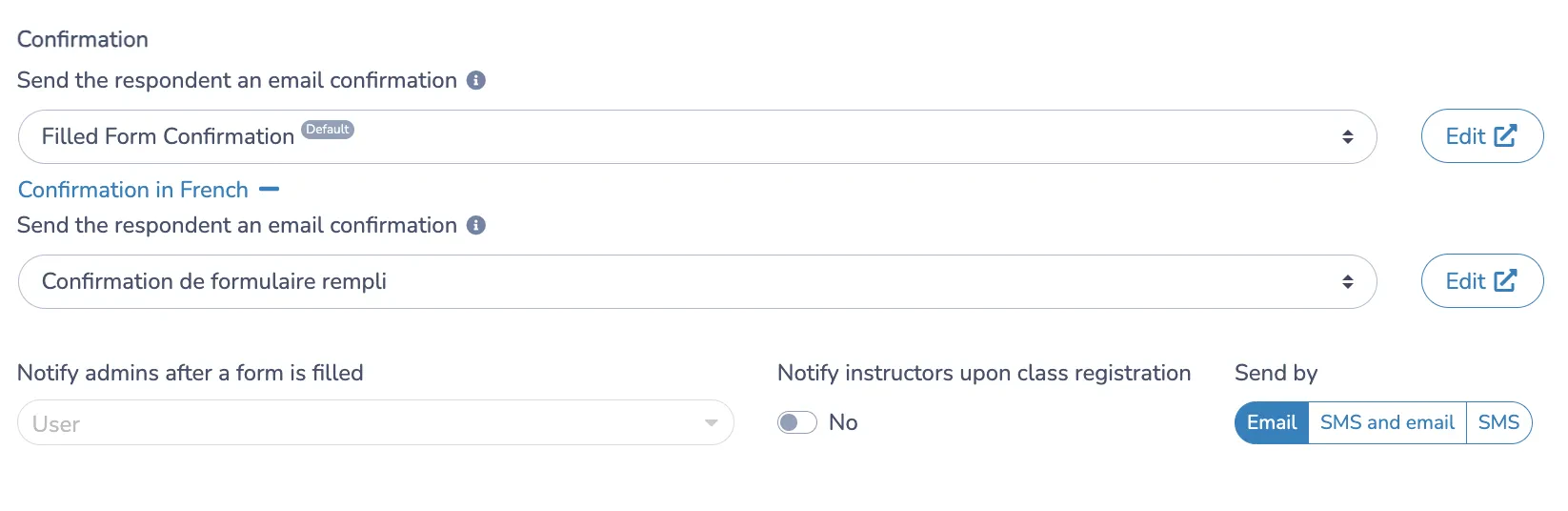
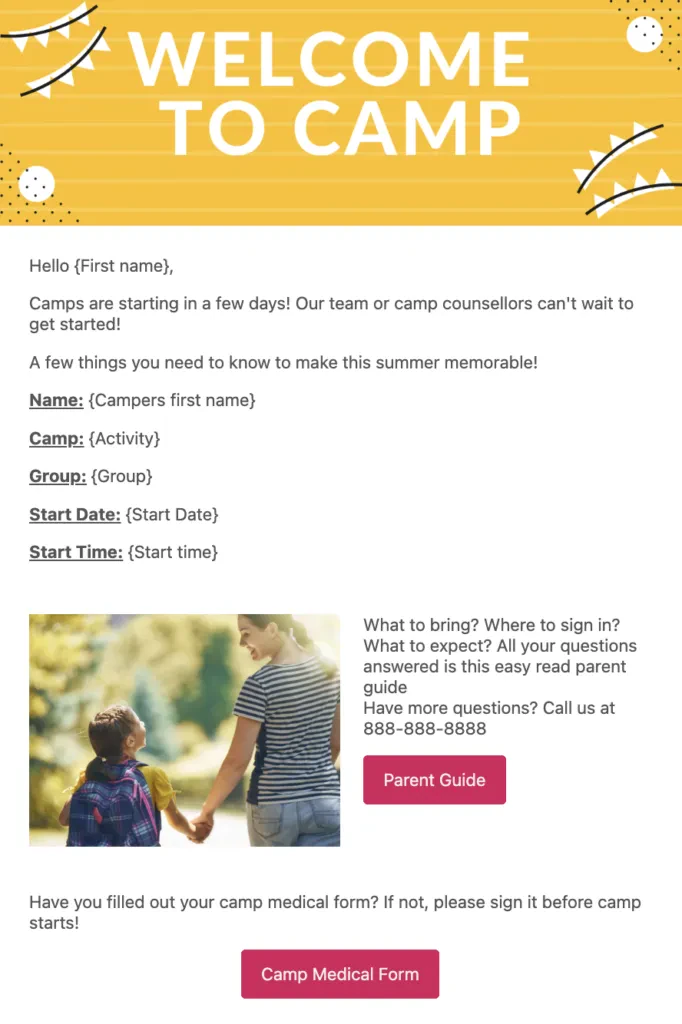
- Write your confirmation email: Start with a generic confirmation email in English. Include key information such as the event details, location, contact information, and any follow-up action required of the user.
- Translate to French: Switch to the French editor and either translate manually or let the AI translate the email into French.
Read more: 7 best online registration tools for activities, classes and events
5. Review and Test Your Form
Activity Messenger allows you to preview your form in both languages. Walk through the form from the user’s perspective in English and French, checking each field, toggle, and language-specific text.
- Preview the Form in Both Languages: Go over each version carefully, checking the layout, spacing, and alignment.
- Test All Form Features: Complete the form in both languages, filling in each field and proceeding to submit. This allows you to confirm that all fields are working as intended and that users are receiving the appropriate responses and confirmations based on the language they selected.
- Review the Confirmation Email: After submitting the form in both English and French, check the confirmation emails to make sure they are sent in the correct language.
6. Share Your Form
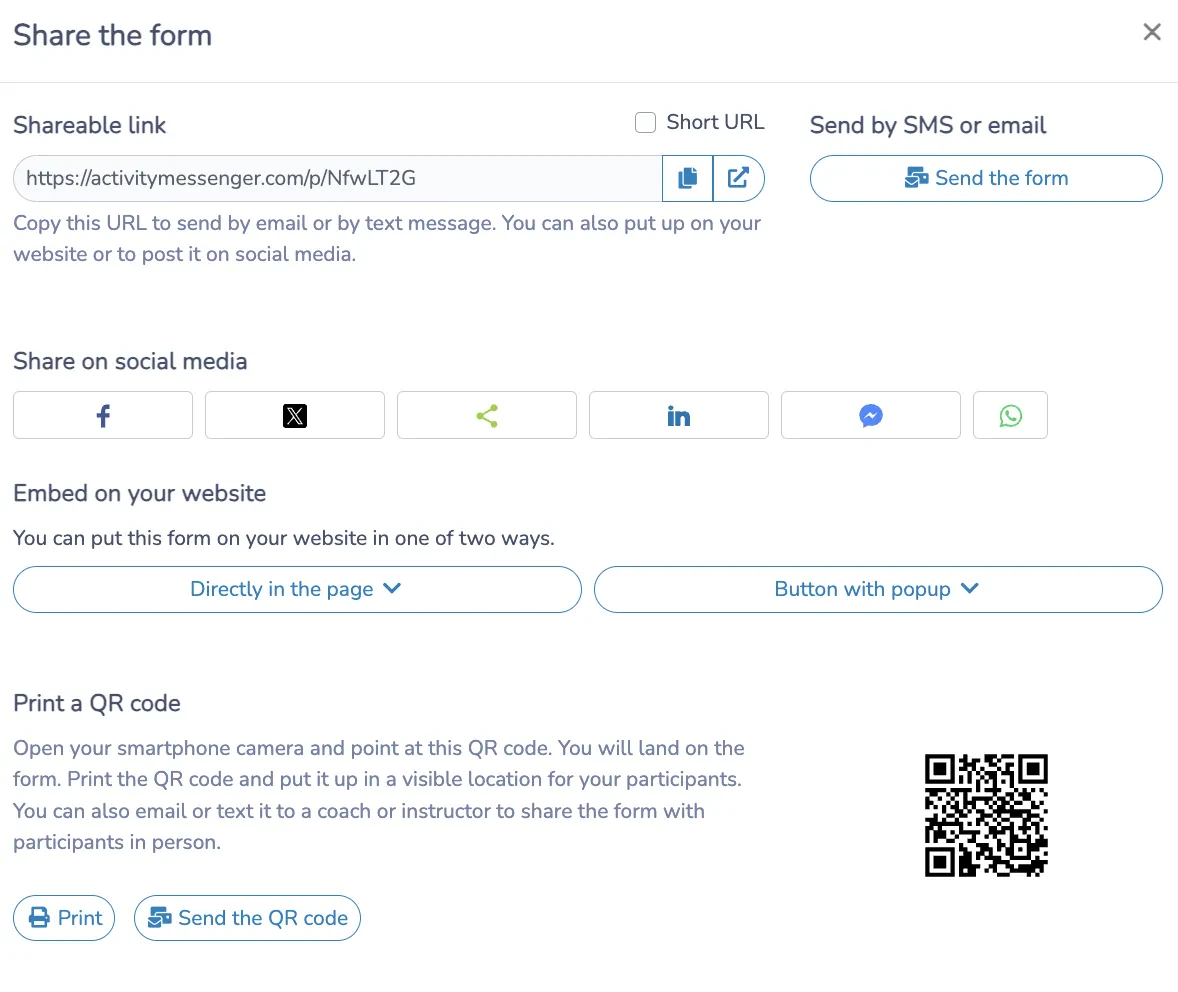
Activity Messenger makes it easy to share forms using email, bulk SMS, or simply by sharing a direct link or embedding the form on your website.
- Share Form Links: Activity Messenger allows you to generate a unique link for your form. Share this link via email, SMS or directly on your website. You can also choose to open the form in English or French by default, or let users choose their preferred language.
- Embed the Form on Your Website: If your site serves both English and French audiences, embed the form in both language versions of your site. Just set the language for both the English and French pages.
- Share on Social Media: Share your form link through social media channels, email newsletters, and other platforms your audience frequents. Include both English and French language options in your announcements so people can interact with the form in their preferred language.
7. Collect Answers and Manage Forms
Activity Messenger provides a centralized dashboard where you can view and manage form responses. Responses can be filtered by language preference so that all future communications with users are in their preferred language.
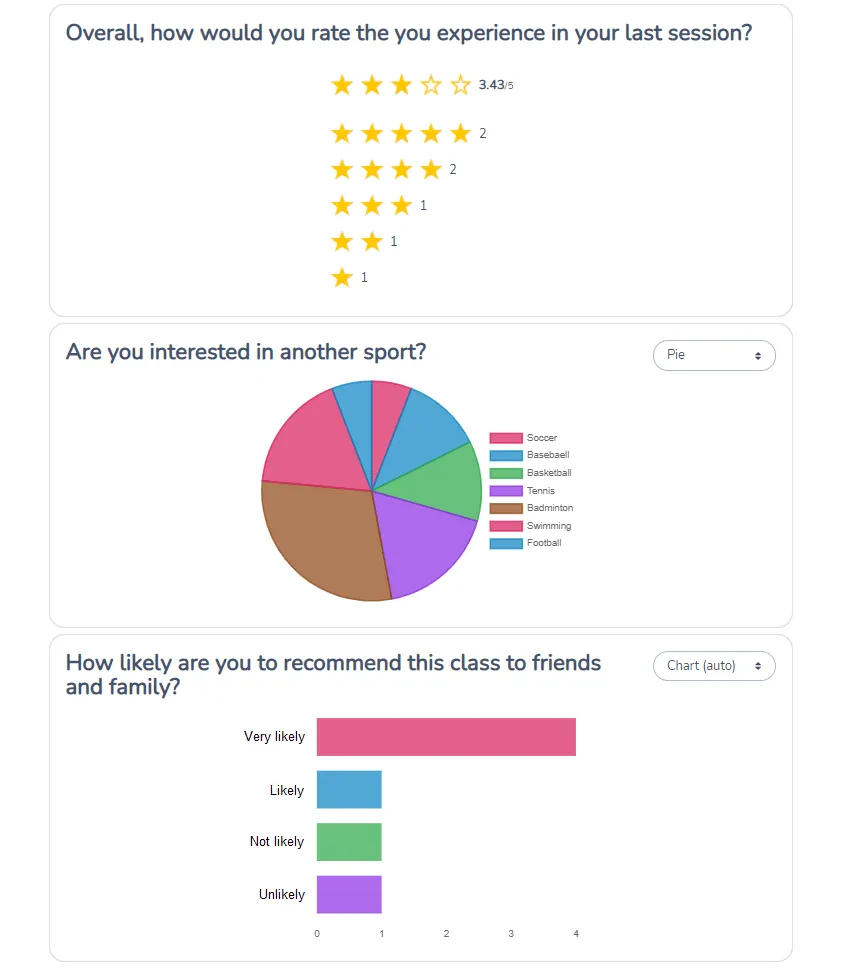
In addition to data collection, Activity Messenger provides analytical tools to track form completion rates, submission times, and trends in responses to form questions. These insights are invaluable for improving future campaigns and understanding bilingual engagement with your audience.
- Access Your Dashboard: Once registrations start coming in, navigate to the dashboard in Activity Messenger where all form responses are stored. The dashboard displays responses in both languages, clearly marked for easy identification.
- Leverage Analytics: Use Activity Messenger’s analytics tools to review form performance. Track metrics such as completion rates, submission time, and get a complete analysis for each question on the form.
- Export Data and Create Reports: If you need to share insights with other departments, export data from Activity Messenger to create comprehensive reports. This feature makes it easy to share data in a clear, organized format.
Final Thoughts and Recommendations
Creating a bilingual form with Activity Messenger not only improves accessibility for your users, but also reinforces your commitment to inclusivity. With seamless language switching, AI-powered translation support, and bilingual confirmation emails, Activity Messenger helps your organization effectively serve both English and French-speaking audiences, while keeping all data securely stored in Canada.
To learn more about Activity Messenger, book a demo with one of our experts.