Google Forms is a great tool for collecting data quickly and efficiently. However, many users face a common challenge: how to automatically send responses to multiple email addresses. This feature is useful for sharing updates with your team, notifying the right people, or simplifying information sharing in your organization.
In this guide, we’ll show you how to achieve this step-by-step:
Why Send Google Form Responses to Multiple Email Addresses?
- Team Collaboration: Share results instantly with team members or collaborators.
- Stakeholder Updates: Notify decision-makers or partners without requiring manual intervention.
- Improved Workflow: Reduce the need for back-and-forth communication by automating updates.
1. Use Google Forms’ Built-in Response Notifications
Google Forms provides a basic notification feature. While it doesn’t support sending responses to multiple email addresses directly, you can work around this with forwarding.
Steps:
1. Enable Notifications:

- Open your Google Form and go to the Responses tab.
- Click the three dots (menu icon) in the top right corner.
- Select Get email notifications for new responses.
- Notifications will now be sent to the form owner’s email.
2. Set Up Email Forwarding:
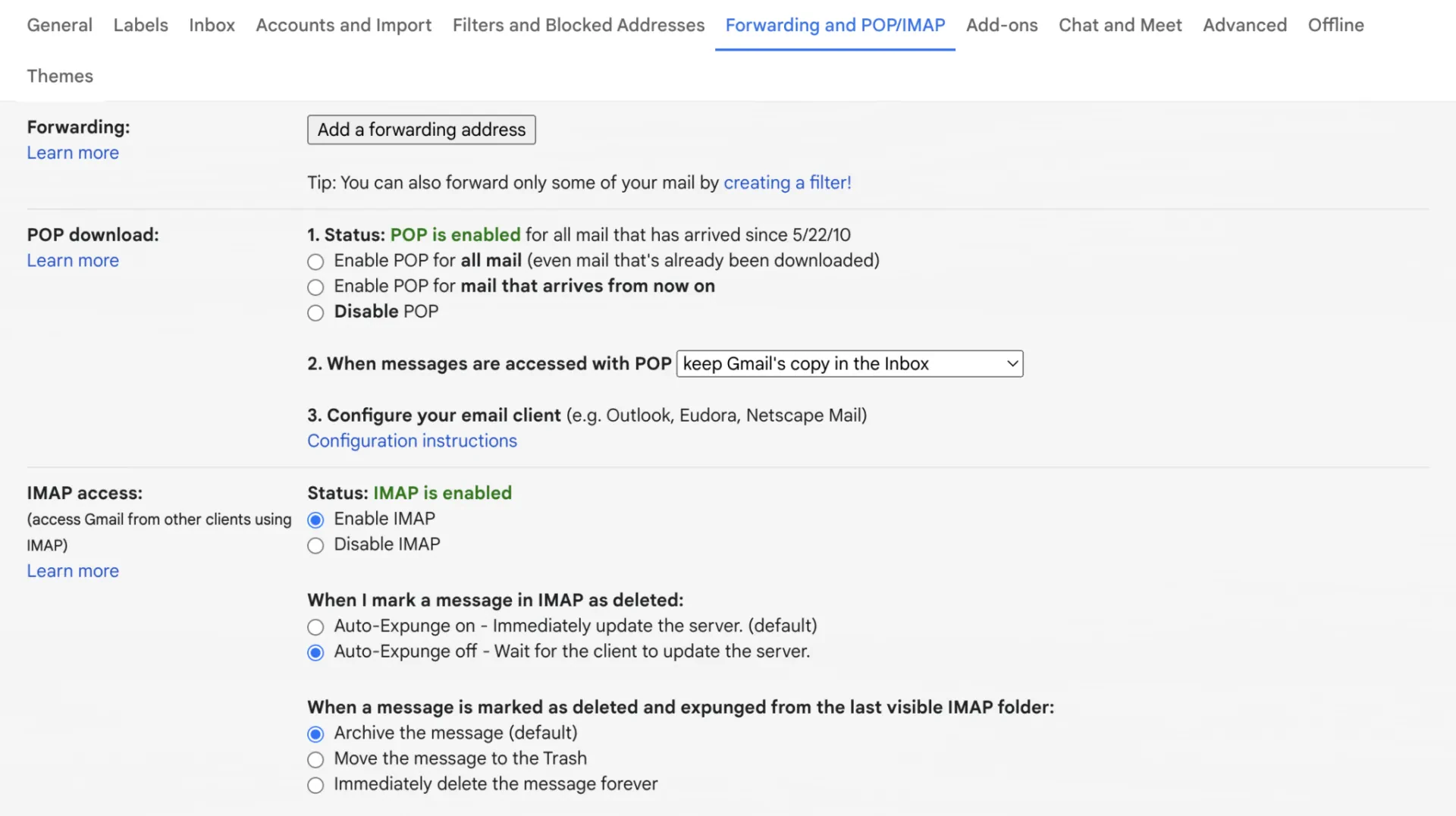
- If you need to forward these notifications to other team members, set up email forwarding in your Gmail account.
- In Gmail, go to Settings > Forwarding and POP/IMAP.
- Add forwarding email addresses and confirm them.
Learn more: How to create a registration form with google forms
2. Use the Form Notifications Add-On
Another simple and effective way to send Google Form responses to multiple email addresses is by using the Form Notifications Add-On available in the Google Workspace Marketplace. This tool extends the capabilities of Google Forms, allowing you to customize email notifications and include multiple recipients.
Steps:
1. Install the Add-On:
- Go to the Form Notifications Add-On page and click Install.
- Grant the necessary permissions.
2. Set Up Notifications:
- Open your Google Form and click on the puzzle-piece icon in the top menu to access Add-Ons.
- Select Form Notifications and configure your settings.
- Add multiple email addresses under the recipient section.
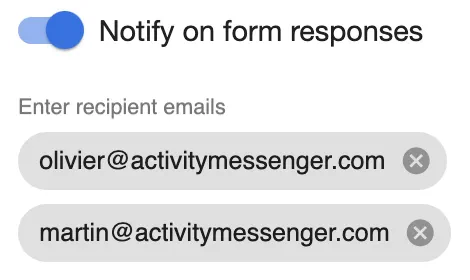
This add-on provides an easy-to-use solution for notifying multiple people without the need for scripts or external tools. It’s perfect for users looking for a simple integration directly into Google Forms.
3. Integrate Google Forms with Third-Party Tools
If you’re looking for a no-code solution, tools like Zapier can simplify the process.
Using Zapier:
Zapier can integrate Google Forms with email apps, allowing responses to be sent to multiple recipients.
- Create a Zap in Zapier.
- Set Google Forms as the trigger.
- Add an action to send an email via Gmail or your preferred email tool.
- Configure the recipients.
4. Manually Share the Responses
If you prefer a low-tech solution, you can manually share the linked Google Sheet with your team.
Steps:
- In the Google Sheet linked to your form, click Share in the top-right corner.
- Add the email addresses of your team members.
- Set permissions (e.g., View Only or Editor) based on their role.
While this approach isn’t automated and people don’t receive email notifications, it allows smaller teams to share Google Forms responses and data.
5. Build your form in a Google Forms Alternative
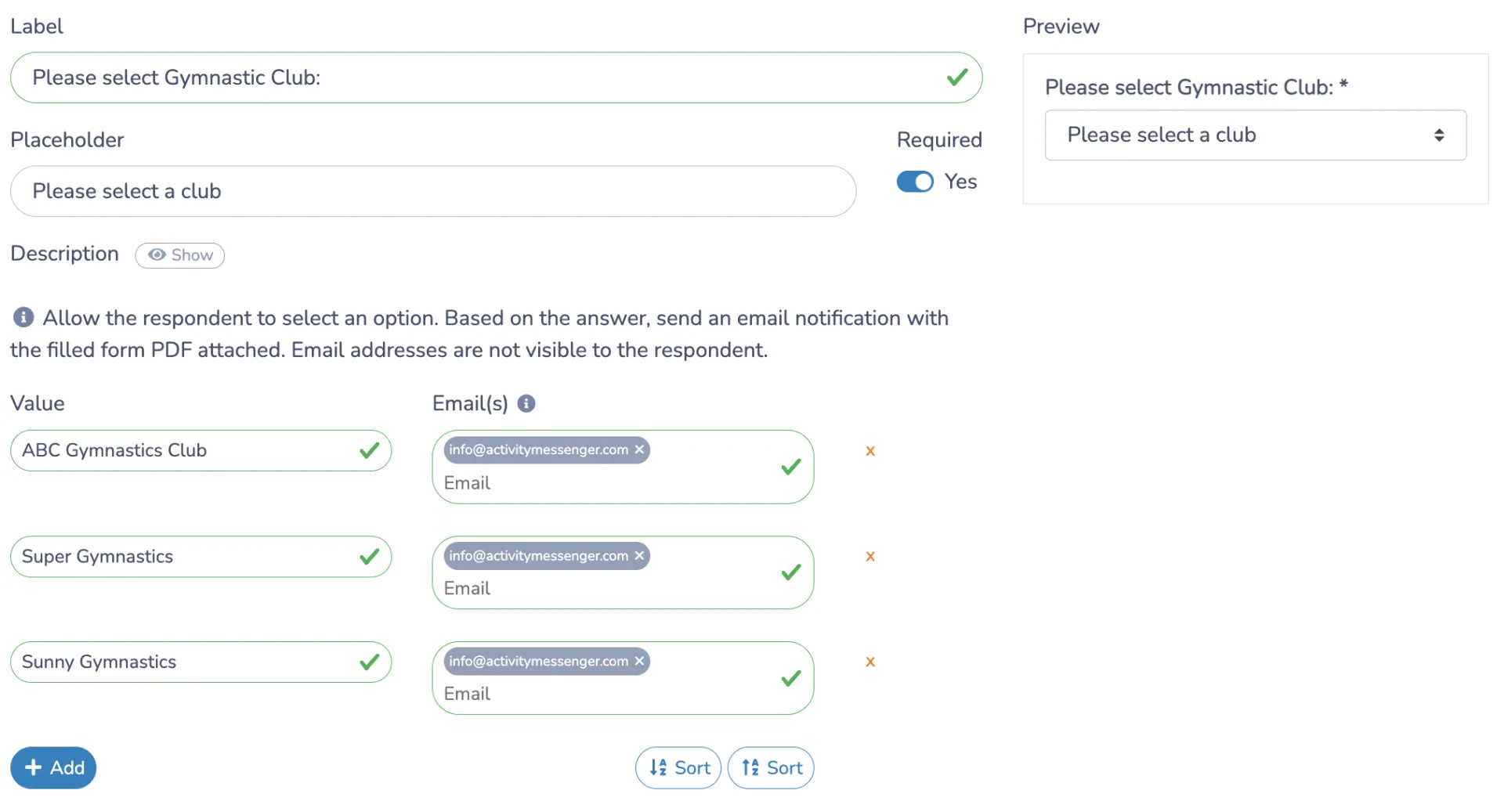
Activity Messenger is a robust alternative that integrates with Google Forms and offers advanced features like SMS notifications, automated workflows, and customizable emails.
- Create a form in Activity Messenger.
- Use the platform to create automated workflows that send notifications to multiple email addresses.
- For important notifications use SMS notifications.
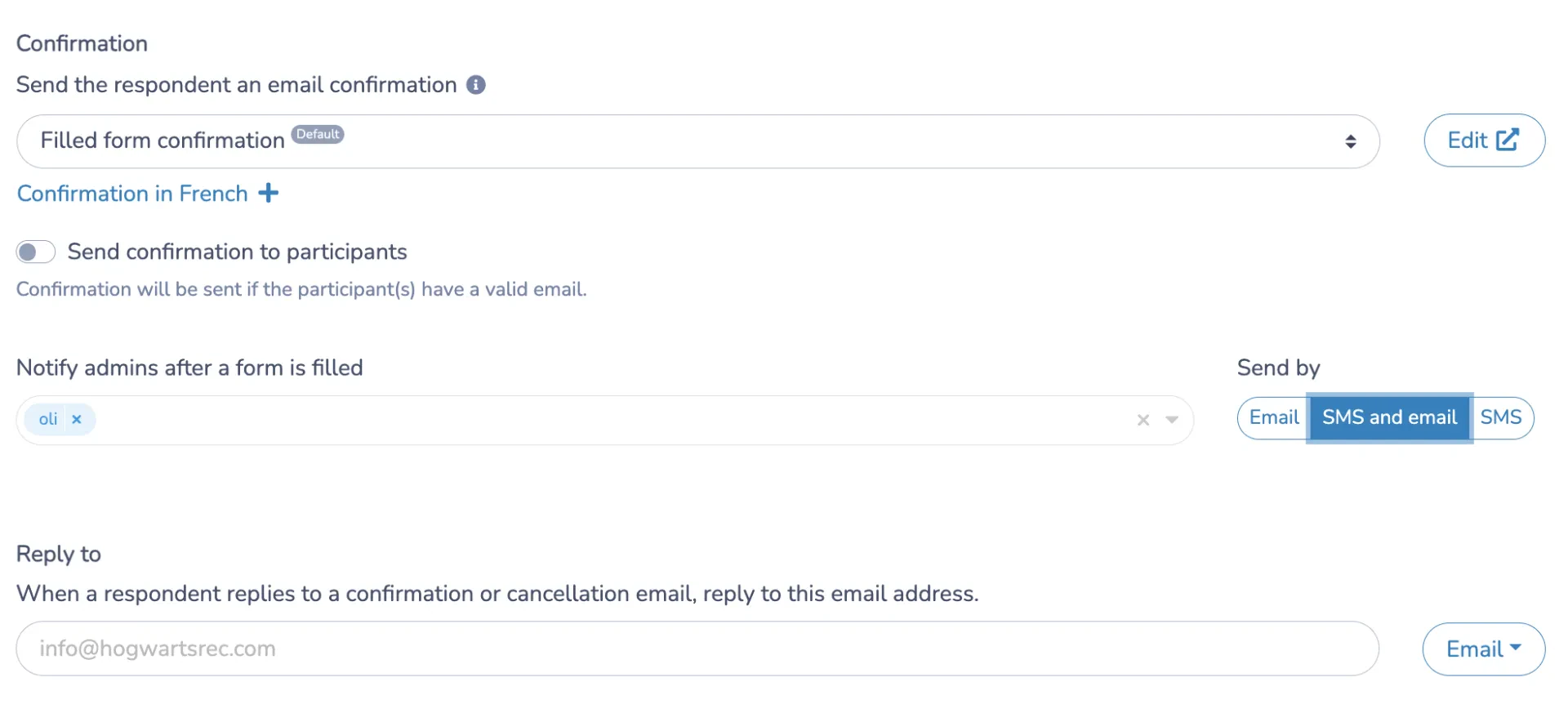
Activity Messenger also allows you to receive a notification only when a question on the form has been answered. For example, an injury report form could trigger a notification only if someone chooses “yes” to call the ambulance.
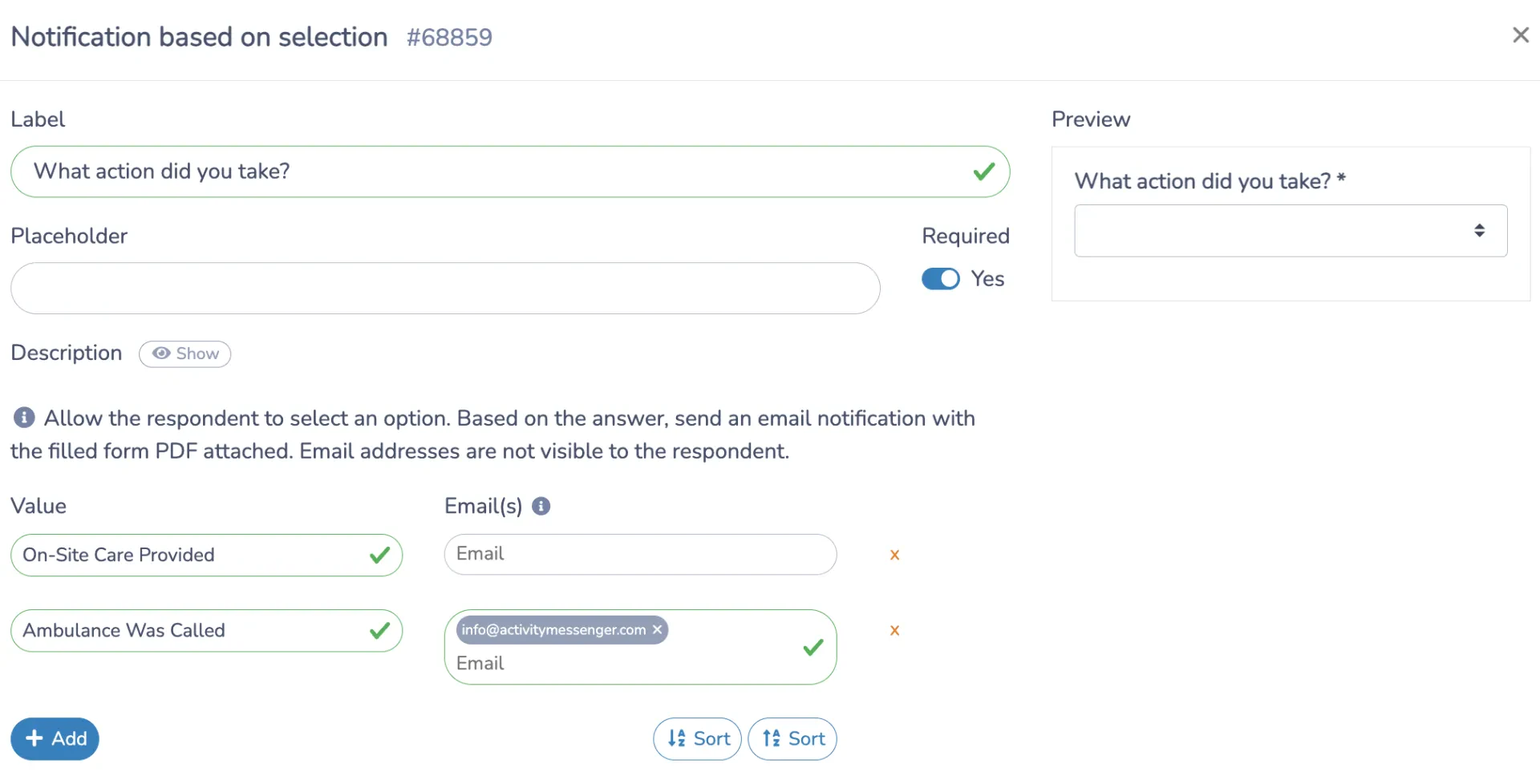
You can also route a form response to the correct business unit. For example, a sports association could send all form responses to clubs based on the club selected in the form.
Conclusion
Sending Google Form responses to multiple email addresses doesn’t have to be complicated. Whether you use a Google Marketplace add-on, third-party tools, or manual sharing, there’s a solution for your needs.
If your business requires frequent notifications and advanced features like SMS or selection-based notifications, you may want to consider a tool like Activity Messenger.
By setting up automated notifications, you’ll keep your team informed and responsive, saving time and improving communication efficiency.