Tracking student skill levels and progress is essential for running a gymnastics club, swim school, dance studio, or any skills-based program.
In this short guide, based on a demo walkthrough, you’ll learn how to create skill levels, assign them to students, let coaches update levels through attendance, fill progress reports, and enforce prerequisites when creating classes.
This article is inspired by insights from Olivier Rousseau, co-founder of Activity Messenger, who brings over twelve years of experience in online registration for kids’ sports programs.
Start by defining the skill levels your program uses (for example, Level 1–4). In the demo account shown in the video, three levels are created, but new levels can be added with a single click of the “+” button. Keep your naming consistent so coaches and families understand progression.
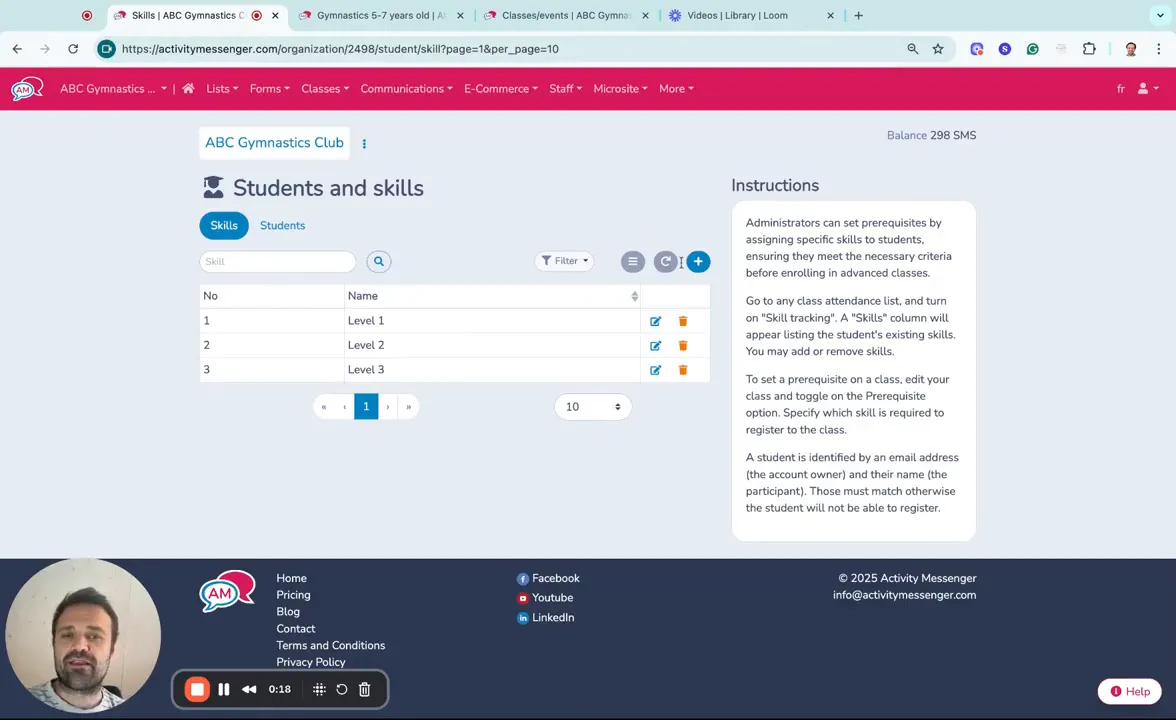
Once skills exist, assign students to the appropriate level from the student profile page. You can set the effective date when the skill level applies, including assigning levels for future dates (useful for promotions that take effect at the start of a term).
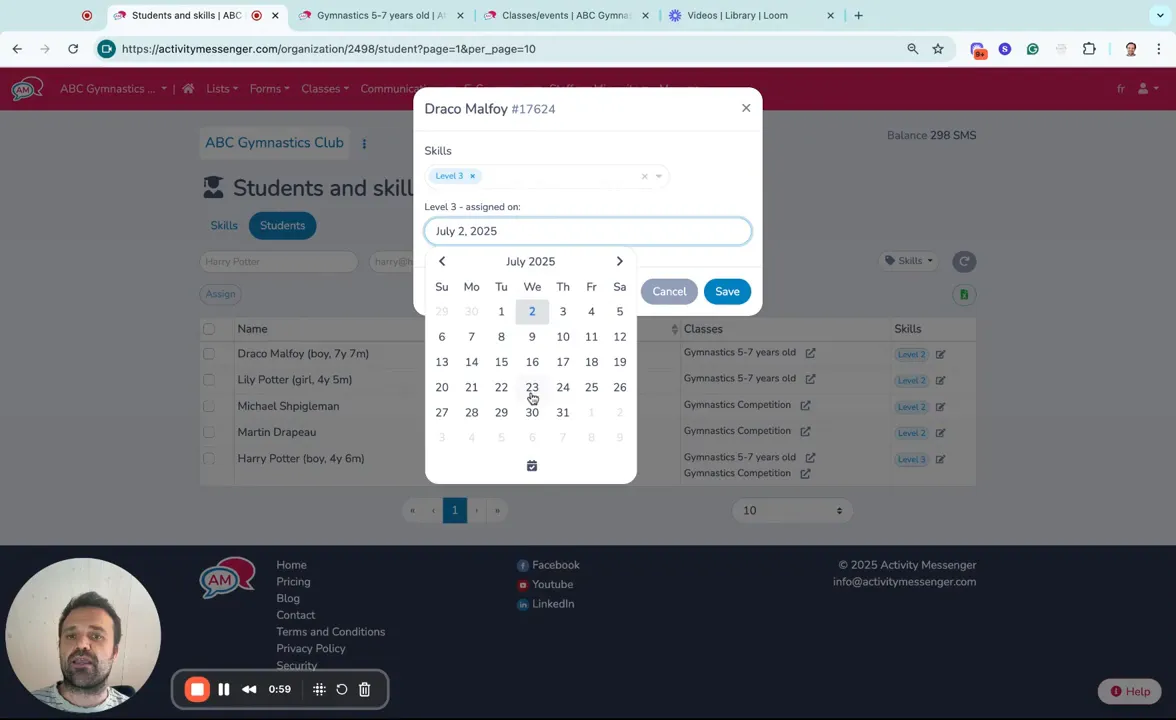
Admins can modify a student’s skill directly, combine multiple skills, or set the date the change should take effect.
In many programs, coaches are the ones who determine progress. Activity Messenger supports restricted access so staff can view only their attendance lists.
From those lists, coaches can:
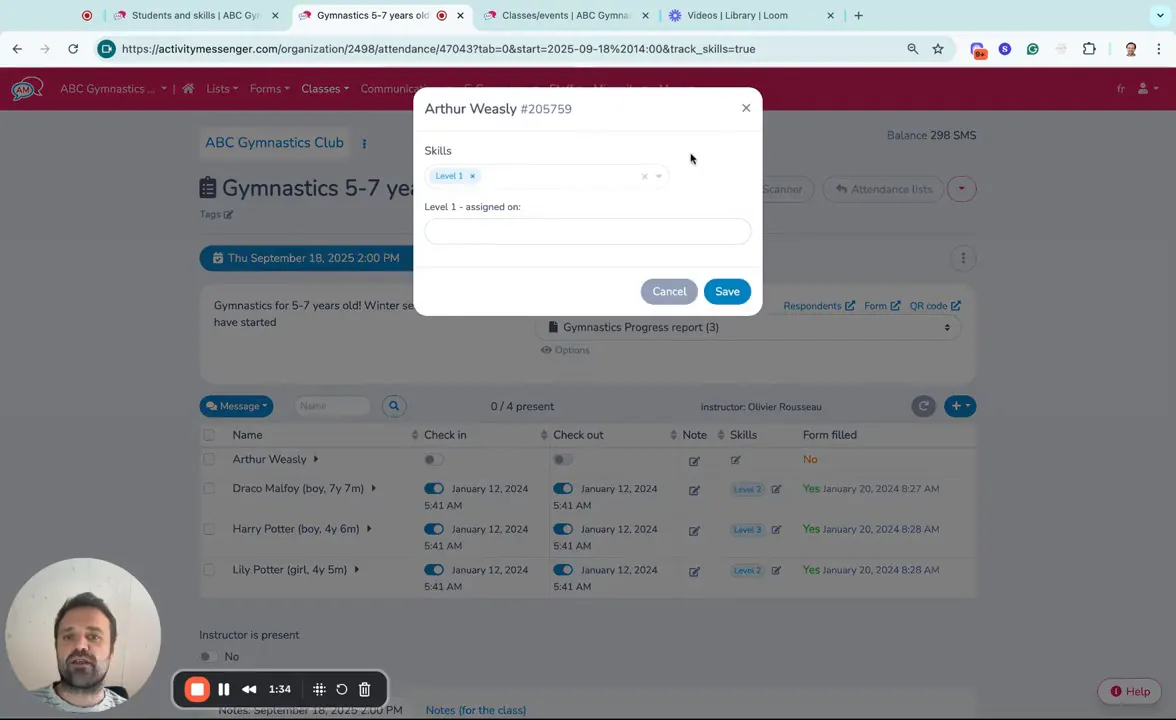
Example: A coach marks that a student has passed and assigns Level 1 on the current date. The change is saved and reflected on the student record.
For more detailed feedback, attach a progress report form to evaluations. These forms allow coaches to rate a student’s performance across specific skill sets and save the results to the student’s record.
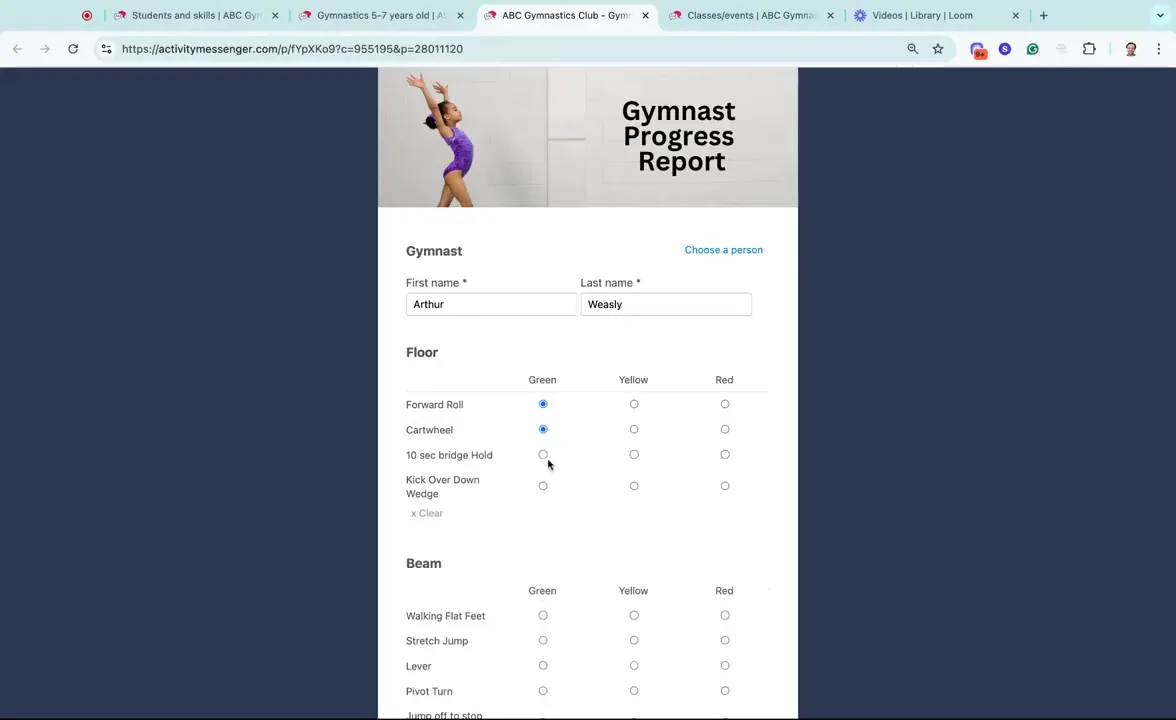
📌 Read More: Check out this separate walk-through on how to create online progress reports, using dance as an example. You can use these forms to standardize evaluations and communicate progress to families!
When creating or editing a class, you can set prerequisites so only students with the required skill levels can register. This helps ensure participants are placed in appropriate classes for safety and learning.
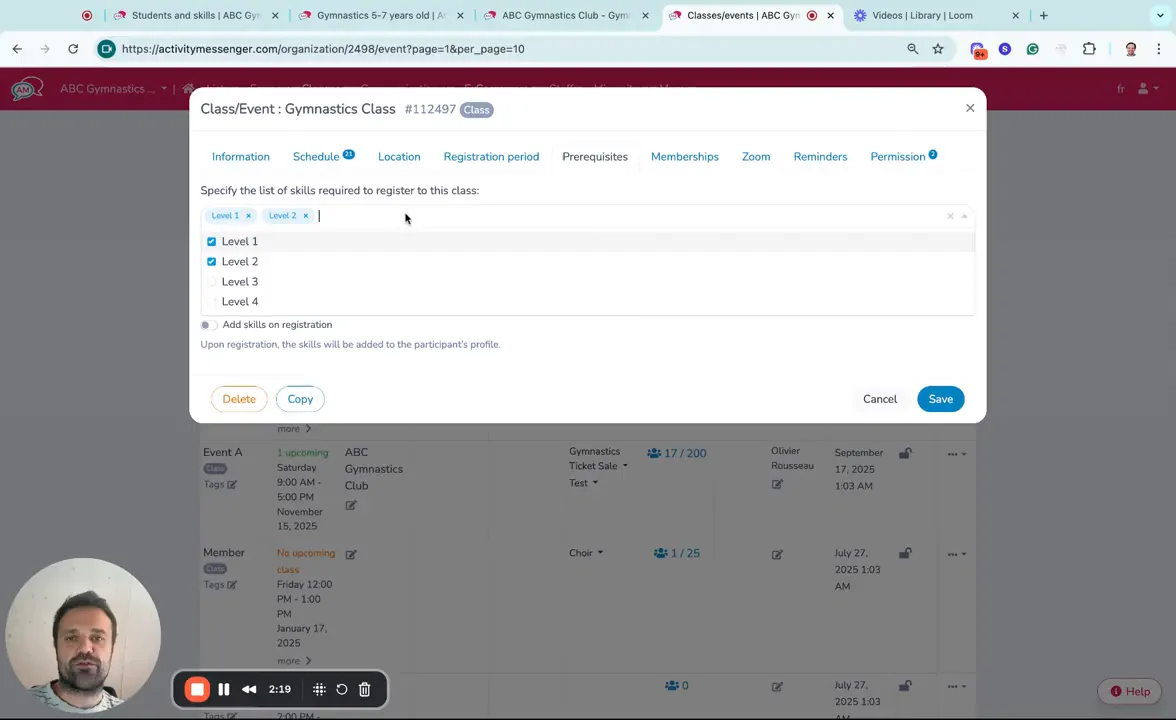
These options let you automate placement, open registration when appropriate, or capture registrant expectations at sign-up.
Ensure safe class placements, standardized evaluations, and smooth progress tracking with Activity Messenger.
Book a demo📌 Read More: Looking to improve your daily operations even further? Read how to automate these five essential tasks to streamline your dance studio, swim school, gymnastics club, or camp for reduced stress.
Go to the Skills area in your Activity Messenger admin, click the Plus (Add) button, enter the skill name (e.g., Level 4), and save. The new skill will be available for assignments and prerequisites.
Yes. When changing a student’s skill level, you can select the date the assignment should take effect. This is useful for promotions that begin with a new session or term.
Yes. Coaches with access to attendance lists can update student skill levels and fill out progress reports directly from their attendance view. Access is scoped so staff only see their assigned attendance lists.
When configuring class prerequisites, you can allow participants to register even if they don’t meet the required skills. Alternatively, you can configure the system to automatically assign a skill level upon registration.
Progress reports are customizable forms that coaches fill out to rate students across specific skills. The results are saved to the student’s record and can be used to inform class placement and parent communication.
Managing skill levels, progress reports, and class prerequisites doesn’t have to be a manual, time-consuming process. With Activity Messenger, you can empower coaches to track progress in real time, keep families in the loop, and ensure students are always placed in the right class.
💡 Ready to optimize skill tracking and progress reporting? Book a demo call today to see Activity Messenger in action.