Evaluation forms are an essential tool for collecting feedback, whether you’re evaluating a course, event, athlete, or customer experience.
Google Forms is a free tool that allows you to create custom evaluation forms quickly and easily.
In this article, we’ll walk you through the process of creating an evaluation form and progress reports in Google Forms.
Why Use Google Forms for Student, Employee or Athlete Evaluations?
Google Forms is a powerful tool that simplifies the process of creating and sharing forms. Here’s why it’s a popular choice for evaluations:
- Free: Google Forms is free and integrates with Google Workspace.
- Customizable: It offers a good range of question types and design options.
- Data Collection: Responses are automatically organized in Google Sheets for easy analysis.
- Shareable: You can share your form via email, social media, or a link.
Creating Your Evaluation Form in Google Forms
Step 1: Access Google Forms
- Go to Google Forms.
- Log in with your Google account if you aren’t already signed in.
Step 2: Start a New Form
- Click the Blank Form option to start from scratch, or choose a template.
Step 3: Add a Title and Description
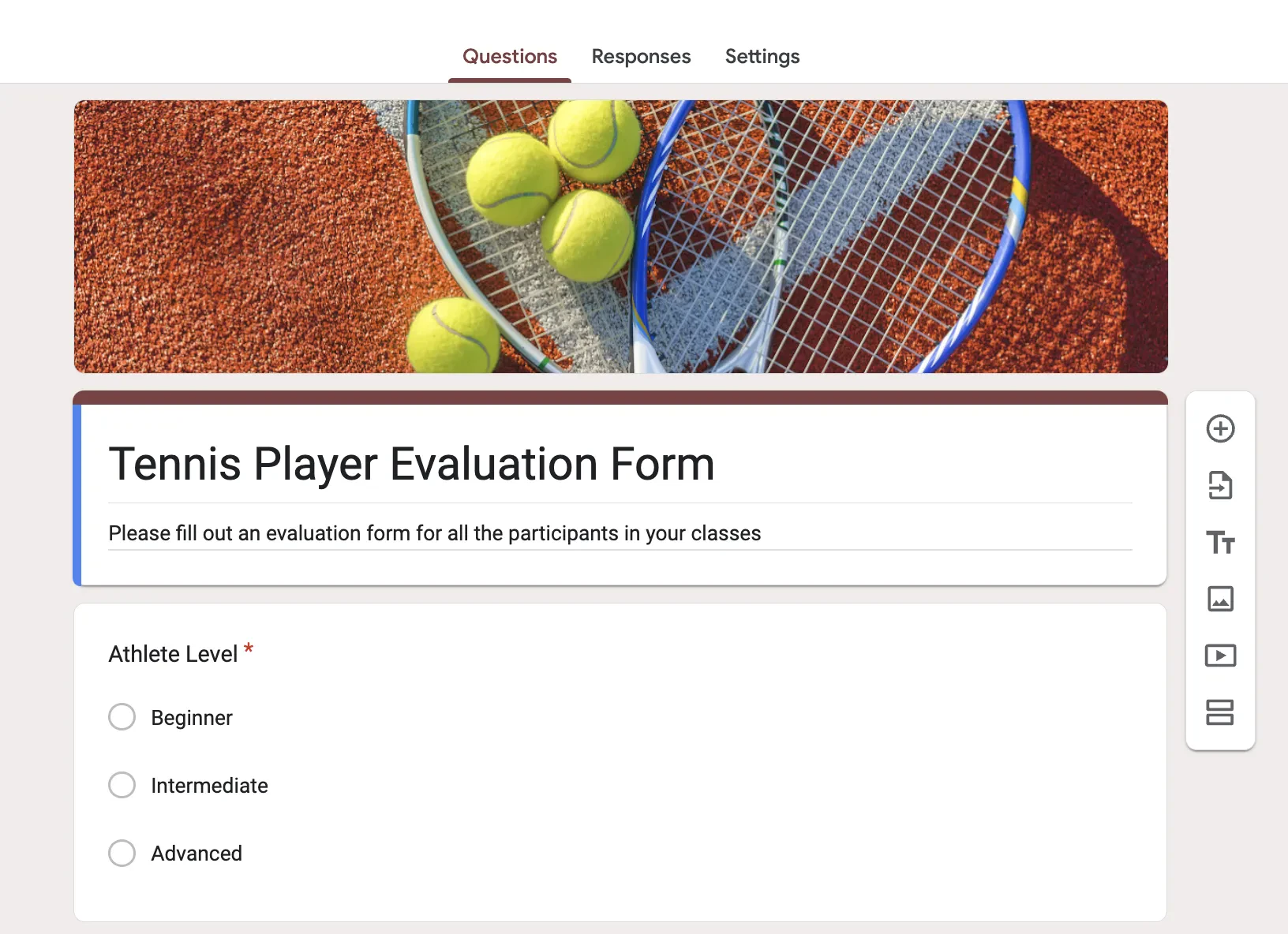
- At the top of the form, give it a clear and concise title, such as Tennis Player Evaluation Form.
- Use the description field to explain the purpose of the evaluation. Example: “Please fill out an evaluation form for all the participants in your classes”
Step 4: Add Questions
Google Forms provides several question types, so you can collect various types of feedback. Here are some examples:
- Multiple Choice Questions:
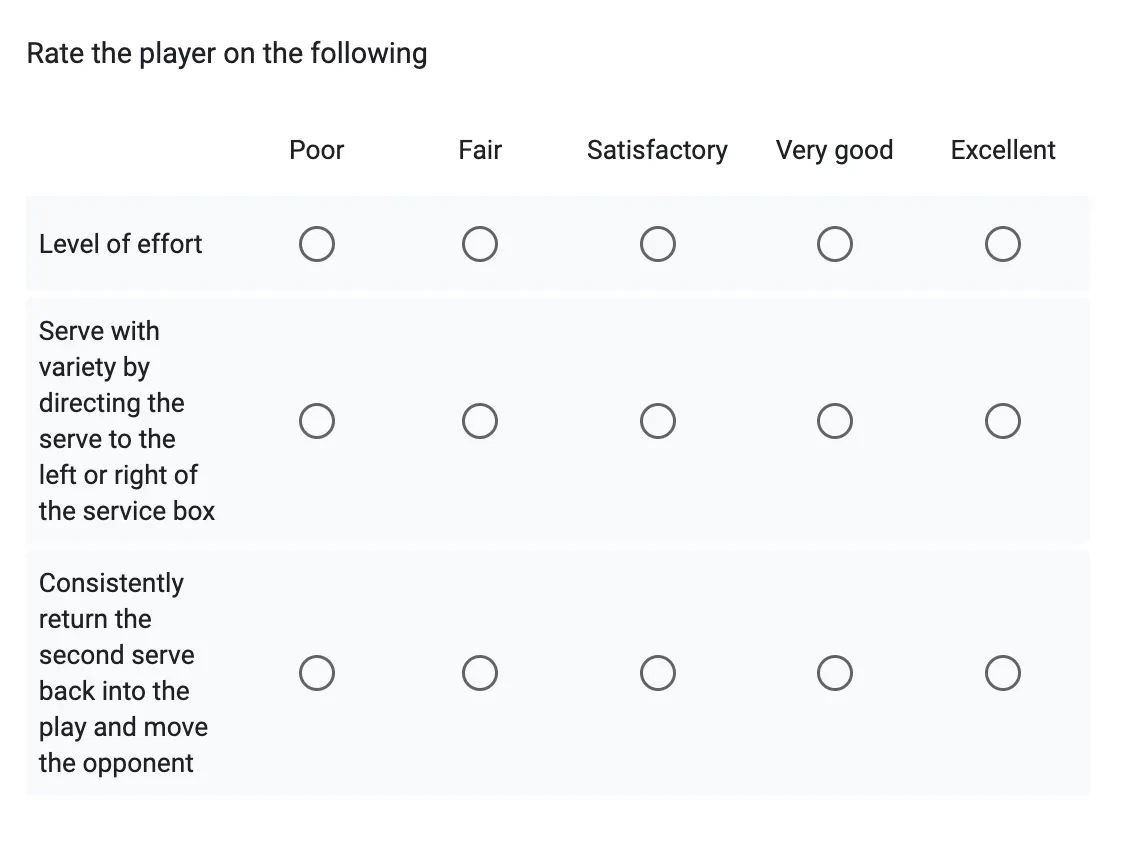
- Example: Rate the players level of effort
- Options: Very Satisfied, Satisfied, Neutral, Dissatisfied, Very Dissatisfied.
- Short Answer Questions:
- Example: What did the player improve most over the cours of the session?
- Checkboxes:
- Example: Which training skill was the most useful?
- Allow respondents to select multiple options.
- Dropdowns:
- Example: What level is the player currently registered in?
- Paragraph Questions:
- Example: Do you have any additional comments or suggestions?
Step 5: Customize Your Form
- Use the Settings menu to adjust options like requiring responses for certain questions or limiting evaluations to one per athlete or player.
Step 6: Test Your Form
- Before sharing, click the Preview icon (eyeball) to see how your form will appear to your staff or evaluators.
- Test the form yourself to ensure all questions are clear and functioning properly.

Step 7: Share Your Form
- Use the Send button to share your form with your instructors. You can:
- Share via email.
- Copy a link to share
- Generate a QR code to share in your staff room
Learn more: Create a registration form with google forms
Analyzing the Responses
Once responses are collected, Google Forms automatically organizes them into a summary view and a linked Google Sheet for deeper analysis. Use these tools to
- Identify trends in skill development
- Highlight areas of improvement for each player
- Celebrate successes or improvements noted by your coaches
Why Consider Alternatives to Google Forms for Your Evaluation Forms
While Google Forms is versatile, you may need features that it doesn’t offer, such as
- Advanced analytics.
- Integration with attendance tracking
- Email, SMS, and mass certificates
Platforms like Jotform, Typeform, or Activity Messenger offer robust features for specific evaluation and skill tracking needs.
Why Consider Activity Messenger for your Evaluation Forms?
Activity Messenger offers a feature-rich solution tailored for organizations that need more than just form submissions.
Here’s why you should consider creating feedback forms with Activity Messenger:
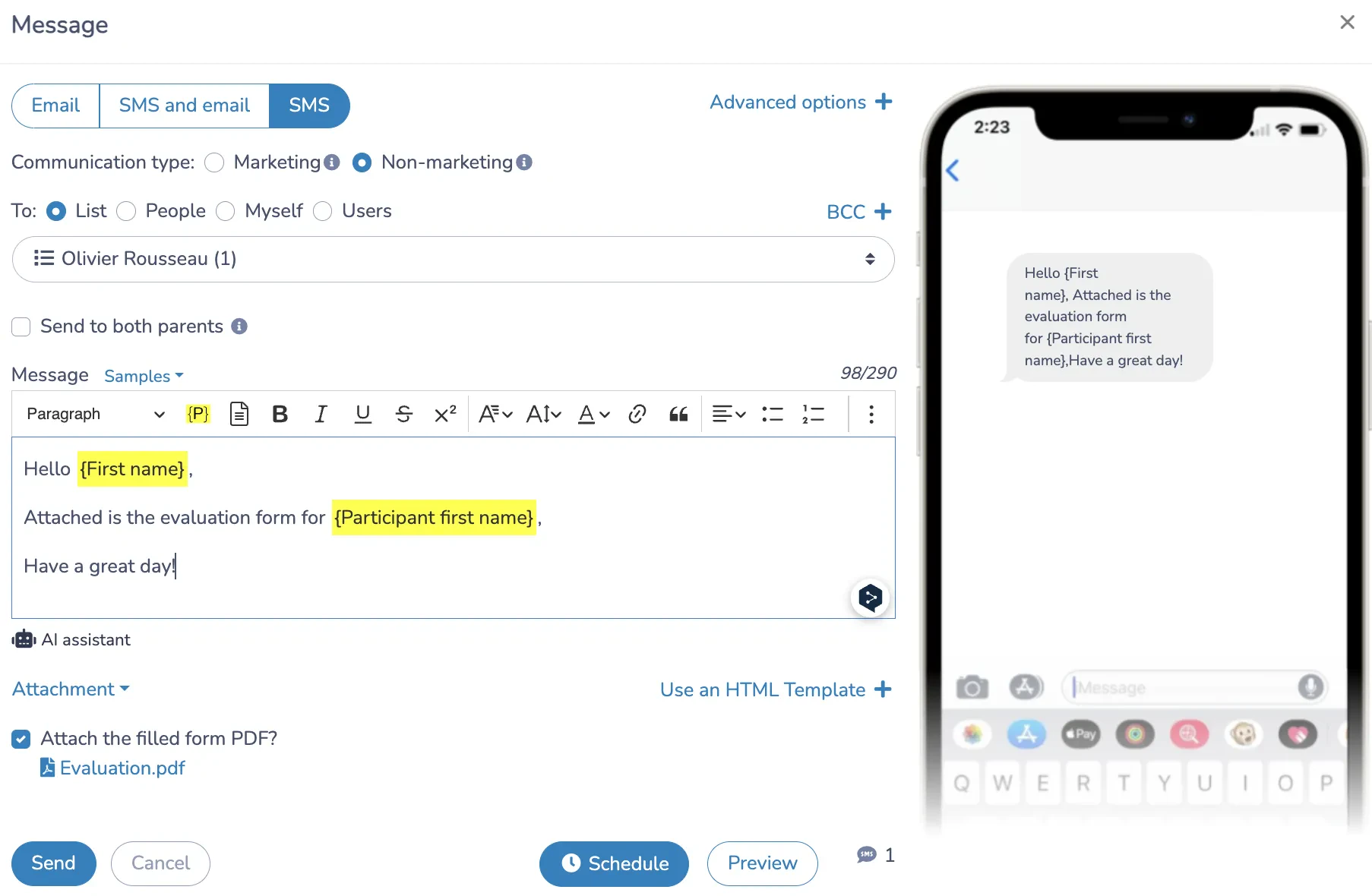
- Automated SMS Follow-Ups
-
- With Activity Messenger, you can send SMS reminders to ensure that instructors complete their assessment forms. This feature is especially effective for improving response rates and getting your skills assessments out on time.
- Pass or Fail Confirmation Emails
- Automatically notify players of their assessment results with certificates, progress updates, or level completion via personalized emails. This is ideal for programs where feedback directly impacts next steps.
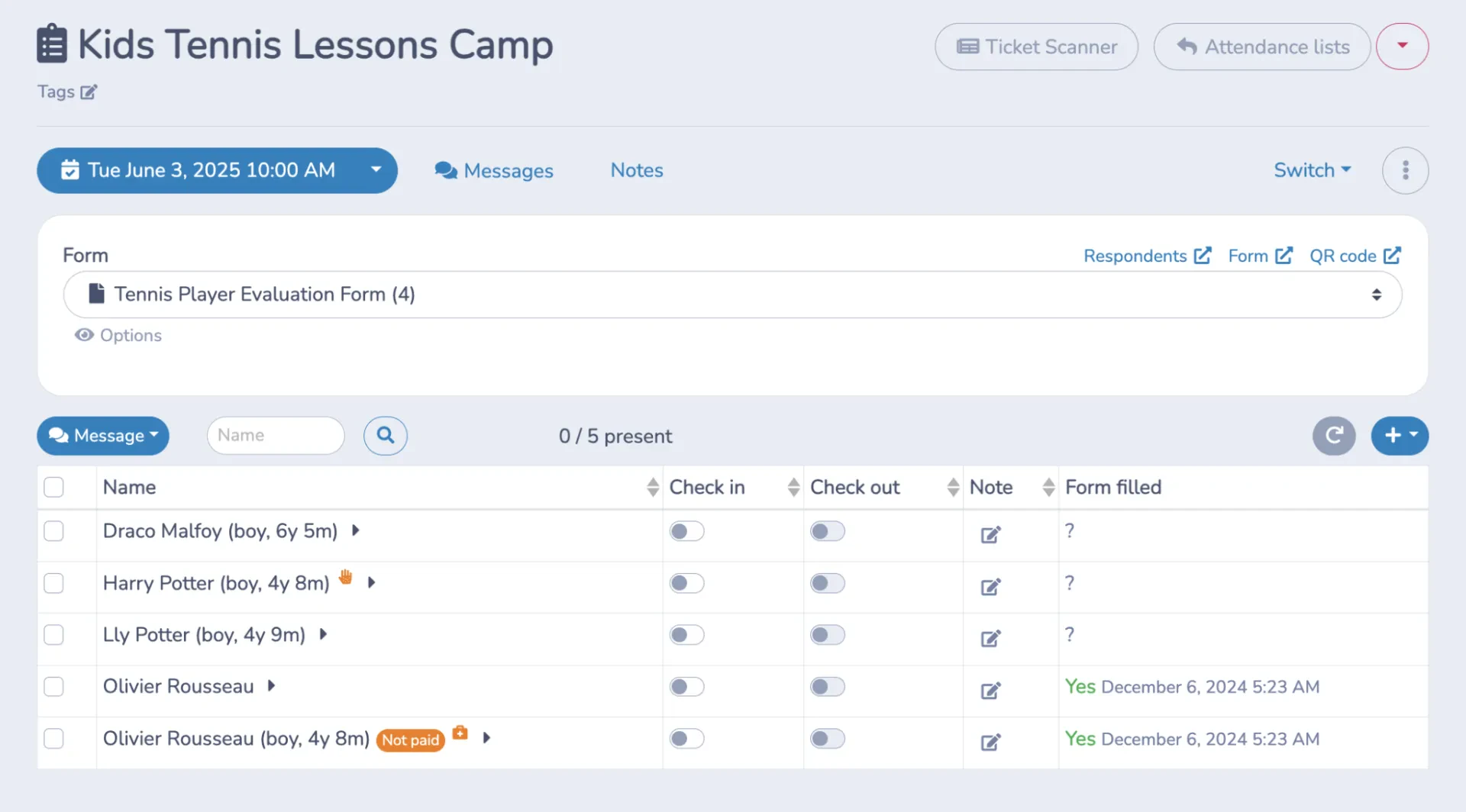
- Attendance Tracking Integration
- Activity Messenger helps you simplify attendance tracking. Your coaches and analysts can track attendance, add player notes, and evaluate skill development from a mobile first attendance list.
- Role-Based Access
- Limit access to specific forms or data based on user roles. For example, instructors can view feedback for their sessions, while administrators can monitor all responses.
Learn more: Why google forms might not be the best choice for growing businesses.
Comparison Table: Google Forms vs. Activity Messenger
| Feature | Google Forms | Activity Messenger |
|---|---|---|
| Ease of Use | Simple interface, easy to set up | User-friendly with more advanced customization options |
| Customization | Limited branding (basic color and logo) | Full branding control with Canva integration. |
| Question Types | Variety of question types (e.g., multiple choice, short answer) | All standard types + conditional questions and advanced automation |
| Response Collection | Responses via email or link | Email, link, SMS reminders, and QR codes |
| Automation | No automation | Automated emails, SMS, and workflows |
| Attendance Tracking | Not available | Fully integrated attendance tracking |
| Role-Based Access | Not available | Role-specific permissions for access and visibility |
Which One is Right for You?
- Google Forms is ideal for individuals or small organizations looking for a quick, no-cost solution for basic evaluations and skill assessment forms.
- Activity Messenger is the better choice for organizations – a solution with more advanced workflows and communication tools. Features like SMS reminders, role-based access, and attendance tracking integration save time and ensure a better reporting workflow between athletes, coaches, parents, and administrators.
Conclusion
Creating an evaluation form or skill assessment form in Google Forms can help you gather valuable information about your athletes or players. By following this guide and keeping best practices in mind, you can create a form that simplifies the process for you and your coaches.
If you need more advanced features or industry-specific tools, consider exploring other platforms like Activity Messenger, which combines online forms, newsletters, SMS functionality, and more in one solution.
Book a demo with an Activity Messenger expert.